Your First Transaction on Register
Congratulations on setting up your new Register account! We designed Register to make in-person transactions at your farm stands and farmers markets faster and more seamless. To place your first order, follow the instructions below.
How to complete a transaction on Register
1. Add a customer to the cart if applicable and start adding products to cart.
If you have a customer that has shopped from you before from your online GrownBy Marketplace, you can add them to the cart. It is ideal to add known customers to their orders so you can both easily track past orders and apply Farm Credit if they have any available.
Add a Customer to an Order: How to add a customer to an order on Register
If you do not add an existing customer, the order will be placed for a generic 'Walk-In Customer', and that is what will show on your order reports.
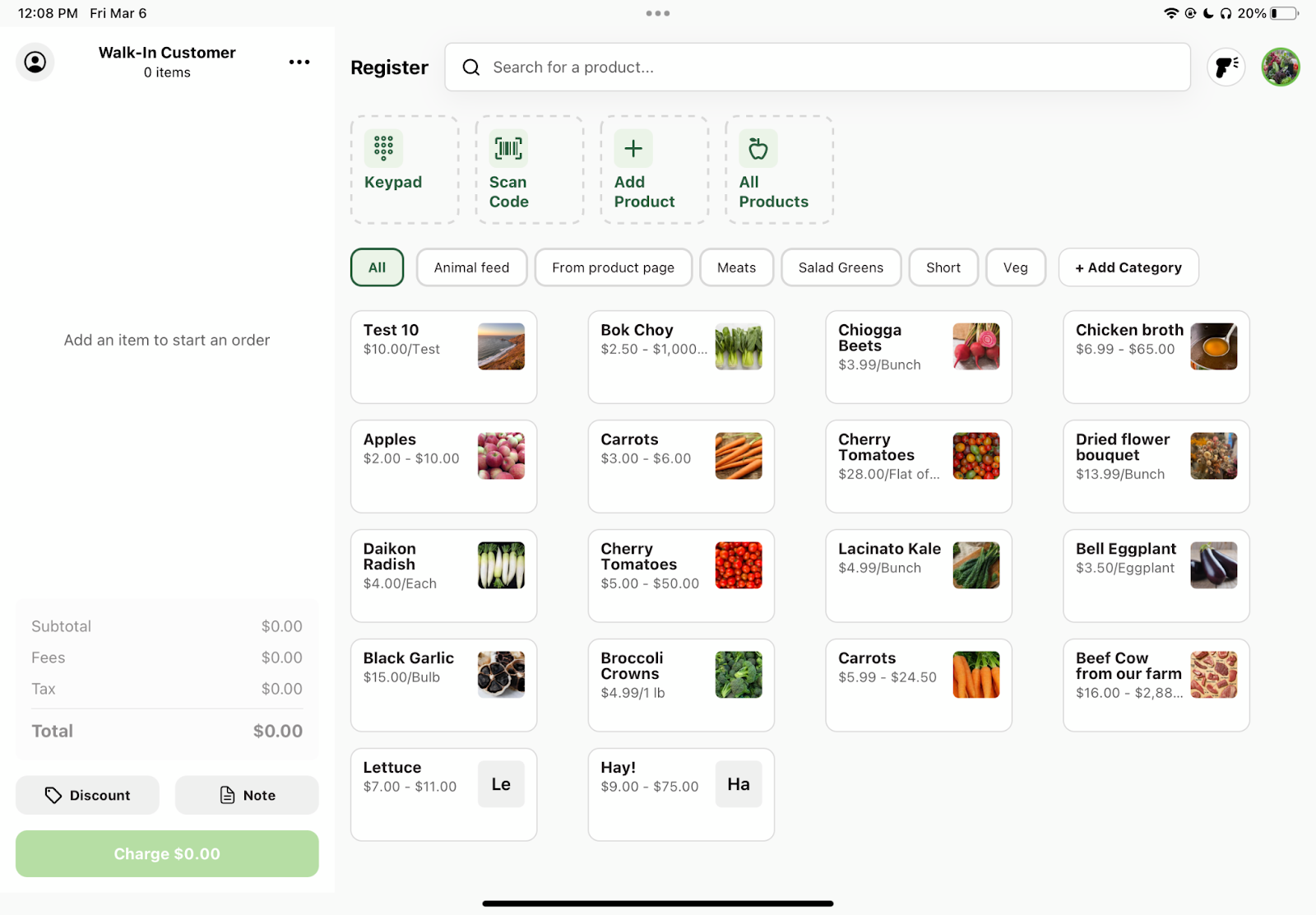
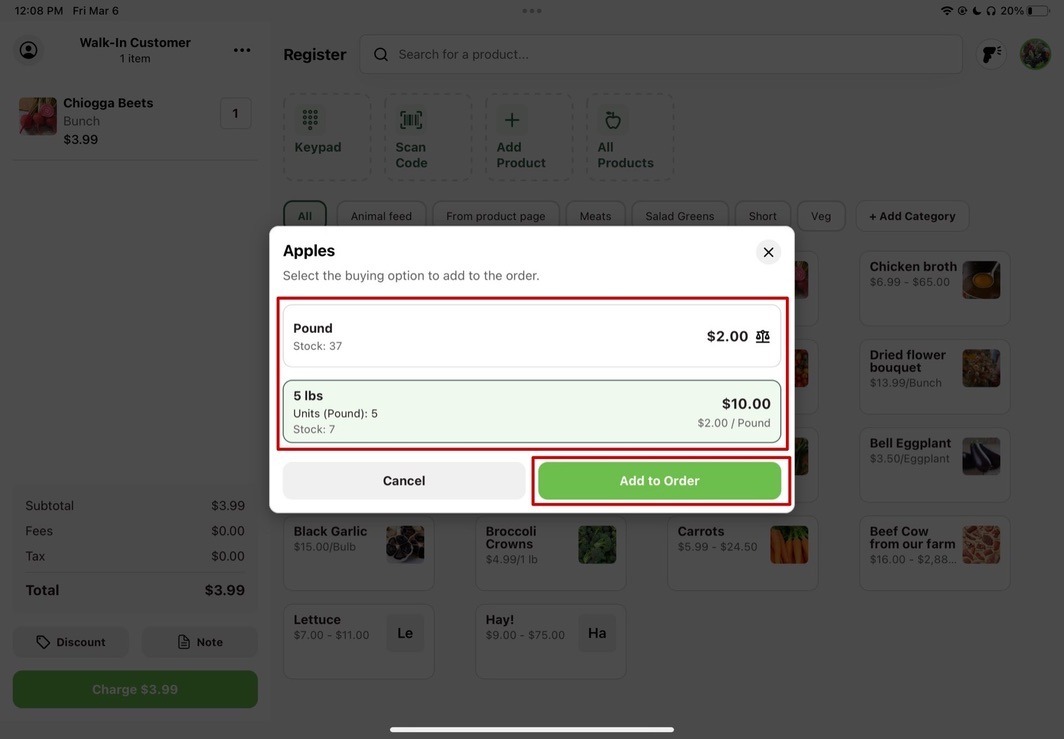
2. Add products to cart. Make sure to choose specific item quantity if applicable.
Now that you have your cart ready for a known customer or walk-in customer, you can start adding their products to the cart. Select the items they would like to purchase. If you need to increase the quantity, tap the same product again and it will add another one to the cart.
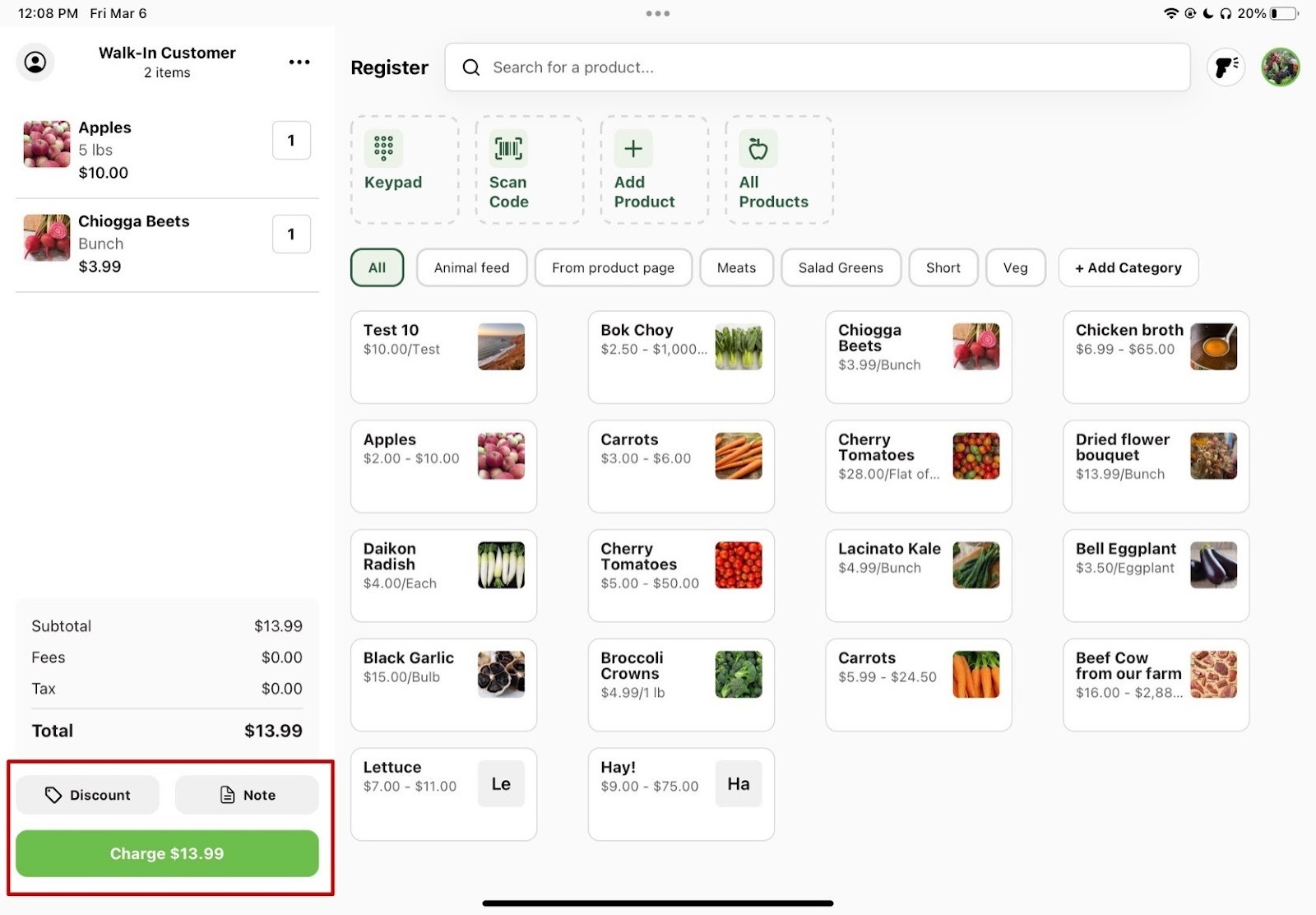
3. Add discounts or order notes if needed. Then select "Charge".
Once their cart is full, you have the option to add a discount to their order or an order note.
Add a Discount to an order: Using promotions on Register
Add a Note to an Order: Adding order notes to Register
After you've added what you need to your customer's order, tap Charge to go to the checkout screen.
4. Select payment method.
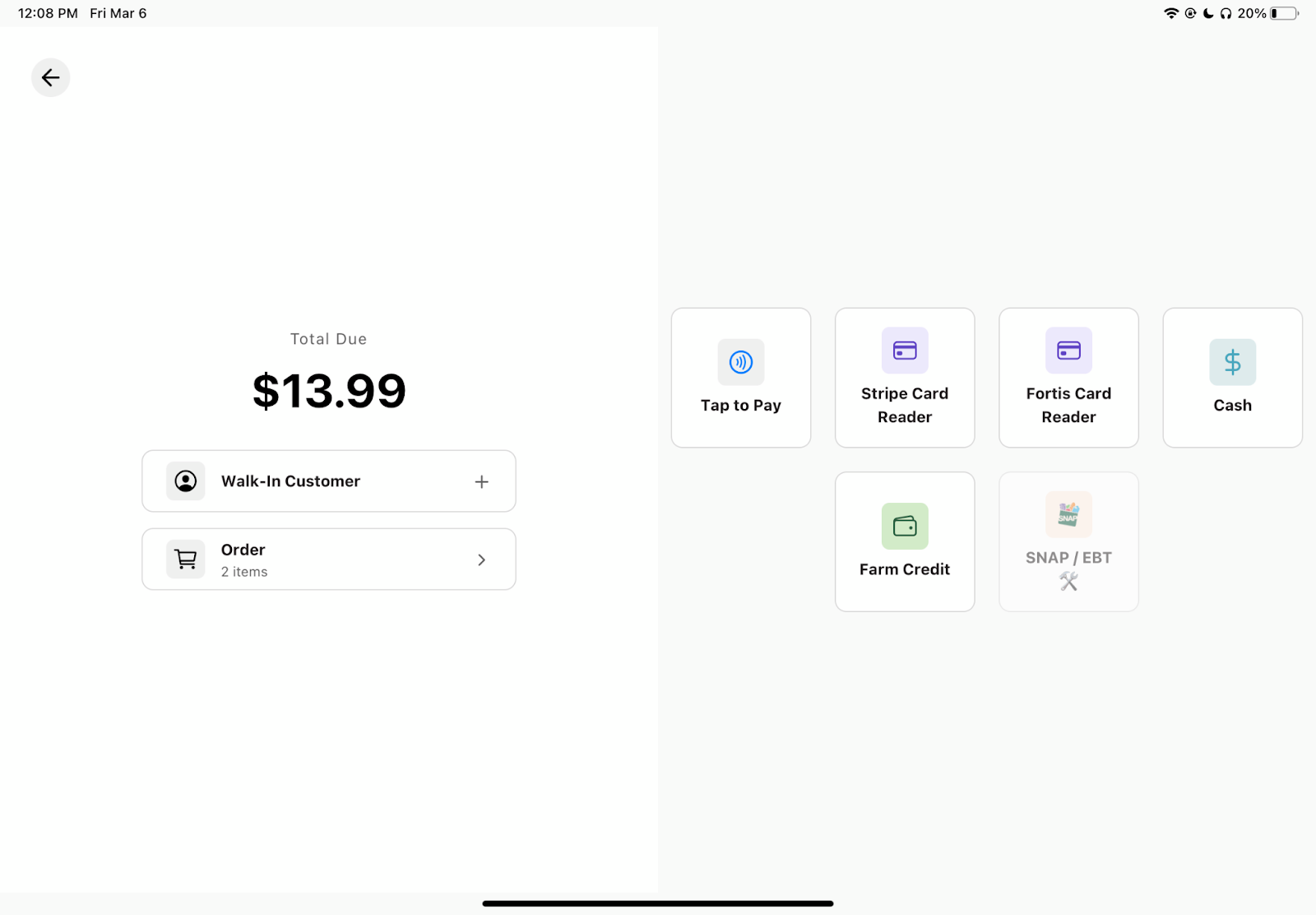
The checkout screen shows the amount due and the payment methods on the side. The following payment options are available:
- Tap to Pay
- Stripe Card Reader
- Fortis Card Reader
- Cash
- Manual
- Farm Credit
- EBT, for farms using a Fortis card reader
You don't have to collect the whole balance on a single method, you can apply a partial payment on one method and cover the rest with another (for example, some Farm Credit and the remainder on a card). The total due updates to show the amount still remaining until the order is paid in full.
5. For card payments.
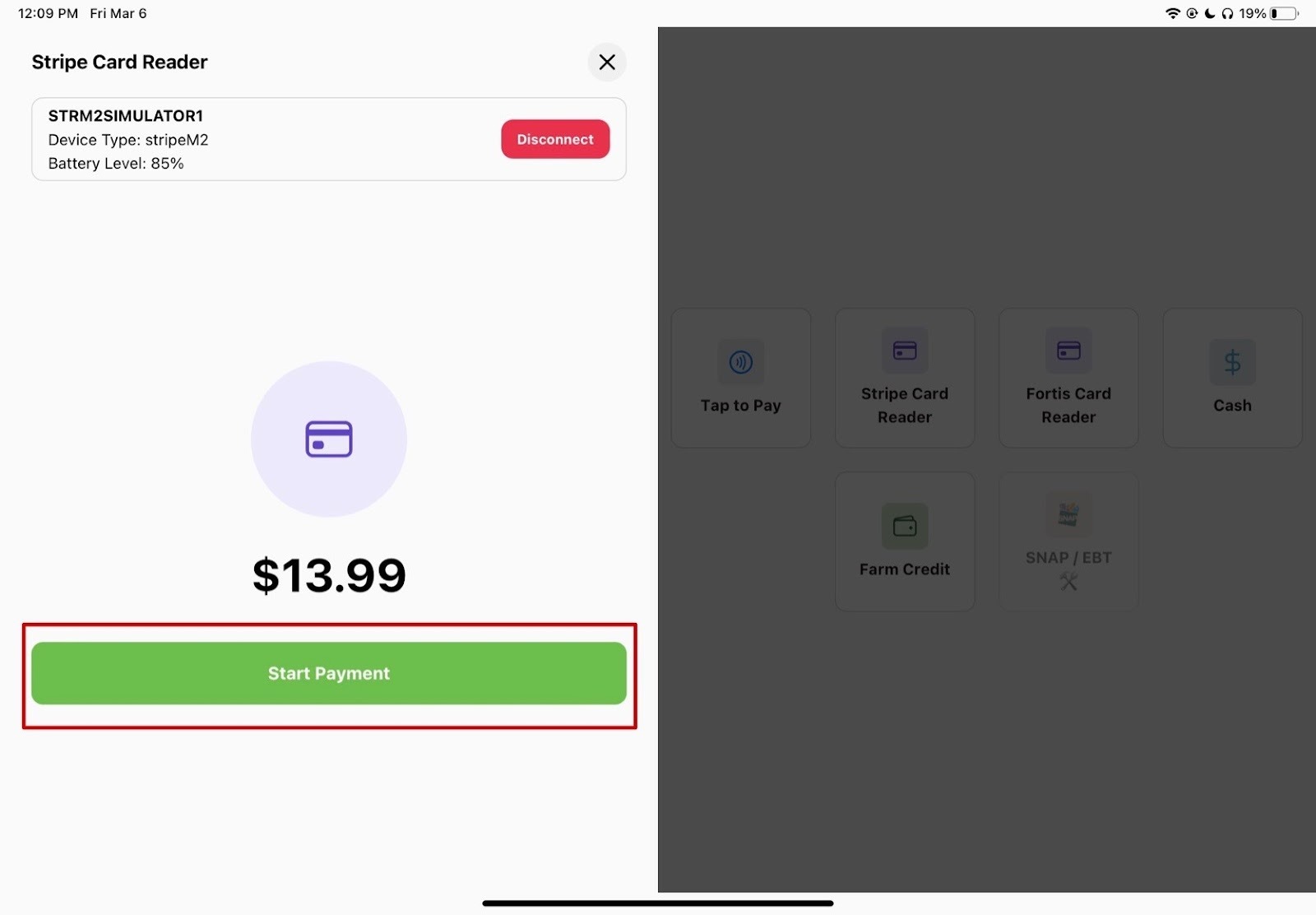
For Card payments (Tap to Pay, Stripe Card Reader, or Fortis Card Reader), press Start Payment, and your customer can tap, insert, or swipe their card whenever they're ready.
6. For cash or manual payments.
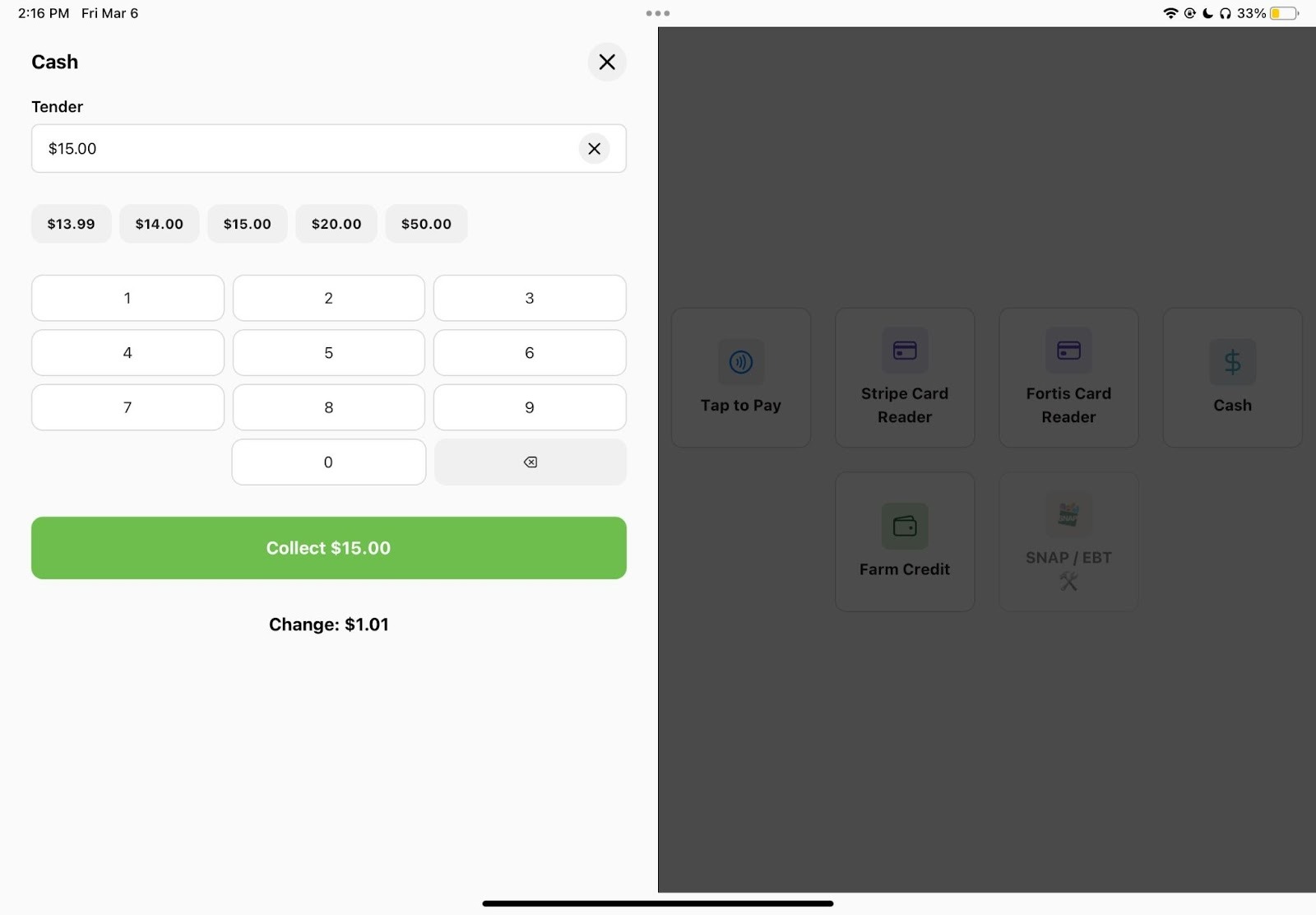
For Cash payments, the amount field starts filled in with the balance due, and quick-amount buttons help you ring up round amounts. Enter what the customer hands you and the screen shows how much change to give back.
For Manual payments, record a payment taken outside the app, such as a check or a market voucher. Pick the payment type, confirm the amount, and add an optional note.
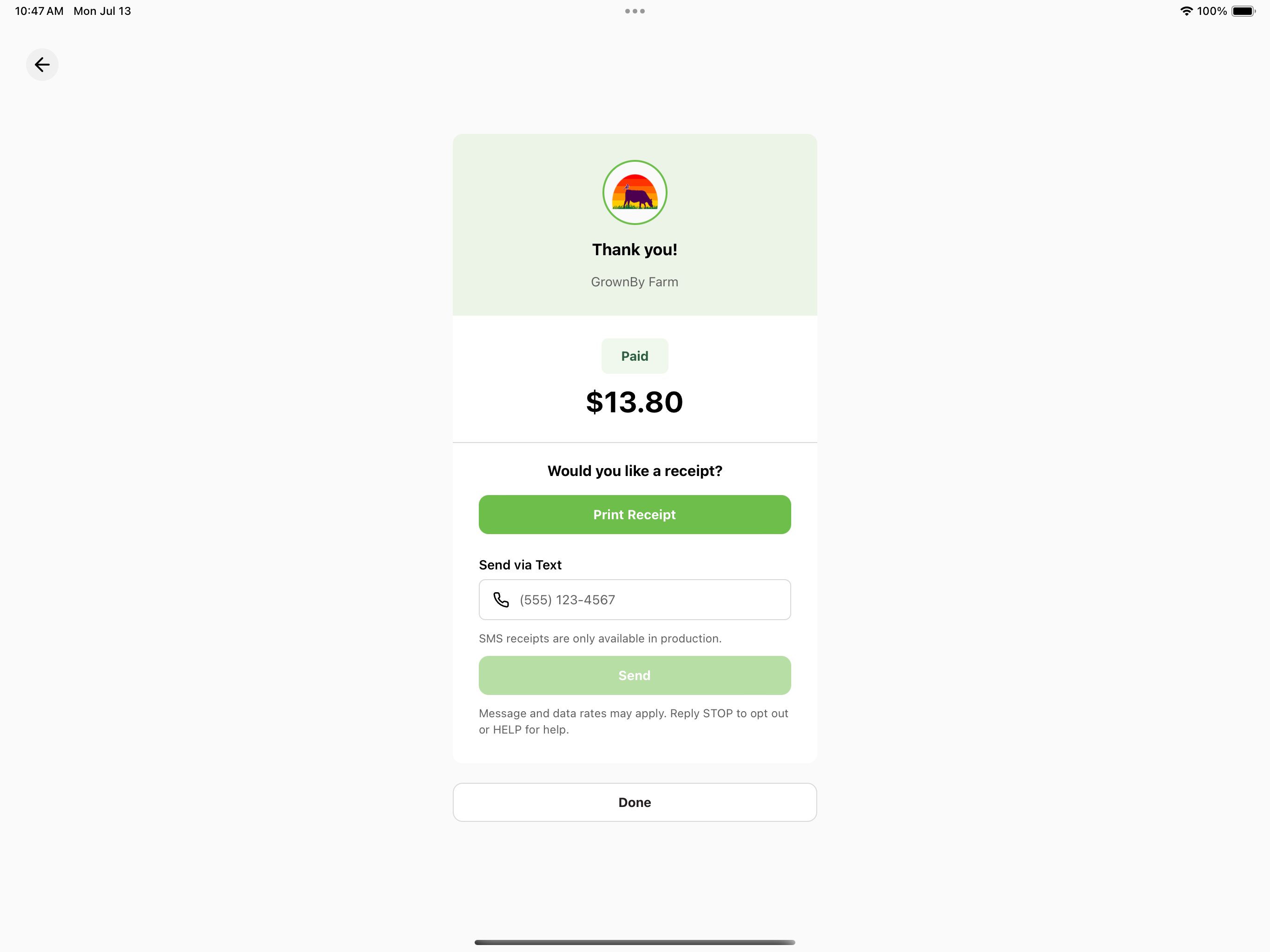
7. Finish checkout.
When the payment is complete, you'll see a Thank you screen confirming the order is Paid, along with the total. From there, you can Print Receipt (if a printer is connected) or Send via Text to the customer's phone. Tap Done to finish. That's all you need to do to complete your first purchase — enjoy using Register!