Order notes add context to transactions in Register, explaining why things like discounts, refunds, or unusual charges occurred. This can help you when looking back at invoices to better understand reports and maintain clear documentation for reviews or disputes.
Step by Step Guide
1. Add note.
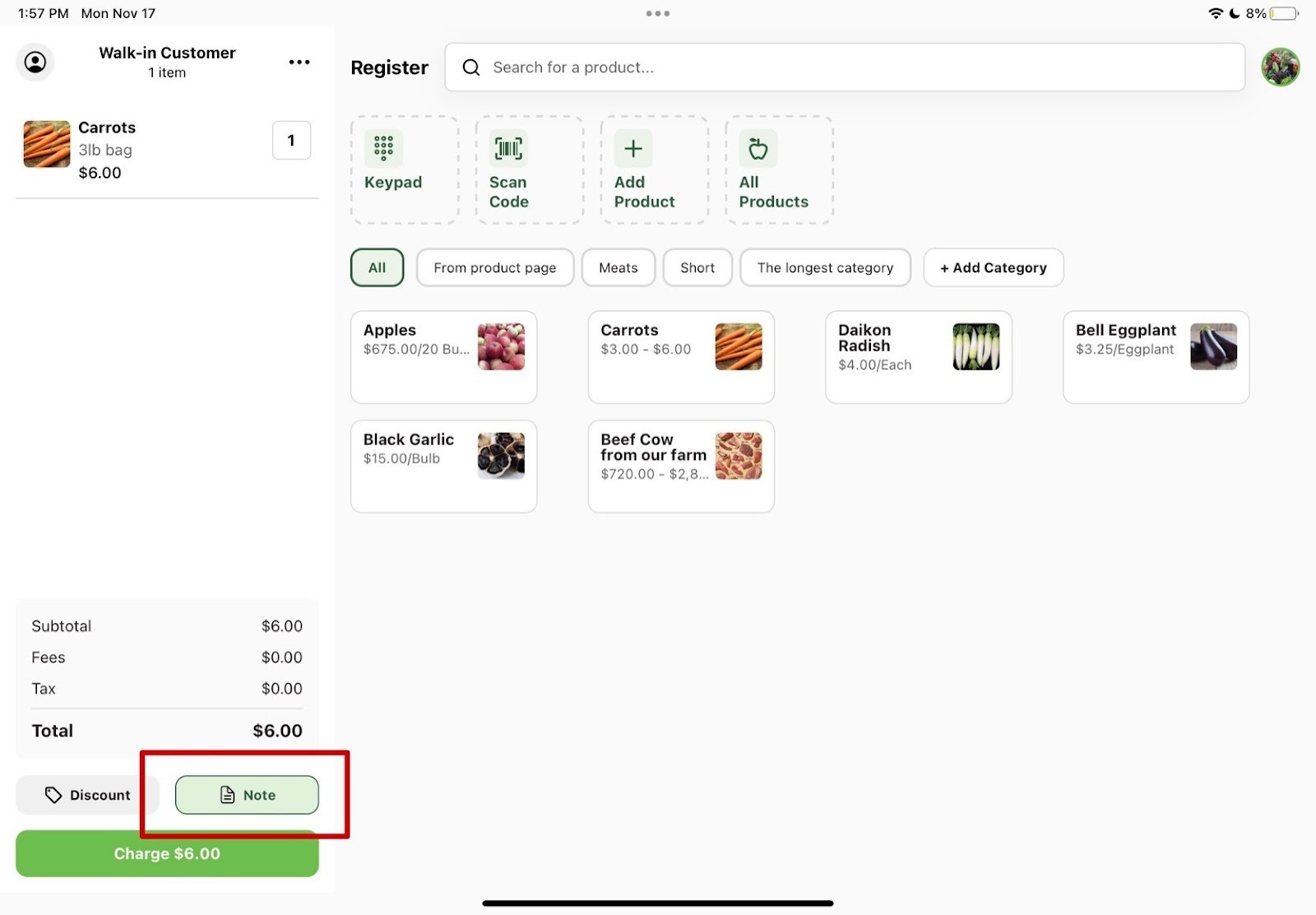
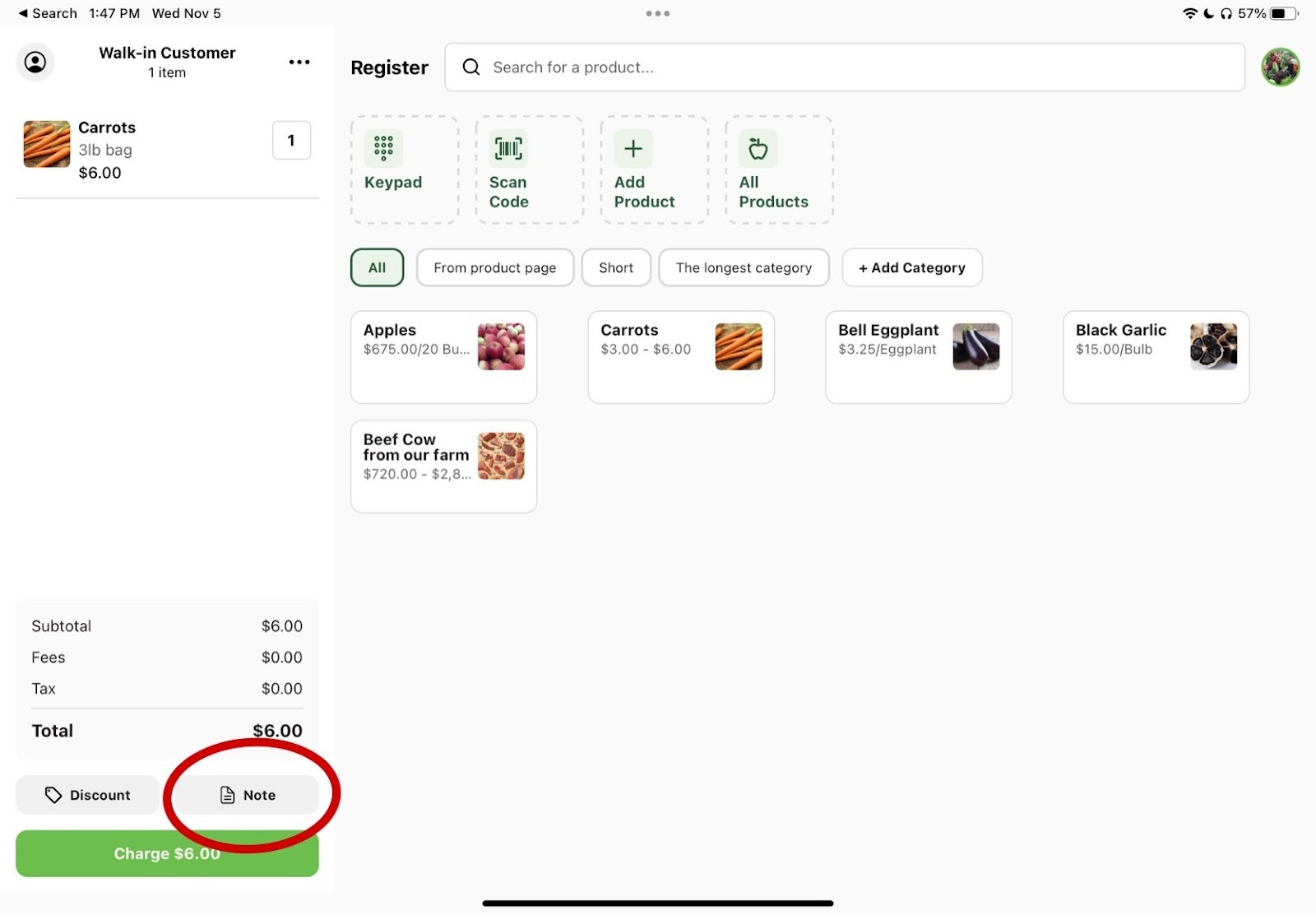
After adding your customer's products to the cart, select Note (located above the Charge button in the staff cart) to add a note to the order.
2. Enter note details.
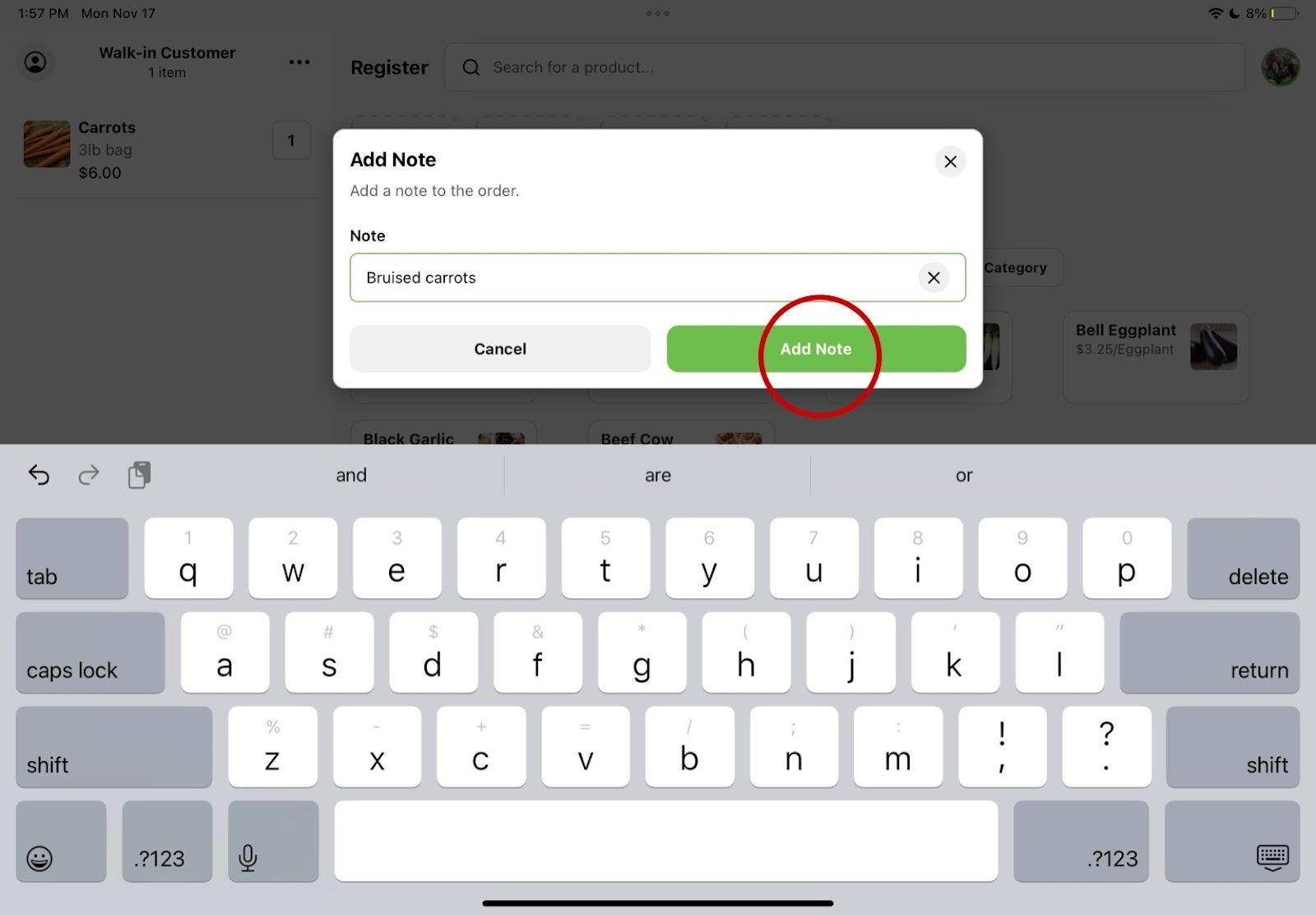
Enter your note and tap the green Add Note button to save it. If a note already exists, the button will read Update Note instead, where you can edit the note or remove it entirely.
3. The note will now be reflected on the order.
The Note button will be highlighted in the cart to indicate a note is attached.