
Star Micronics Printers
GrownBy Register is integrated with select Star Micronics hardware, and specifically hardware that can connect via Bluetooth.
Here is the eligible model:
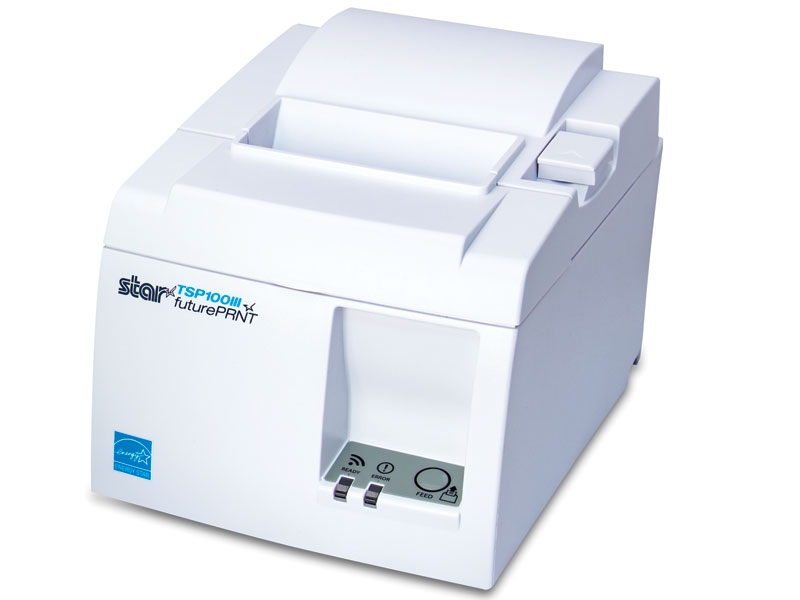
TSP100III Bluetooth Receipt Printer
How to connect the printer to GrownBy
Bluetooth Settings
- Go to General → Bluetooth Settings
- Find and connect the printer, which has a name that starts with TSP100 by default
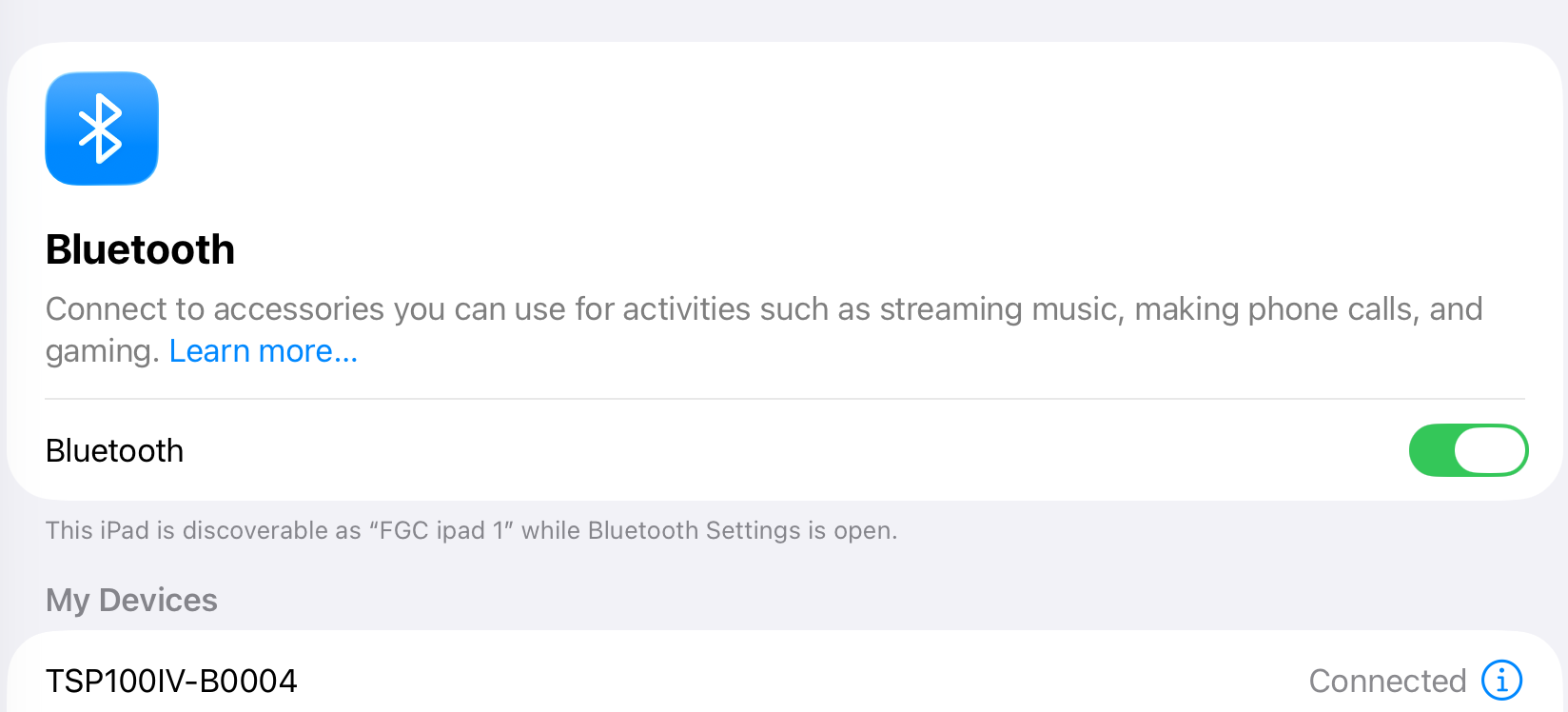
- Connect the printer by clicking on it
GrownBy Register Settings
- Open GrownBy Register
- Navigate to Settings under the side menu
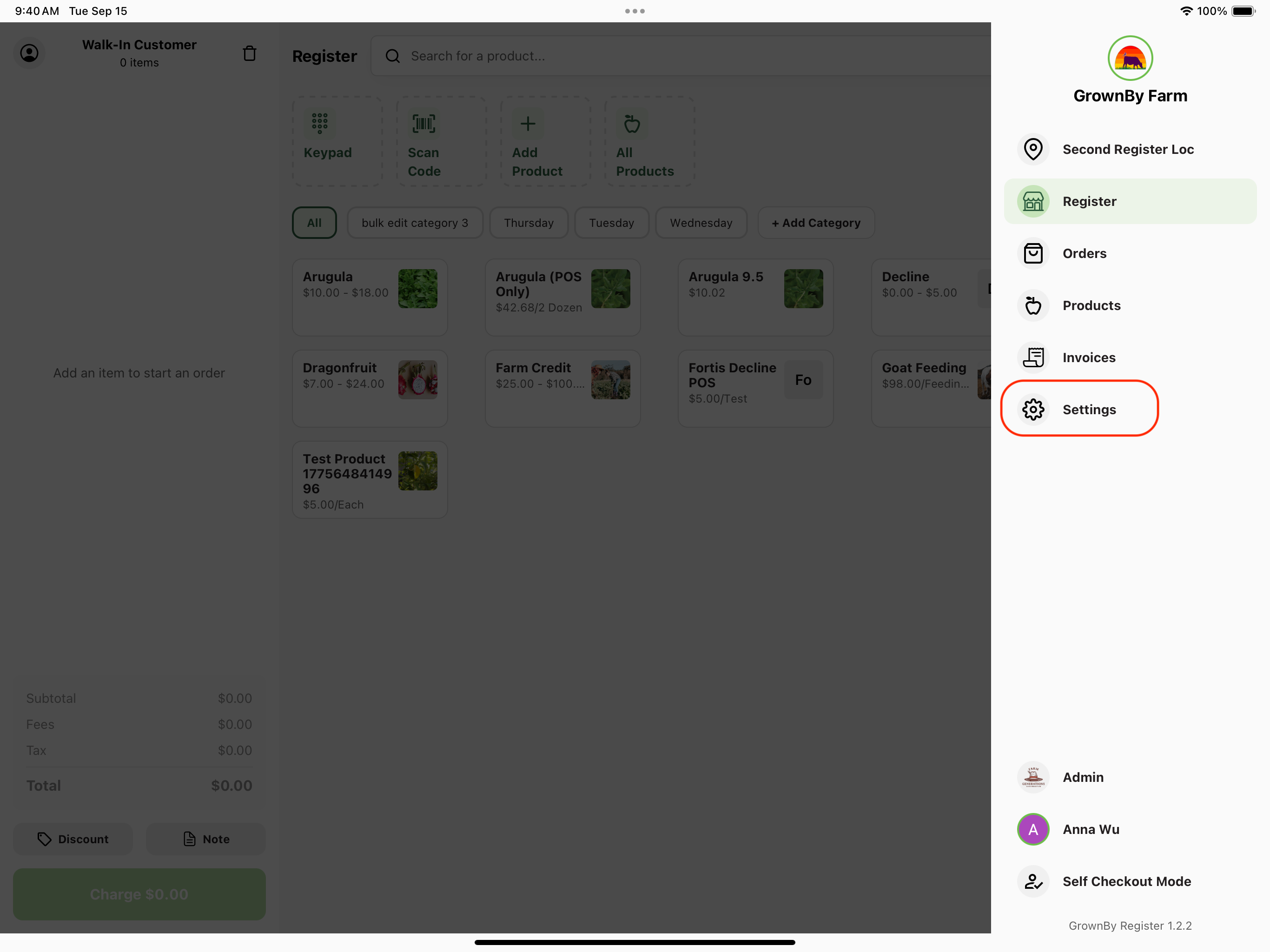
- Open the Peripherals section
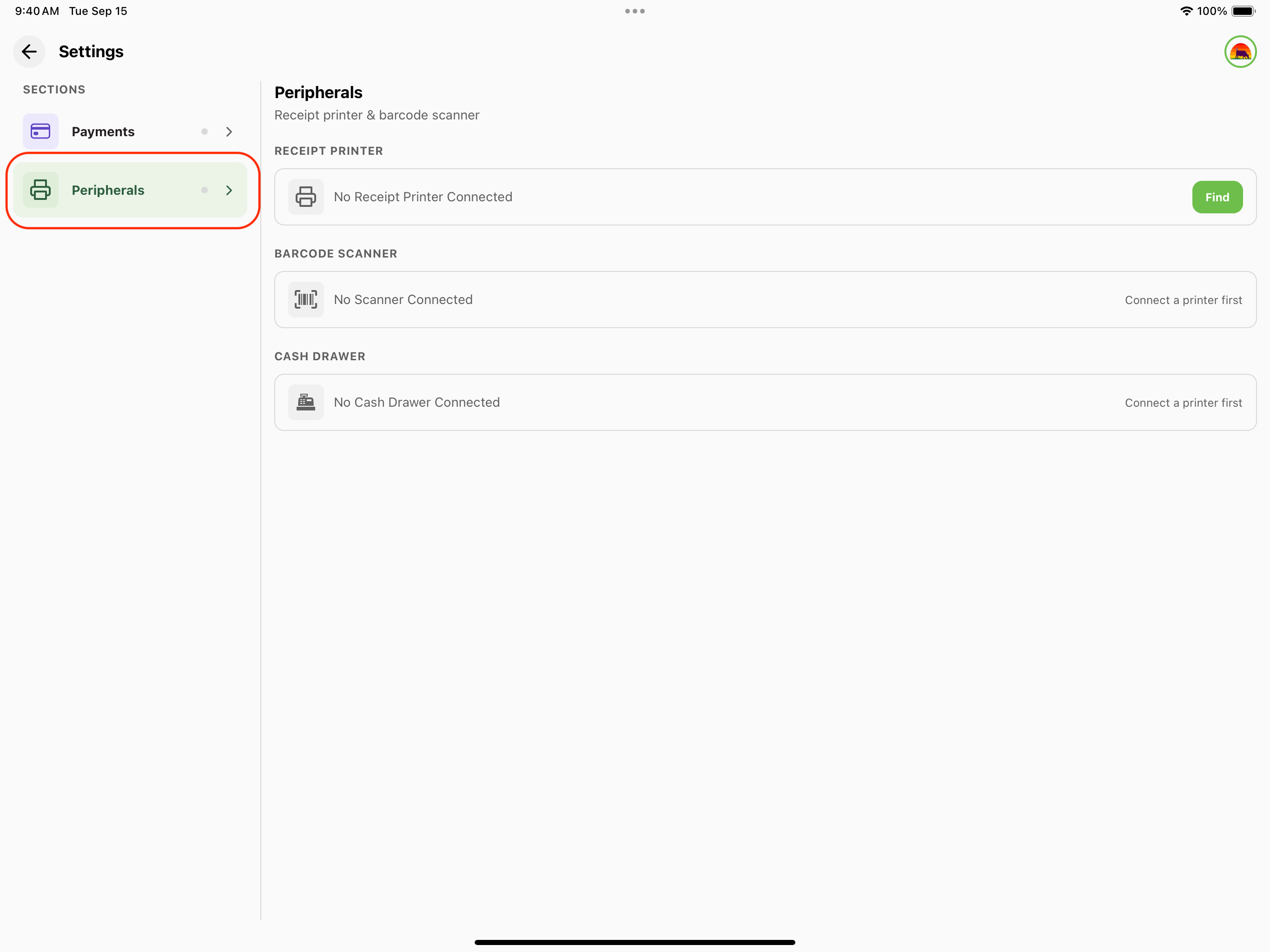
- Under Receipt Printer click Find. For more help with the Settings screen, see this article.
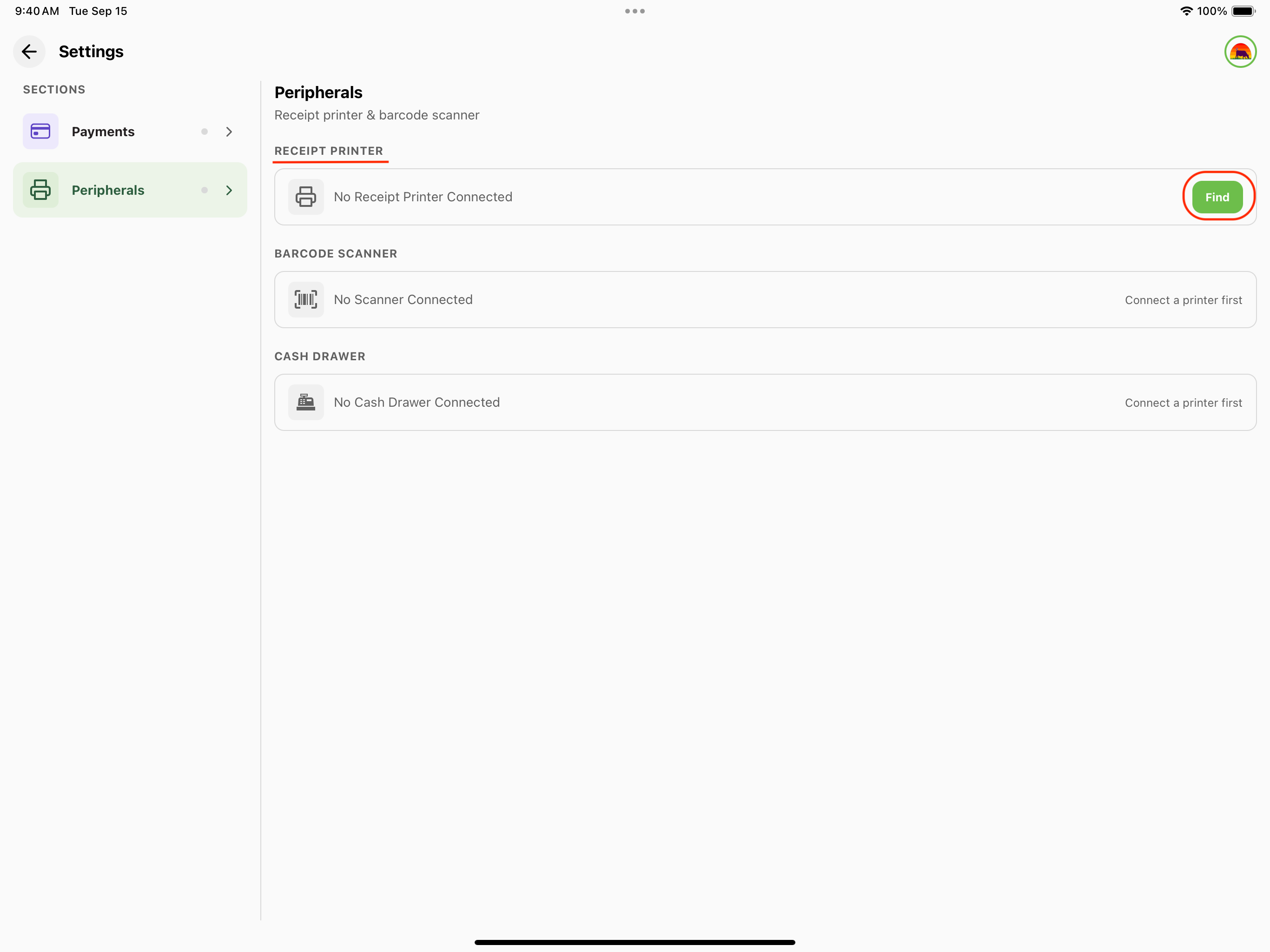
- Find your device model and click Connect
How to print receipts
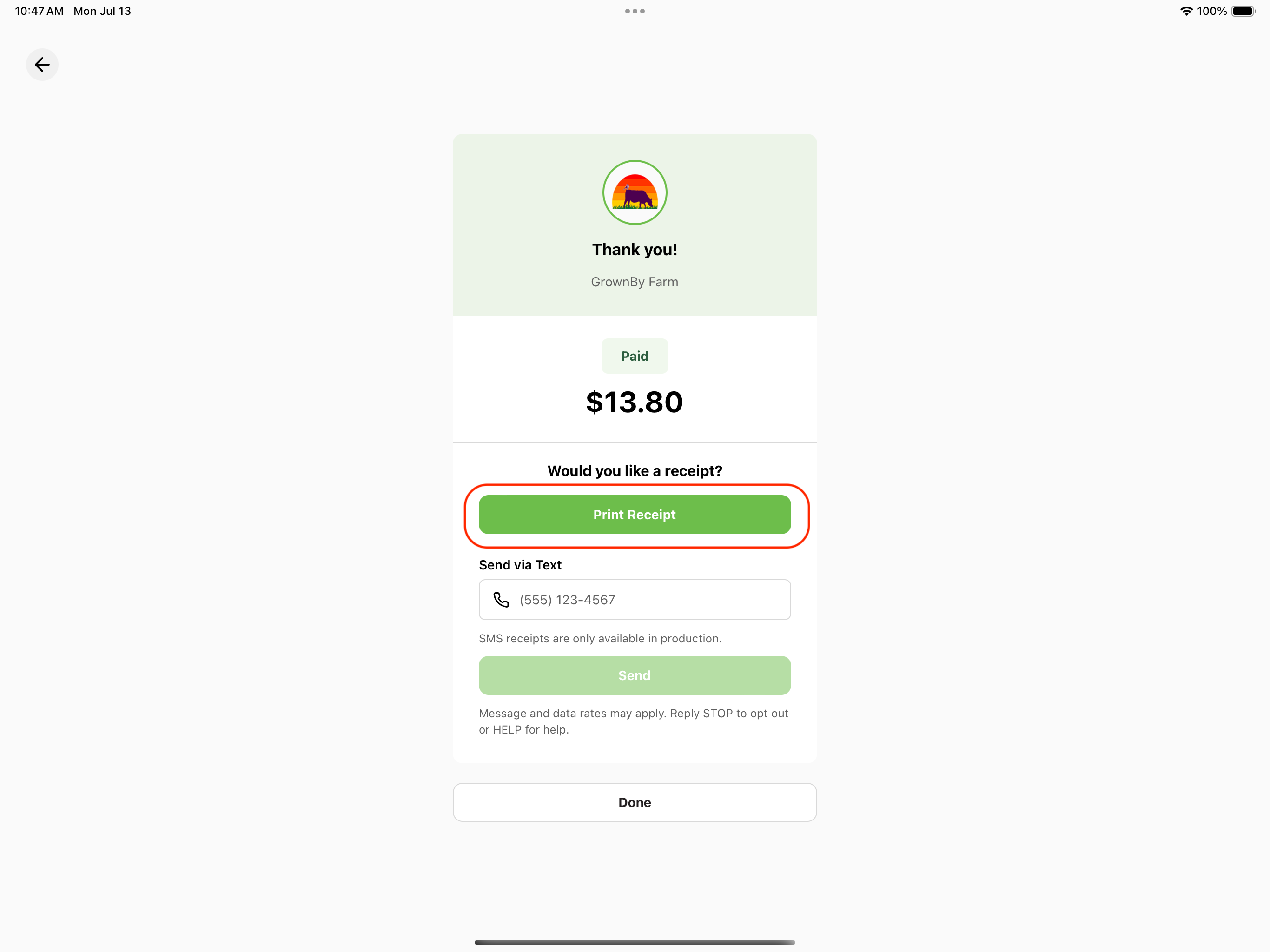
On Checkout
- Check out the customer
- Take payment
- On the confirmation screen, tap Print Receipt directly under "Would you like a receipt?"
From Invoices
You can easily reprint online or offline receipts with GrownBy. Here are the steps:
- Open the Invoices page in GrownBy Register
- Tap an invoice to open the Invoice Actions pop-up
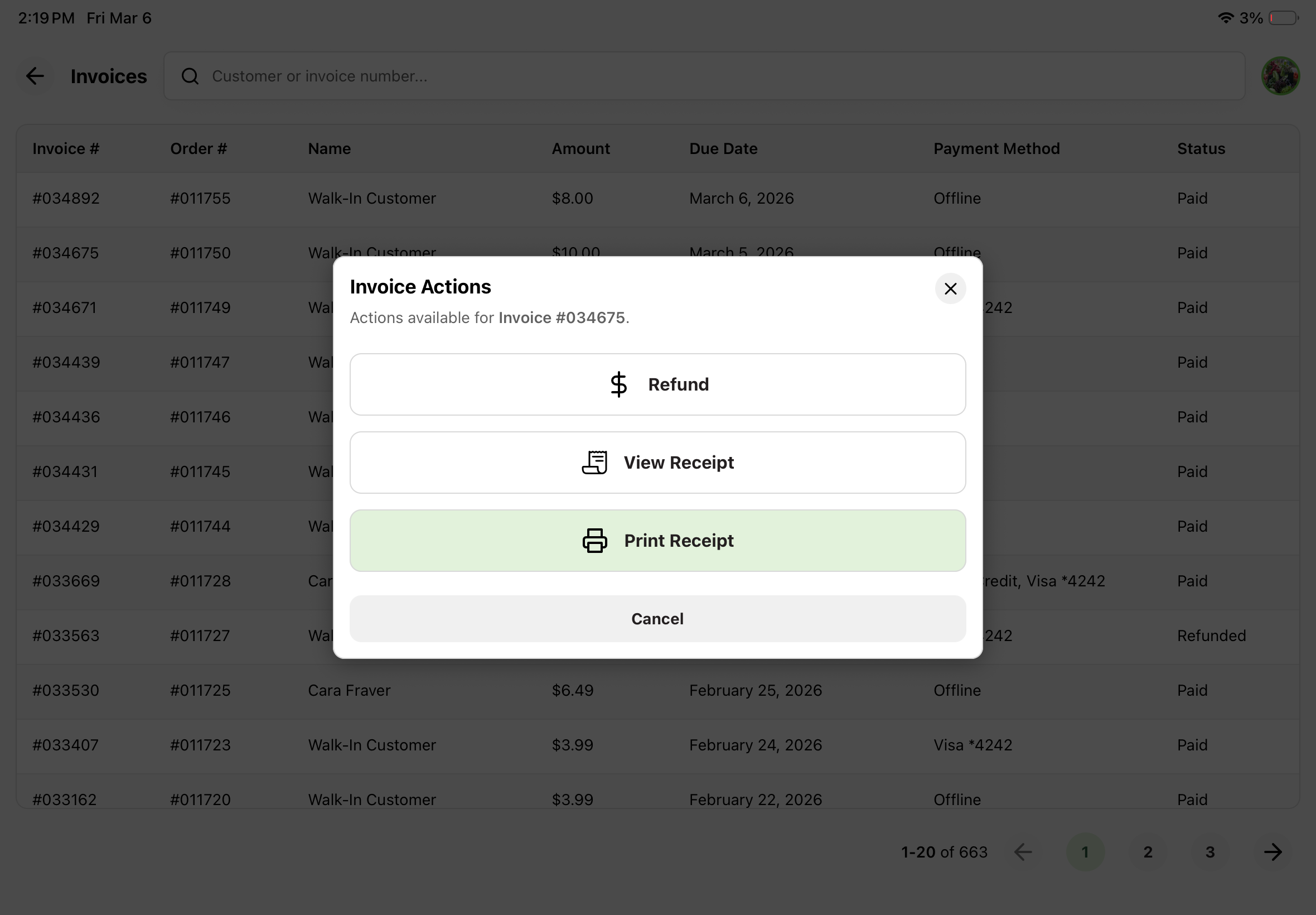
- Tap Print Receipt
Troubleshooting
Failed to Print Receipt, Open Failed
- Go to General → Bluetooth Settings
- Navigate to the printer
- Click Forget device
- Turn off Bluetooth
- Power off the printer
- Turn on Bluetooth
- Turn on the printer
- Follow the steps above to rediscover and connect the printer in Bluetooth
- Open GrownBy Register
- Navigate to Settings under the side menu, then open Peripherals
- Under Receipt Printer click Find
- Find your device model and click Connect (the printer may already be connected)