
On Register, you can apply the discounts you've saved in your GrownBy dashboard, or create a one-time discount on the spot for a day to day need like a damaged item. An order can carry more than one discount at a time.
How to Add a Discount to Your Customer's Purchase
1. In the customer cart
After adding your customer's products to the cart, click the Discount button located above the green Charge button. This opens the Apply a Discount screen.
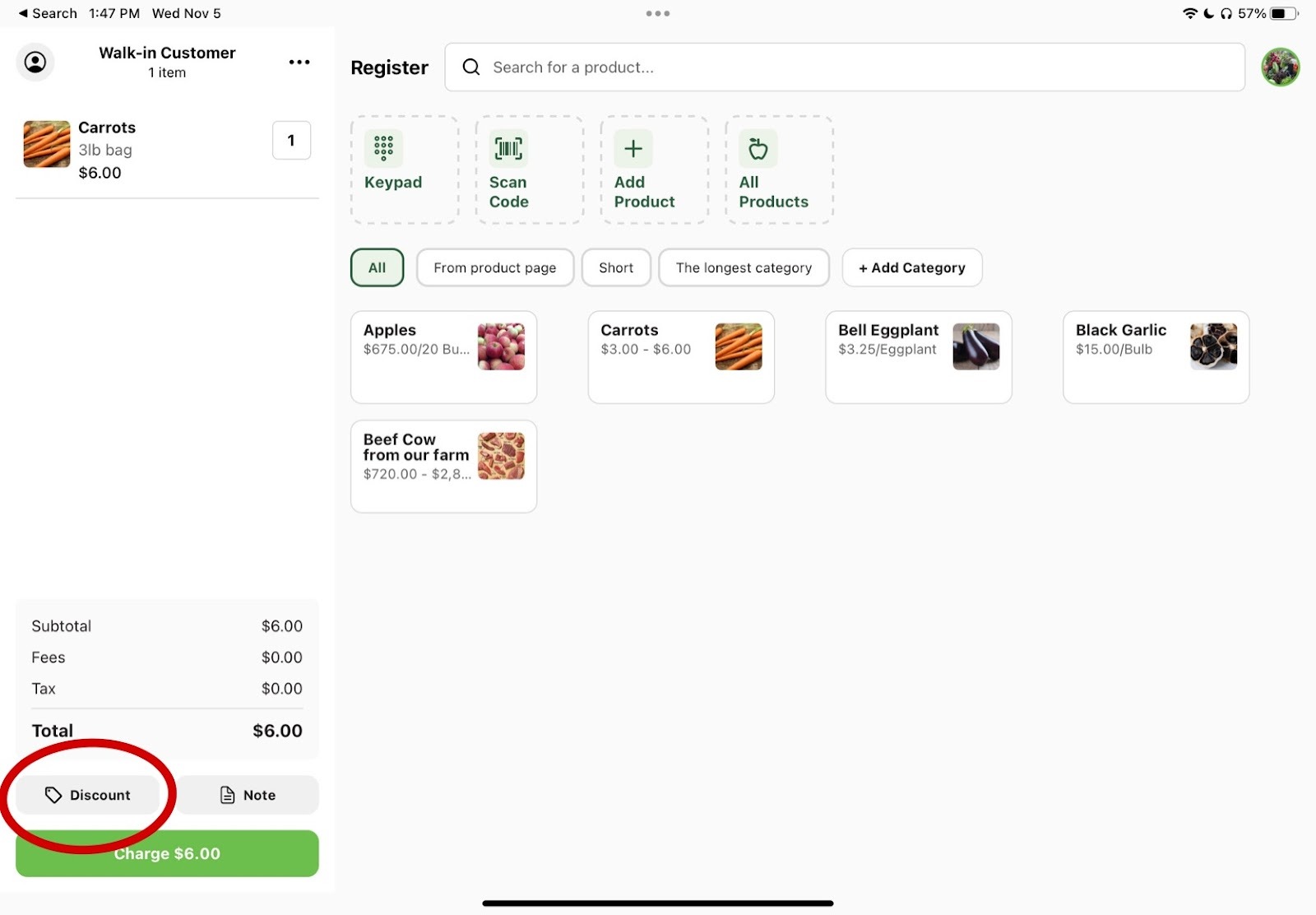
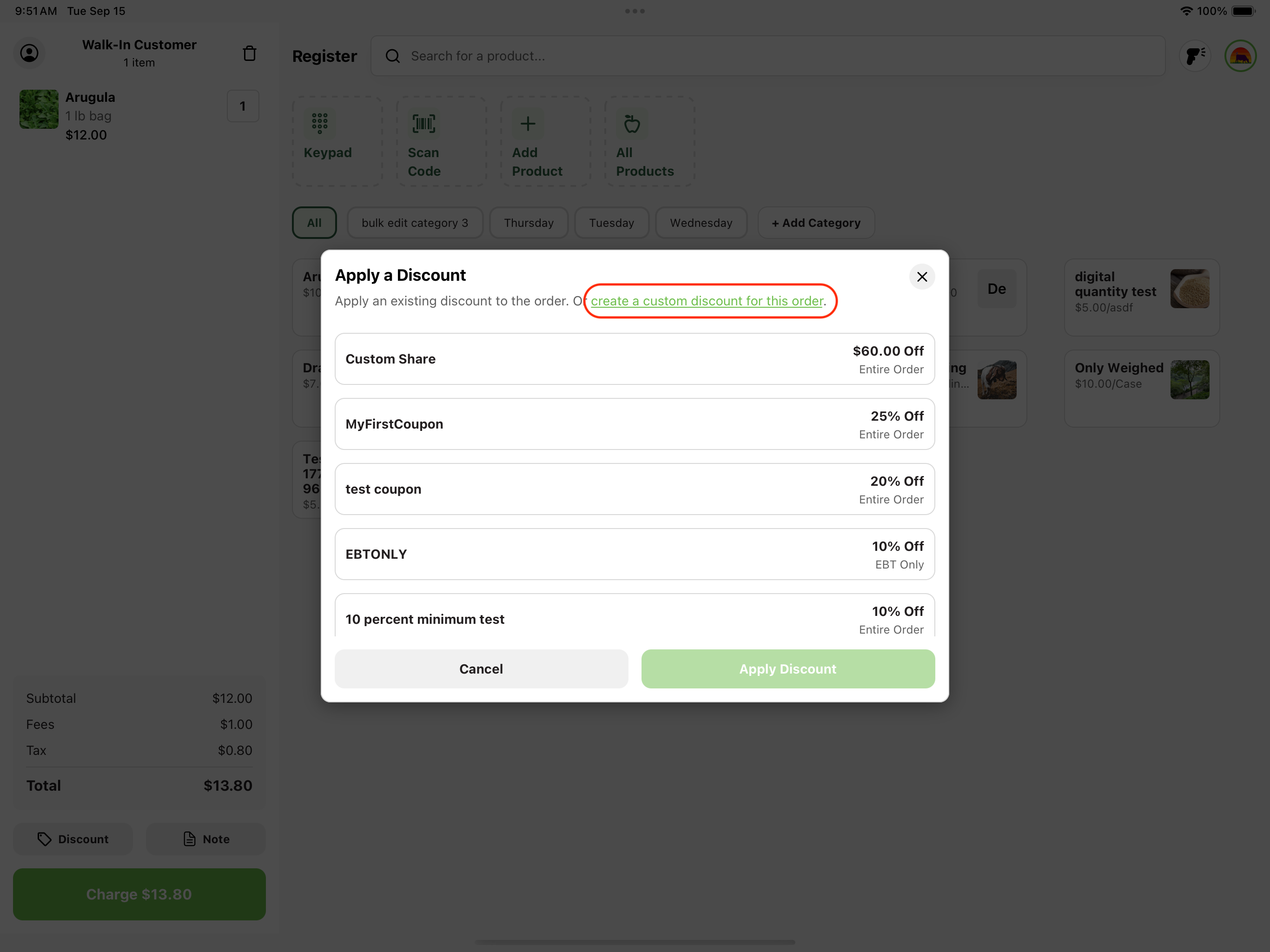
2. Choose a saved discount, or create a custom one
Select the discount you want to use if it already exists, or press create a custom discount for this order, highlighted and underlined in green. Discounts that are already on the order are marked so you don't apply the same one twice.
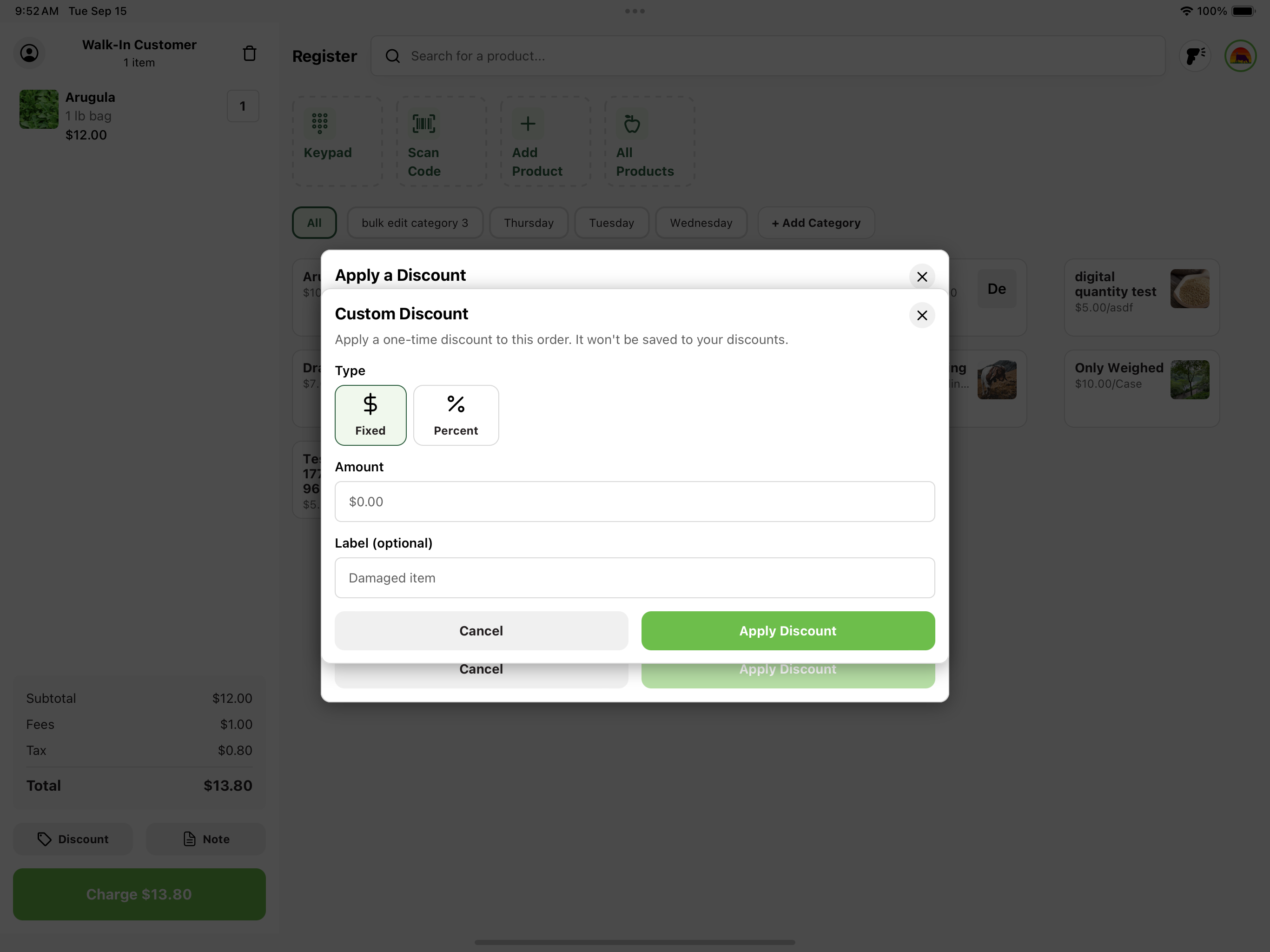
3. Fill in your custom discount
A custom discount applies to this order only and is not saved to your discount list. Choose between a fixed amount or a percentage (percentages are capped at 100%), and optionally add a label, such as "Damaged item," so you and your customer can see what the discount was for on the receipt.
To create a discount you can reuse, build it in the Promos section of your GrownBy dashboard instead. See Promotions and Discounts.
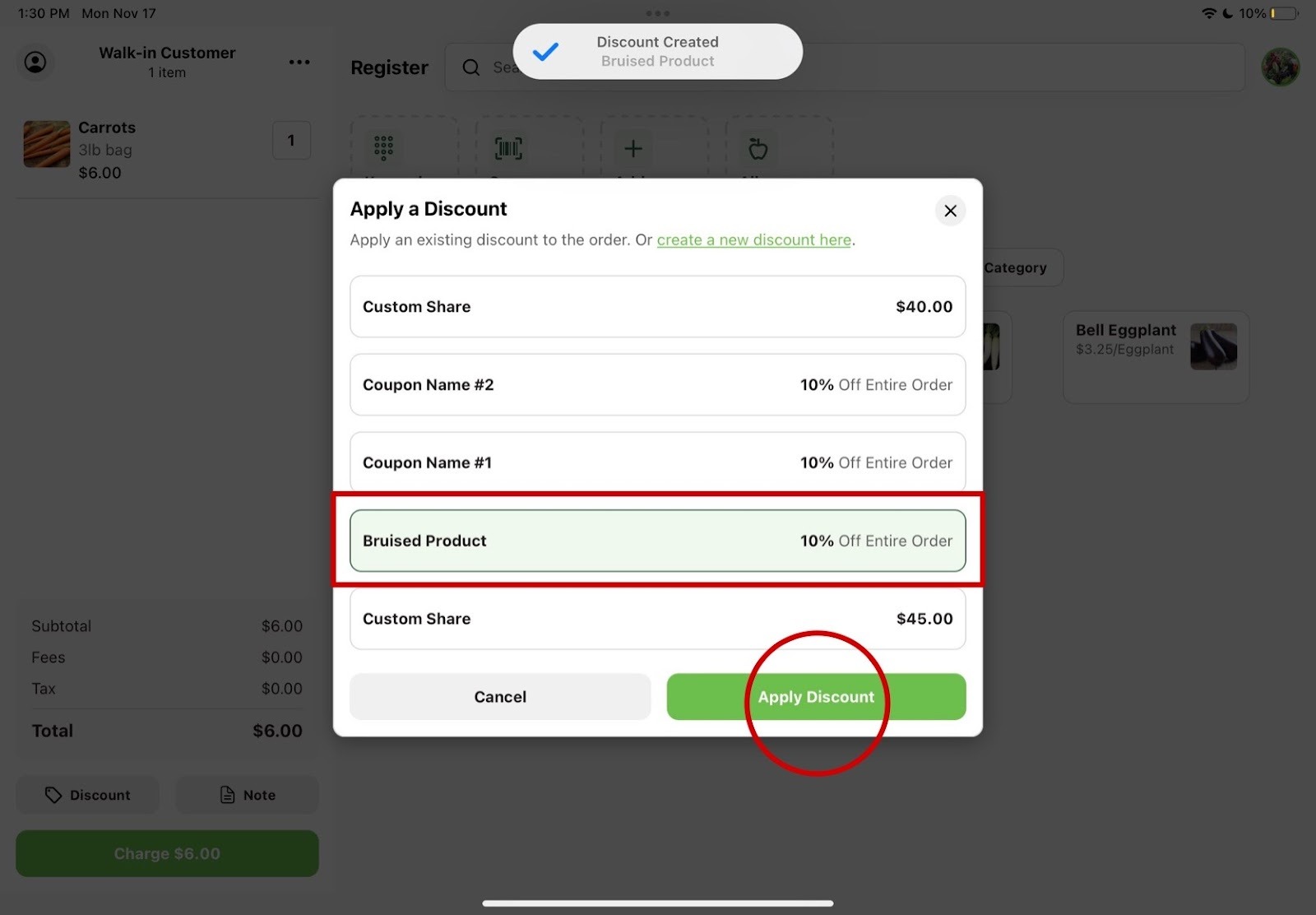
4. Apply the discount
Press the green Apply Discount button. For a custom discount, the same button applies it straight to the order.
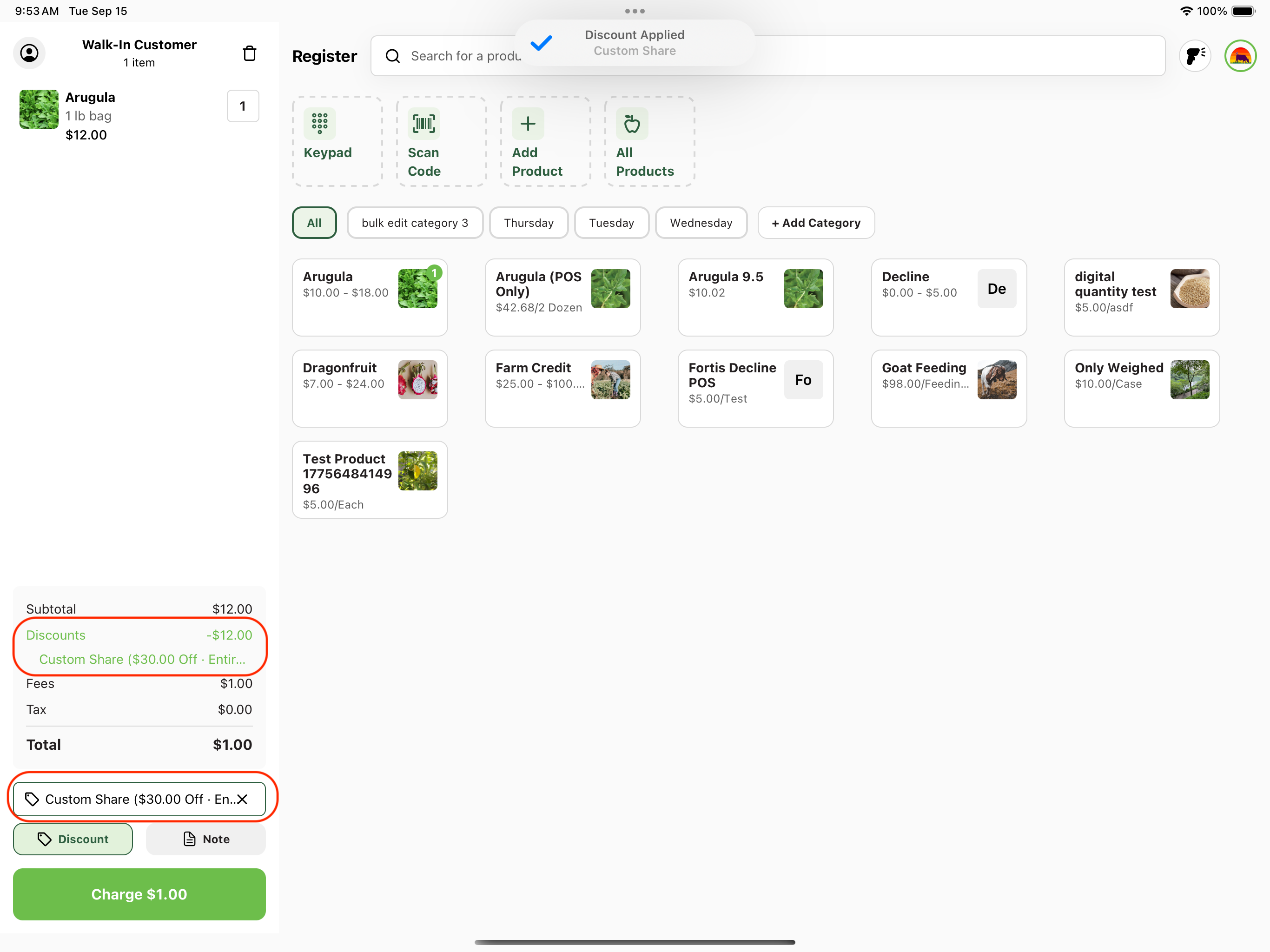
5. The discount will now appear in your customer's cart and the total will reflect the change.
Each discount on the order is listed above the Discount button with its name and amount. To add another one, tap Discount again and pick the next one.
Removing a Discount
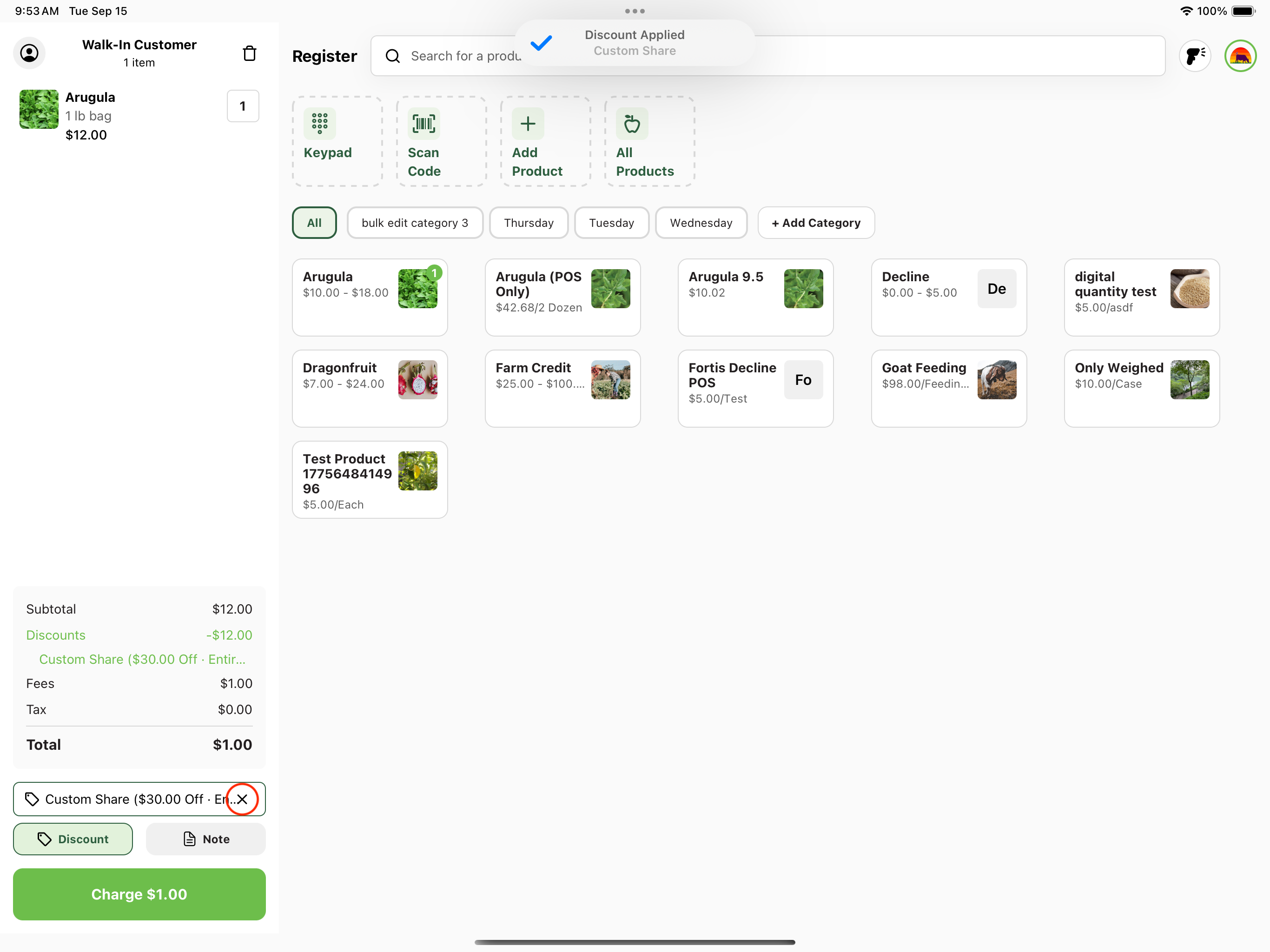
Tap the X next to the discount you want to take off, then confirm. Discounts are removed one at a time, so the others stay on the order.
Discounts that apply themselves
A discount built in the Promos section of your dashboard can be set to Auto-apply to matching orders. When you press Charge on an order that qualifies for one of those discounts, Register shows you every matching discount with a note of what each one takes off. They come up already selected, so confirming the prompt applies them.
If you don't want one of them on this order, deselect it before you continue. Anything you deselect is left off, and the rest go on the order like any discount you picked by hand. An order that doesn't qualify for an auto-apply discount goes straight to payment with no prompt.
See Promotions and Discounts for how to set the flag on a discount.