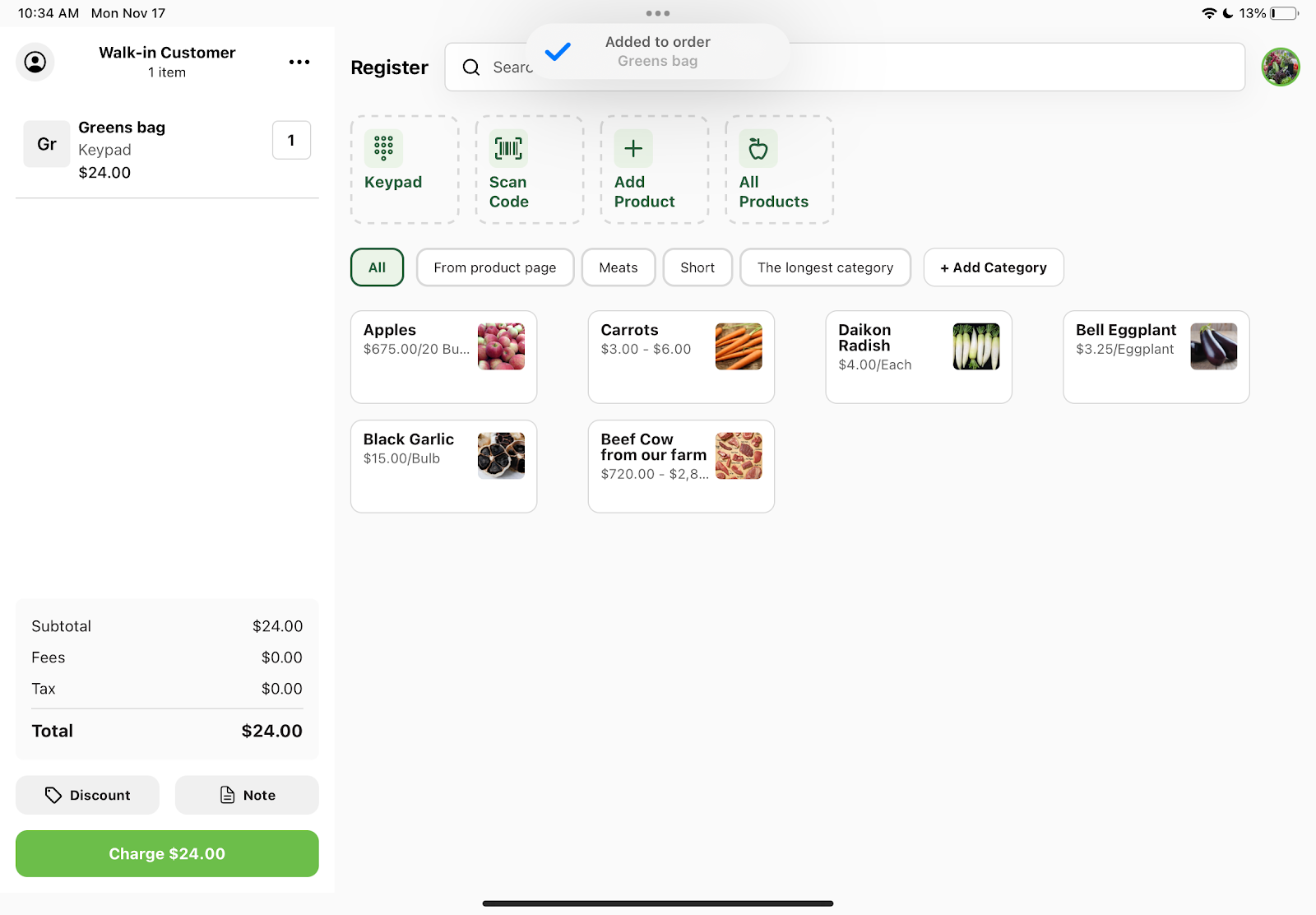
When using Register, it can be helpful to be able to key in an item separately so you can quickly process sales even if a product isn't in the system, doesn't have a barcode, or has a special price. It also ensures transactions can still be completed smoothly while keeping an accurate record of the sale for financial reporting and tracking.
Step by step guide to using Keypad
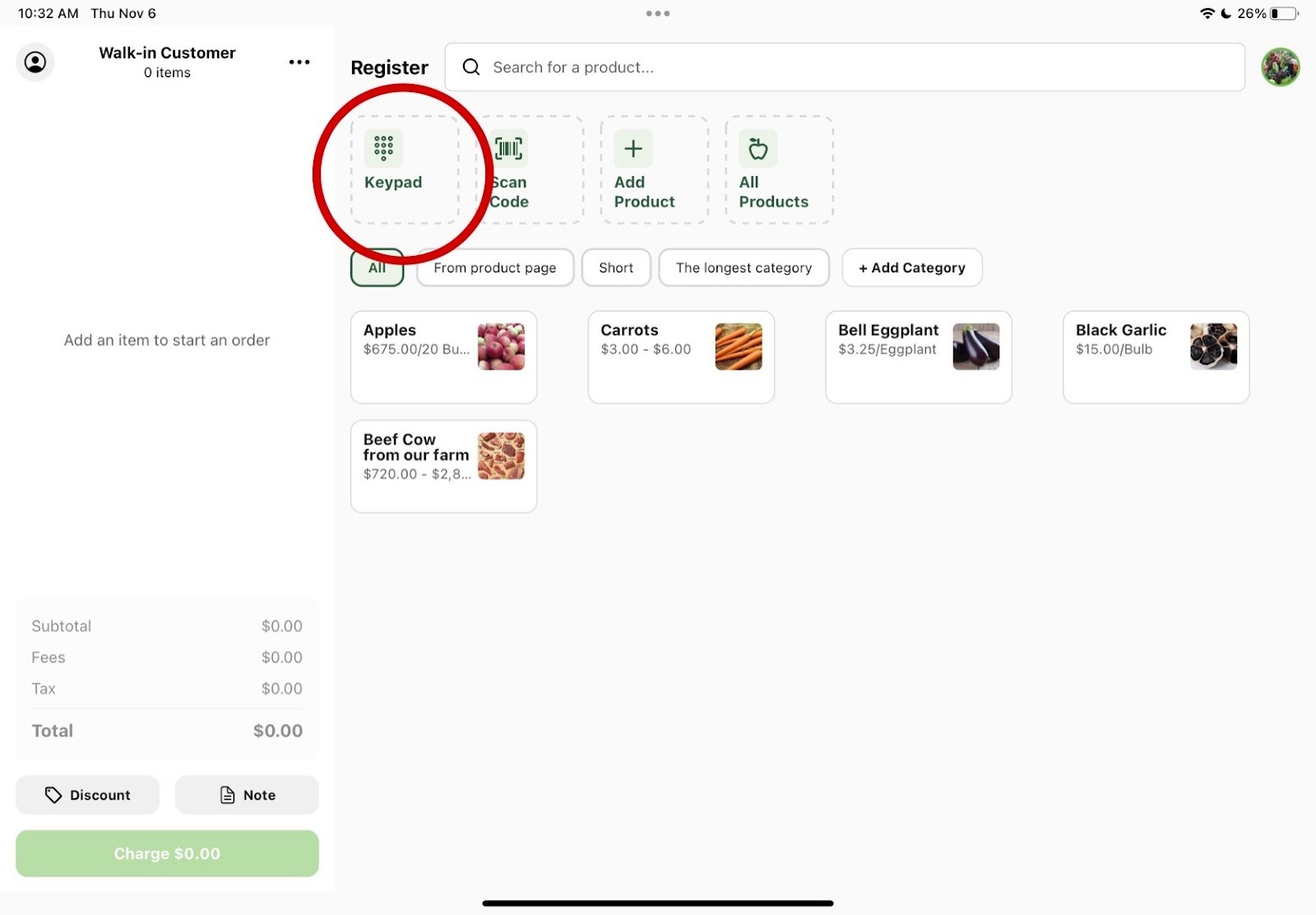
1. Click on the Keypad icon on the homepage
2. Add in information
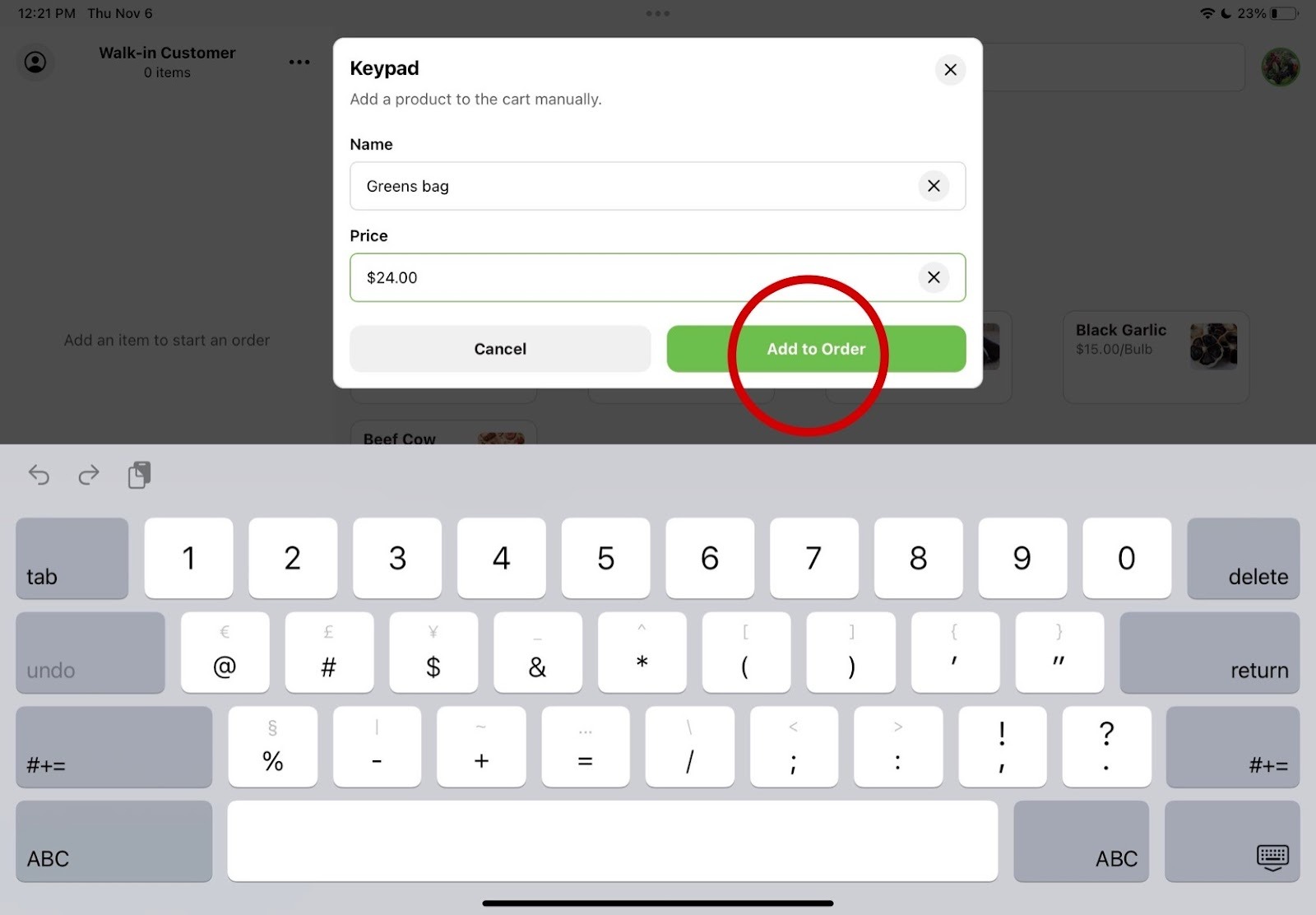
Add in relevant information and the price you want to charge. Then click Add to Order.
3. It will automatically appear in your customer's cart