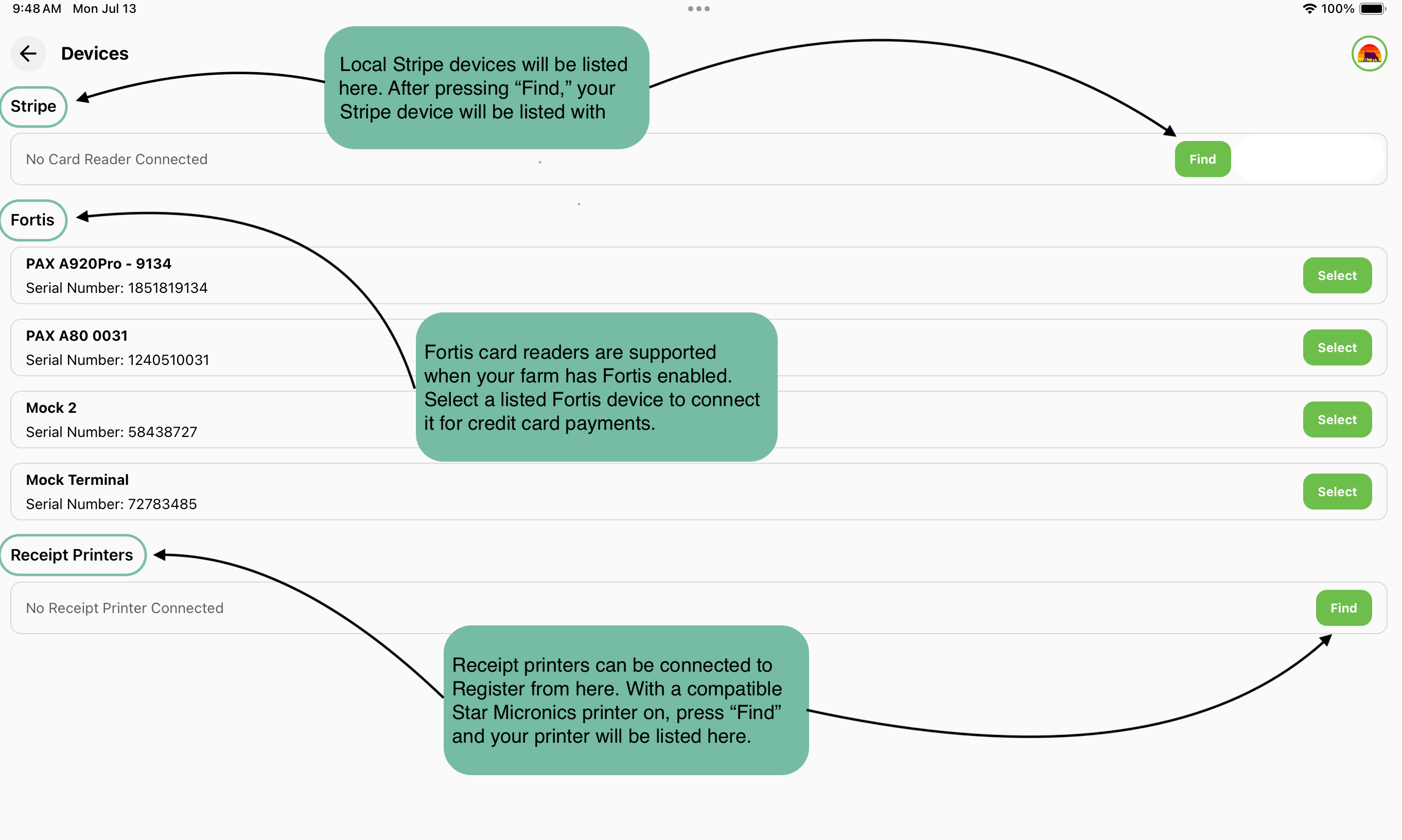
To connect payment readers and receipt printers using the Devices screen on Register, follow the step-by-step instructions below.
Navigating to the Devices Screen
-
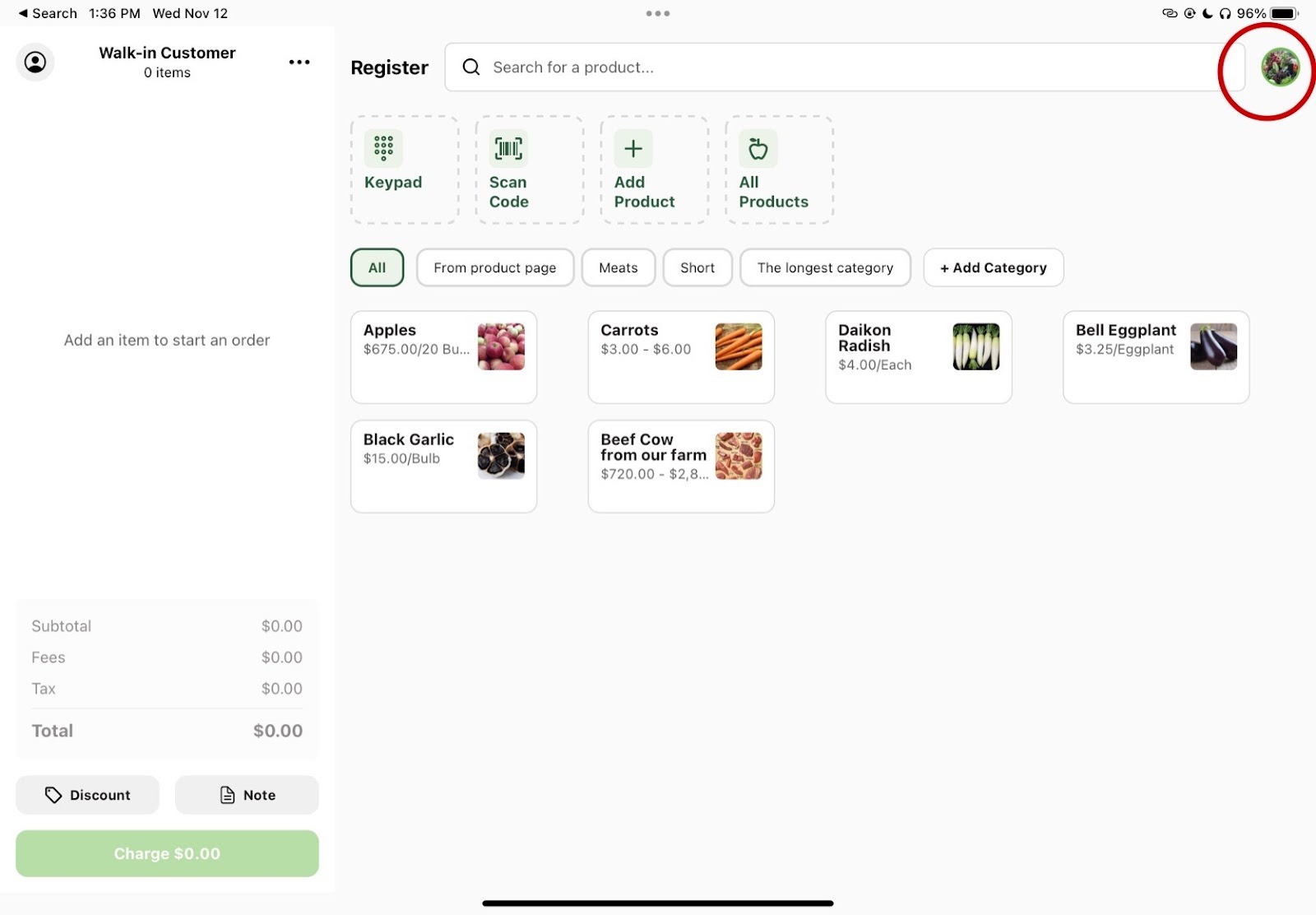
Tap the farm logo in the top right corner of your home screen to open the navigation menu.
-
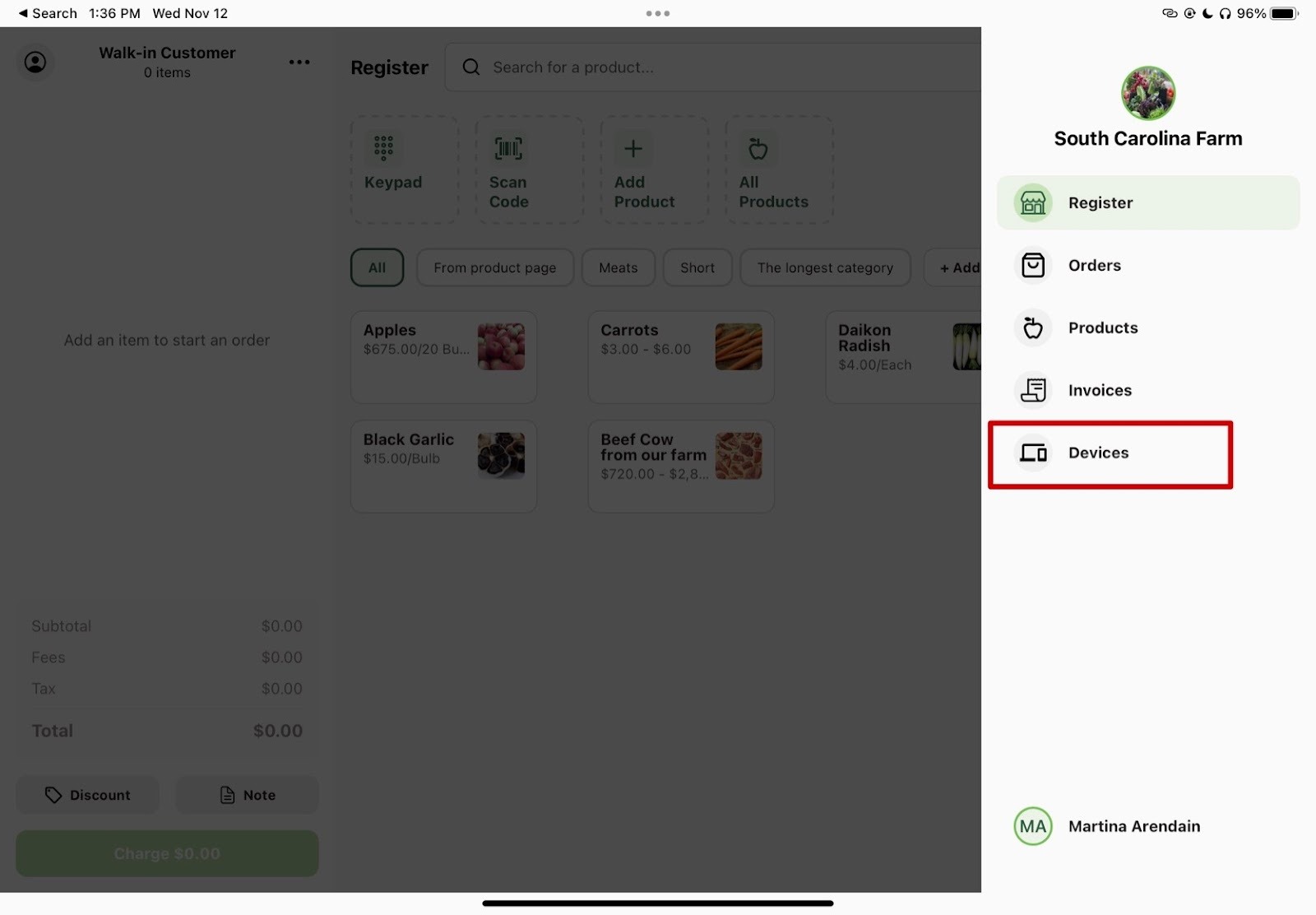
Select "Devices" at the bottom of the menu.
What to Expect on the Devices Screen
On the Devices screen, you can connect different devices to aid in using the Register app. There is a section for connecting Stripe payment devices. Press the Find button to search for nearby Stripe readers via in-app Bluetooth discovery (make sure the Stripe device is on). It will automatically list available Stripe readers. There is a similar section for Fortis payment devices, which appears when the farm has Fortis enabled. There is also a Receipt Printers section where you can connect a Star Micronics printer using the Find button.