
If you're starting with a new GrownBy account or wanting to add a new product specifically to Register, you can do that straight from the Register app.
Adding a New Product
You can add a product to Register two different ways: through the Register app, or on the GrownBy website platform. This article provides instructions on how to add a product to Register through the Register app.
To see how to add a product to Register through the GrownBy platform, check out this article: All About Standard Products
Step-by-step instructions:
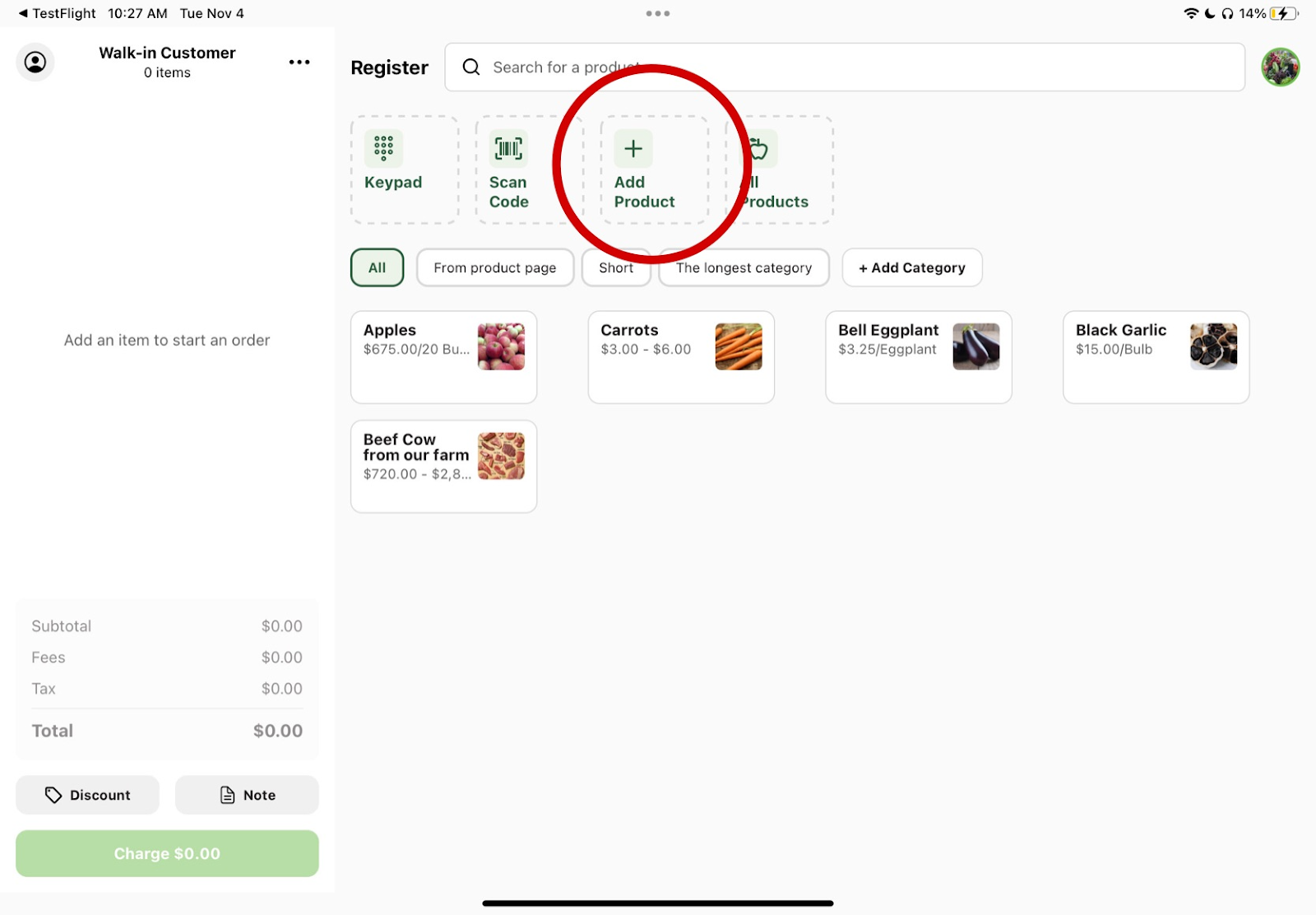
1. Select "Add Product" on the main screen.
2. Add in basic details.
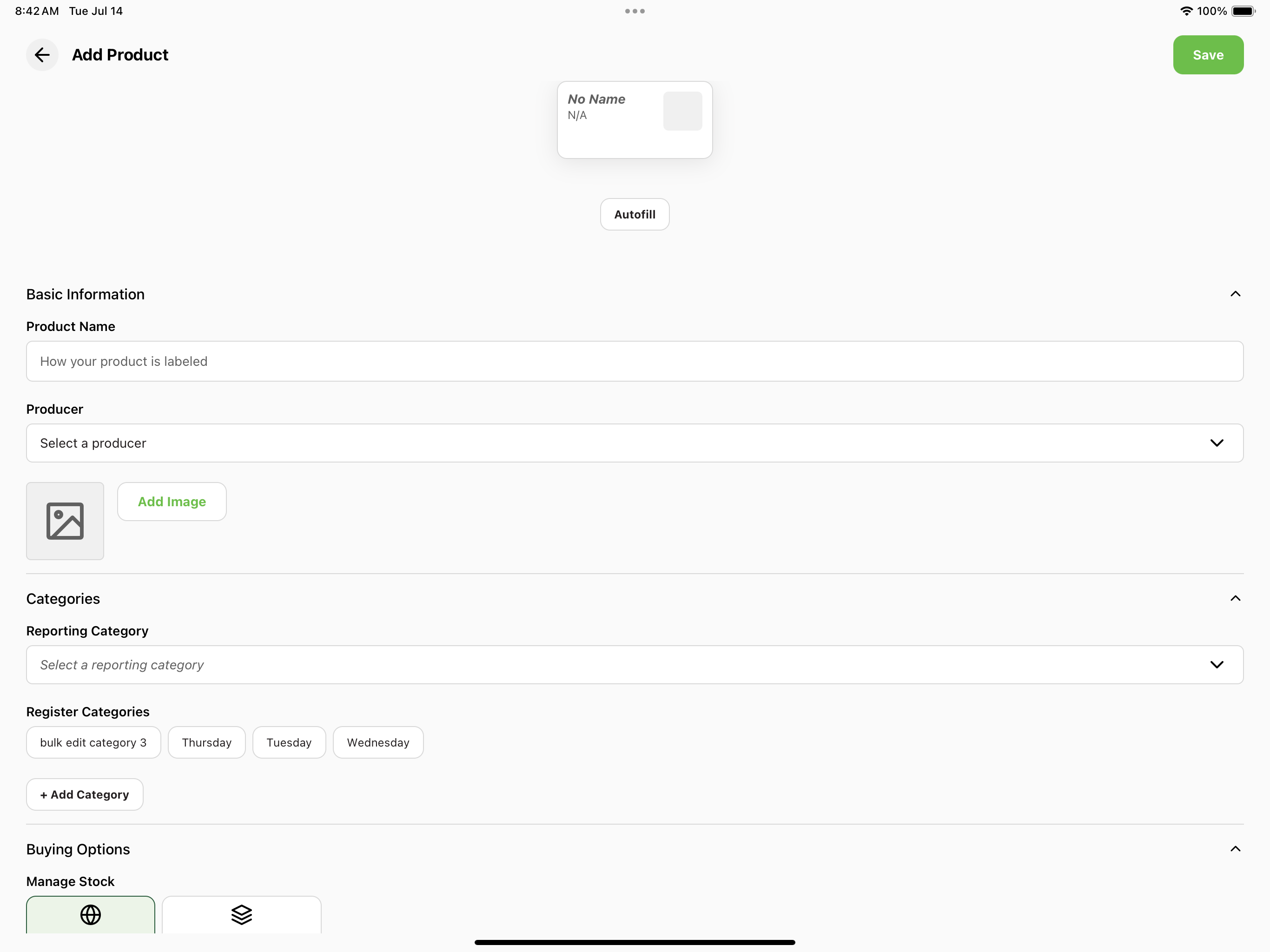
You will then be on a new screen that you can use to enter details about the product you would like to add. Every product needs a Product Name, and it is often helpful to add an image as well. There is a Reporting Category dropdown for financial organization and a Register Categories section (where you can choose multiple options) to sort your product and organize the register home screen. If your farm has local producers configured, an optional Producer field also appears.
3. Add Buying Options
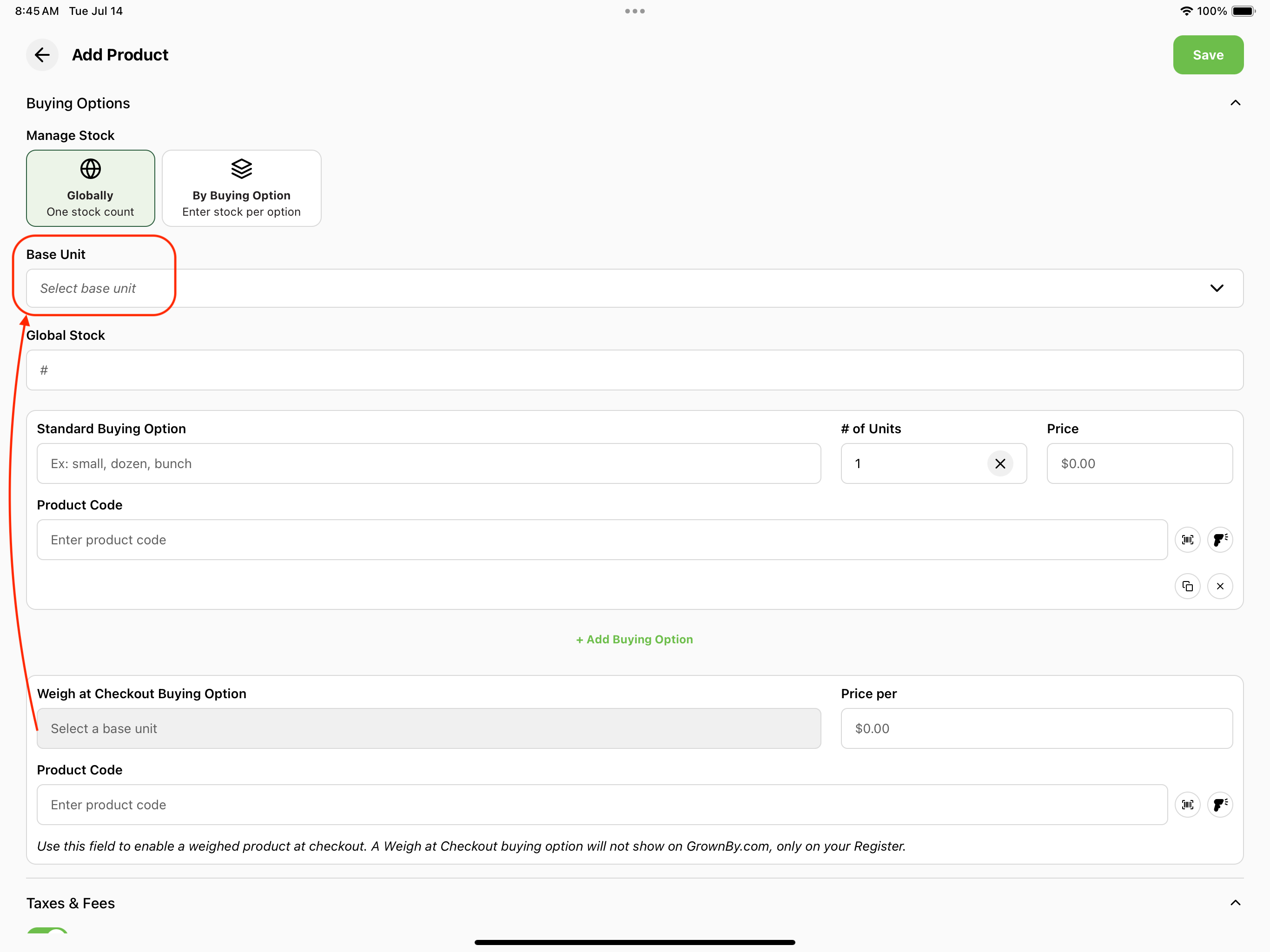
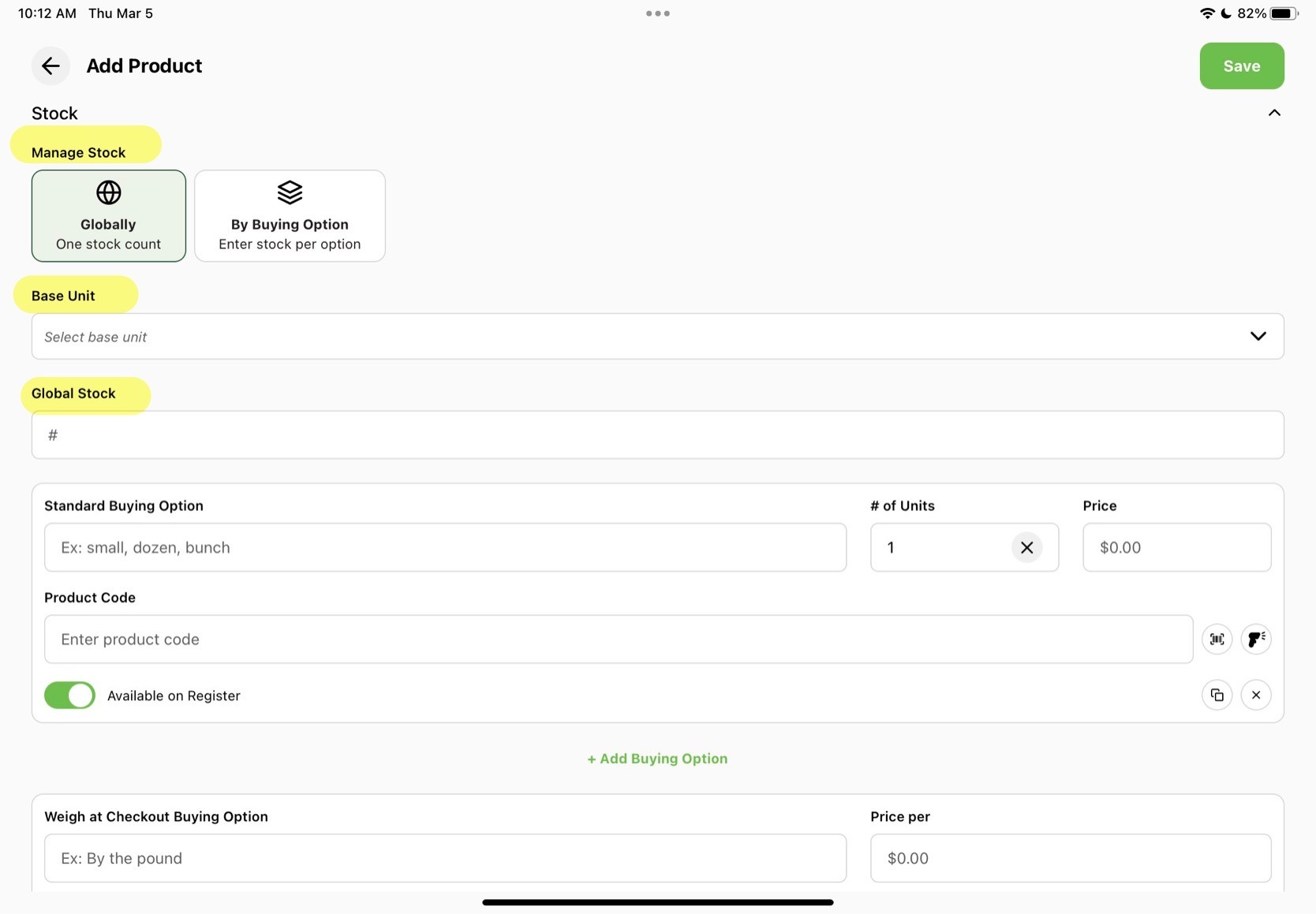
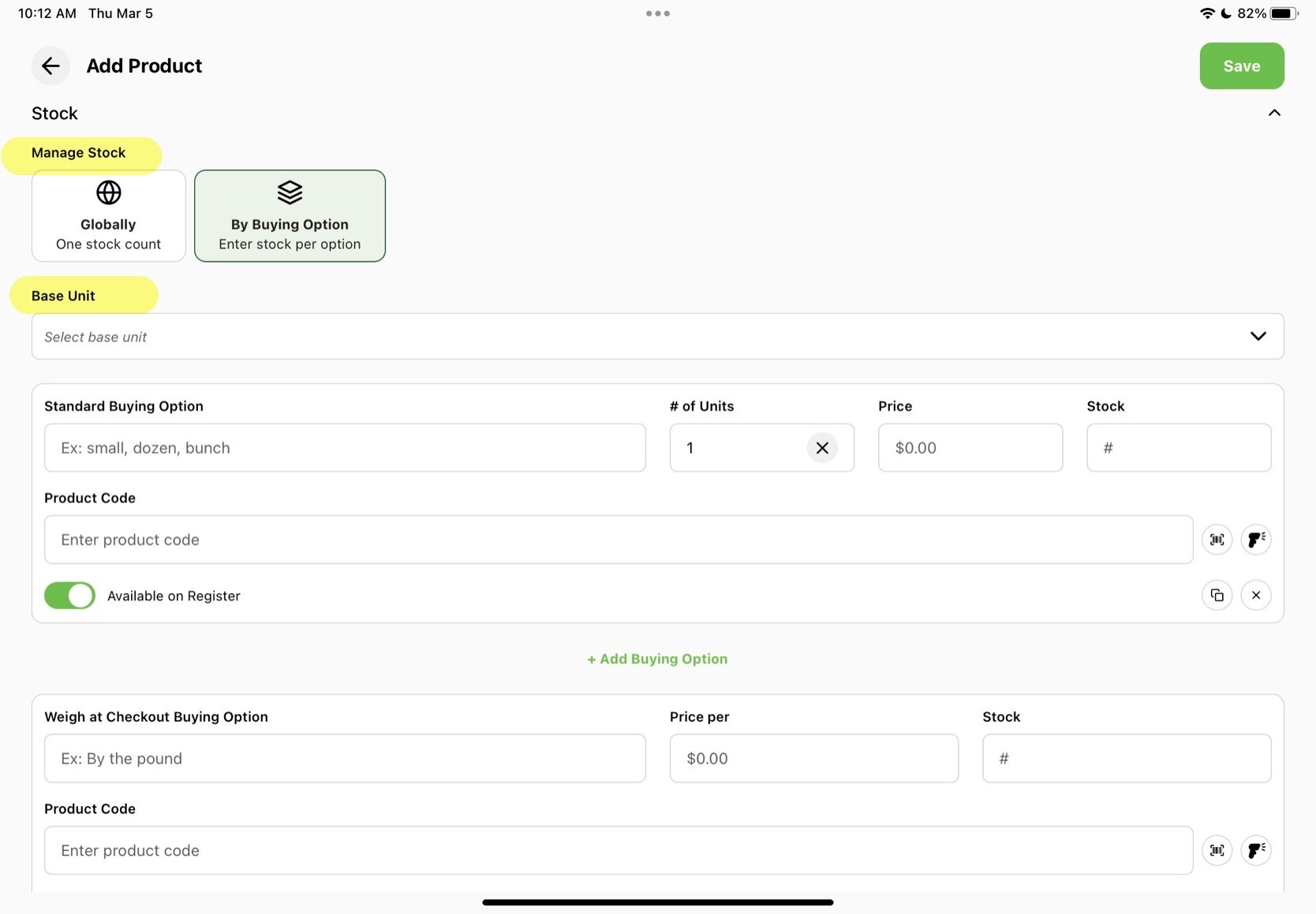
There will be a Manage Stock section where you can choose how to organize your stock: Globally (one stock count) or By Buying Option (enter stock per option). Base Unit and at least one Buying Option with a Price are all required information for a product.
The Weigh at Checkout buying option lets you weigh the item on a scale when ringing up the order, and the price is calculated from the weight. The buying option's unit is set from the product's Base Unit (e.g. "Pound"); price, product code, and optional stock can be set separately per buying option.
Global Stock vs. By Buying Option
Global Stock means your inventory is tracked using a single unit (such as bushel, dozen, bunch, pound, or each). Every purchase pulls from that one shared inventory count, and all buying options must use that same unit.
For example, if you set your global stock to 20 dozen apples, customers must purchase apples in dozens. If a customer orders 3 units, that means 3 dozen apples will be deducted from your stock. Similarly, if your global stock is 200 apples (each), you could create a buying option of 5 apples, and each purchase would subtract 5 from your total of 200.
Stock by Buying Option allows you to track inventory separately for each unit option. This is useful if you want to sell the same product in different quantities. For example, you could offer single apples and boxes of a dozen apples, with separate stock counts for each (such as 40 single apples available and 3 dozen-boxes available).
In short:
- Global Stock: One inventory pool using a single unit.
- By Buying Option: Separate inventory counts for each purchase option.
4. Additional details
In the Taxes & Fees section, you can mark the product as Tax Exempt or add Fees that you have setup on GrownBy. For more information on setting up Taxes and Fees, see this article.
In the Extra Information section, you can mark the product as EBT Eligible if your farm has set up EBT. For more information on EBT eligibility, see this article.
5. New Product available on Register!
When you are done adding in all of your information, press the green Save button in the top right corner. The product will then appear on your main register homepage!