
Your farmer may invoice you if they entered your order into GrownBy. Or, you may have an outstanding invoice from an order you placed, but did not pay for. Or, perhaps you have a failed payment because of an issue with a credit card. In any case, this article will show you how to find and pay an invoice in GrownBy.
Paying from an Email Notification
If you have an outstanding invoice, you will receive an email that looks like this:
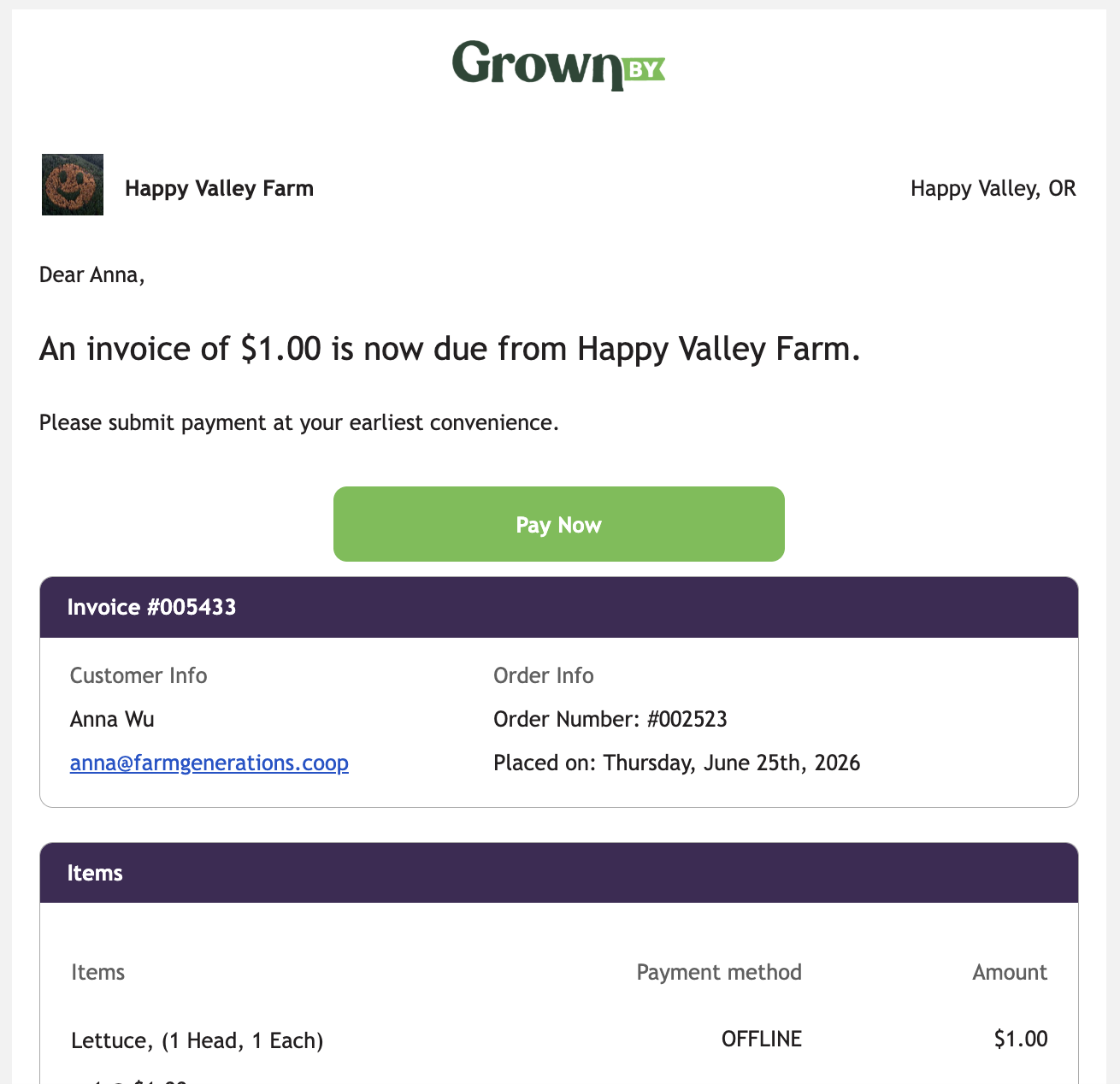
When you click on the Pay Now button, the invoice page will appear where you will be able to enter your payment information. It looks like this:
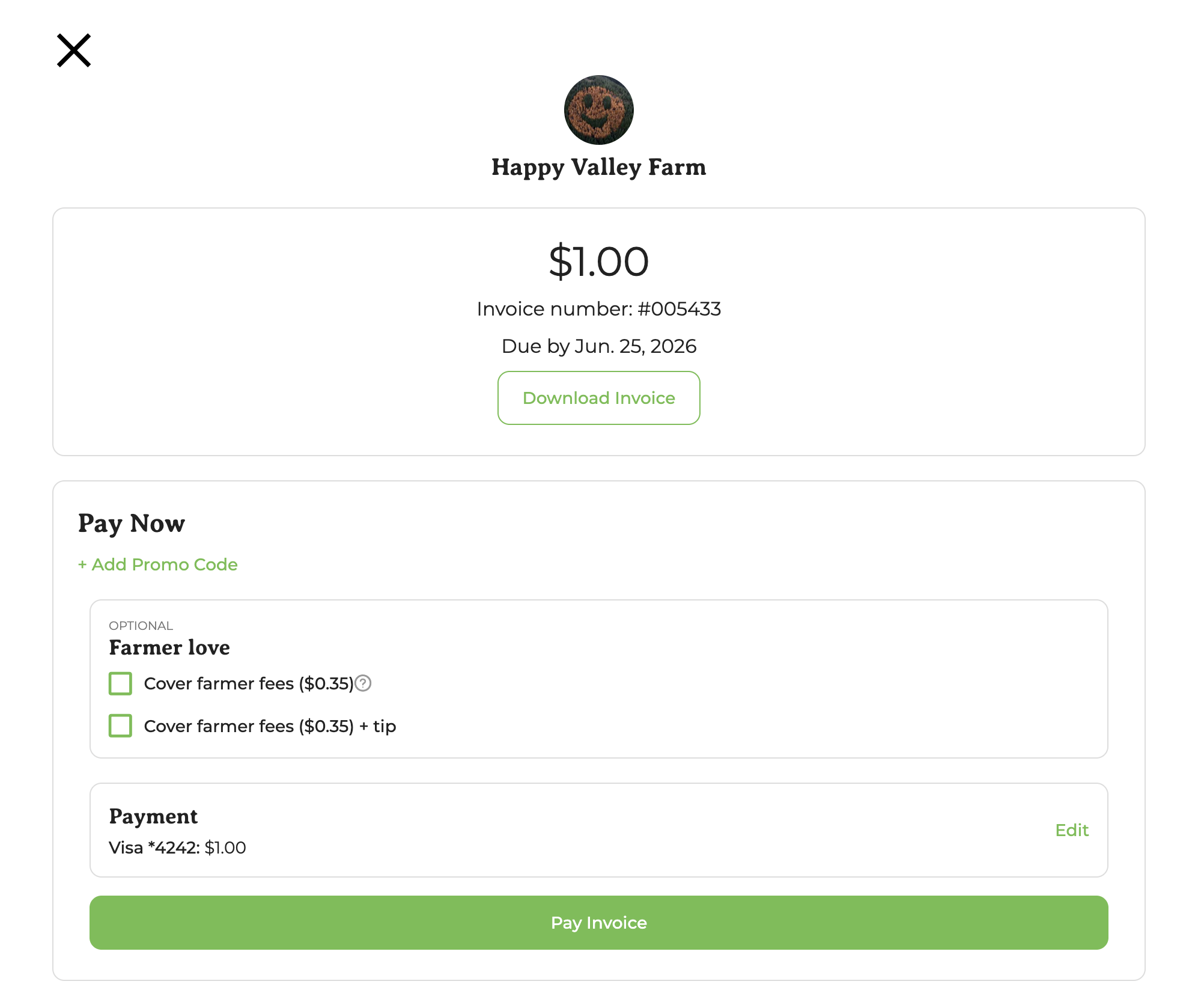
In the Farmer love section, you can check Cover farmer fees and/or enter a custom tip amount. You can also enter any Promo Codes you have on this screen.
If you haven't used a credit card on GrownBy yet, the Payment box will be gray and say "Add Payment Method." If you need to change your credit card or add a new one, click on the Edit button. A pop-up box will appear with your credit cards and the option to add a new payment method. When you add a new card, one of the options is Update all future invoices to this payment, which is chosen by default and will ensure that future invoices get charged to the card you're adding.
When you are done, click Pay Invoice.
Navigating your Customer Account to Pay
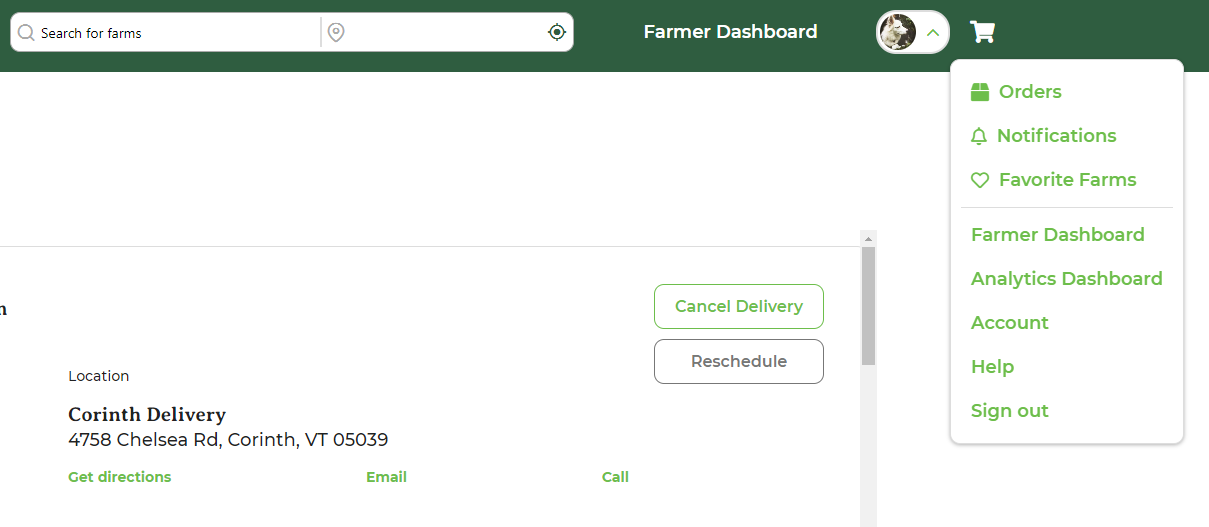
If you know that you have an invoice that you need to pay, you can also find it yourself by logging in to GrownBy. First, login using the credential (phone or email) you set up your account with. On desktop, in the top right corner of your screen, click on your account image and then click Orders:
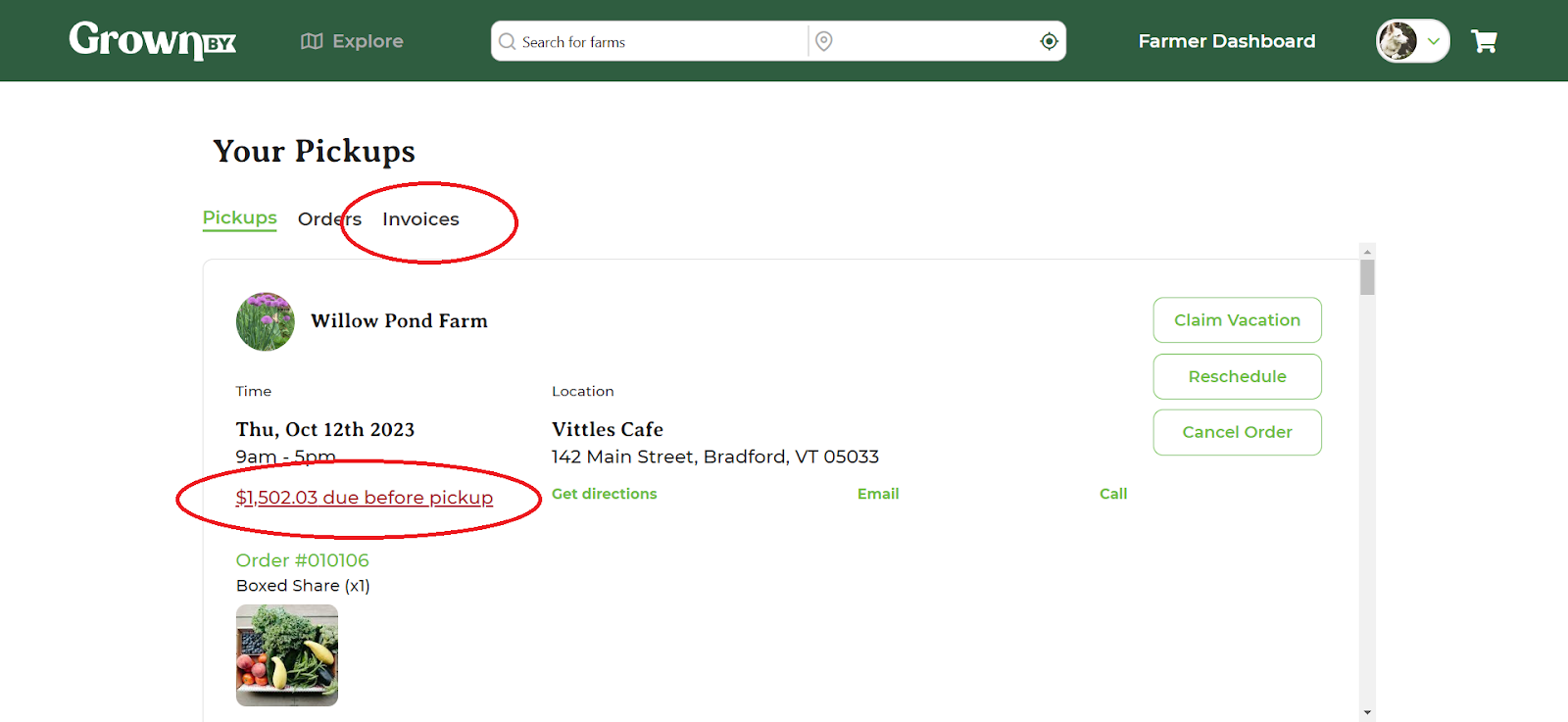
On the orders page, clicking on the amount due under your Pickup will bring you to the Invoices tab. Or, you can just proceed directly to invoices, find the invoice in question, click View, and pay it using the same steps as above:
If the invoice that you want to pay has a future due date, click Show Future Invoices and then View next to the invoice in question:
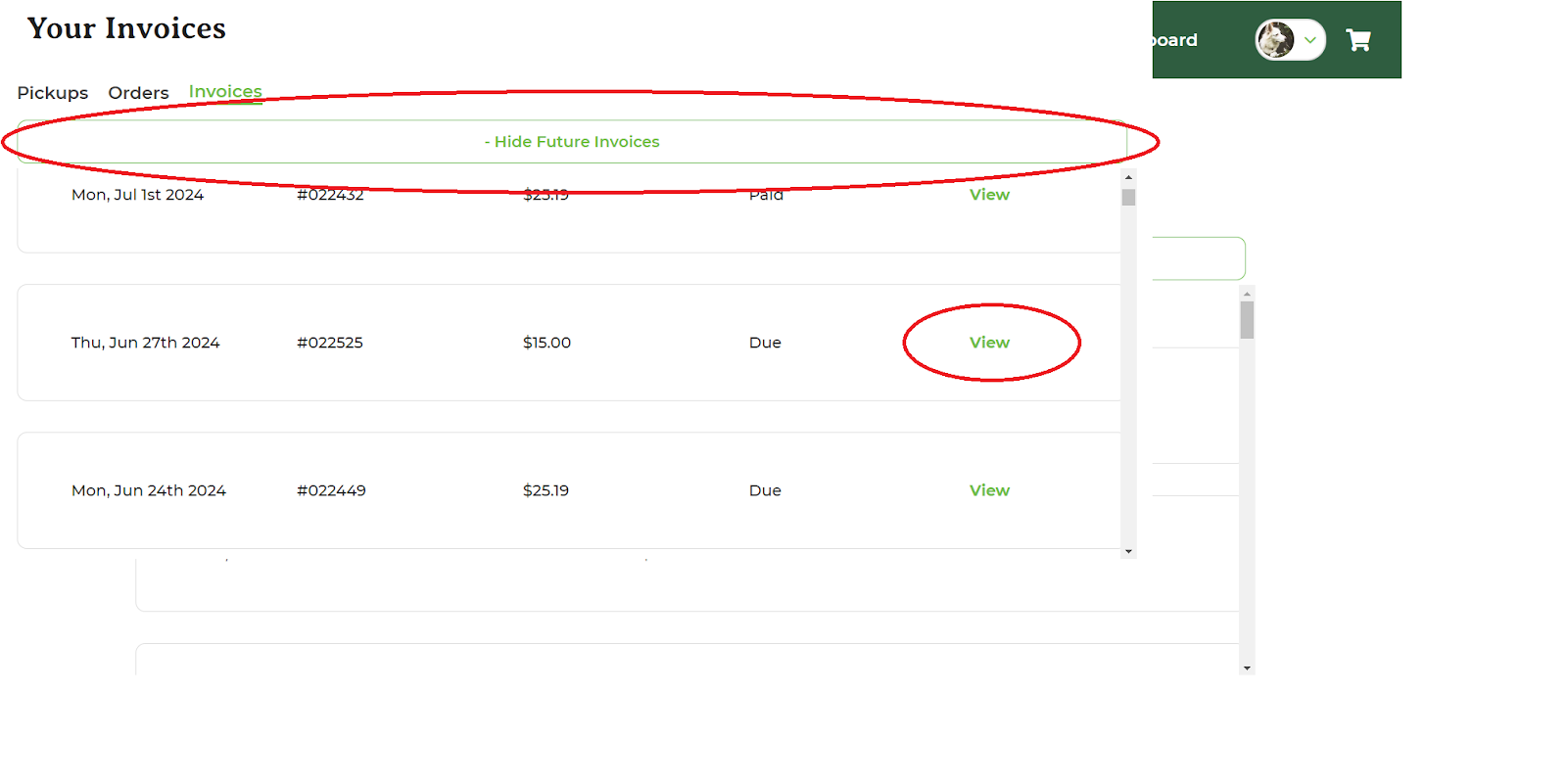
On mobile, you can access the same view by tapping orders at the bottom of the screen. From there you can view pickups, orders, and invoices, just like on desktop.
Using Farm Credit to Pay an Invoice
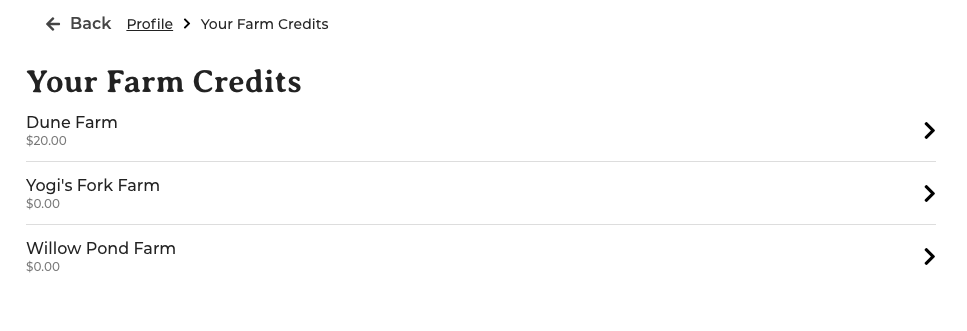
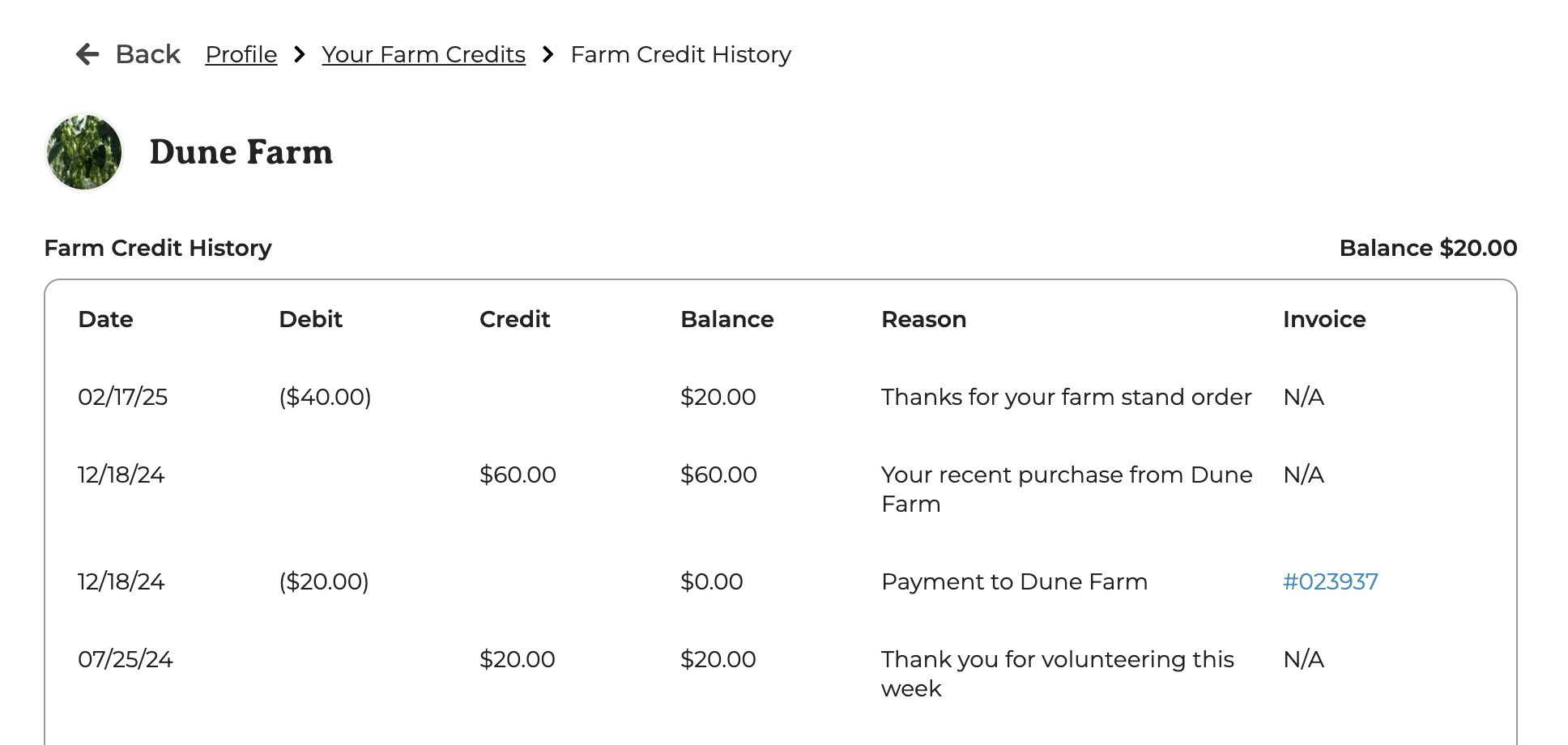
The process here is the same as above. You may have Farm Credit available to use towards a future order. Farm Credit comes from claiming vacation weeks, refunds, or from a past credit from another system or situation that your farm has applied to your account. To view your Farm Credit balance, login to GrownBy, click the green down arrow next to your picture in the top right of the screen, click Account, and then click Farm Credits. The next screen will look like this:
If you click into one of the farms, you'll see your full transaction history:
To use your Farm Credit, go to the same green down arrow menu and click Orders and then Invoices across the top of the screen. Click on Show Future Invoices to display those not yet due:
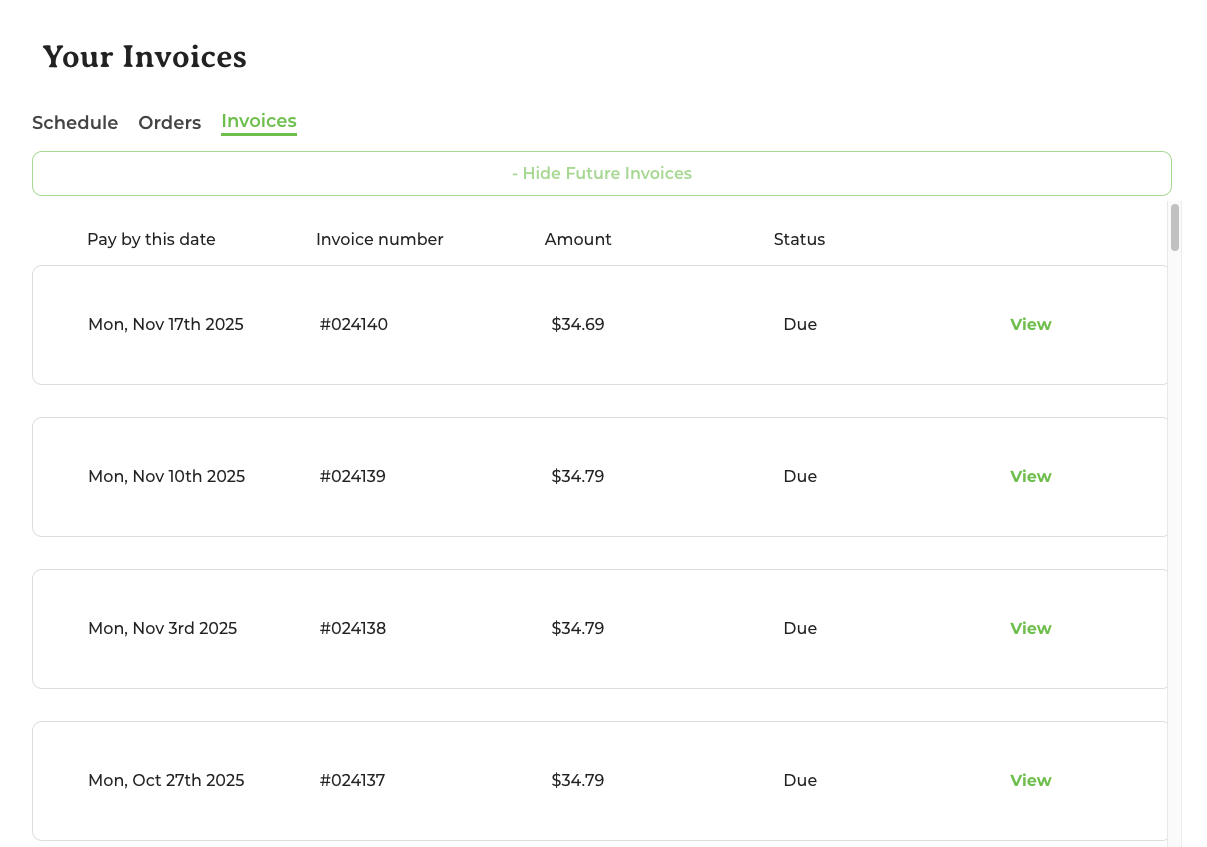
Choose a future invoice that you would like to apply your Farm Credit to and click View. On the next page, you will see GrownBy attempt to apply your Farm Credit against the invoice:
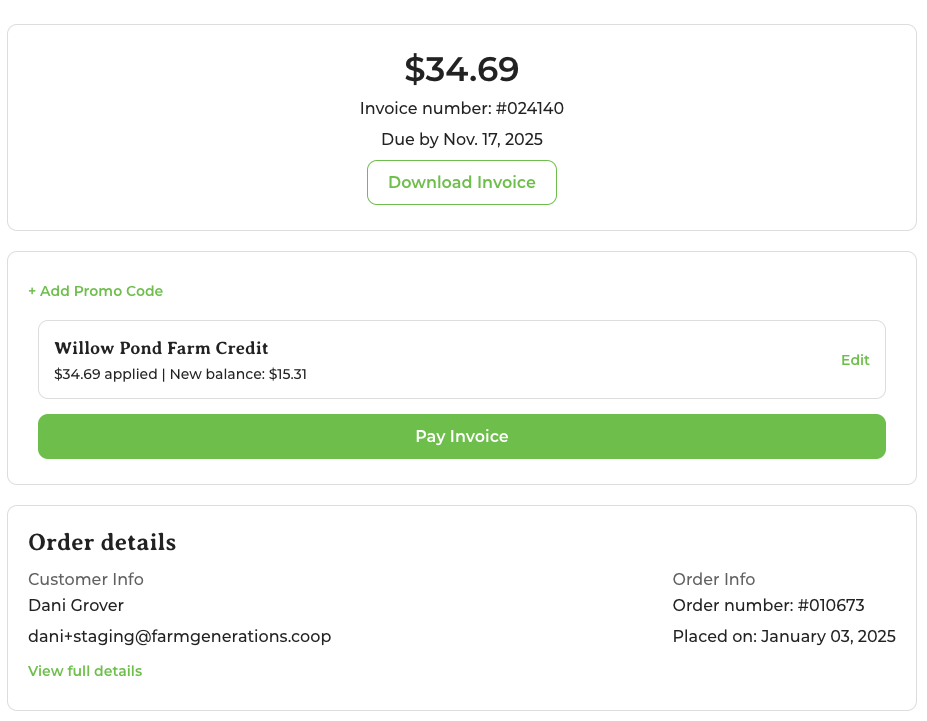
If you have enough credit to cover the amount due and want to use it, click Pay Invoice. If you need to split tender to cover the amount due, you may use a credit card in addition to your credit.