Getting started with GrownBy Register
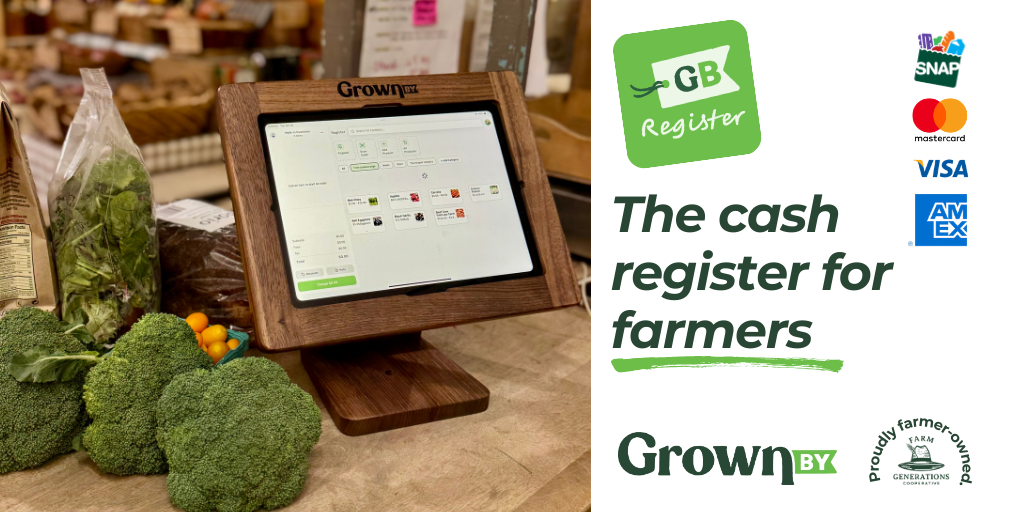 GrownBy Register the Cash Register for farmers
1. Sign-up for the BETA
All registered GrownBy users with a current plan are invited to test GrownBy Register. If you do not have an existing GrownBy account, you'll need to sign up for one here.
Register for BETA
When you're accepted to the BETA program, the GrownBy team will send you a confirmation email.
2. Get the appropriate device
GrownBy works on any iOS Apple device and Android phones or tablets. If you are using a tablet and on some mobile devices, you will need an external Stripe M2 card reader to accept payments. Additional card reader options will be available soon (including for EBT). Many mobile devices do not need a card reader as they can accept Tap-to-pay with Stripe.
3. Download GrownBy Register on a tablet or mobile device
Android - GrownBy Register at the Google Play Store
iOS - GrownBy Register at the Apple App Store
4. Log into your GrownBy Account and Start Adding Products
After downloading the GrownBy app, you’ll be prompted to sign up or log into your GrownBy account. Simply enter your credentials and it will take you to the home Register screen. To start selling, you must add products from your catalog into Register or add a new product to register. We recommend adding your products to Register on a desktop through our bulk edit feature.
Detailed step by step on adding existing products and new products to Register:
Adding Existing Products to Register:
https://support.grownby.com/portal/en/kb/articles/how-to-add#How_to_Add_Existing_Products_to_Register
Add New Products to Register:
https://support.grownby.com/portal/en/kb/articles/how-to-add-a-new-product-to-register
If you are switching over from Square, you can now import all of your products to Register automatically:
https://support.grownby.com/portal/en/kb/articles/importing-square-products-to-register#Importing_your_Square_Products_to_Register
https://support.grownby.com/portal/en/kb/articles/how-to-add-a-new-product-to-register
If you are switching over from Square, you can now import all of your products to Register automatically:
https://support.grownby.com/portal/en/kb/articles/importing-square-products-to-register#Importing_your_Square_Products_to_Register
4. Set up Payment Devices
Once you have set up your Register farm store, you can process payments through the mobile device Tap to Pay feature or an external reader. If you choose to use a tablet, you must purchase an M2 card reader from Stripe to process payments. Additional options will be available in the future.
To set up the Tap to Pay feature check out this article:
We recommend this M2 card reader from Stripe:
https://dashboard.stripe.com/terminal/shop/thsku_JokaJ6KpLMlDID
5. Start Selling!
Now that you’ve set up products in your farm store and a payment system, you are all ready to start selling at your in person farm store or farmers market.
Take a look at this article to see the process of your first order on Register:
https://support.grownby.com/portal/en/kb/articles/completing-a-transaction-on-register
Related Articles
Connect Start Micronics Cash Drawer to GrownBy Register
The Start Micronics Printer is required for the use of the Star Micronics Scanner or Cash Drawer. The printer is how the scanner connects to your device (via Bluetooth) Star Micronics Cash Drawer GrownBy Register is integrated with select Star ...Who can use GrownBy Register?
Eligible Farms Any eligible GrownBy farm that is connected to Stripe may use GrownBy Register. To register for GrownBy as a new farm, start here Where to use GrownBy Register 1. Farmers Markets GrownBy Register is the perfect cash register for your ...Connect Star Micronics Printer to GrownBy Register
Star Micronics Printers GrownBy Register is integrated with select Star Micronics hardware, and specifically hardware that can connect via Bluetooth. Here is the eligible model: TSP100III Bluetooth Receipt Printer How to connect the printer to ...Connect Start Micronics Scanner to GrownBy Register
The Start Micronics Printer is required for the use of the Star Micronics Scanner or Cash Drawer. The printer is how the scanner connects to your device (via Bluetooth) Star Micronics Scanner GrownBy Register is integrated with select Star Micronics ...Invoices Screen on Register
Invoices Screen on Register How to Access the Invoices Screen To access the Invoices screen on Register, click on the account icon in the top right corner of the starting screen. From the drop down menu, select “Invoices”. On this page you can access ...