Setting up and Using Tap to Pay or Contactless Payments on your Mobile Device
Tap to Pay Devices
Apple iPhones, Samsung phones, Google Pixel and a selection of additional Android phones can all process contactless payments for Register. The following list may not be complete; please look up your device information or contact your service provider for more information.
For iPhones:
- iPhone XS, XS Max, XR, 11, 11 Pro, 12, 12 Pro, 13, 14, 15, 16, and SE (2nd/3rd Gen).
- Must have iOS 16 or later.
For Samsungs:
- Galaxy S Series: S6, S7, S8, S9, S10, S20, S21, S22, S23, S24, and S25 series.
- Galaxy Z Series (Fold/Flip): All Fold, Fold2, Fold3, Fold4, Fold5, Fold6 and Flip, Flip3, Flip4, Flip5, Flip6 models.
- Galaxy Note Series: Note 5, Note 8, Note 9, Note 10, and Note 20 Ultra.
- Galaxy A/M Series: A52s, A53, A54, A55, A71, A72, A73, M52, M53, M54, and newer 5G models.
- Must have Android 9 or later.
For Google Pixel:
- Pixel 3, 3a, 4, 4a, 5, 5a, 6, 6a, 6 Pro, 7, 7a, 7 Pro, 8, 8a, 8 Pro, 9, 9 Pro, and 10 series.
Contactless payments are also available on other Android devices, but if not listed here, please check to make sure your device can process Tap to Pay or NFC payments.
Using Tap to Pay for the first time on your Mobile Device
1. Create an order
To set this up on your Register app, create an order, (it can be anything, you won't fulfill this purchase) and proceed to check out.
2. Click "Tap to Pay" when charging order
When the screen takes you to the customer basket page and press the "Charge" button at the bottom. Of the payment processing options, click on "Tap to Pay on __(Device Name)__".
3. Connect to "Tap to Pay"
From there, it will take you to a new screen where you can click "Connect to Tap to Pay on __(Device Name)__". The app will now connect your device's processing system and may show you directions on how to use it Tap to Pay if you have never used it before.
4. Accept payment
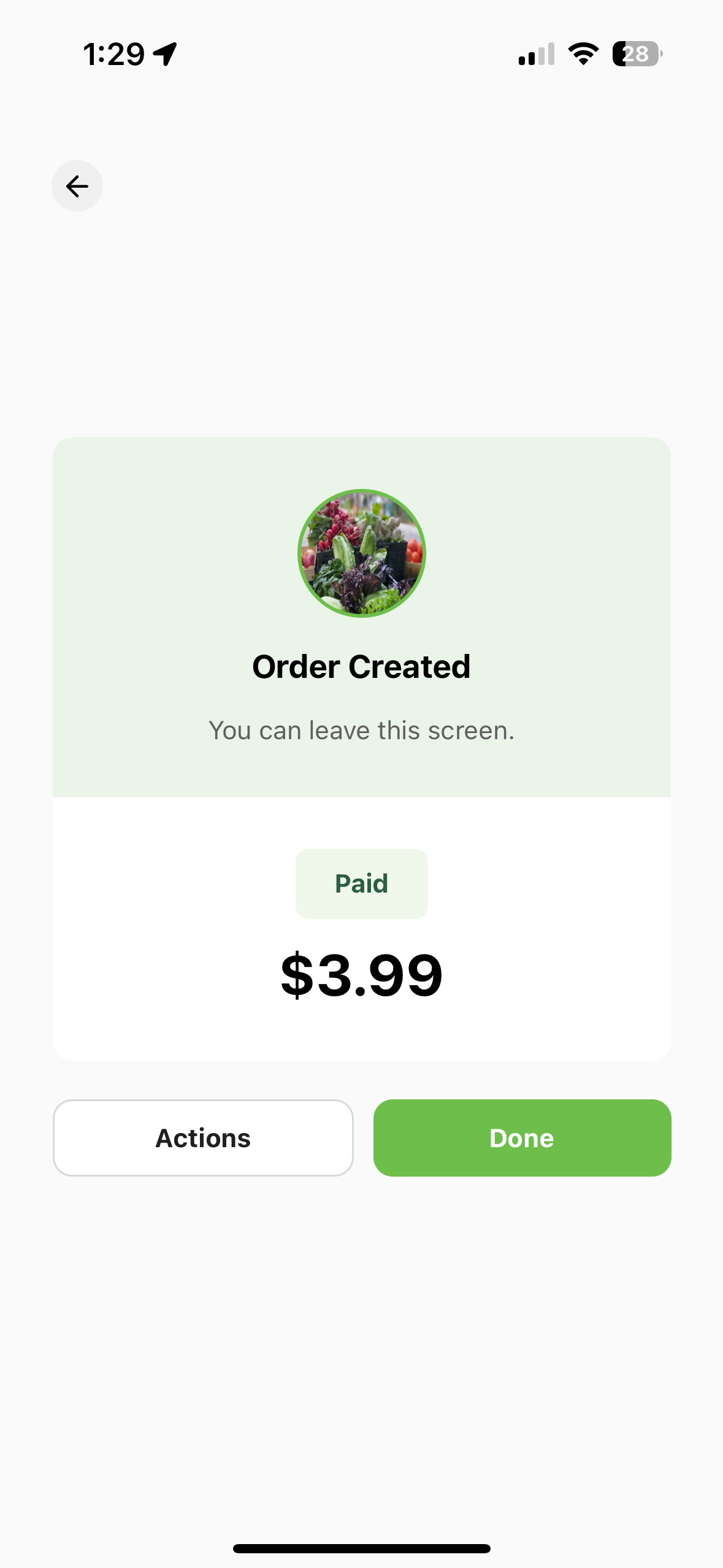
After that a new screen from your devices payment processing system will pop up and allow you to accept your customers contactless payment card or device. Once the customer taps their payment form, your order will be completed and a confirmation screen will appear.
7. Confirmation Screen
Related Articles
Getting started with GrownBy Register
GrownBy Register the Cash Register for farmers 1. Sign-up for the BETA All registered GrownBy users with a current plan are invited to test GrownBy Register. If you do not have an existing GrownBy account, you'll need to sign up for one here. ...What devices can I use register on? Will I need any extras for register? (peripherals)
Register Devices Mobile Phone Any mobile phone device running iOS or Android can install GrownBy Register. Android - GrownBy Register at the Google Play Store iOS - GrownBy Register at the Apple App Store Payments on Mobile Phone Credit Cards and ...Using Discounts on Register
Using Discounts on Register On Register, you can create and use discounts for your transactions. You can save these discounts if you are hosting a promotion for the day and also create discounts on the fly for any day to day needs. How to Add a ...Using Keypad to enter an order/item
Using Keypad to Enter an Item When using Register, it can be helpful to be able to key in an item separately so you can quickly process sales even if a product isn’t in the system, doesn’t have a barcode, or has a special price. It also ensures ...Who can use GrownBy Register?
Eligible Farms Any eligible GrownBy farm that is connected to Stripe may use GrownBy Register. To register for GrownBy as a new farm, start here Where to use GrownBy Register 1. Farmers Markets GrownBy Register is the perfect cash register for your ...