If you have an existing GrownBy Marketplace or Wholesale account, you may add customers you've had in the past to their in-person Register orders. This can be helpful to manage and use their farm credit and track their orders. You can also add new GrownBy customers to your list if they have a GrownBy account and their QR code available.
Adding a Customer
1. Navigate to the customer page.
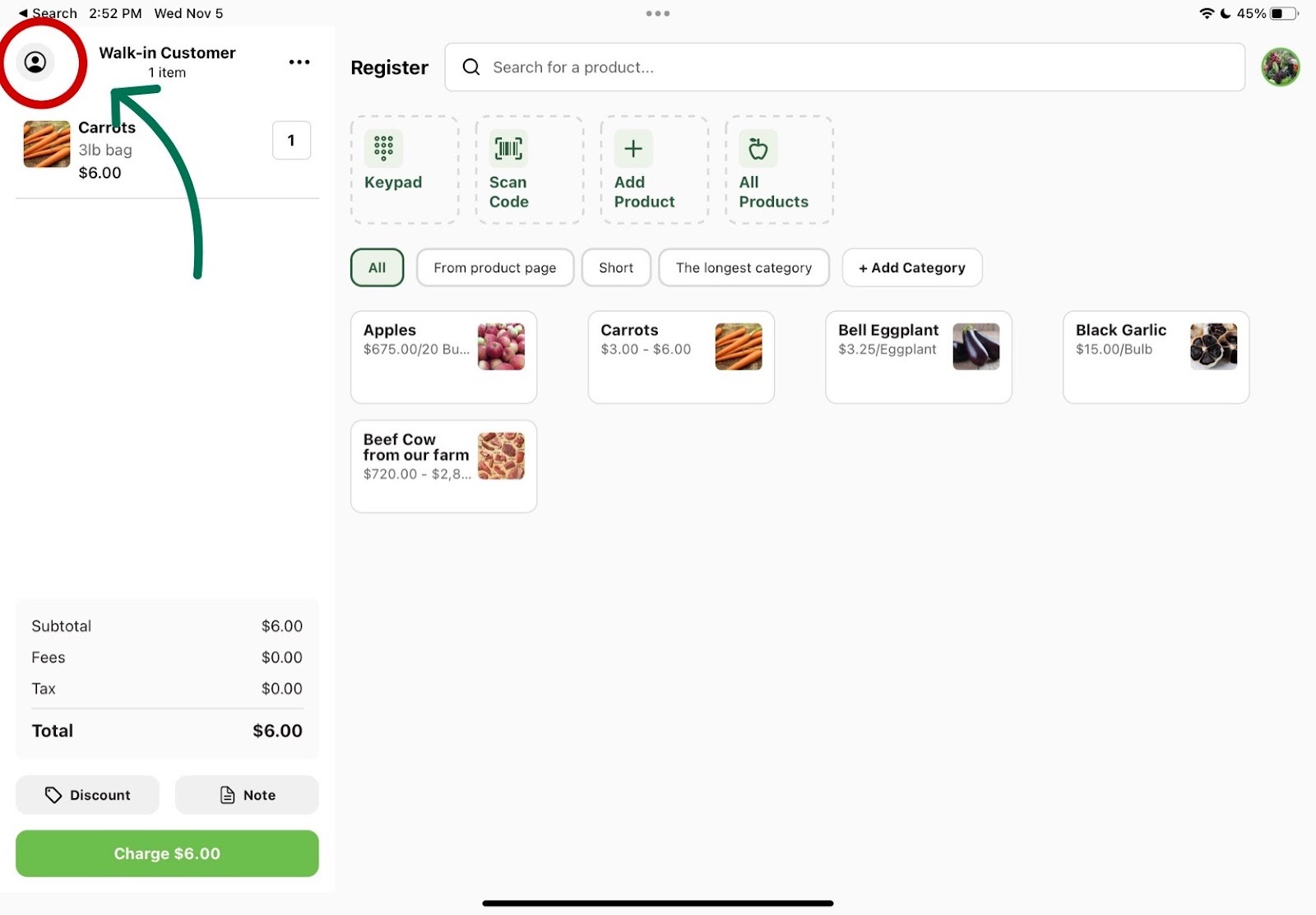
Once your customer's order is ready in the cart, click on the person icon in the top left corner. You'll see a list of all your customers along with their available farm credit. You can also use the search bar to quickly look up individual customers.
2. Find your customer and add them to the order.
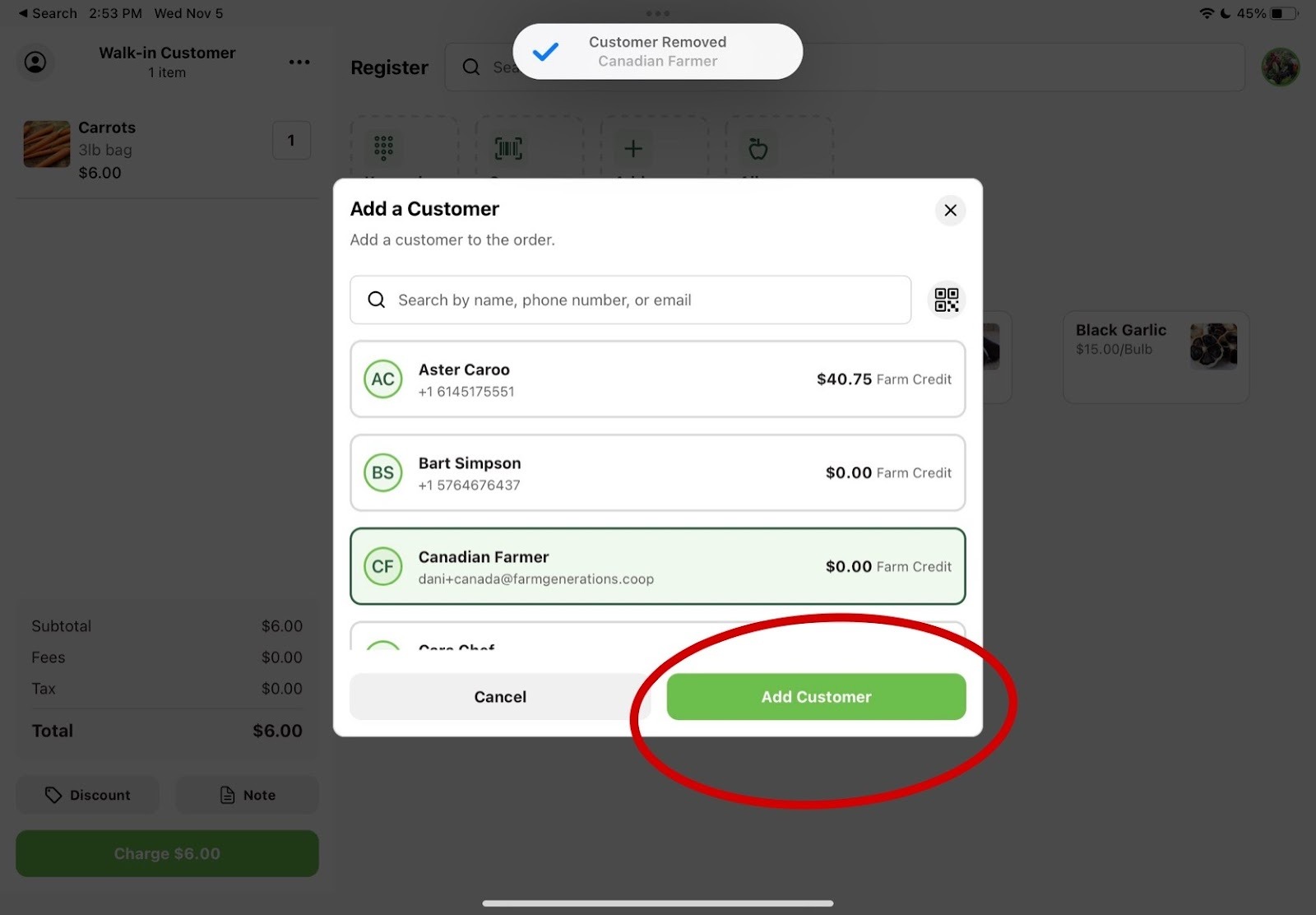
If your customer is already in your GrownBy customer list, search for them by name. To add a new GrownBy customer who isn't on your list yet, click the QR code icon to the right of the search bar and scan their GrownBy account QR code (available from their GrownBy Retail account page or app). Click the green Add Customer button when you've found your customer.
3. Customer connected to order.
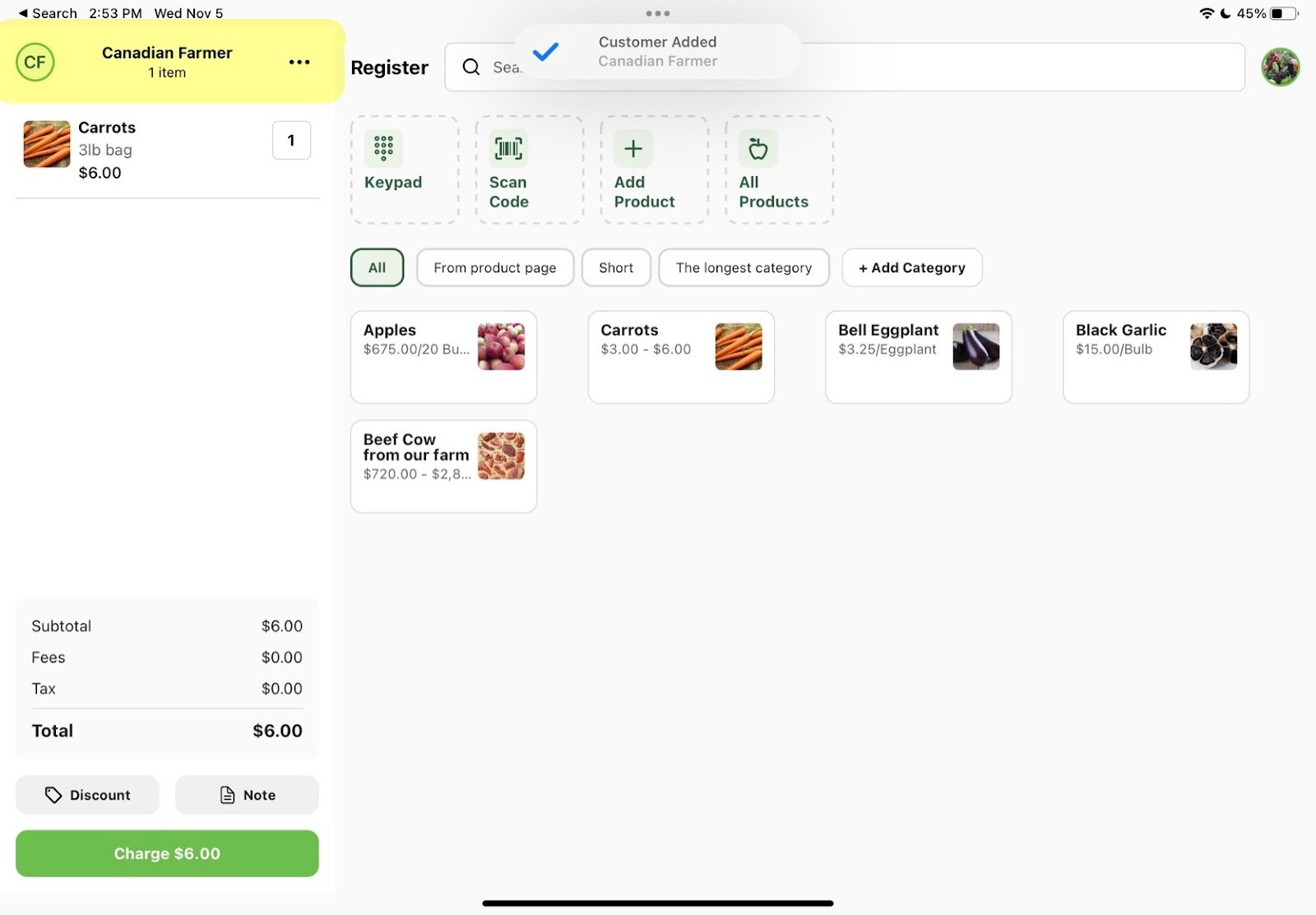
Your cart will now reflect your customer's name at the top of the cart.