
Every credit card payment on GrownBy has processing fees taken out of it before the money reaches your bank account. Your customers can also choose to help cover those fees at checkout. This article shows you where to see both numbers: what you've paid in fees, and what your customers have covered.
The quickest answer: Sales Summary by Payment Date
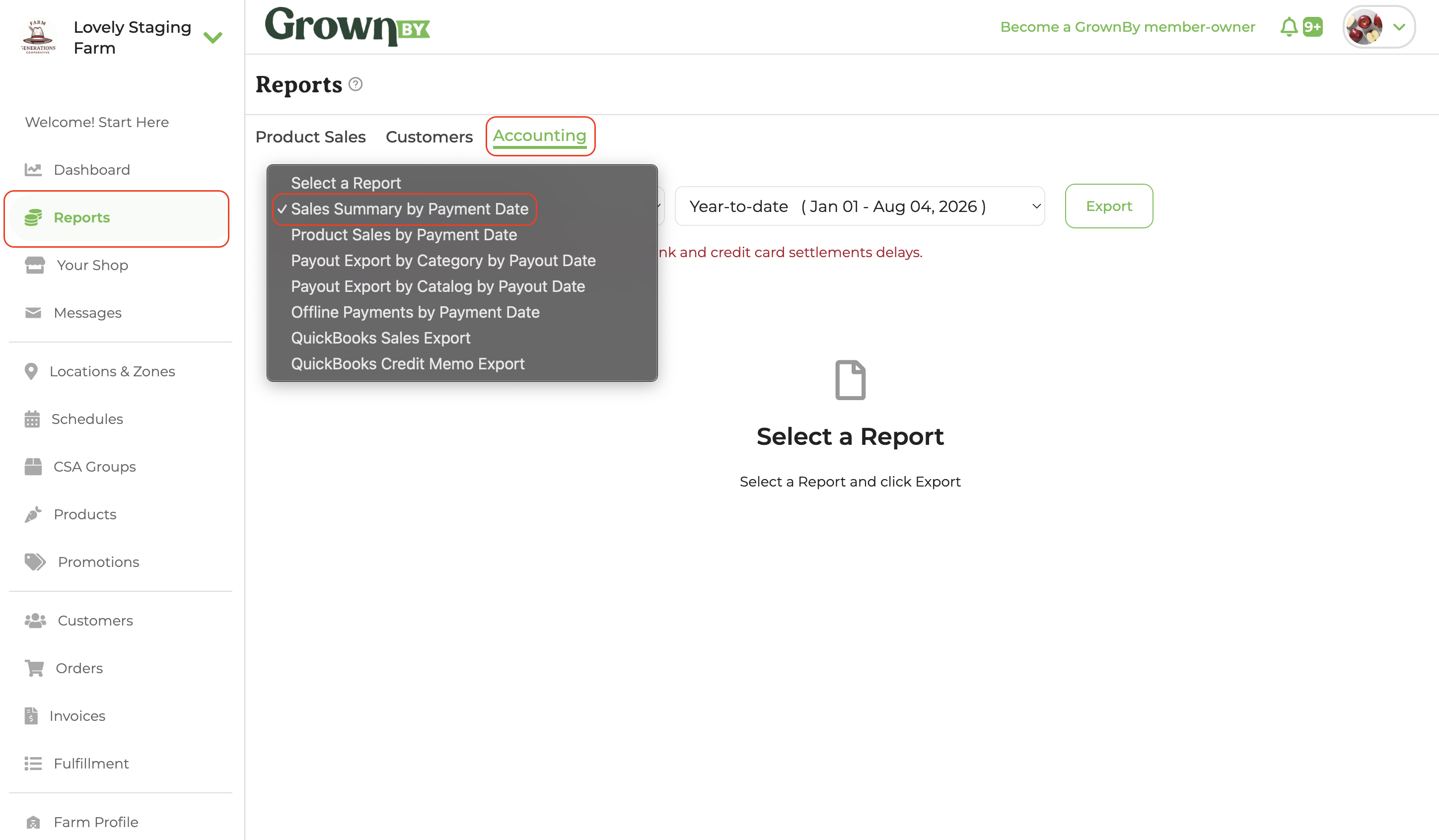
From your Farmer Dashboard, go to the Reports tab and open the Accounting section. Choose Sales Summary by Payment Date and select the time period you want.
Two lines answer your questions:
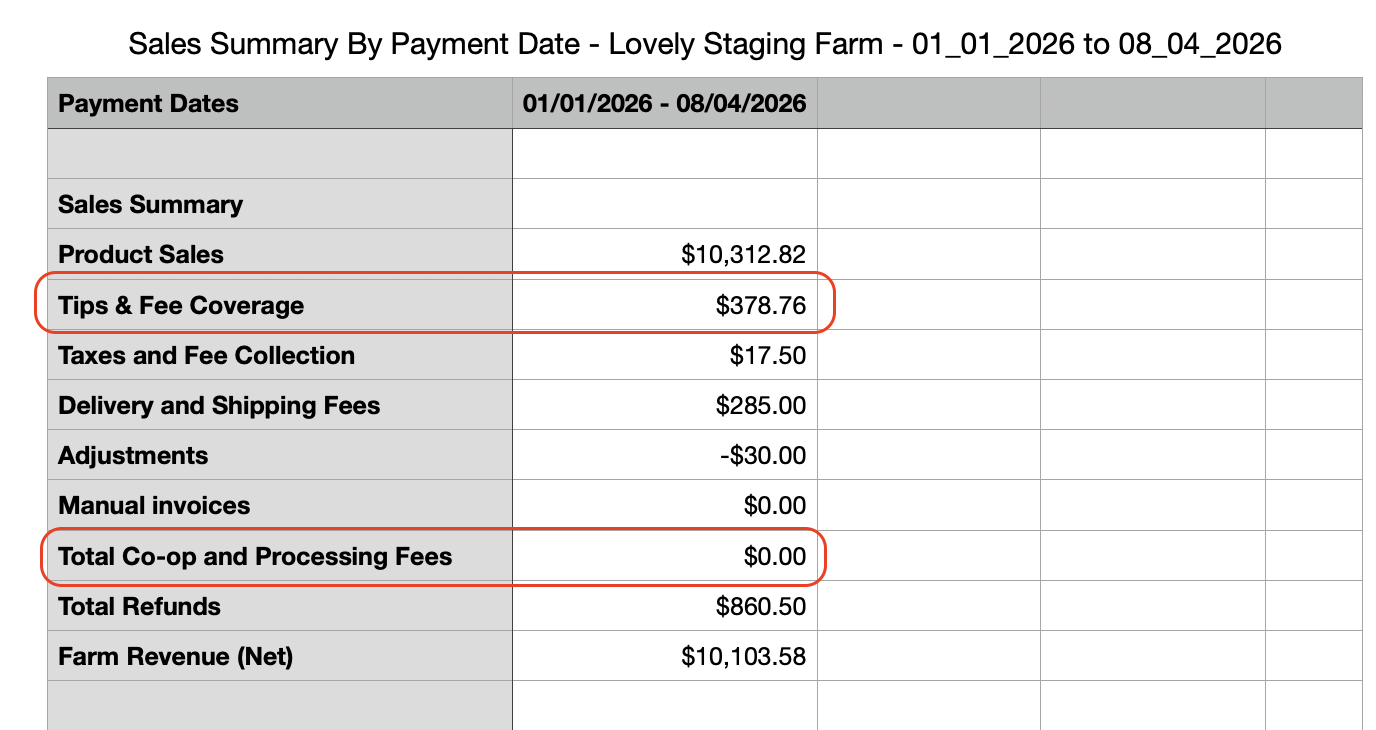
- Tips & Fee Coverage: the total your customers chose to add at checkout to help cover tips and fees during that period.
- Total Co-op and Processing fees: the total fees taken out of your payments during that period. This combines the 2% co-op fee with the credit card and ACH processing fees from Stripe and Fortis.
Further down, the Transaction Fee Summary section splits that total into Total Payment Processing Fees and Total Co-op Fees, so you can see the card-processing portion on its own.
Fee-by-fee detail: Invoice exports
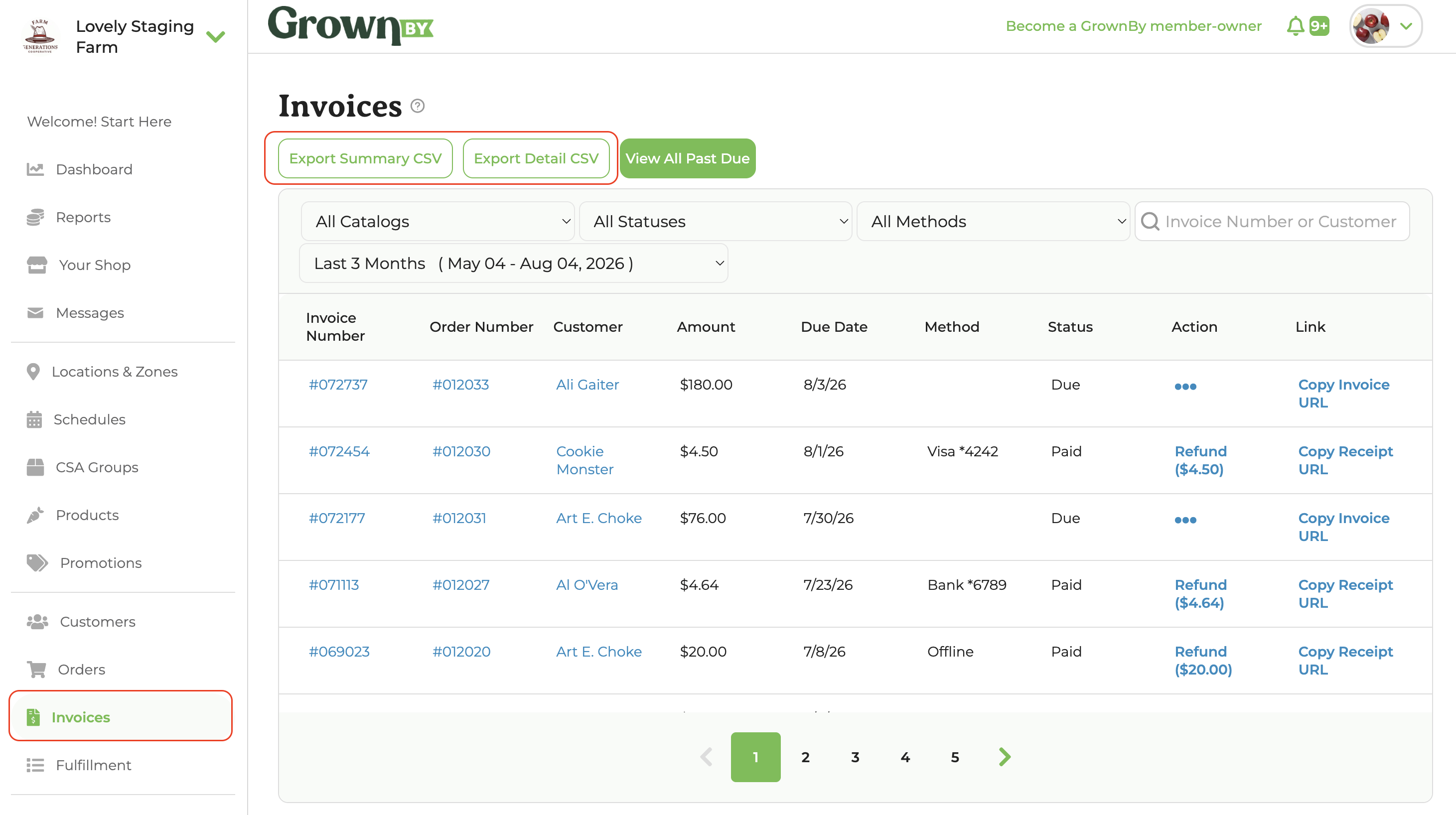
If you want to see the fees on each individual payment, use the exports on the Invoices tab. Both the Summary and Detail exports break the fees out per invoice:
- Co-op Fee: the 2% platform fee that supports the co-op. It applies only to online credit card and ACH payments.
- Stripe CC Fee, Stripe ACH Fee, Fortis CC Fee, Fortis ACH Fee: the processing fees for each payment type.
When a customer chose to cover fees, the Detail export includes a row called Customer Tip and Fees Coverage showing what they added.
Offline payments and farm credit have no processing or co-op fees, so those columns are zero for those payments. Card payments taken in person on Register have a processing fee but no co-op fee. See Invoice Exports for a full breakdown of every column.
In-person payments on Register
Card payments you take in person on Register, using a Stripe card reader, Tap to Pay, or a Fortis card reader, have no co-op fee. Only the processing fee applies:
- Stripe card reader and Tap to Pay: 2.9% + $0.15 per transaction.
- Fortis card reader: 2.6% + $0.10 per transaction. See Fortis payouts and fees.
This also applies when you use Register to charge an invoice from an online order. If a customer leaves an online order unpaid at checkout, you can charge it in person on Register without the co-op fee. See Invoices Screen on Register.
Cash, check, and manual payments have no fees at all.