Clearing an order on Register
Clearing an order on Register
In your cart, click the three dots in the top right corner. A dropdown menu will appear with the option “Clear.” Select this option, and a prompt will ask you to confirm your choice. Click the red “Yes, Clear Order” button, and you’ll be returned to the Register starting point with an empty cart.
1. Navigate to your customer cart.
Click the three dots in the top right corner of your cart.
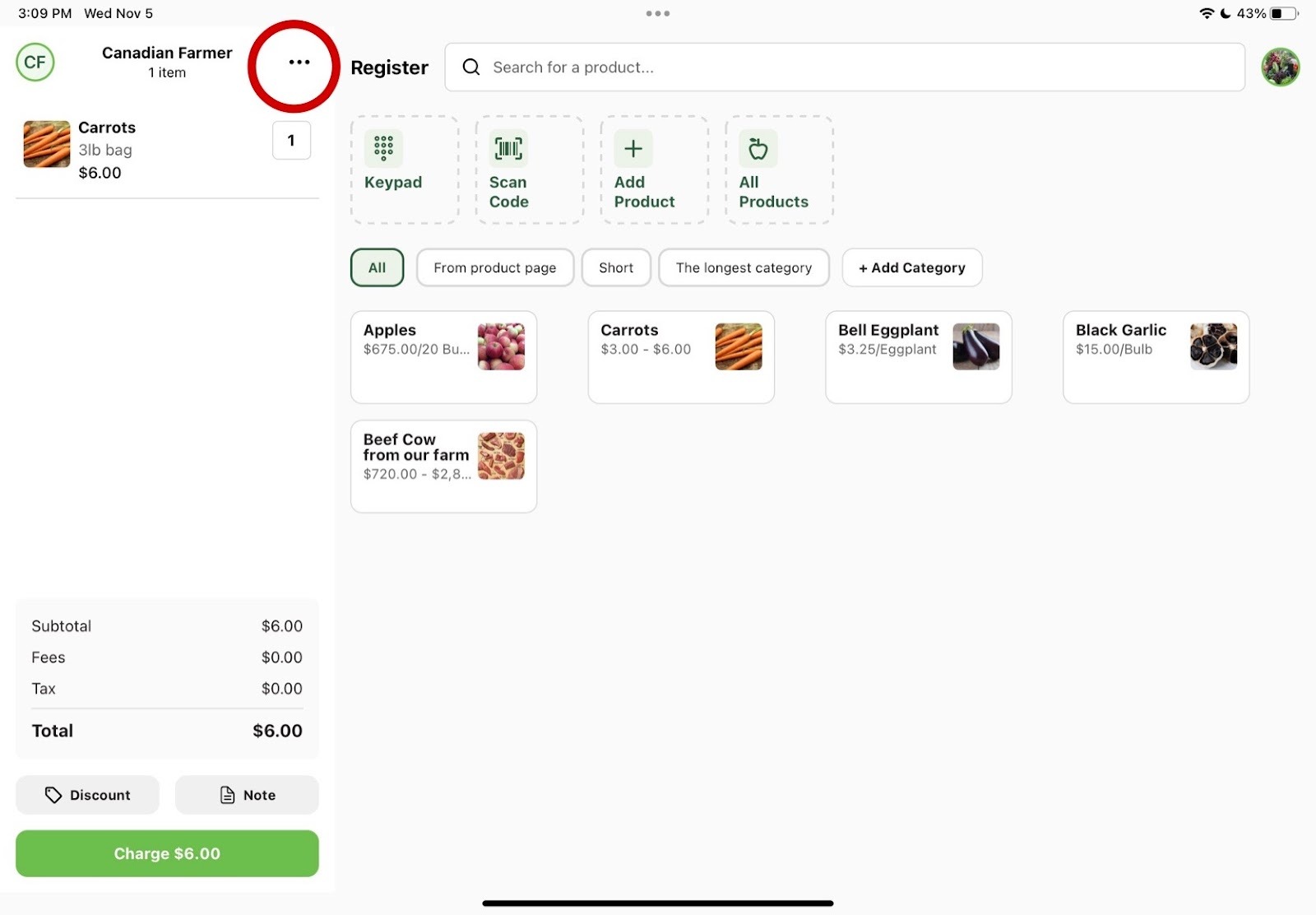
2. Select "Clear".
3. Clear cart confirmation.
Confirm you would like to clear the order by pressing the red button.
Related Articles
Connect Start Micronics Cash Drawer to GrownBy Register
The Start Micronics Printer is required for the use of the Star Micronics Scanner or Cash Drawer. The printer is how the scanner connects to your device (via Bluetooth) Star Micronics Cash Drawer GrownBy Register is integrated with select Star ...Adding Order Notes to Register
Adding Order Notes to Register Order notes add context to transactions in a register, explaining why things like discounts, refunds, or unusual charges occurred. This can help you when looking back at invoices to better understand reports and ...Refunding an order on Register
Refunding an Order on Register How to Refund a customer order on Register You can start to refund an order on Register by going to the Invoices page. Click on the profile logo in the top right corner of the starting page. Click on “Invoices” in the ...How to Add a Customer to an Order on Register
How to Add a Customer to an Order on Register Use Farm Credit & Order Tracking If you have an existing GrownBy Marketplace or Wholesale account, you may add customers you've had in the past to their in person Register orders. This can be helpful to ...Using Keypad to enter an order/item
Using Keypad to Enter an Item When using Register, it can be helpful to be able to key in an item separately so you can quickly process sales even if a product isn’t in the system, doesn’t have a barcode, or has a special price. It also ensures ...