How to Access the Orders Screen
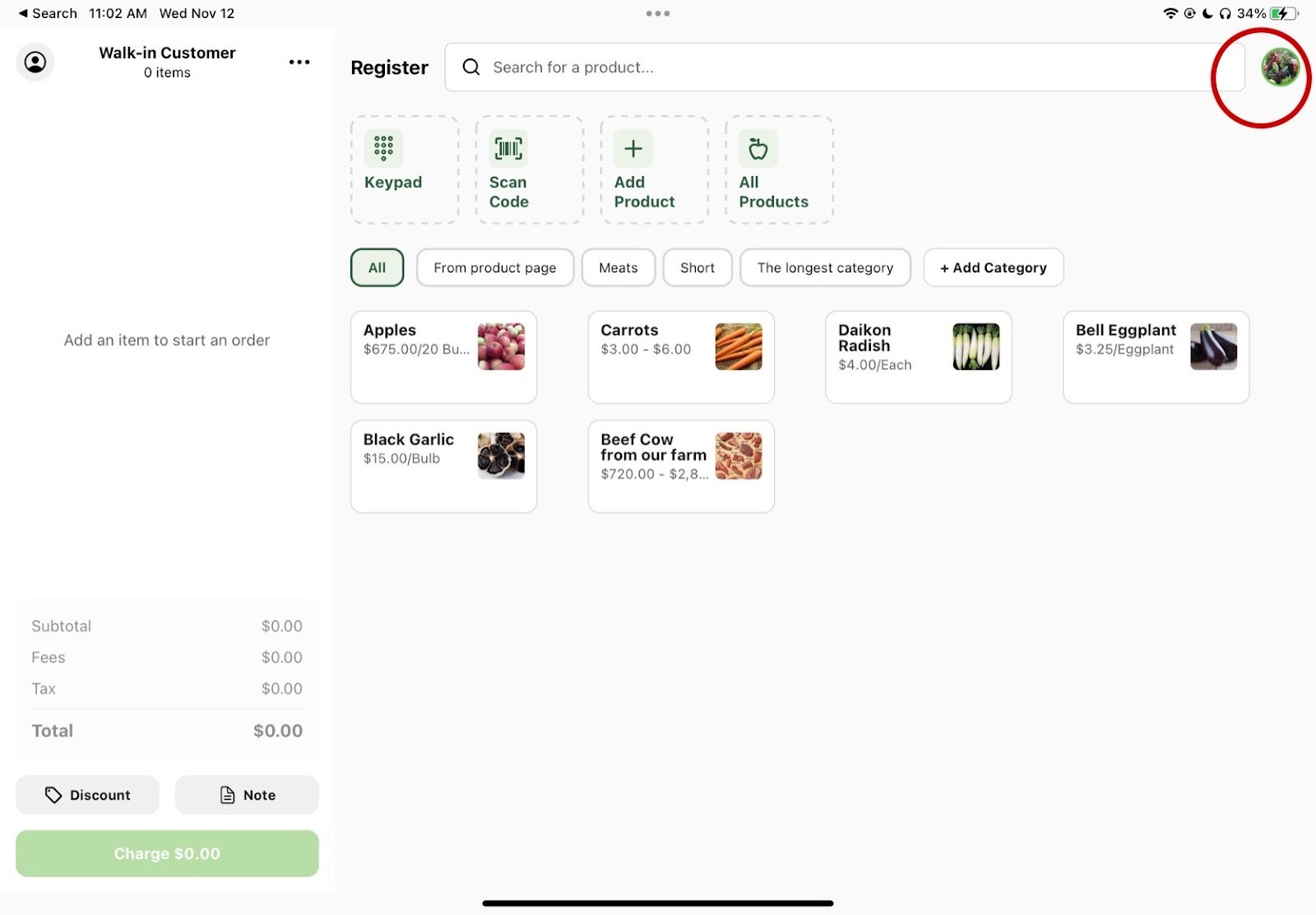
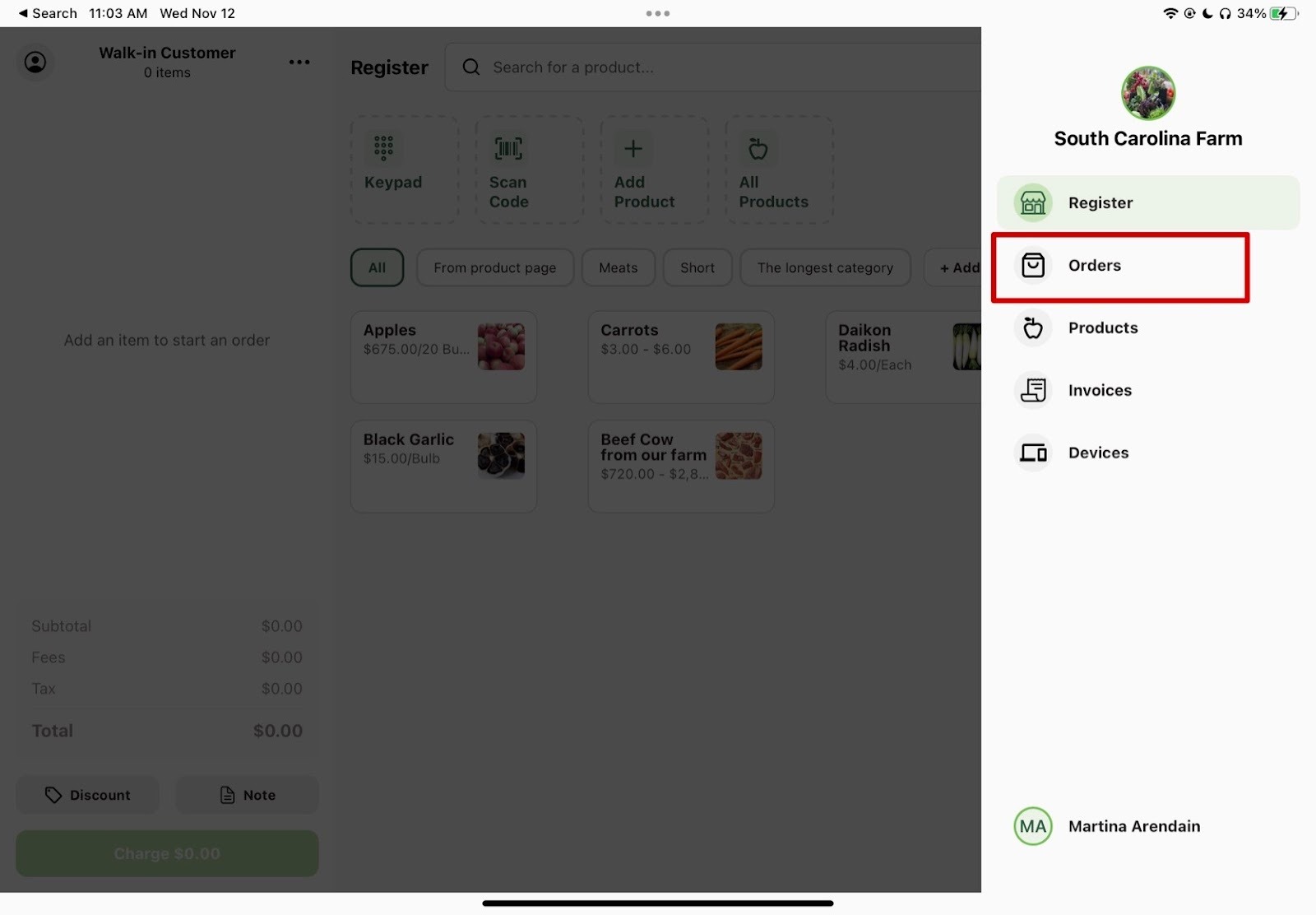
To access the Orders screen on Register, tap the farm logo in the top right corner of the starting screen. This opens a side navigation menu. Select Orders from the menu.
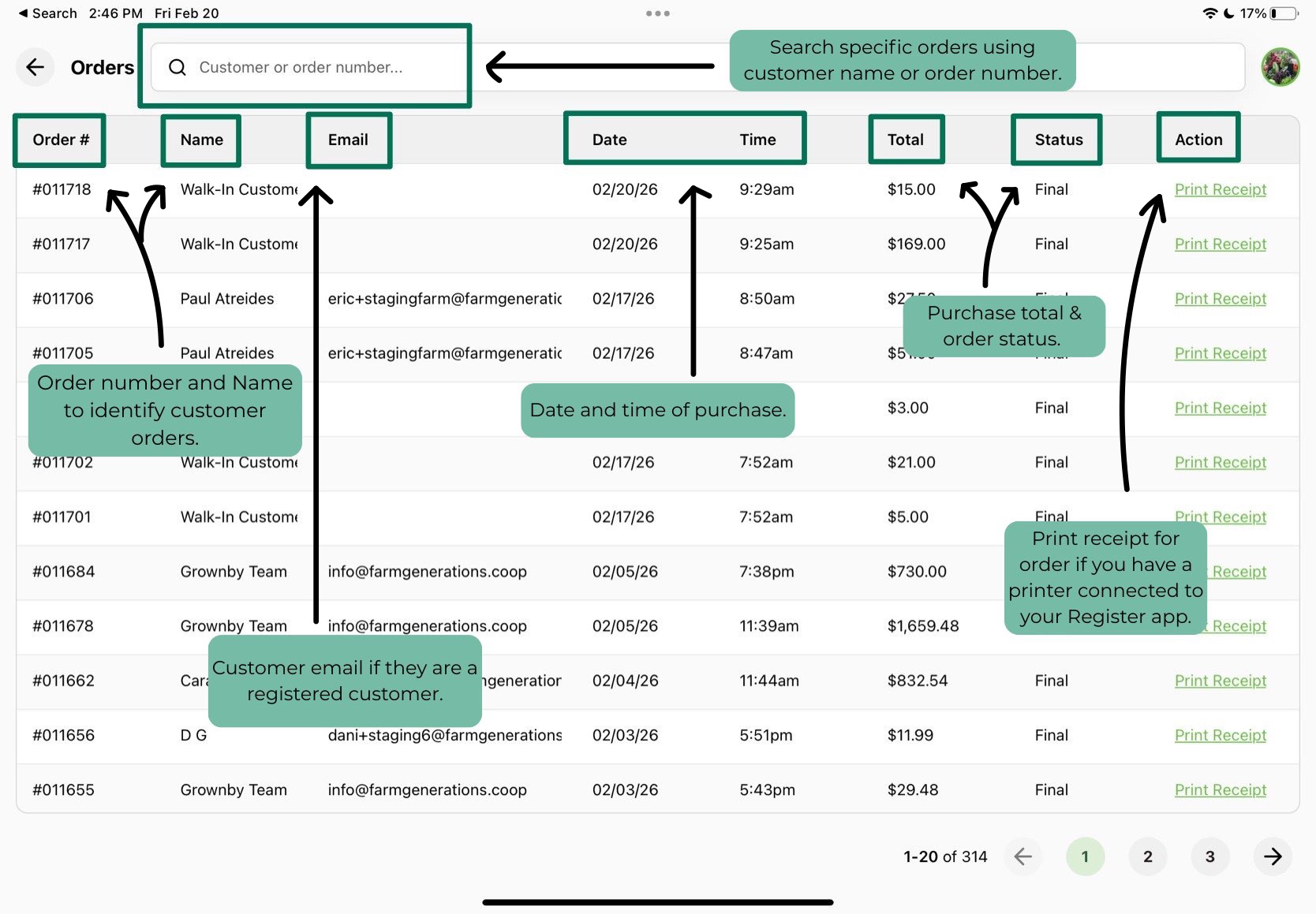
The following screen will show you a log of all of your orders: Marketplace, Wholesale, or through Register. The annotated screenshots below give a full guide to everything you will see on the screen.
1. Click on the profile logo in the top right corner of your home screen.
2. Click on "Orders"
Looking at the Orders Screen
On the orders screen, you can identify orders from the order number or customer name. You can use the search bar at the top to look up specific orders using this information.
For each order you will see the following columns:
- Order #: Unique ID for the particular order
- Name: Customer name, if a customer was attached to the order before checkout
- Email: Customer email, if a customer was attached to the order before checkout
- Date/Time: Date and time purchase was completed
- Total: Total price of the order
- Status: Whether an order if Final, Approved, or Cancelled
- Action: Print a receipt for the order if you have a printer connected (see this article on a compatible receipt printer)