
Gifting is a powerful way to bring new customers to your farm. GrownBy gives you several ways to offer gifts — from digital gift cards to farm credit and CSA share gifts.
Digital Gift Cards
You can sell digital gift cards directly from your GrownBy shop. A customer purchases a gift card, chooses a recipient, and GrownBy emails the recipient a redemption link. Once redeemed, the gift card amount is added to the recipient's Farm Credit balance for your farm.
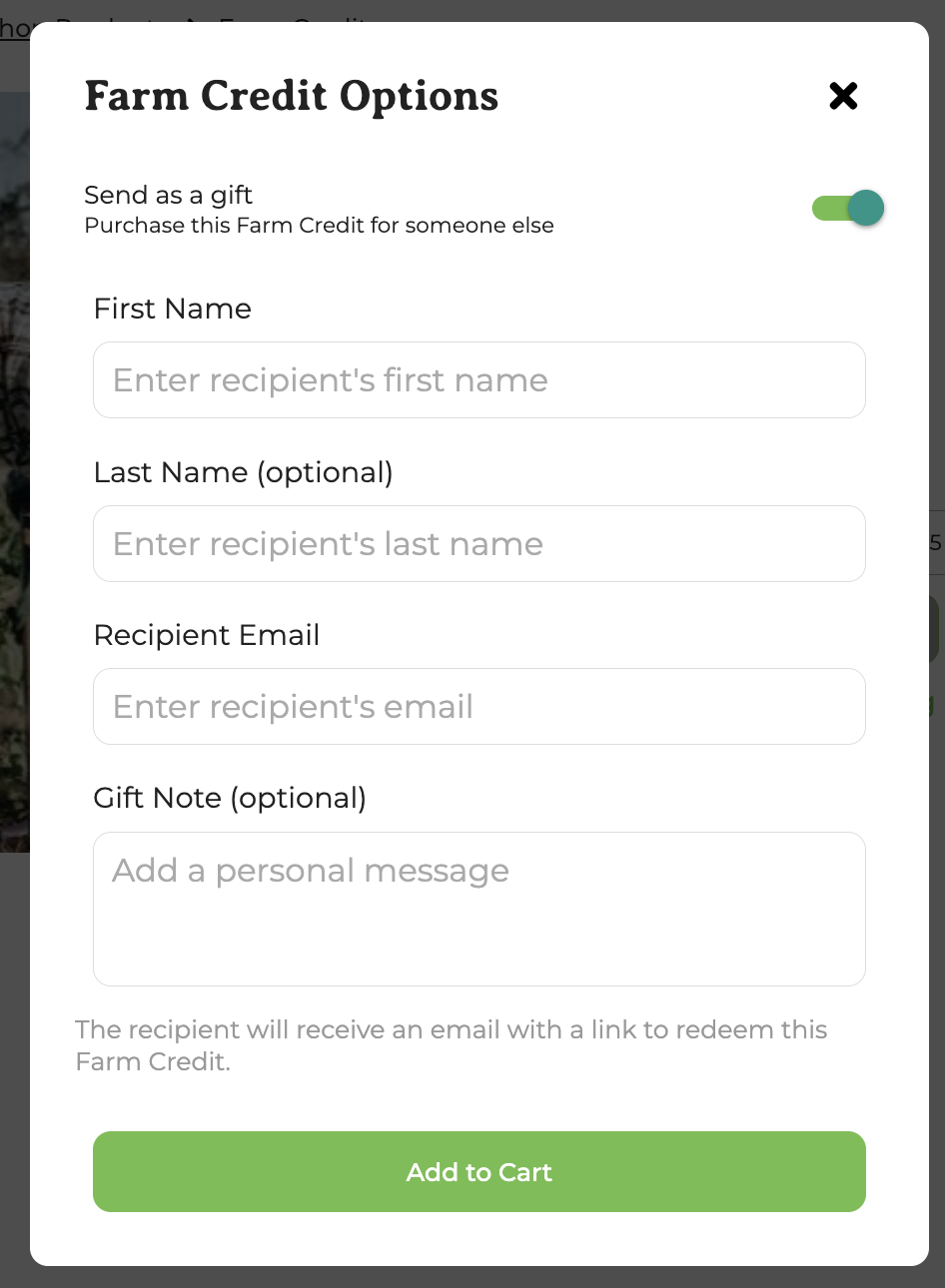
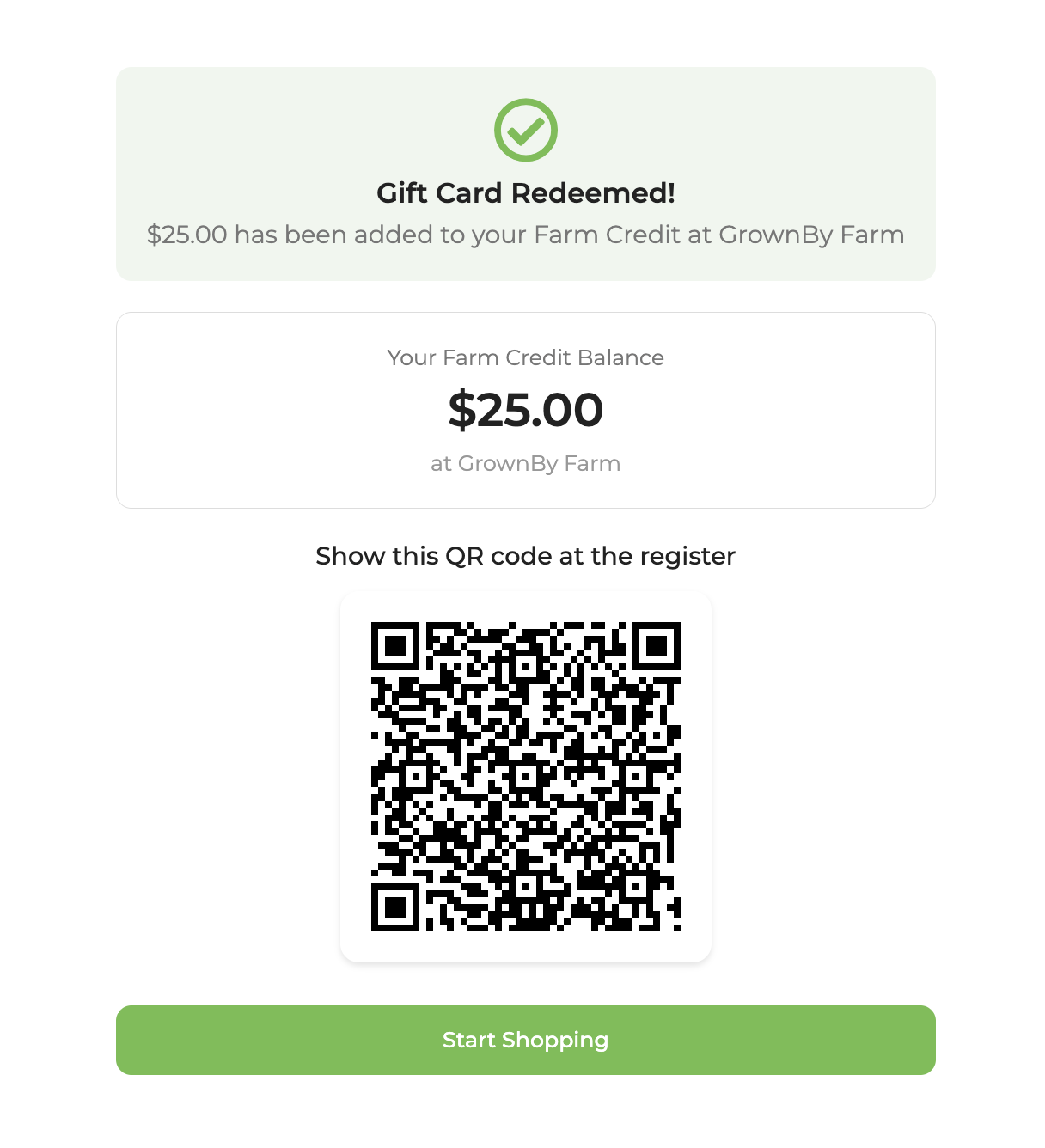
To get started, create a product using the Farm Credit & Gift Cards product type. Once that's in place, customers can purchase and send gift cards from your shop. For the customer-facing purchase and redemption steps, see Purchasing and Redeeming Gift Cards.
Gift Cards or Farm Credit (alternative flow)
If you haven't set up the Farm Credit & Gift Cards product for gift use, you can still arrange a gift of farm credit using the manual workflow below. A digital gift card and farm credit are the same product type — the difference is whether the customer enables the "Send as a gift" toggle at purchase, which collects the recipient's name, email, and an optional gift note. Farm Credit in GrownBy is a declining balance specific to one farm. Read more about farm credit here.
Manually giving a gift of farm credit
- Create a Farm Credit Product in a few denominations of farm credit.
- The gift giver purchases the farm credit and provides the recipient's email address to you. They can share this in text or email communications and/or in their order note at checkout. See the order notes on the HTML view of the order or in the orders CSV export in the column called "Customer Notes."
- Create an account for the gift recipient if they are a new customer. This can happen after the gift date to not confuse — or surprise — the recipient!
- Add the farm credit to the recipient's account via the customer detail page.
- Deduct the farm credit from the account of the giver.
Gifts of Standard Items
For a one-time gift — like honey, a class, a tote bag, or a Thanksgiving pie — the farm and customer can simply record that this is a gift outside of GrownBy. For example, if Mary Poppins gives her son Joe a pie, you may simply make a note on the sign-in sheet that Joe is picking up. The gift giver should add a note about the gift on the order at checkout. If this is an item to be shipped, the giver must communicate the recipient's address.
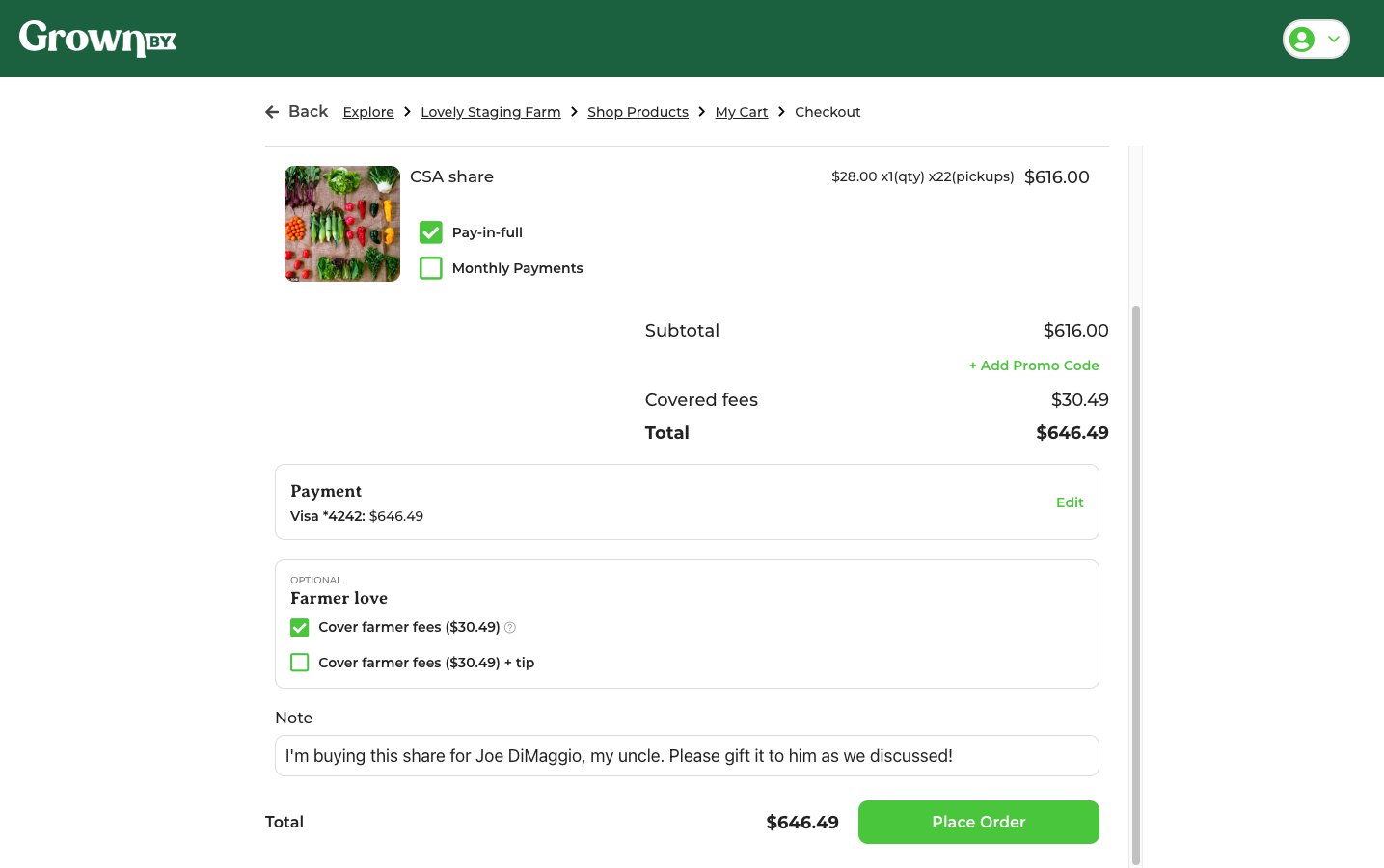
If gifting an item is a common occurrence or you need your sign-in sheets and records to be exact:
- Direct the gift giver to make the order and pay for it.
- Cancel their order without providing a refund.
- Create an account for the recipient and build an order for the item. Mark the order as paid on checkout.
- Refund the associated invoice on the recipient's account without deleting the order (this keeps your sales numbers correct). The recipient then gets the notifications for pickup and their name appears on the sign-in sheet.
Gifting a CSA Share
- Make a digital product priced at the cost of the share. You could name it something like "Gift Vegetable Share." If you want to offer different share types — egg, bread, fruit, etc. — create individual digital options for each. You can create and use the category "gifts."
- Instruct gift givers to order the gift product using their own name, address, and credit card info. They should provide the recipient's name and email address, plus any pickup location and timing details, in the order notes at checkout. You can also make a note in the gift giver's customer detail page with the recipient's name.
- Optionally, create a digital "gift card" in Canva or another program for the gift giver to print and place in a card. The printable can include contact info for the farm in case the recipient needs to reach out before being subscribed.
- Create an account for the gift recipient. Make an order for the share or shares in question. Mark as paid.
- Refund associated invoices on the recipient's customer account under invoices. Since this order was marked as paid on checkout (so the customer didn't get an invoice or unexpected notification), you'll see a refund option rather than a void option. This ensures there isn't double income showing for this share.
- The gift recipient will appear on all distribution lists, sign-in sheets, and email lists, and will receive email reminders like all other members.
If it is important for the customer to not see the cost of the share, or if you are already using templates:
- Make a digital product priced at the cost of the share.
- Instruct gift givers to order the gift product using their own name, address, and credit card info. They should provide the recipient's name and email address, plus pickup location and timing details, in the order notes at checkout and/or via email. You can also make a note in the gift giver's customer detail page with the recipient's name.
- Optionally, create a digital "gift card" in Canva or another program for the gift giver.
- Create a $0 Gift share that is a child template of the main share. For example, the parent template may be "Weekly Vegetable Share" and the child template could be "Gift Share." Hide this share and keep it hidden except when making an order for the customer.