
How to use share templates
Share Templates allow you to offer the same Share at different prices or frequencies. In GrownBy, we use the terminology "Parent Template Share" to describe the template itself and "Child Template Share" to describe the specific share products.
Here are a few examples of times or ways that you might use share templates:
- To offer different frequencies of share: "Full Vegetable Share" is the template. Within that template, the farmer can offer multiple frequencies: "Weekly Vegetable Share," "Bi-Weekly Group A Vegetable Share," "Bi-Weekly Group B Vegetable Share," and "Monthly Vegetable Share."
- To offer different price points for the same exact share: Many farms are offering sliding scales/payment tiers with templates. The template may be "Fruit Share" and within that template is "Fruit Share - High Income," "Fruit Share - Mid Income," and "Fruit Share - Low Income." On the sign-in sheets, it will just show that each member has a fruit share, without saying the income level associated with the share.
- If you offer a few shares at a special discount: For instance, a discounted share for faculty at the daycare where your pickup is hosted. If you have a limited number of these shares, you could handle the need for a discount with farm credit or promo codes, but if you have quite a few, they might be easier to manage as separate shares under the same template.
When do I NOT want to use templates?
Do not use a template when the Product itself is different. For example, if you offer different types of yogurts on subscription—plain, vanilla, honey, and maple—you would not use a template because you need to know the difference when packing.
How to Create a Template
- Starting on the Products Page, choose Add New Product
- Choose Custom or Traditional CSA Shares
- Choose Share Template
- Add:
- Template Product Name: the name that will appear on your Daily Summary, Location Summary, and all customer-facing Sign-in Sheets, as well as some other reports. Choose a customer-facing name that will feel the most clear providing privacy regarding sliding scale pricing and income levels.
- SKU: a farmer-facing code for inventory management.
- Short Description: describe the share in short and descriptive language.
- Long Description: describe the share experience to the customer. Some good details you might want to include in maybe the types of vegetables in the share, range of the number of items, general storage tips, suggestions on who this share is best for, or any info about pricing tiers. This is currently the only longer format field for all of your shares under a template, so if you need to give information on any differentiations between the templates, this is the spot!
- Production Method: This is a text description of your production method. You can add any text that you'd like, such as Organic, Conventional, Grassfed, etc.
- Category: Select a standard category or create a new category for your CSA share. The category is only visible on the Farm Manager side for sorting shares on the product page. In your Farm Shop, this share will be shown under the name of the CSA group.
- Producer: If you produce the shares included in this template, you can put your farm name here or leave it blank. If someone else produces this share, you should be clear about the name of that producer here.
- Suggested family size
- Minimum items
- Maximum items
Photos are set on each child share, not on the template itself. Once you have filled out the "Parent Template" it can apply to any associated "Child Templates." The next step will be to create a Share.
- Return to the main Product page and choose Add New Product. Then choose Custom or Traditional CSA Shares. Choose CSA Share.
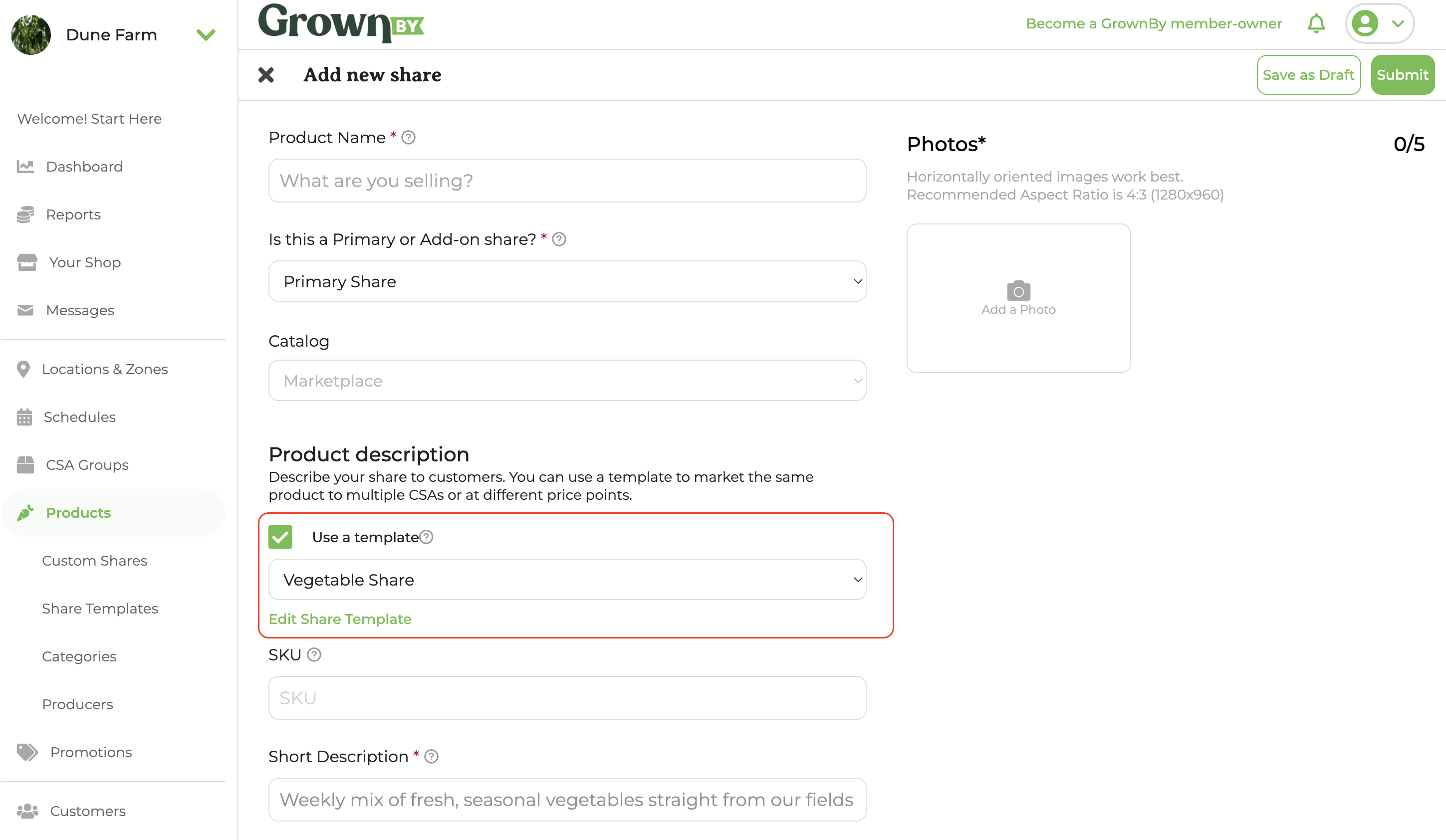
- To create a share using the template, check Use a template under the Product Description section of the share form, then pick the template from the dropdown. That will autofill all of the details from your template.
- Set the number of pickups and stock for this specific share. Choose the billing options and schedules to be associated with this share. Read more about shares here.
How to edit a template
Choose Edit on a share associated with this template or choose to create a new product with the template. Under the drop-down menu with the templates, you'll see an Edit Share Template button.
Where and how do templates show up?
One of the main reasons that templates exist is to streamline how a farmer views the share options they provide. In some cases, the farmer will want to see the individual share name and not see the information aggregated. In other instances, it will be better to show the shares as aggregated by the Template Name. The chart below provides info on where you'll see the shares aggregated and where you can see the specific share names.
- Daily Summary — Template Name with all shares aggregated (HTML and exports)
- Location Summary — Template Name with all shares aggregated (HTML and exports)
- Distribution Summary — Product filter collapses templated share children under the Template Name (HTML); exports filter by template name
- Sign In Sheets — HTML: Shows Template Name in the Product column and the specific share name in the Buying options column. PDF export: Template Name with all shares aggregated. CSV export: Shows Template Name in the Product column and the specific share name in the Buying options column
- Packing Sheets — Specific share name, not aggregated (HTML and all exports)
- Products — CSV export: Shows the Product/Share name and the Template Name
- Invoices (Summary and Detail exports) — Specific share name
- Orders — Specific share name