
Basics of Digital Products
On GrownBy, there are four product types: Standard, Subscription (CSA Share), Digital, and Farm Credit & Gift Cards. This article covers Digital Products and their uses.
A Digital Product is a product that is not linked to a location and schedule. You might want to use a Digital Product if:
- You want your Customers to be able to make a donation directly from your Shop
- You want to sell tickets to events (you can alternatively use a Standard Product to do this)
- You offer garden advice or other consulting
- You want to create a fee that isn't attached to either a specific delivery/shipping zone, or a specific product
Creating a Digital Product
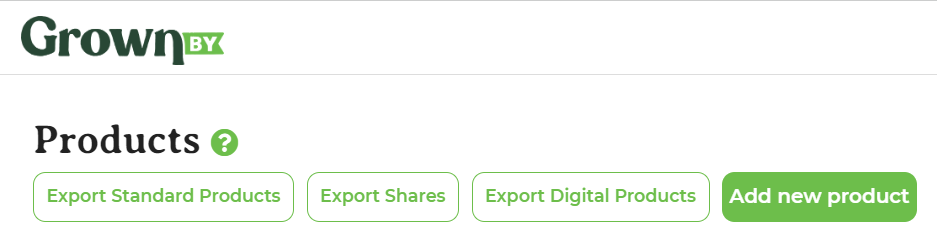
In the Products menu of your Dashboard, click Add new product:
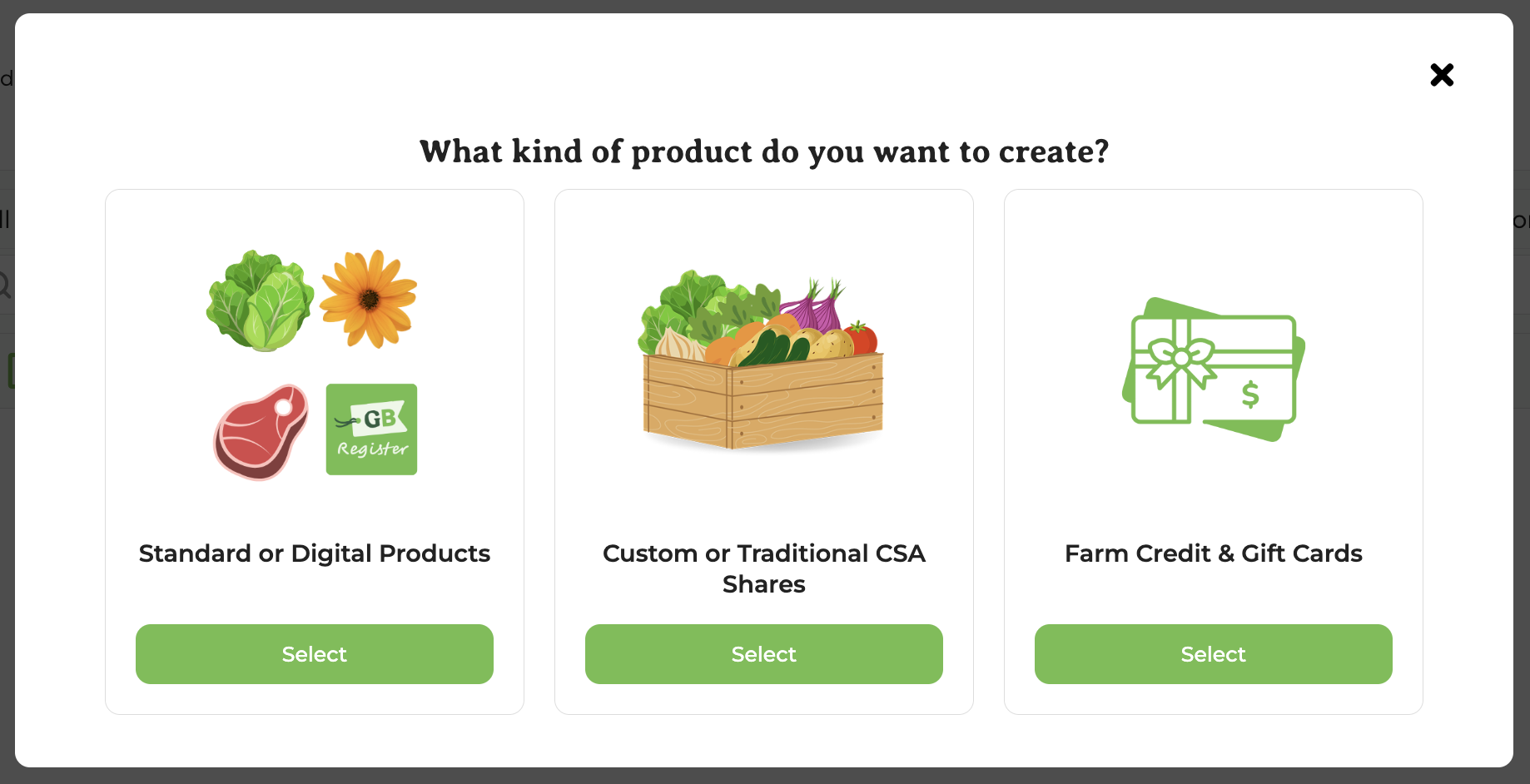
Then, select Standard or Digital Product:
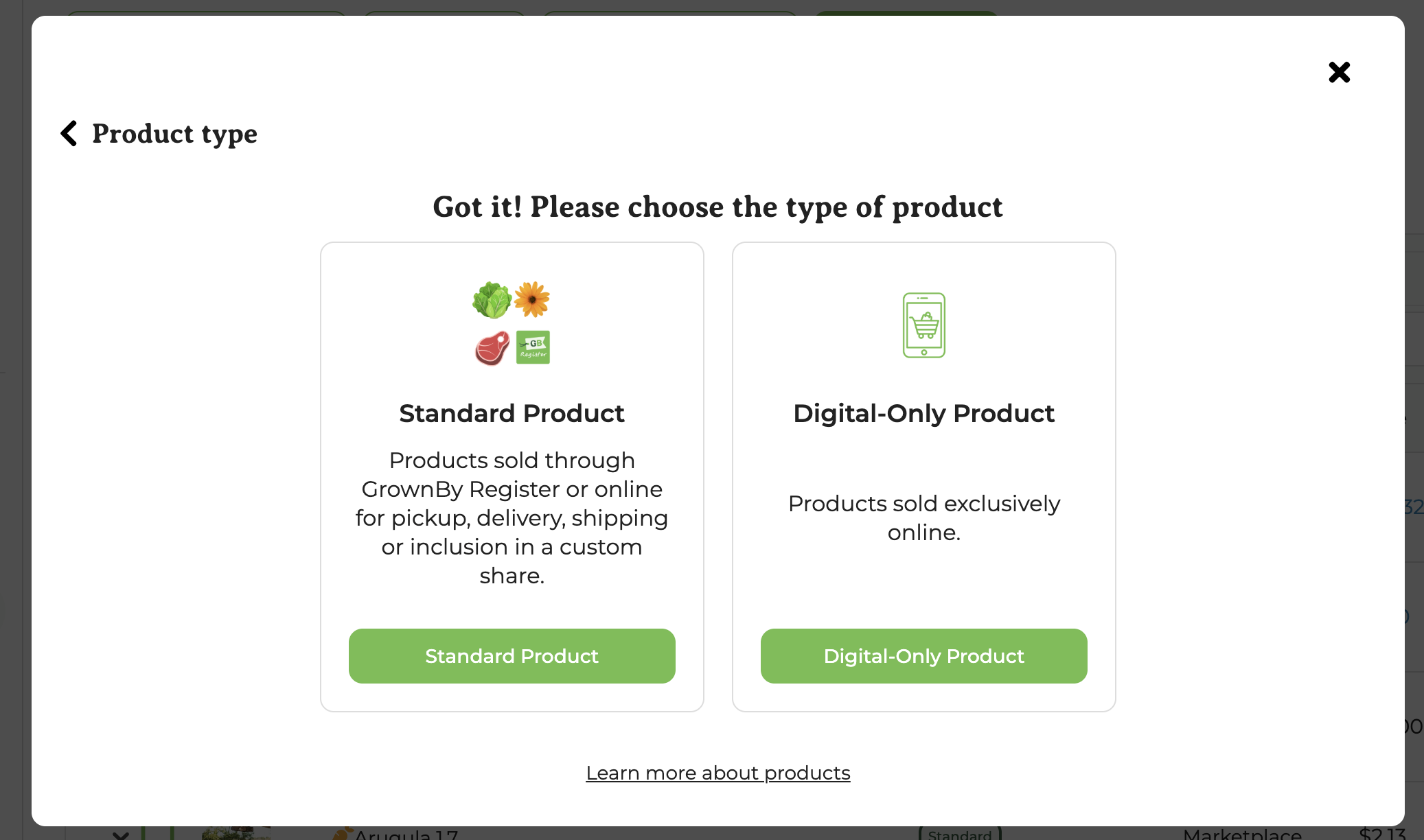
On the next screen, choose Digital-Only Product:
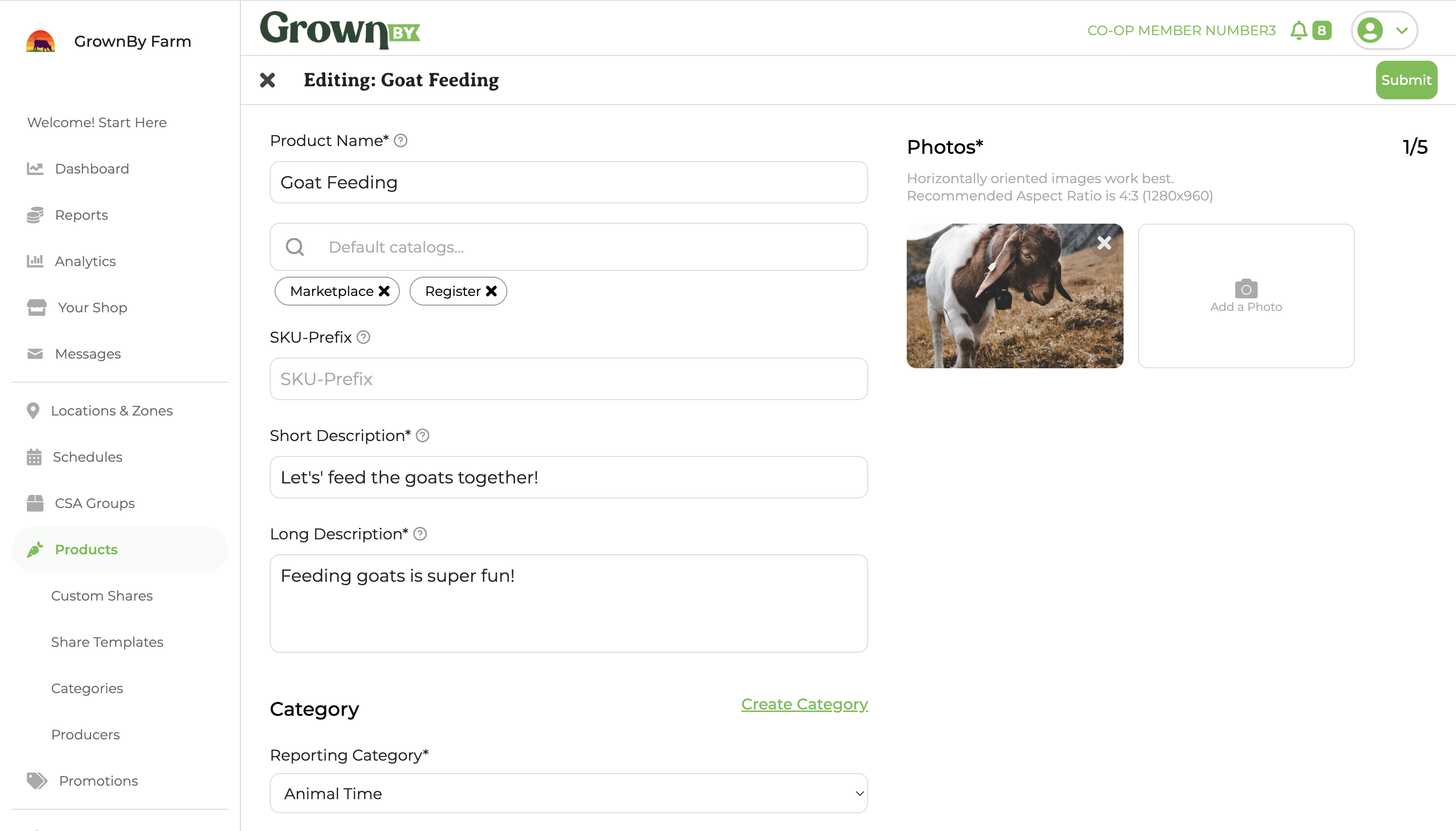
After clicking Digital-Only Product, input the basic information for your Product, including an image. The Short Description will appear as a subtitle to the Product Name in your shop. The Long Description is to add more detail about the Product. For example, the long text could be used to explain that the farm is raising money to subsidize shares. The Category selector will affect the section of your Shop in which the Product appears. You can also choose to make the Product only appear on CSA pages. This is useful if you are creating a Product, like a Membership or Site Fee that is only relevant to CSA Customers. (In this case, it's also helpful to add the Membership or Site Fee as a Suggested Product to your CSA Group, which will trigger GrownBy to suggest it to customers when they buy a share.)
The editing page for a Digital Product looks like this:
You will next enter a Unit (in this example we added Dollars). Cost Per Unit represents a cost to you or a cost of production. It is likely not relevant to a Digital Product and you can leave it blank. For In Stock you can enter any large number to make sure the Product will be available. You can always edit this In Stock amount later.
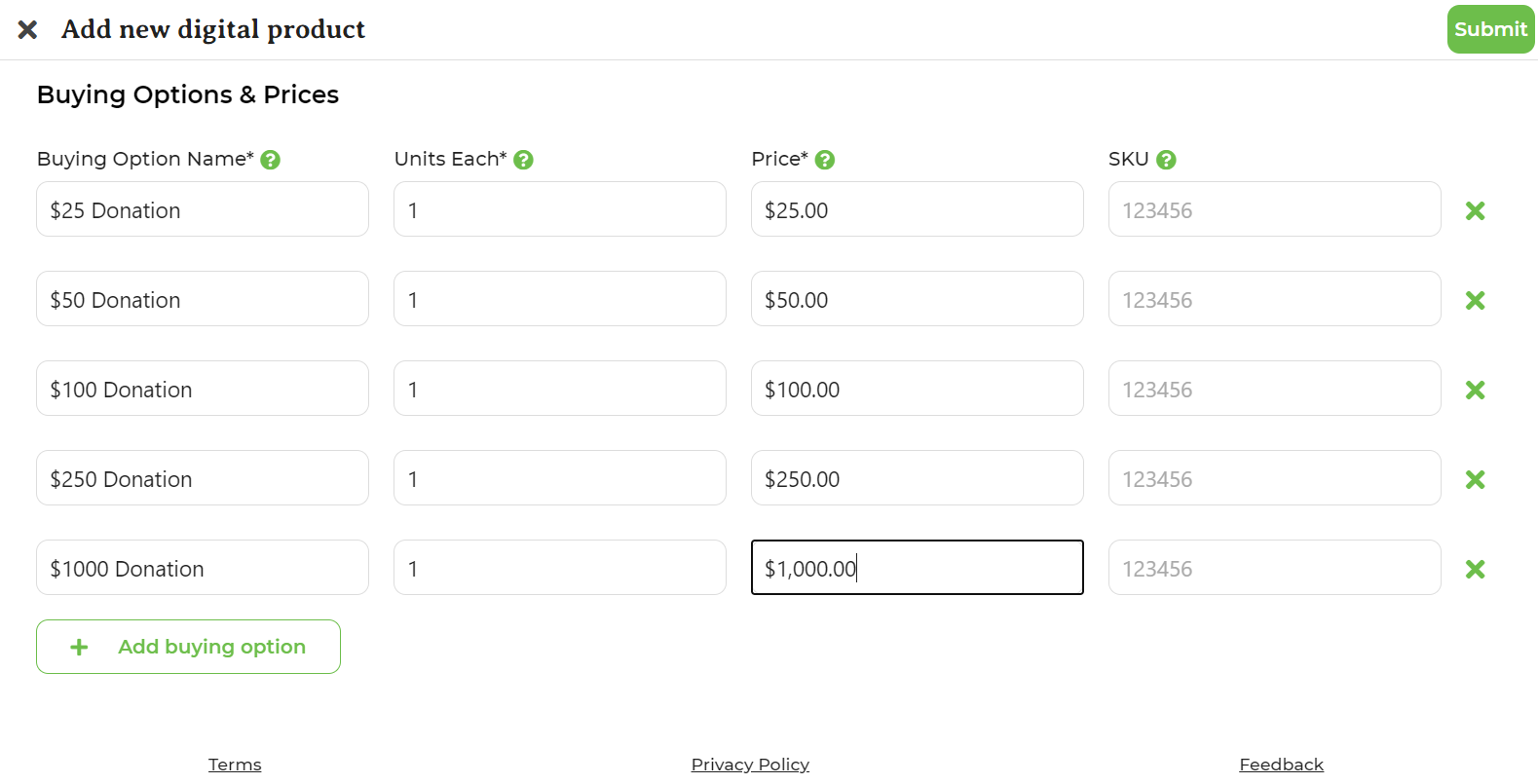
Under Buying Options and Prices, enter the names you'd like to appear in the Shop for the buying option. You can add as many Buying Options and Prices as you need. To add more, click the Add buying option button.
When you're done, click Submit at the top right of the screen.
These pages look like this:

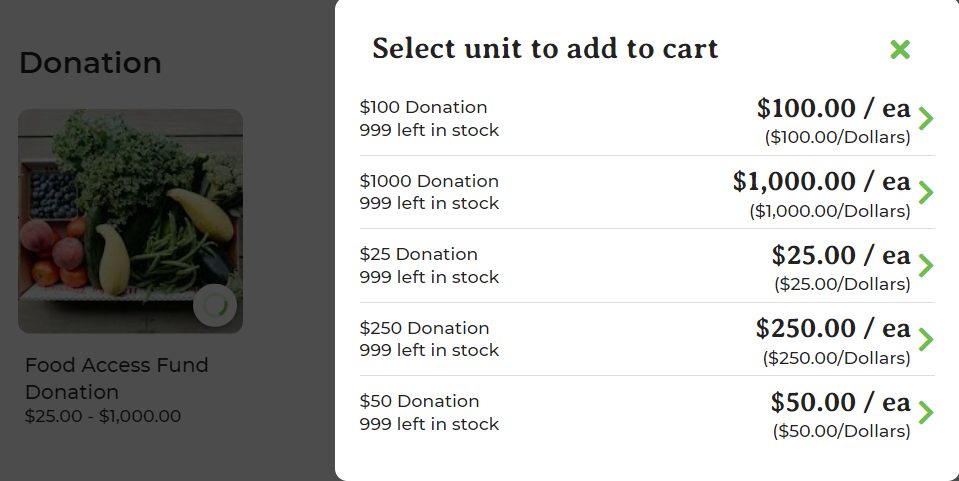
On the Customer's side, the Product Buying Options appear as a pop-up when they add the Product to their cart. It looks like this:
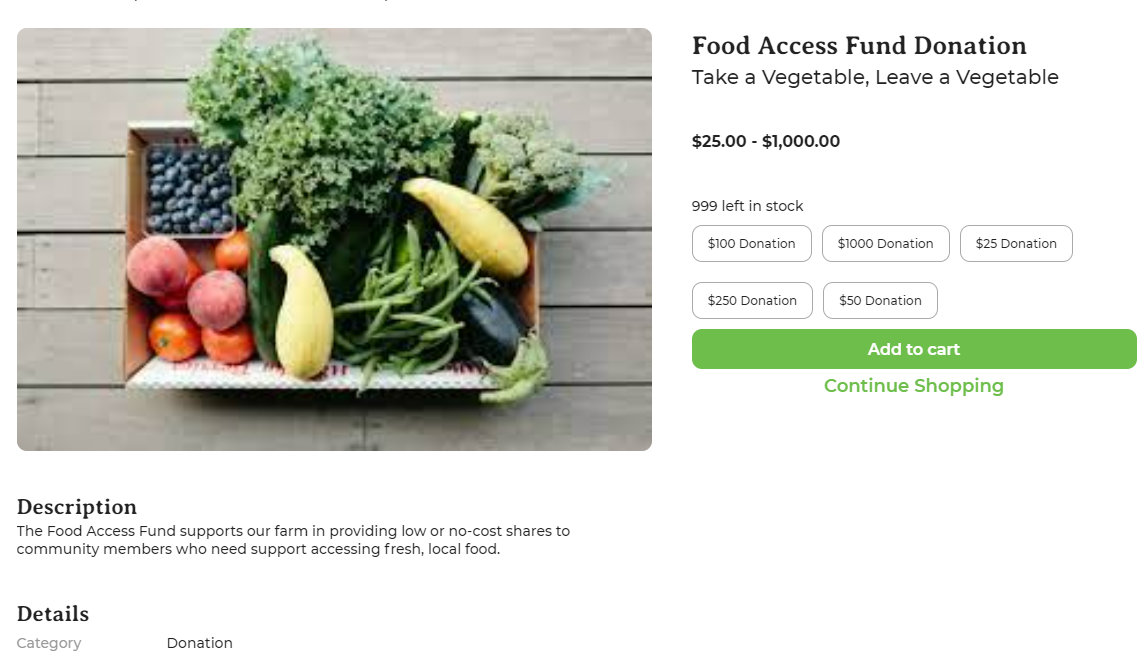
They can also click into the Product which will give them a different display of the same information, including the full Long Description. It looks like this:
Membership and Site Fees as Digital Products
Farms also use Digital Products to charge fees to their Customers. If your fee is per-product, we recommend adding a flat fees via the Taxes & Fees feature. Delivery fees for home delivery can be automatically added at the level of delivery/shipping zones. One use case not covered by the above solutions is a fee for a one-off order to a pickup location. In this case, we recommend the use of a digital product which you either add to your shop for the customer to add to their cart or, more reliably, you add to the cart using order editing. We are always happy to talk through your specific situation to determine the best solution for fees.
Farm Credit
Farm Credit is created separately from Digital Products using the Farm Credit & Gift Cards option in the Add new product pop-up. For details on setting up and managing Farm Credit, see Farm Credit on GrownBy.