
You might want to cancel, refund, and resubscribe a customer if:
- A customer ordered the wrong share and needs to switch
- You have a customer whose biweekly share week you need to change
Canceling
First, go to Orders and find the customer and order you want to cancel. Click on the order number to go to the Order Detail page, where you will be able to see how much the customer paid for the share and any additional Tips and Fees they also paid at the time.
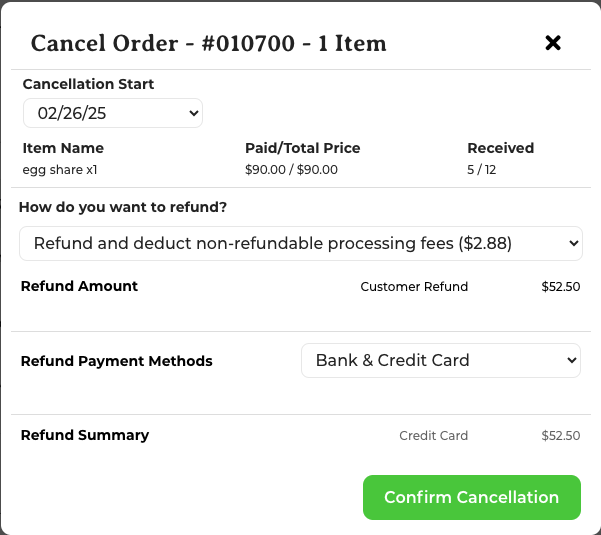
To continue the cancellation, click the red Cancel Order button in the top right of the screen. When you click it, a pop-up will appear that looks like this:
Refunding
For more detailed directions, read this article on Refunds. Under Paid/Total Price, you will be able to see how much the customer has paid of the entire share price. So, if for instance the customer has only paid a deposit, the amount will be listed as "the deposit amount/the full amount". This is important because you should only refund the amount the customer has paid thus far, not the full invoice amount.
If you are resubscribing a customer, it's best to refund the paid amount to farm credit.
When you are ready, click Confirm Cancellation.
Resubscribing
Locate your customer in the Customers list, navigate to their Customer Detail page by clicking on their name, and follow the instructions in the article for Creating Orders for Your Customers.