Approve draft order
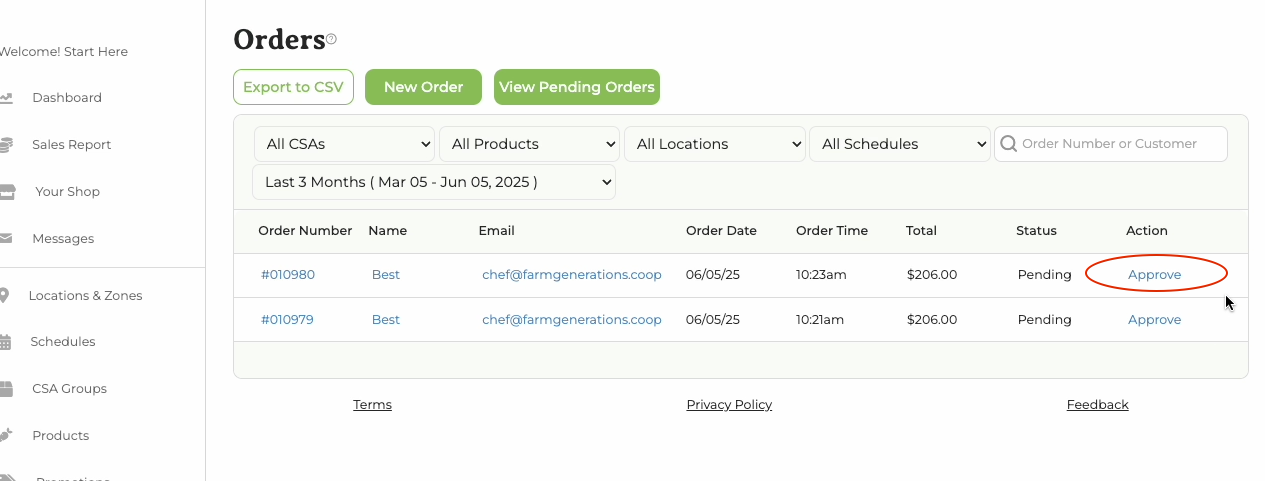
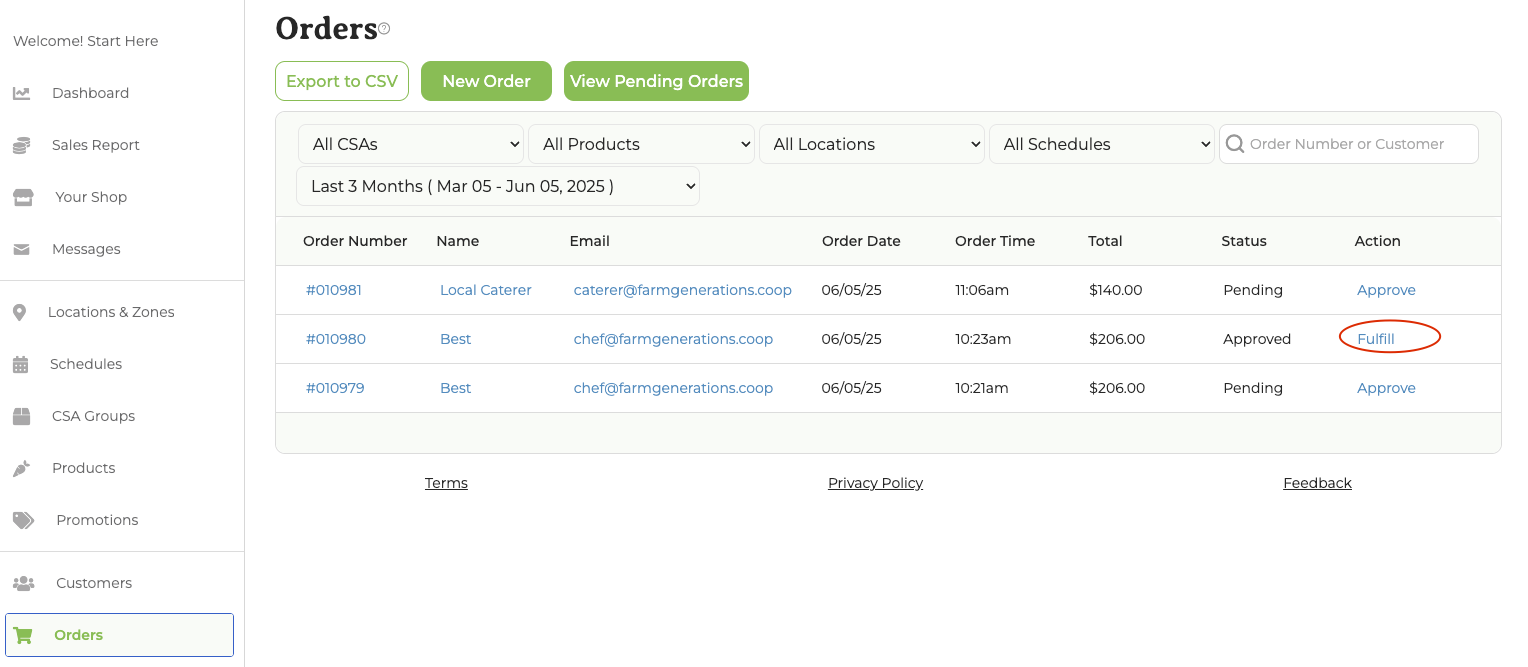
Find draft order
- You will receive an email notification that a customer placed a draft order on Wholesale
- You may also periodically review orders on the Farmer Dashboard - Orders tab
- Order statuses are listed to the far right in the table
- If you are satisfied with the order click Approve. If you want to edit the order see explanation below.
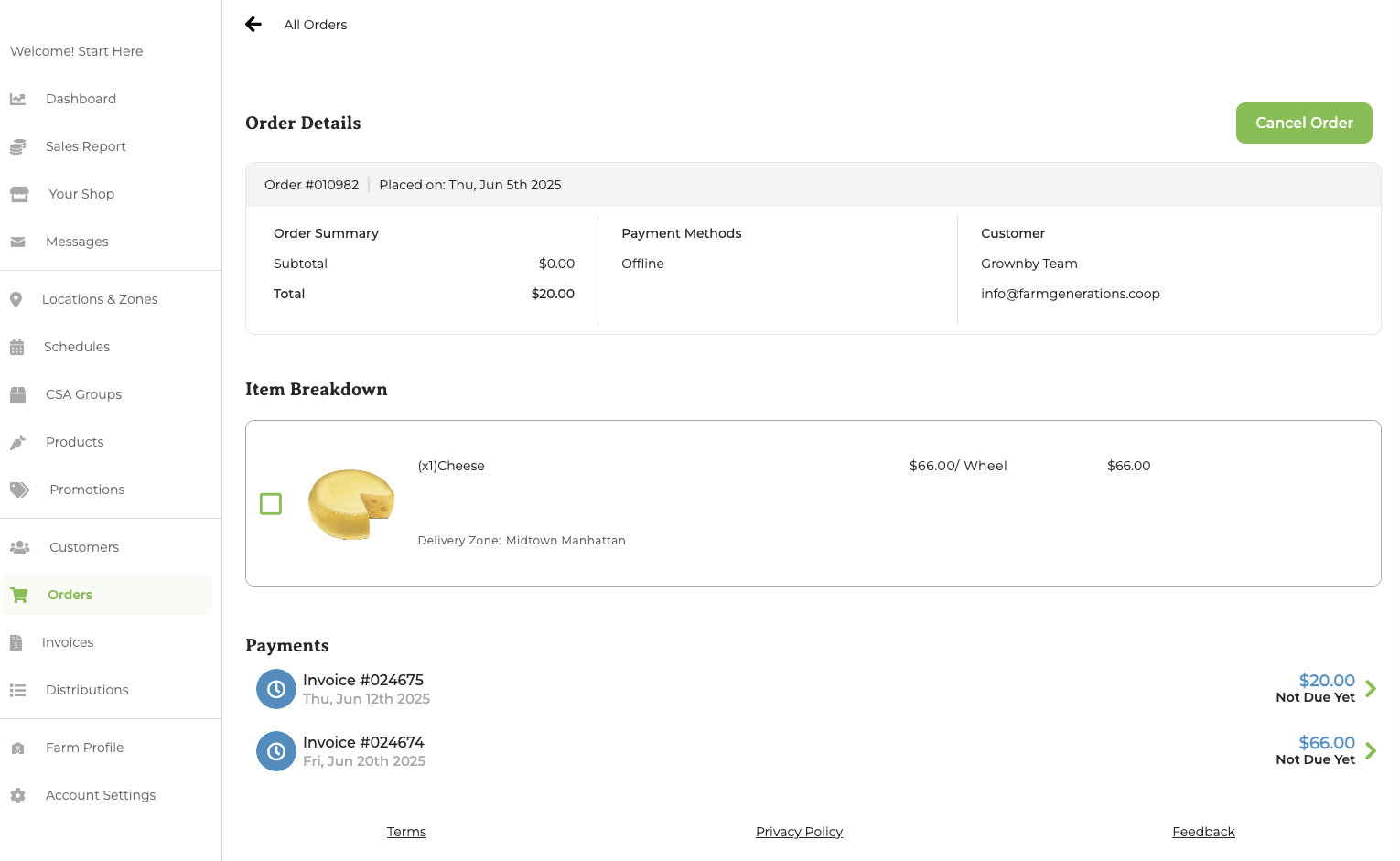
- Order approval does not create an invoice; the invoice is created upon order finalization.
Order editing screen
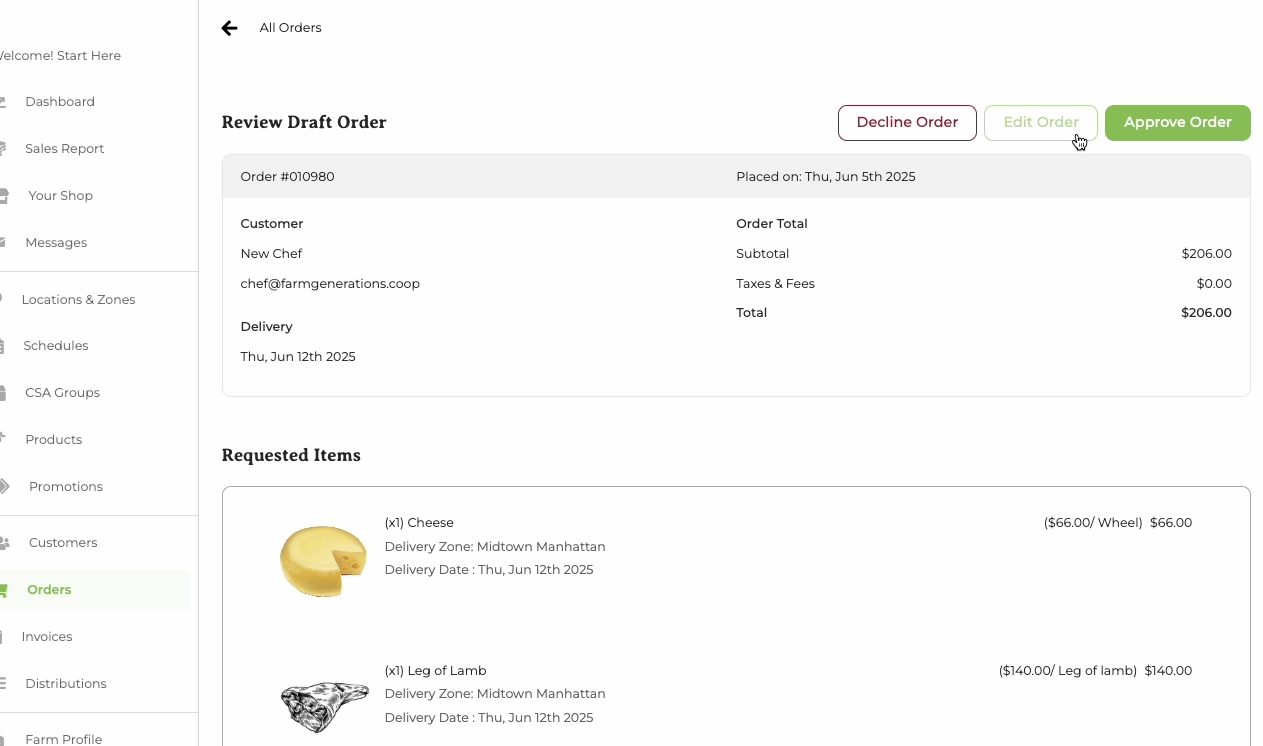
- Next, you will find the order editing screen. Here you can simply Approve the order; Decline the order or Edit the order.
- If you do not approve an order, it will be automatically declined 15 minutes before the end of the associated distribution or delivery schedule.
- If the order is Approved or Declined, the customer will receive an immediate email notification
Edit Order
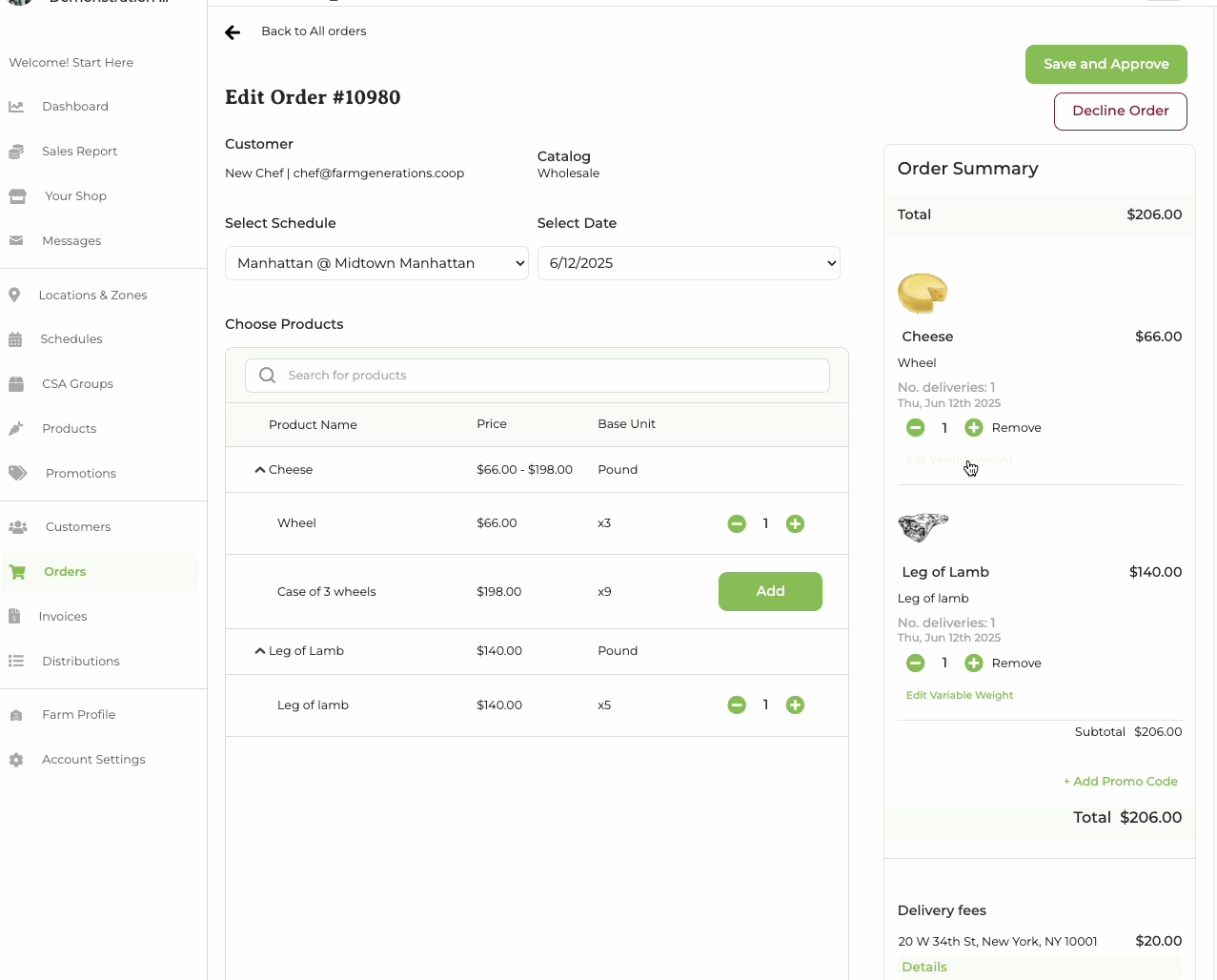
- Orders may be edited in the initial approval flow or after the order is approved and before finalization. This way, you can make changes right up until the point of packing the order for the customer.
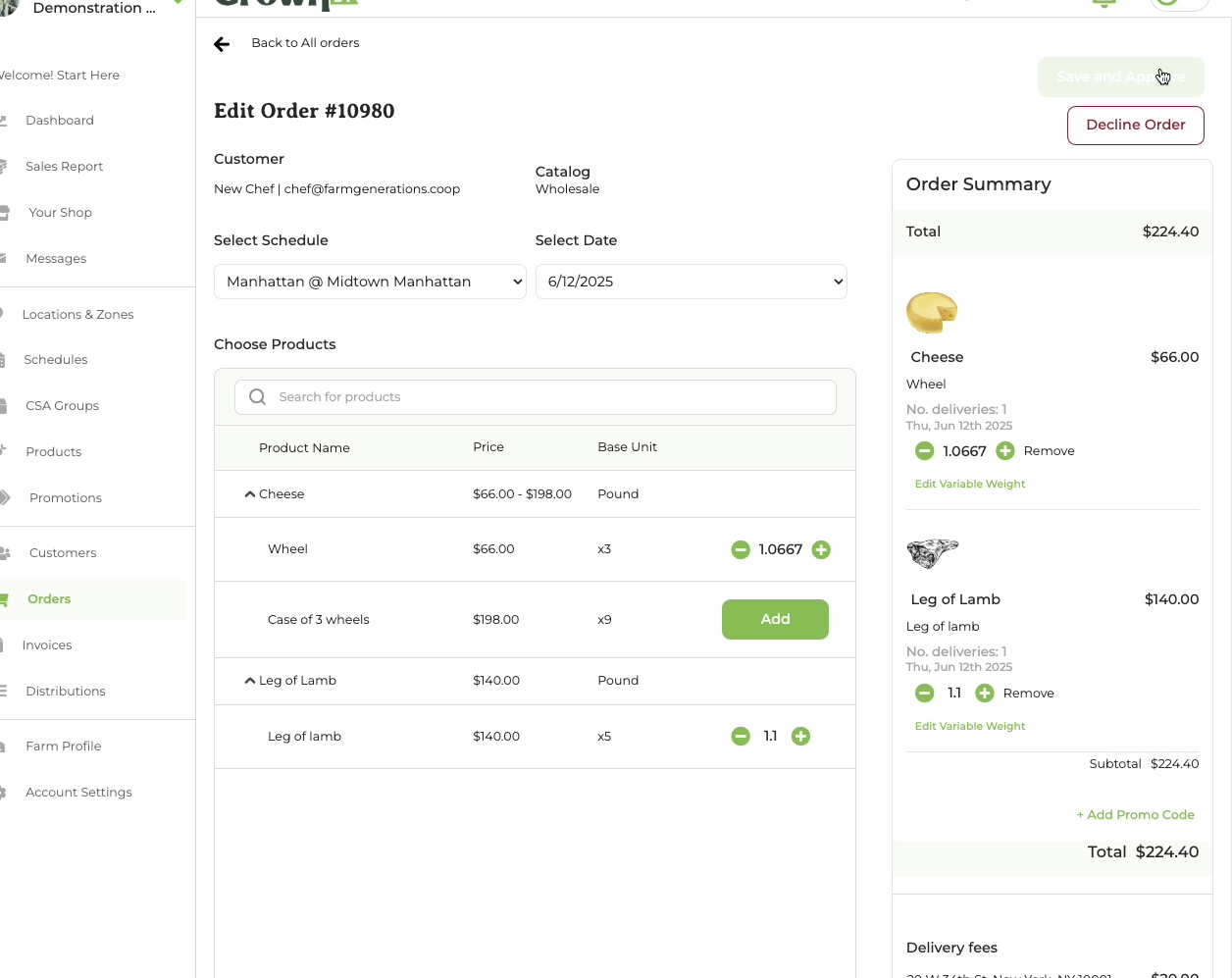
- Click Edit Order
- From here you may remove items from the order or adjust quantities
- You may also change the logistics of the order (new location, etc.) by clicking Edit under the schedule listed at the top of the Order Summary.
- This is also the place where you might adjust the variable weight of an item in your cart.
- When you are finished click Save and update customer order. Your customer will be notified that the order is approved.
Adjust variable weight
- Variable weights are utilized for the purposes of providing exact weights and quantities for cuts of meat or cheese (available on standard products only)
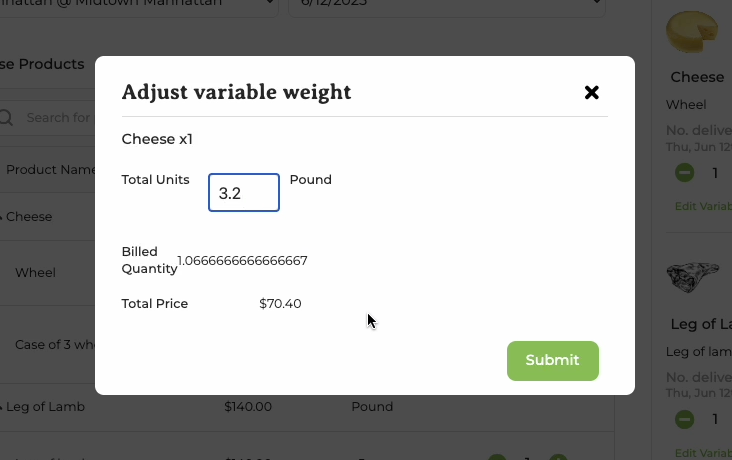
- Click Edit Variable Weight
- Adjust weight (you will need to have product configured as a weighted unit; the total change in billed quantity must be less than 1)
- Based on new weight, the quantity will be converted to a decimal and a new total will be calculated
- The item total may not change if the change is between two numbers, but the item total will be displayed in the modal and the Total will be adjusted
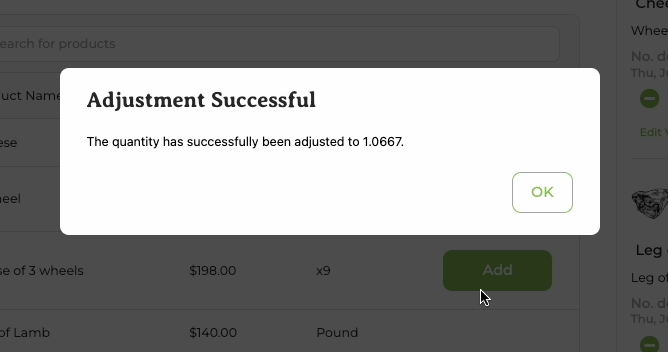
- Click Submit
- Customer will be notified
Finalize approved order
- After order is Approved, it must be finalized. This will happen in one of two ways:
- Farmer manually finalizes order by clicking Finalize Order
- It is the distribution date and time (automatically triggering finalization)
- Draft orders display Pending Approval or Pending Finalization status tags on the order header to indicate they are not yet finalized.
- Finalization creates an invoice. After an invoice is created, the farmer can no longer Edit an order. That being said, the farmer can still adjust the invoice.
- As a reminder, it is not necessary to finalize an order as this will happen automatically. Nevertheless, you may manually finalize an order if special circumstances require.
- For instance, a farmer might want to take action if they require cash on delivery (0 day terms) and need the invoice for payment
After finalization
- After finalization, the order will now appear as an invoice