When selling meat or cheese that is sold precisely by weight, you will want to:
- Set up buying option units in weight
- Create buying options with approximate weight
- Adjust variable weight on order editing
1. Units by weight
Unselect global inventory
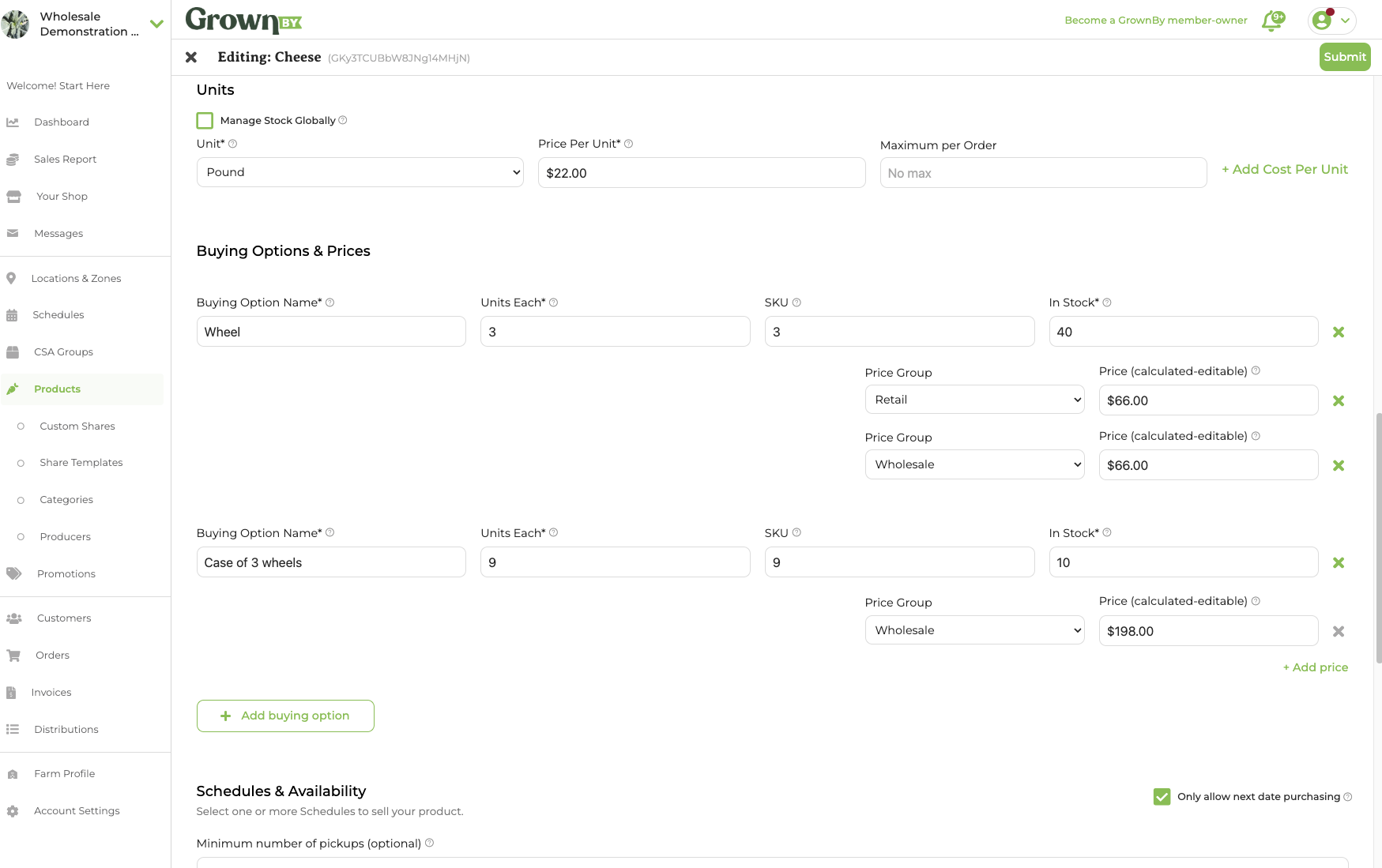
In most cases, for example cuts of meat or wheels of cheese, you will want to uncheck Manage Stock Globally. There are some scenarios, for instance with ground meat or bulk apples, where managing stock globally may be appropriate.
Choose appropriate units of weight
In the example below, pounds are used as the unit of choice. You can create and use whichever unit you like.
2. Add Buying Options
Add Approximate weight buying options
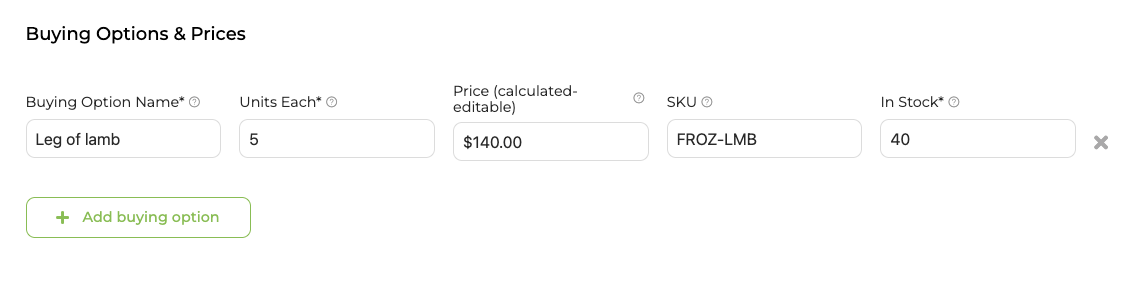
Add all ways that you will be selling your product. For each buying option, set the Units Each field to the approximate weight (for example, enter 5 for a product sold at roughly 5 lbs). In the example here, the product is a Leg of Lamb. We are assuming each leg will be about 5 lbs and we have a total of 40 in stock.
3. Adjust weights on order approval
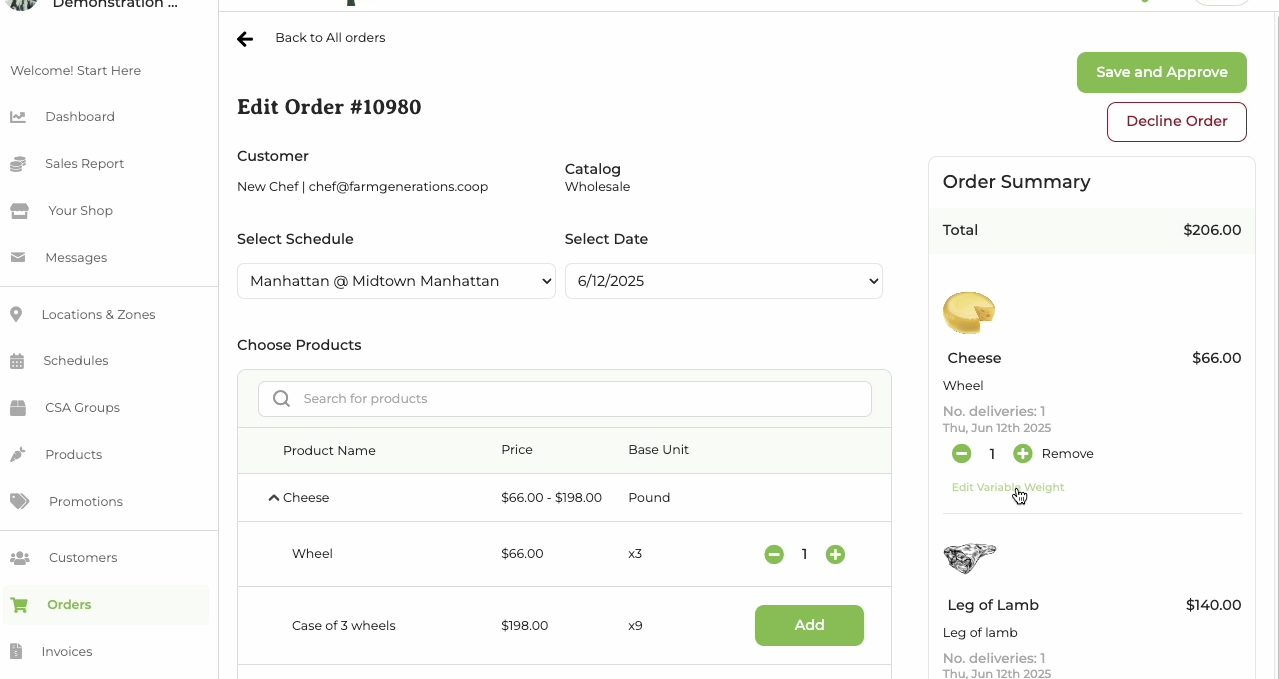
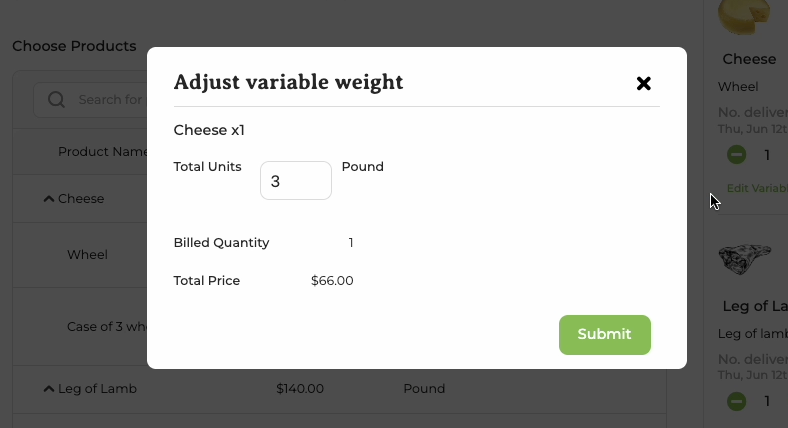
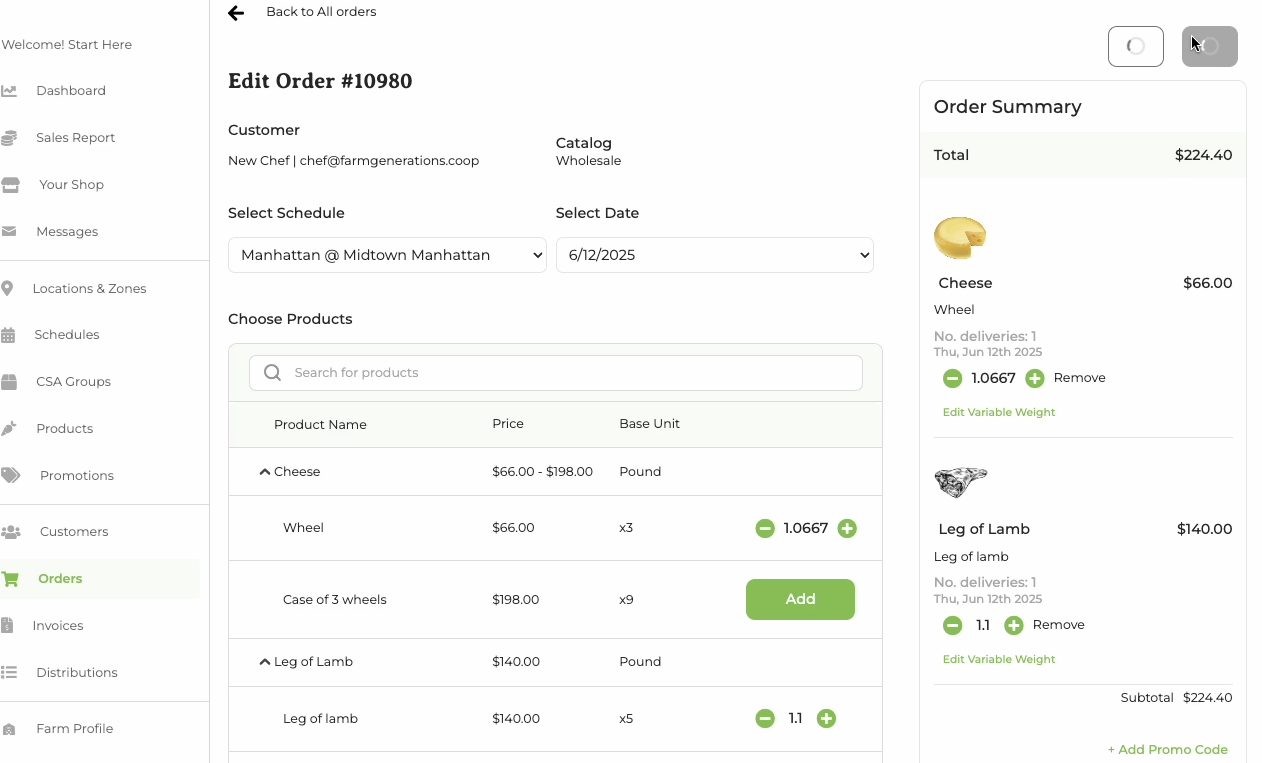
When you are fulfilling or approving the order, you will be able to look at the actual item being sold and adjust the weight to charge the customer the correct amount. Click Edit Variable Weight on the line item to open the adjustment pop-up. Enter the actual weight in the Total Units field; the Billed Quantity and per-item total will update automatically. Note that each adjustment must change the quantity by less than 1 full unit (for example, a 5 lb option can only be adjusted to a value between 4 and 6 lbs).