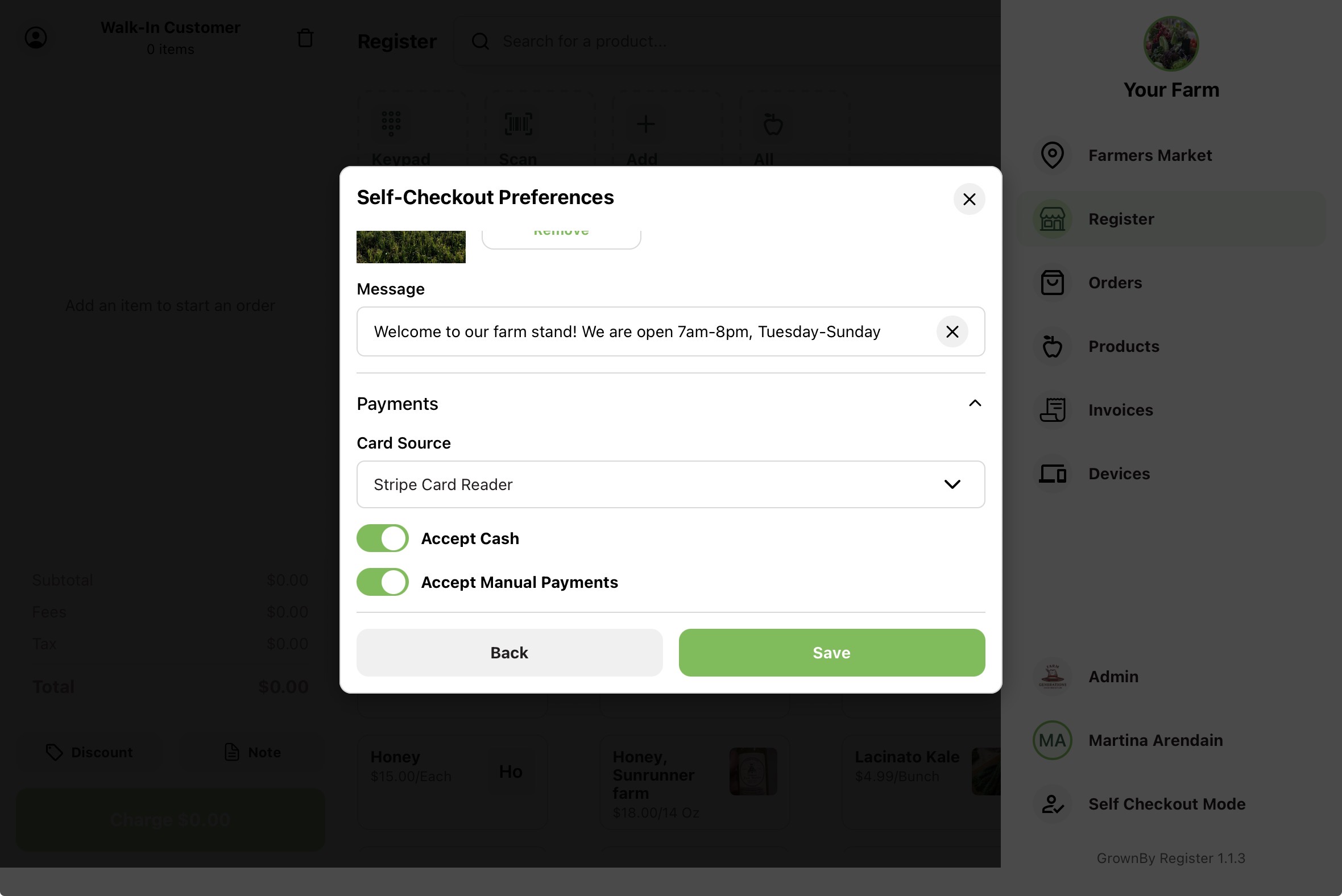
Self-Checkout preferences control what customers see while the station is idle and how they pay at an unattended station. To open them, tap your profile picture in the top right corner of the Register app to open the Register menu. At the bottom of the menu, tap Self Checkout Mode, then tap Configure self-checkout preferences.
The preferences are grouped into two sections: Screensaver and Payments.
Screensaver
The screensaver is the "tap to begin" screen customers see while the station is idle.
- Image: upload a custom background image. Tap Add Image to choose one (it changes to Update Image once set, with a Remove option). If you don't set one, the station uses a default farm photo.
- Message: an optional short message shown under your farm name on the screensaver, for example a greeting or today's hours.
Once you've set your preferences, see The Self-Checkout shopper experience for what customers see during a session.
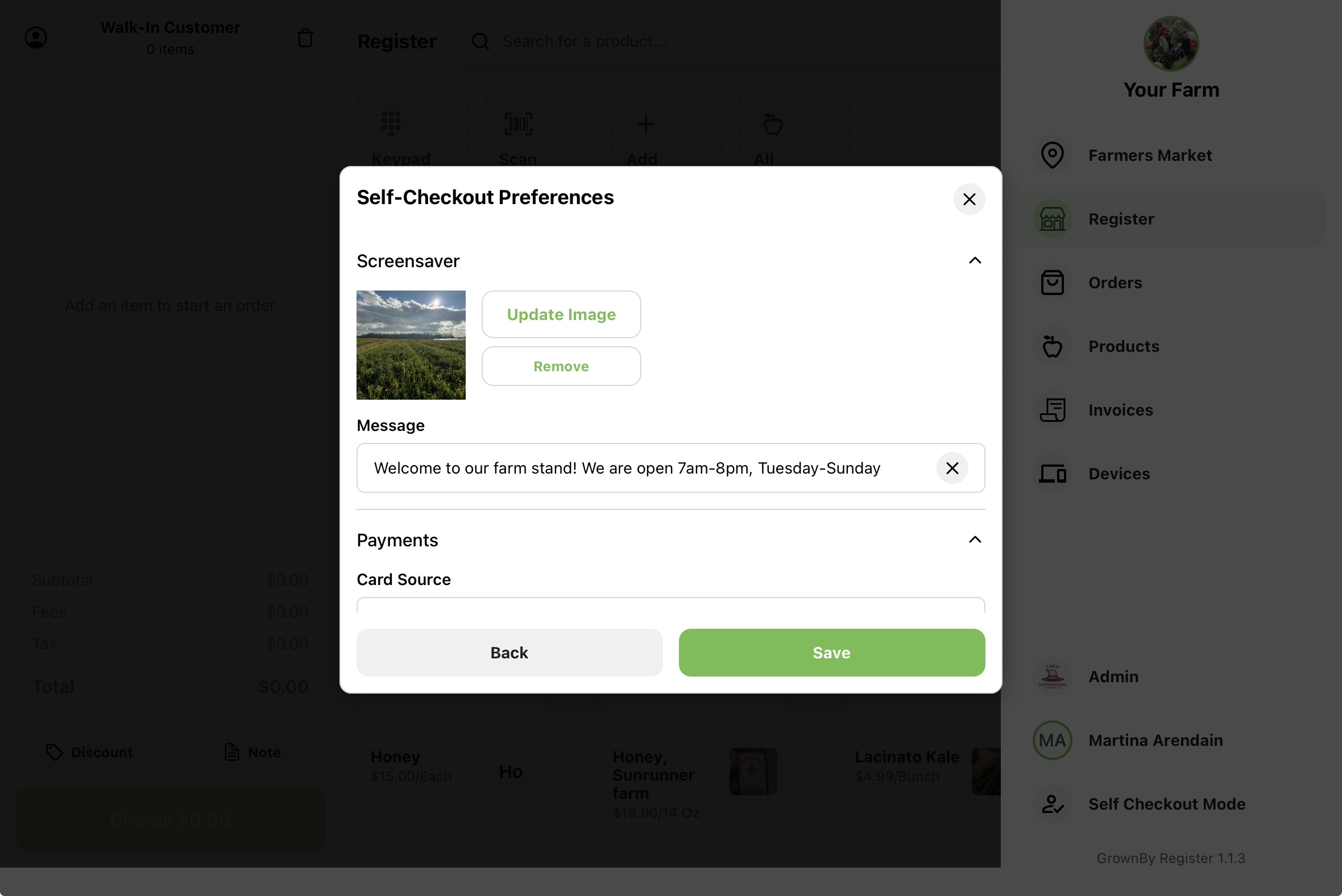
Payments
Self-Checkout offers customers a deliberately limited set of payment methods. You control which ones appear:
-
Card Source: the single card reader customers use to pay by card. Choose one of the readers your farm has connected:
- Tap to Pay on iPhone (shown as Tap to Pay on other devices)
- Stripe Card Reader
- Fortis Card Reader
Only the source you pick is offered during a session, so customers see exactly one card button — not a choice of readers. Sources you haven't connected won't appear in the list.
-
Accept Cash: let customers pay with cash. When on, the station shows the amount of change due so the customer can make change from the drawer.
-
Accept Manual Payments: let customers record a manual payment (for example, a check or voucher).
Customers can always pay with Farm Credit if they connect their GrownBy account at the start of a session.