Inventory is a required field for standard products and shares. The inventory is automatically adjusted down when a product is sold or up when an order is canceled. You set the original inventory when you're creating the product/share, but you can change it at any time.
Inventory Management
The three options for product inventory management are:
- Manage Stock Globally: Best for products where you have a standard unit, like pounds or bunches or pints. All products are either sold in one option (like one bunch) or in multiples of the standard unit, like 1 lb bags or 5 lb bags. If you have selected Manage Stock Globally, the buying options are linked to the units of your inventory. For example, if you have 200 lbs of tomatoes total and two buying options, 2-lb bag or 5-lb bag, GrownBy will adjust inventory down by 5 lb if someone orders a 5-lb bag. Read more about managing stock globally below.
- Manage Stock per Unit: In this option, each buying option has its own stock. This is great for cuts of meat or cheese that might vary in weights. Read all about Selling Meat or Cheese here.
- Ignore inventory totally on GrownBy: If you don't wish to manage stock within GrownBy, you can always enter a high number into the In Stock field when you are adding your products. That way, the system will always have your products available. Stock has to be below 1,000,000, so a number like 99,999 works well for this.
Managing Stock Globally
When you are editing a product, there is a checkbox under Units that turns off and on the option for your stock to be inclusive of your buying options. It looks like this:
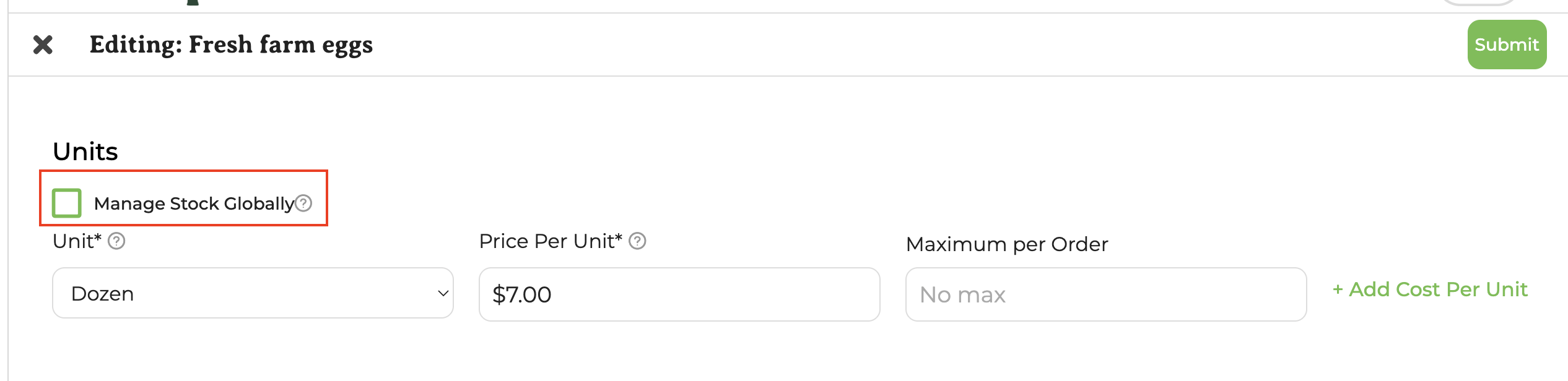
If you have selected Manage Stock Globally, the buying options are linked to the units of your inventory. For example, if you have 200 lbs of tomatoes total and two buying options, 2-lb bag or 5-lb bag, GrownBy will adjust inventory down by 5 lb if someone orders a 5-lb bag.
If a product/share has zero inventory, it still shows up in your shop, but cannot be purchased and it'll have an 'out of stock' icon on the image, like this:
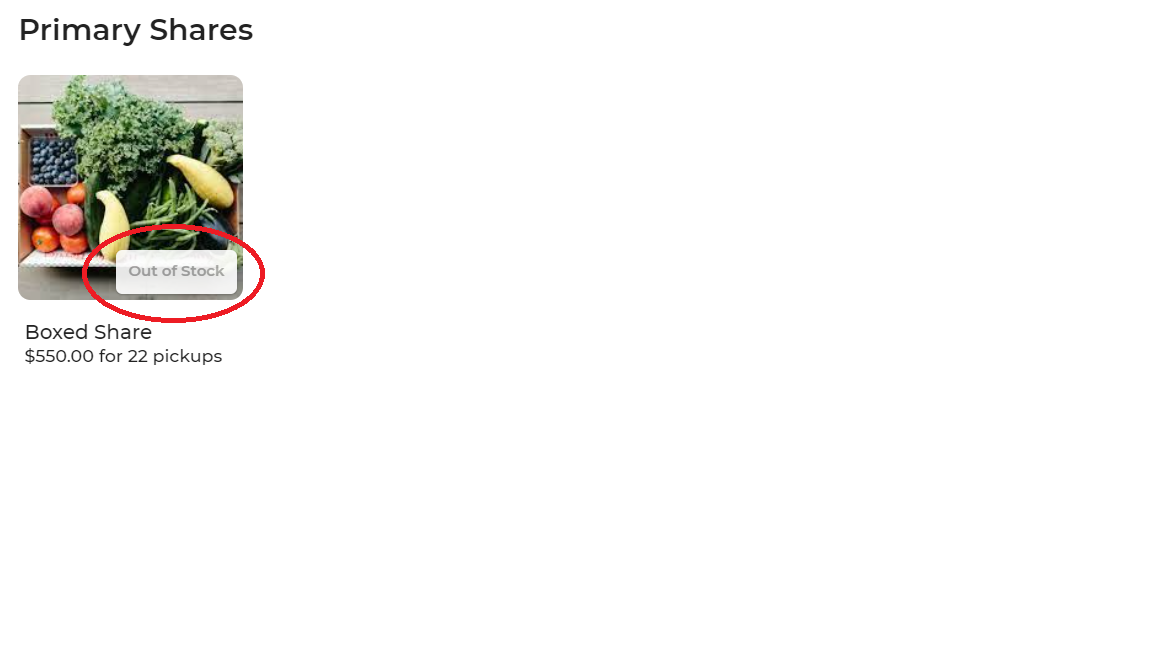
You will receive an email when your stock in any particular product is at five or fewer items. You can always manually hide products if you don't want to show the out of stock items in your shop.
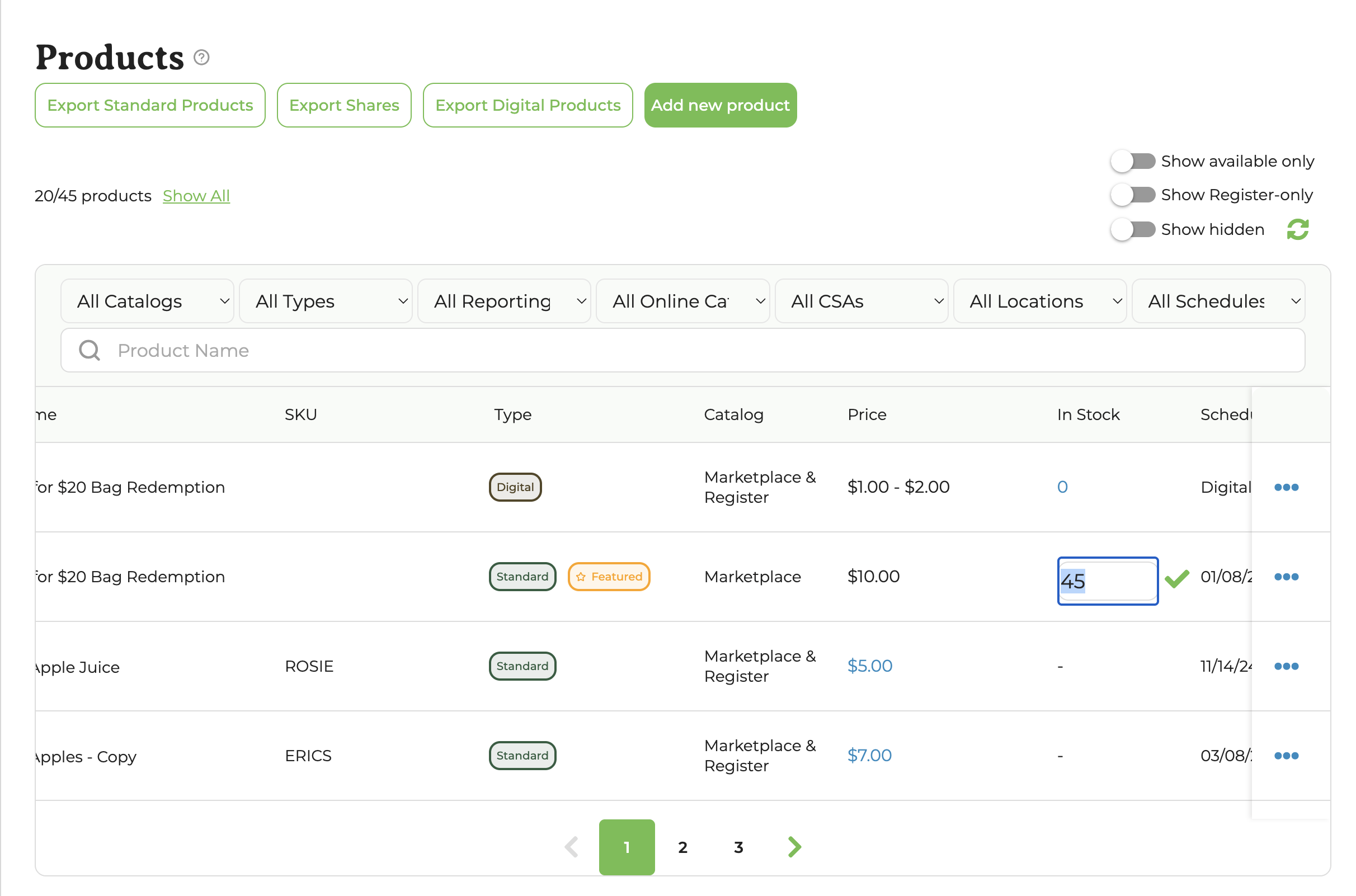
The best way to update your product inventories is in the Products table. Scroll to the 'In Stock' column for the product you wish to edit, click the blue number, update the stock, then click the green checkmark to confirm the change.
Editing inventory on mobile
On mobile, the Products list shows a floating Edit Inventory button that opens a dedicated Inventory pop-up — designed for quickly adjusting stock from a phone or tablet without going into the full product editor.
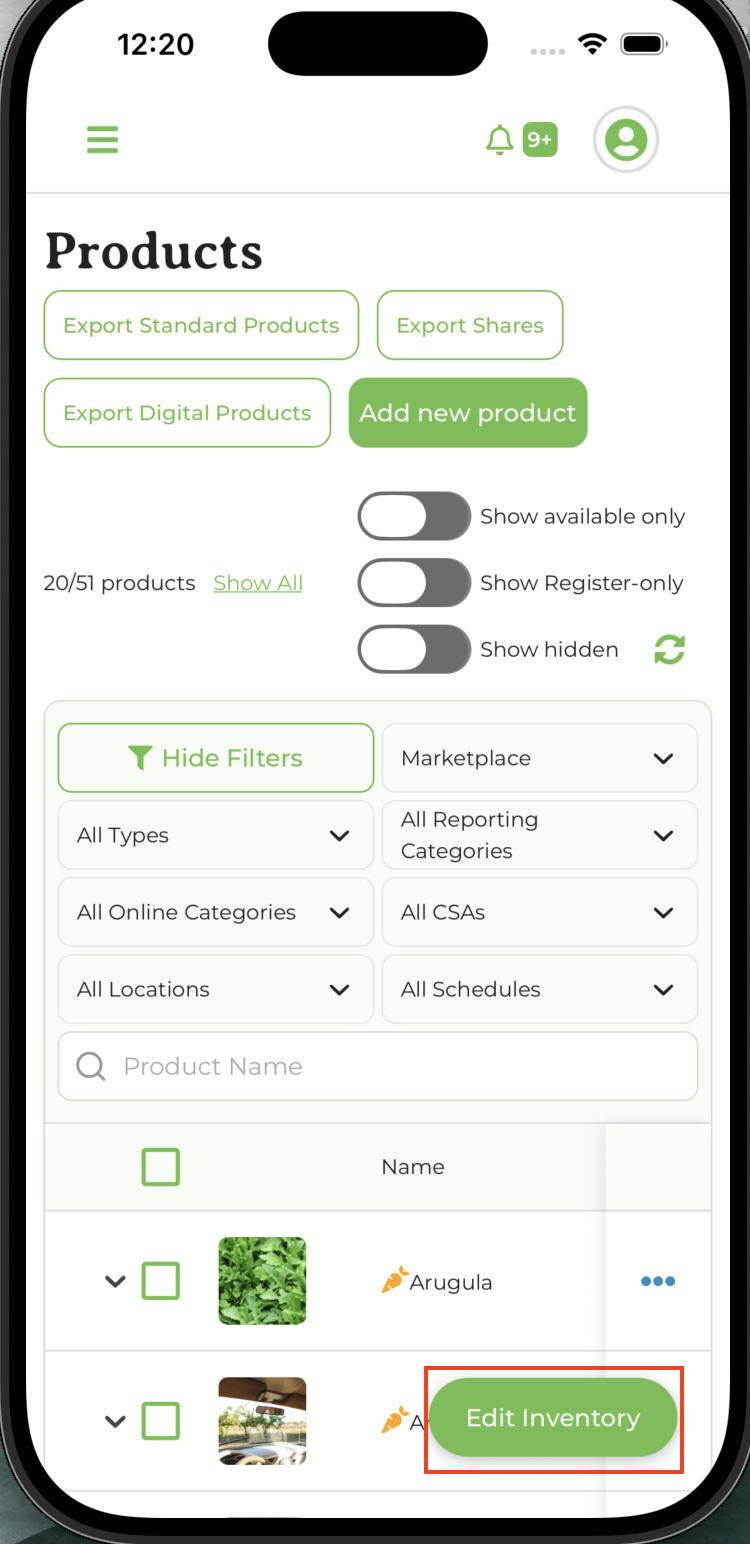
In the pop-up you can:
- Search for a product by name
- Filter by catalog or category (set filters on the Products page first, then open the pop-up to see filtered results)
- Paginate through long product lists
- Tap a product to inline-edit its stock
- Tap a unit-stock product to expand and edit per-buying-option stock
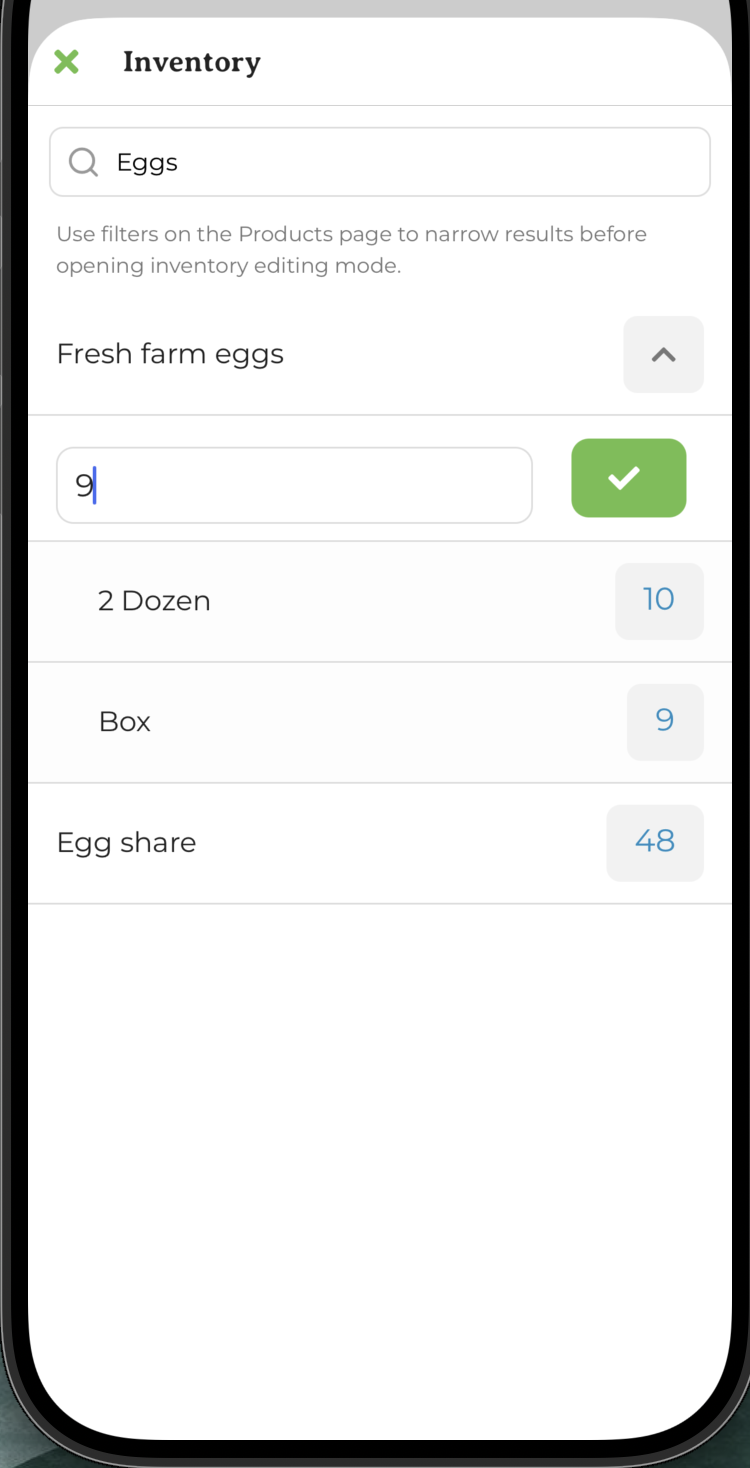
When you update the stock, the new value appears immediately, so you can move quickly through a list of products.
You can also tap a product's stock value directly on the Products list (where the 'In Stock' number appears) to open the Inventory modal pre-focused on that product, ready to edit.
Managing Stock per Unit
If you deselect the "Manage Stock Globally" box, you will be able to set your stock per buying option. This is useful if you need a more granular approach to stock management or, for example, if you have products in set units that cannot be divided, such as salsa in half pints, pints, and quarts. This is covered in more detail as it pertains to selling meat and cheese in this article.
Inventory and Custom Shares
If you are running a Custom CSA in GrownBy, adjusting your inventory numbers before the customization window opens each distribution is crucial to the system knowing what you have.
All products that you are offering for your Custom CSA customers must be in the CSA Group that the Custom Share is associated with. Those products may also be available for general purchase in your shop but keep in mind that the inventory is one and the same. Any a la carte ordering of these products will reduce what is available for your custom CSA members once their customization window opens.
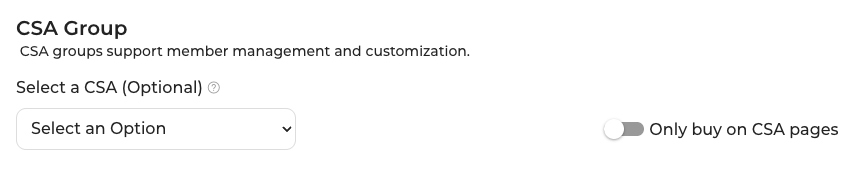
To control whether the public is able to purchase products which are also available to your Custom CSA, use the "Only buy on CSA pages" toggle and make your CSA Group Private. If the CSA Group is Private and the "Only buy on CSA pages" toggle is turned on, the public will not see or be able to purchase those products without the link.
Private CSA Groups can only be accessed via the link which appears in the Actions menu once you make them Private:
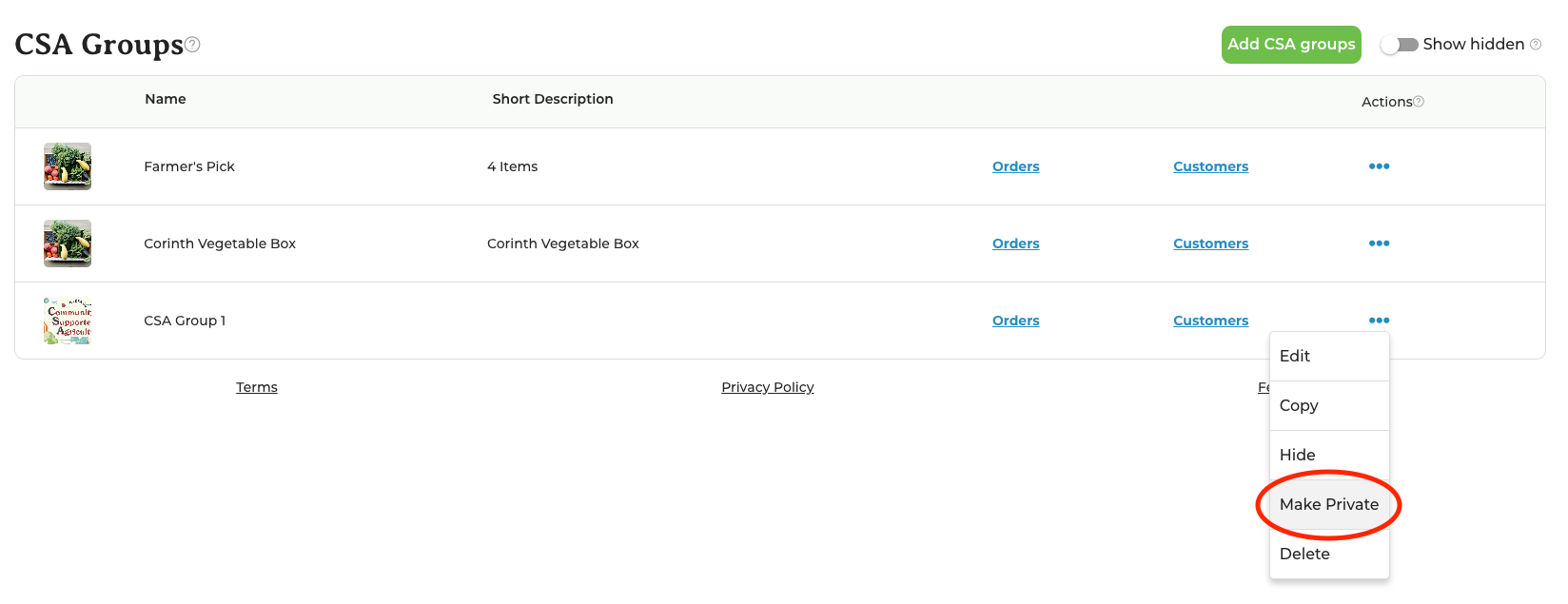
The "Only buy on CSA pages" setting can be found in the Product Editing screen or can be bulk edited on the Products screen to apply to all products you wish to manage separately for your Custom CSA: