
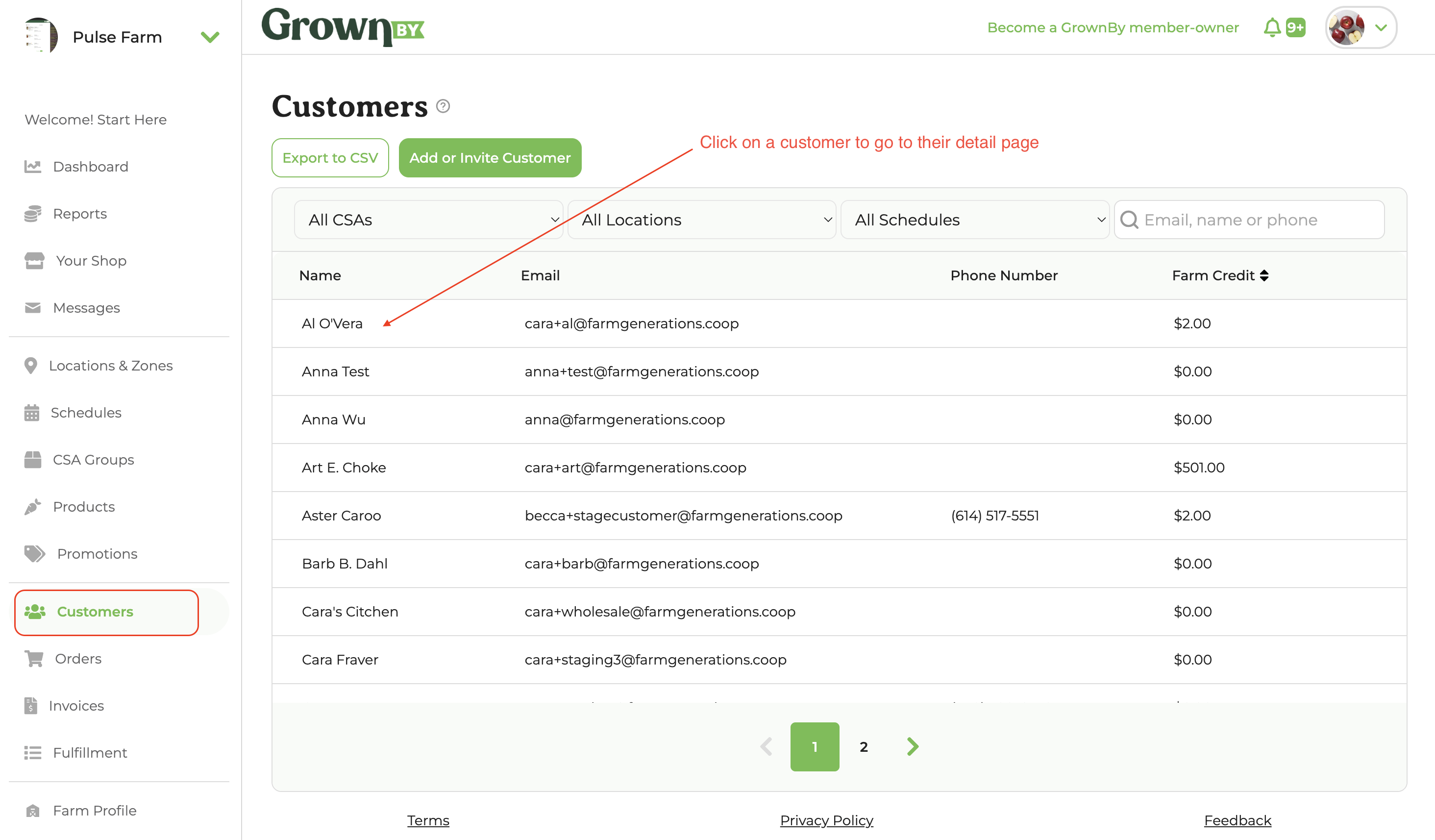
The customer detail page is where you can view and manage a specific customer's orders, invoices, pickups, farm credit, and more. To find it, go to Customers in the left-hand menu and search for an individual customer.
Overview

This first section shows basic information, including whether the customer owes the farm money, the customer's current farm credit balance, and their all-time purchases.
Customer Details
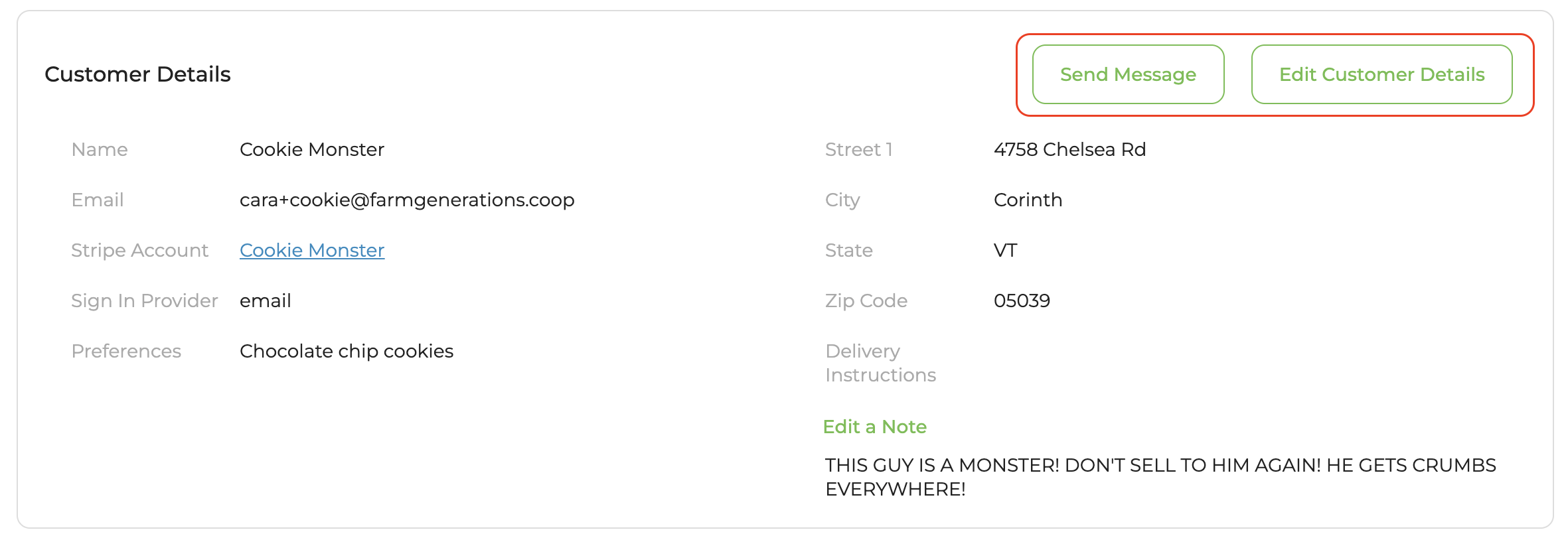
- Send Message: Sends a message directly to the customer.
- Edit Customer Details: As a farm admin, you can edit a few things about this customer, including their delivery instructions and preferences.
This area also includes contact information:
- Name: If the customer has added pronouns, they will appear alongside the name.
- Email address: If the customer has an alternate email address saved on their account, it will also appear here.
- Link to the customer's Stripe account: This is rarely needed, but can be helpful if you need to find out more about why a payment failed or look into other Stripe-specific details.
- Sign-in provider: This shows how the customer set up their account. If it says Email, they sign in with their email address, using either their password or a code emailed to them. If it says Phone, they sign in with a text code. They may also use their Google account or Apple ID. You can let them know what their sign in method is, and direct them to this article to let them know how to use that method: How to Login to GrownBy and Reset Your Password.
- Preferences: These are the saved preferences used to create suggested shares for customizable shares. Customers can edit their preferences from their account page or during an open customization.
- Default address and delivery instructions: Note that customers can have multiple addresses saved and can choose which is the default.
- Add a note: You can add a farm-facing note about this customer. Some farms use this for birthdays, helpful reminders, or other details they want to capture.
Farm Credit Balance
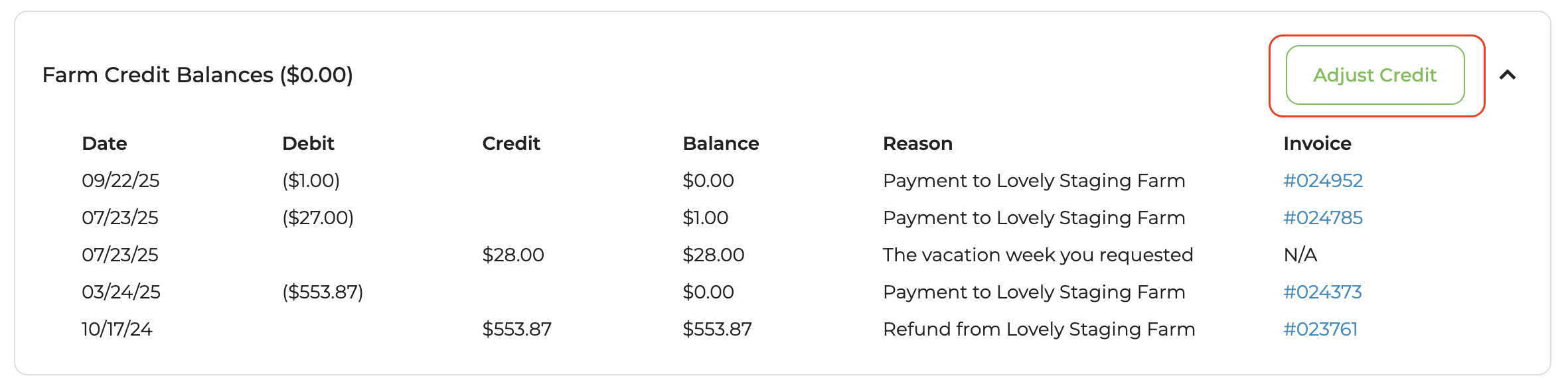
- Adjust Farm Credit: Use this button to add or subtract this customer's farm credit balance.
This section shows the customer's full farm credit transaction history, with the following columns:
- Date: The date the farm credit amount changed. Note that farm credit is added on the date a customer claims a vacation week, not when the vacation week occurs.
- Debit and Credit: The amount of farm credit that was given or debited.
- Balance: The running total balance as of that date.
- Reason: If you manually add or debit farm credit, the reason you provide will appear here. GrownBy generates a reason automatically when farm credit changes due to a refund, vacation week, canceled vacation week, rollover from underspending on a custom share, or any payment to a farm.
- Invoice Number: If there is an associated invoice, a link will take you to that invoice.
Invoices
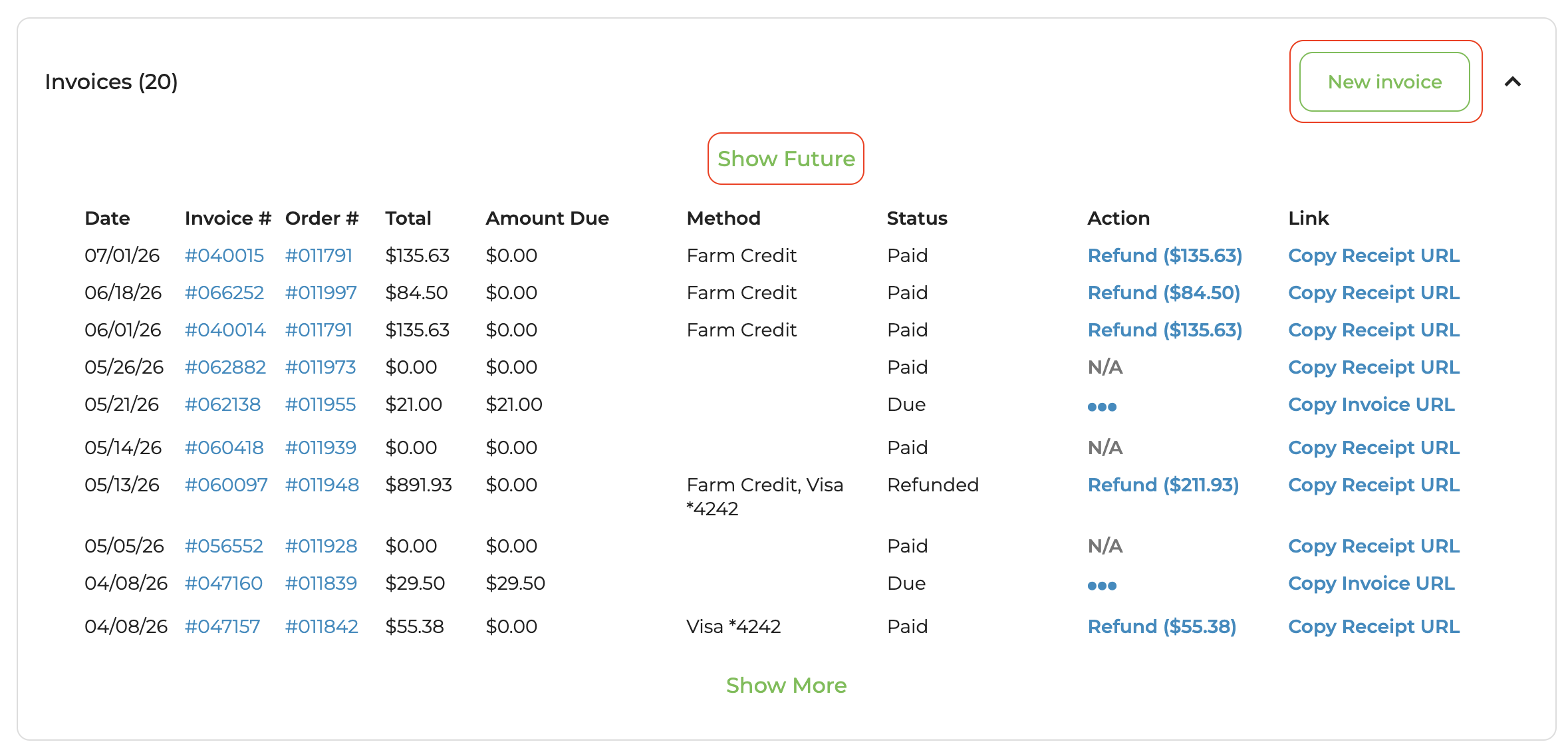
This section lists all invoices associated with the customer. You can see future invoices (such as those tied to upcoming installment payments or wholesale invoices due on terms) by clicking Show Future at the top of the list.
You can also create a new invoice from this section. Note that creating a manual invoice will not link this income to any product or category. In most cases, we recommend creating an order rather than a manual invoice.
The invoice list includes the following columns:
- Date: The due date of the invoice.
- Invoice #: A link to the receipt if the invoice has been paid, or to a payable invoice if it is still due.
- Order #: A link to the order detail page.
- Total: The amount of this invoice. If this is a deposit or installment, one invoice may only cover a portion of the total order cost.
- Amount Due: The total amount currently due. If paid, this shows as $0.
- Method: The payment method associated with this invoice. This column may show BANK*1234 for ACH transfers, VISA*1234 for Visa credit cards, or EBT SNAP*1234 for EBT cards. If farm credit was used, that will appear here. If the column is blank, the payment method was offline or not associated with the invoice. If this column shows more than one payment method, that shows that the invoice had split tender.
- Status: Unpaid, Due, Failed, Void, or Refunded. This column shows Refunded if any part of the invoice was refunded.
- Action: Available actions include:
- Charge: Charges the card or bank associated with this invoice. A pop-up will ask you to confirm before completing the charge.
- Adjust Invoice
- Mark as Paid (see Managing Offline Payments)
- Void: Makes the invoice no longer due and removes it from your sales totals. You can undo this action later if needed.
- Refund: Allows you to refund all or part of the invoice (see Refunds on GrownBy).
- Copy Link URL: A link to the payable invoice or receipt. Useful if you have an overdue invoice and want to send it to a customer as a payment reminder. If the invoice is already paid, you can use this link to send the customer a receipt (though customers also have access to receipts through their email notifications and GrownBy account).
For more on voiding, adjusting, and refunding invoices, see The Invoices Page on GrownBy.
Subscriptions
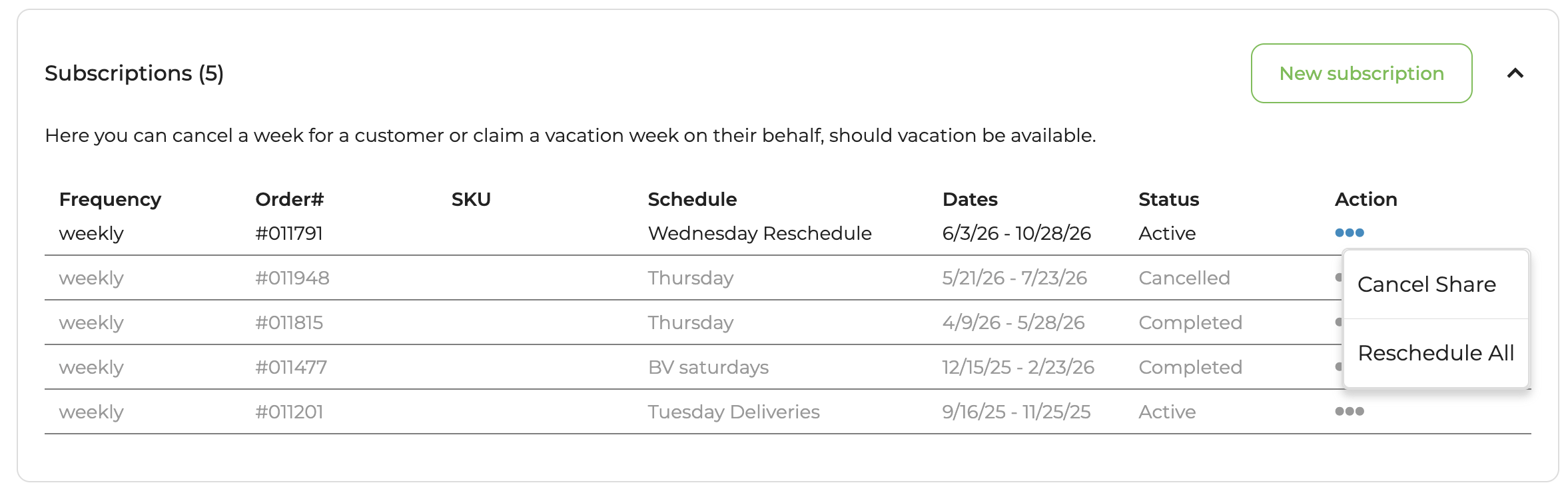
This section shows all of the customer's CSA shares or subscriptions. You can click the New subscription button in the top right to go to the order creator to place a new subscription order for this customer.
For each share, you can see the share name, distribution frequency, associated order number, schedule, start and end dates, and whether the share is active, canceled, or completed. Canceled or completed shares appear in grey.
In the action menu (the three dots) for a subscription, you can cancel the share or reschedule all of its dates. You may need to scroll horizontally to see the action column.
To edit just one date of a share, click the arrow to the left of the share name to expand that section. Each individual date in the subscription will appear, and the actions for each date include claiming a vacation for that week, rescheduling just that one week, and marking how the pickup went. You can read more about rescheduling in Rescheduling in GrownBy.
Marking fulfillment status
The action menu on an individual date includes Mark Received, Mark Donated, Mark Missed, and Clear Status to put it back to unmarked. This is the same set of statuses you can set on the app-based sign-in sheet, and marking from here writes to the same place.
Unlike cancelling, rescheduling, and claiming vacation, which only apply to upcoming dates, fulfillment can be marked on any date, so you can correct a past distribution you forgot to record. Items that are cancelled or on vacation can't be marked.
Orders
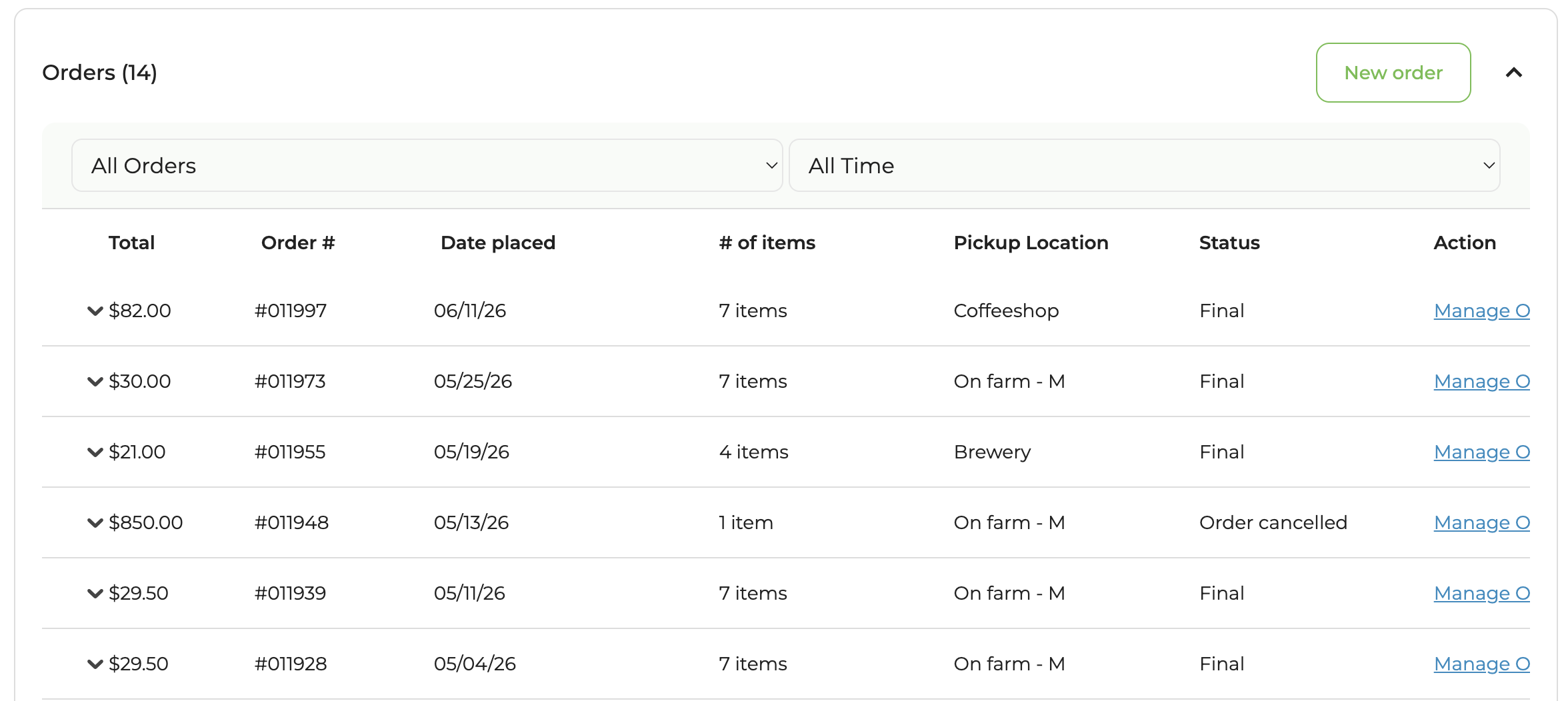
The Orders section shows all orders a customer has placed with your farm. Orders load 10 at a time, with a Show More button at the bottom to load additional orders. You can press the New Order button to create a new order for this customer in the order creator.
The list includes both regular orders and draft orders. Two filters let you narrow the list:
- Order type: All Orders (default), Upcoming / In Progress Orders (orders with future pickups remaining), or Completed Orders (orders with no future pickups)
- Time range: All Time (default), Last 30 Days, Last 3 Months, or Last 6 Months
The orders list includes the following columns:
- Total: The total cost of this order.
- Order #: Identifying number you can use to find the same order on the Orders page.
- Date Placed: Date the order was placed.
- # of Items: How many products were included in the order.
- Pickup Location: Where the order will be picked up, delivered, or shipped if applicable.
- Status: Displays the status of the order, which for regular orders can be Final or Order cancelled (or partial number of items cancelled). For draft orders on GrownBy Wholesale, the status can be Pending, Approved, Finalized, or Declined.
- Action: Click on Manage Order to see the order detail page for that order, where you can edit or cancel an order.
Each order row can be expanded using the arrow to the left to see individual order items. Draft orders cannot be expanded. The action menu on an expanded pickup offers the same fulfillment statuses described under Marking fulfillment status, alongside Reschedule and Cancel.
Pickups & Deliveries
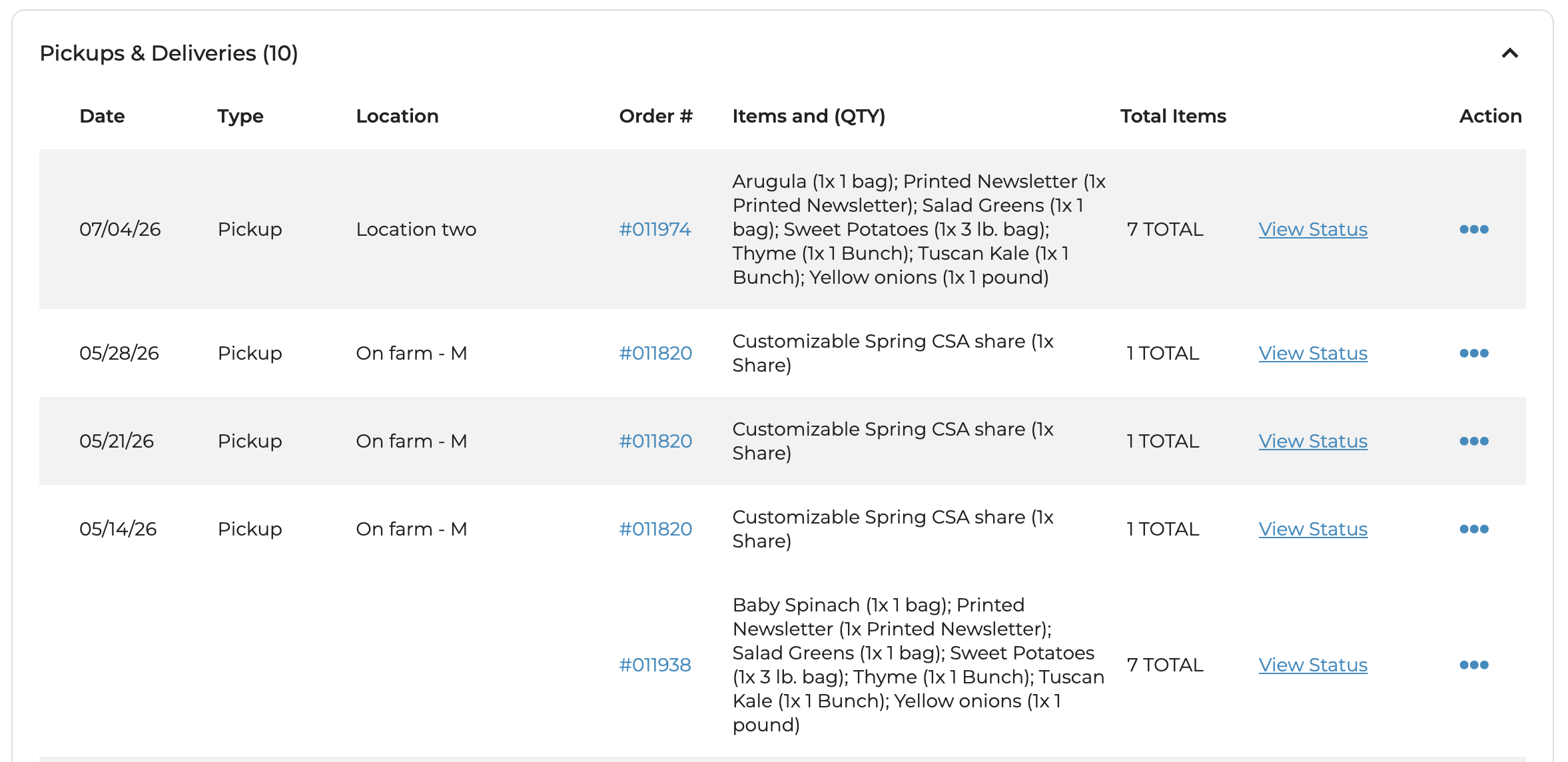
The Pickups & Deliveries section shows all of this customer's scheduled distributions. Fully canceled pickups (where every item is canceled) are excluded from the count and list, but pickups skipped/on vacation are still shown.
The list defaults to showing the next upcoming pickup and the 10 most recent past ones. A Show Future button appears at the top when there are more future pickups to load, and a Show More button appears at the bottom for additional past pickups.
The list includes the following columns:
- Date: Day the pickup or delivery occurs.
- Type: The type of the distribution, either Pickup, Delivery, or Shipping.
- Location: Where the distribution happens.
- Order #: Link to the order detail page for the order containing that distribution.
- Items: Items included in that pickup or delivery and how many of each item.
- Total Items: Number of total items included in that pickup or delivery.
- View Status: Link to the sign-in sheet for that distribution session. For draft pickups, this will show as "Pending."
- Action: Clicking the three dots shows a dropdown with the following options:
- Claim Vacation (for share items), or Claim Vacation / Cancel Pickup if the pickup has a mix of share and standard items
- Cancel Pickup (for standard-only pickups)
- Reschedule: Reschedule this distribution date
- Edit Address: Only shown for deliveries
- Unclaim Vacation: Shown when a share item is on vacation, including for past pickups. If there are multiple vacationed shares, one entry appears per share.
Action buttons are disabled for past pickups (after the distribution's end time) and for draft pickups.