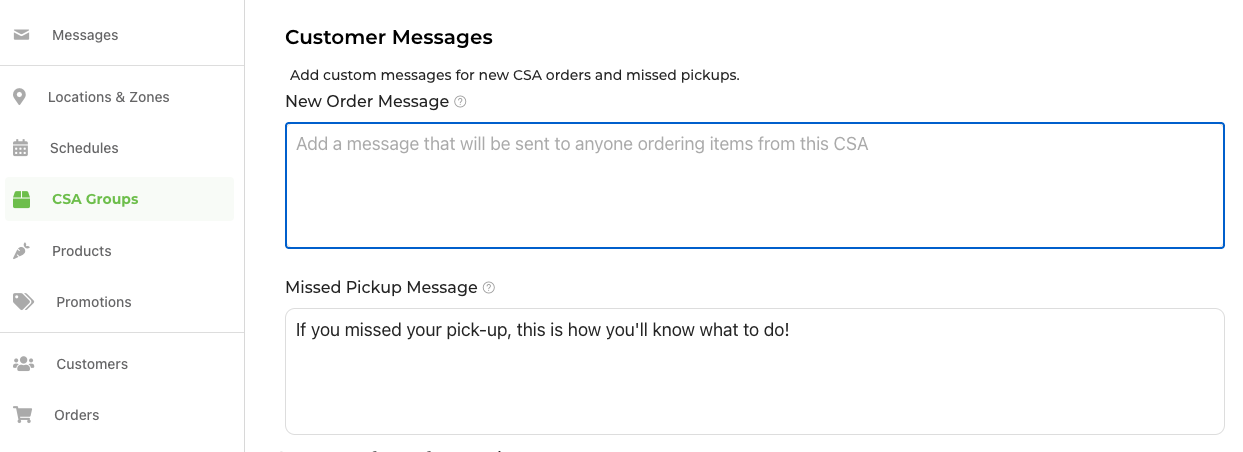
There are a few fields you can use to customize the messages your customers receive. Need a refresher about customer notifications? Check out this article for pdfs of the emails of customer notifications.
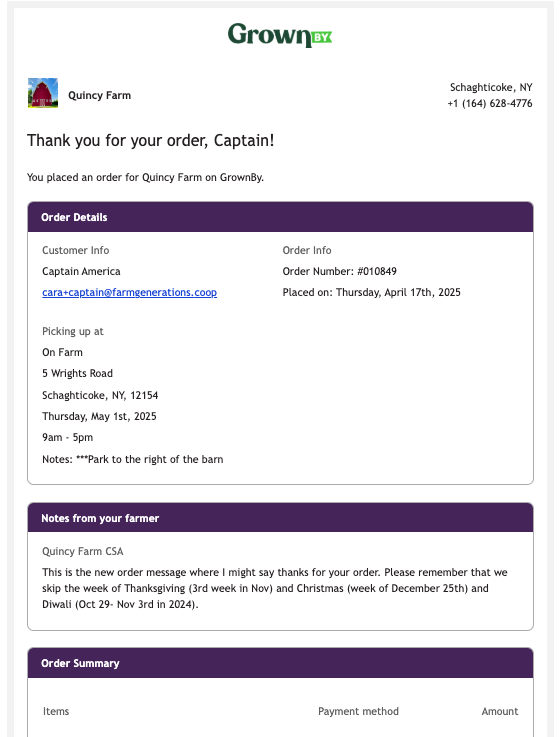
The Notes Field and New Order Message are shown in an email that customers get when buying a share or item in a CSA Group:
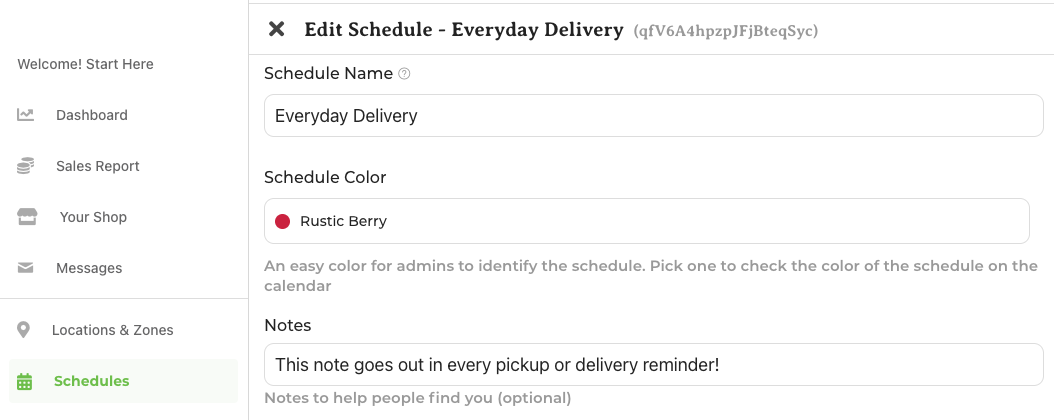
The Notes Field in Schedules
These notes go out in each pickup reminder email, but not in the push notification (because space is tighter there). This was originally intended to help customers find you at pickup and can still be used for that. So you might give parking info, reminders to leave dogs at home for an on-farm pickup, reminders to bring a bag or leave a cooler on a porch, that sort of detail. Some farms also put info about the week's share in this field, but they'd need to remember to change it each week.
The "notes" field from each schedule is featured in the pickup or delivery reminder email for an order on that schedule and location:
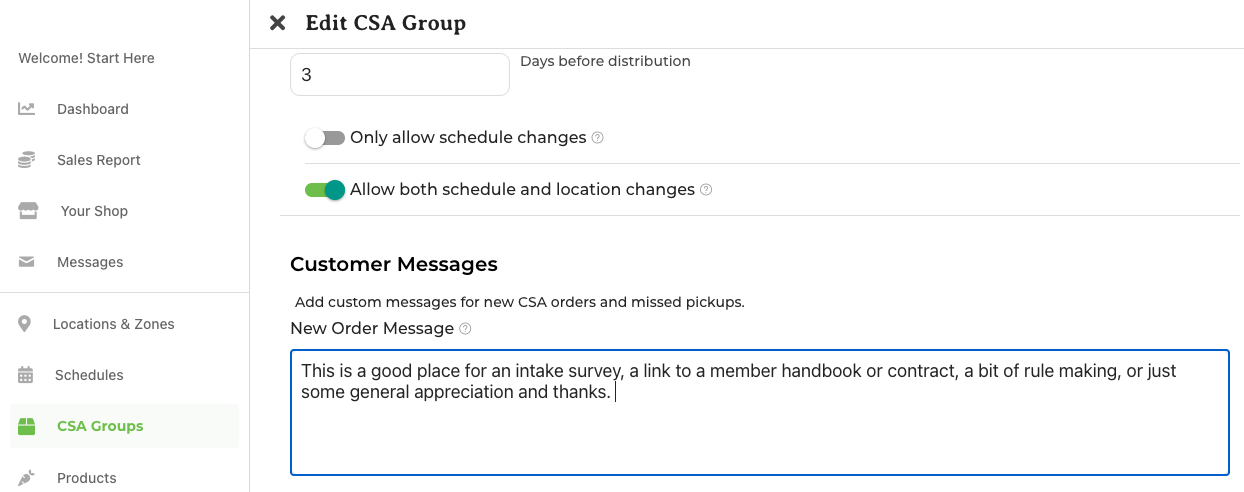
Customer Messages Fields in the CSA Group
New Order Message
This is on the CSA Group page. It goes out with each new order that includes a product in the CSA Group, in the "Thanks for your order" notification in a section called "Notes from your farmer". This is a good place for an intake survey, a link to a member handbook or contract, a bit of rule making or just some general appreciation and thanks.
If an order includes products from more than one CSA group, both New Order Messages will appear in the Thanks for your Order notification.
Missed Pickup Message
The "Missed Pickup Message" field is on the CSA Groups page and applies to any product in that CSA group. This message is featured in the pickup reminder email and in the in-app notification that is sent when the pickup starts. If your order has items from multiple CSA groups, only one CSA group's missed pickup message is shown. This message goes out in every pickup reminder email and push notification. Use this field to tell your customers what your policy is about missed pick-ups: