
Common Reasons to Edit an Order
1. Selling meat, cheese or other items with variable weight
When selling certain items, the actual weight of the item may not be known until finalization. With order editing, you can edit the weight (and price) of the product when the product is being packed.
2. Low inventory items
When inventory may be low or unknown, a farmer may need to physically review existing inventory before the order can be finalized. For instance, you might sell 100 pints of blueberries but only have 90 available after harvest. In this case, you can remove items from orders when they become unavailable.
3. Customer preferences and changes
Customers change their minds and make special requests, "Can you add this to my order?" With order editing, you can add or remove or swap items per customer requests after they've placed their order online.
4. Adding fees via a digital product
In certain cases, the GrownBy fee features will not automatically apply the fee you desire. This includes an order for pickup or to a community pickup site for a multi-item order. In this case you can add a fee as a digital product to an order during order editing.
Be aware that if you are using the digital product work-around for fees, there is a potential book keeping confusion -- these fees will appear in reports as revenue alongside other product income rather than appearing as fees.
How to turn on Order Editing
Go to Farmer Dashboard → Account Settings → Marketplace and check the Allow order editing checkbox under the Order Editing section.
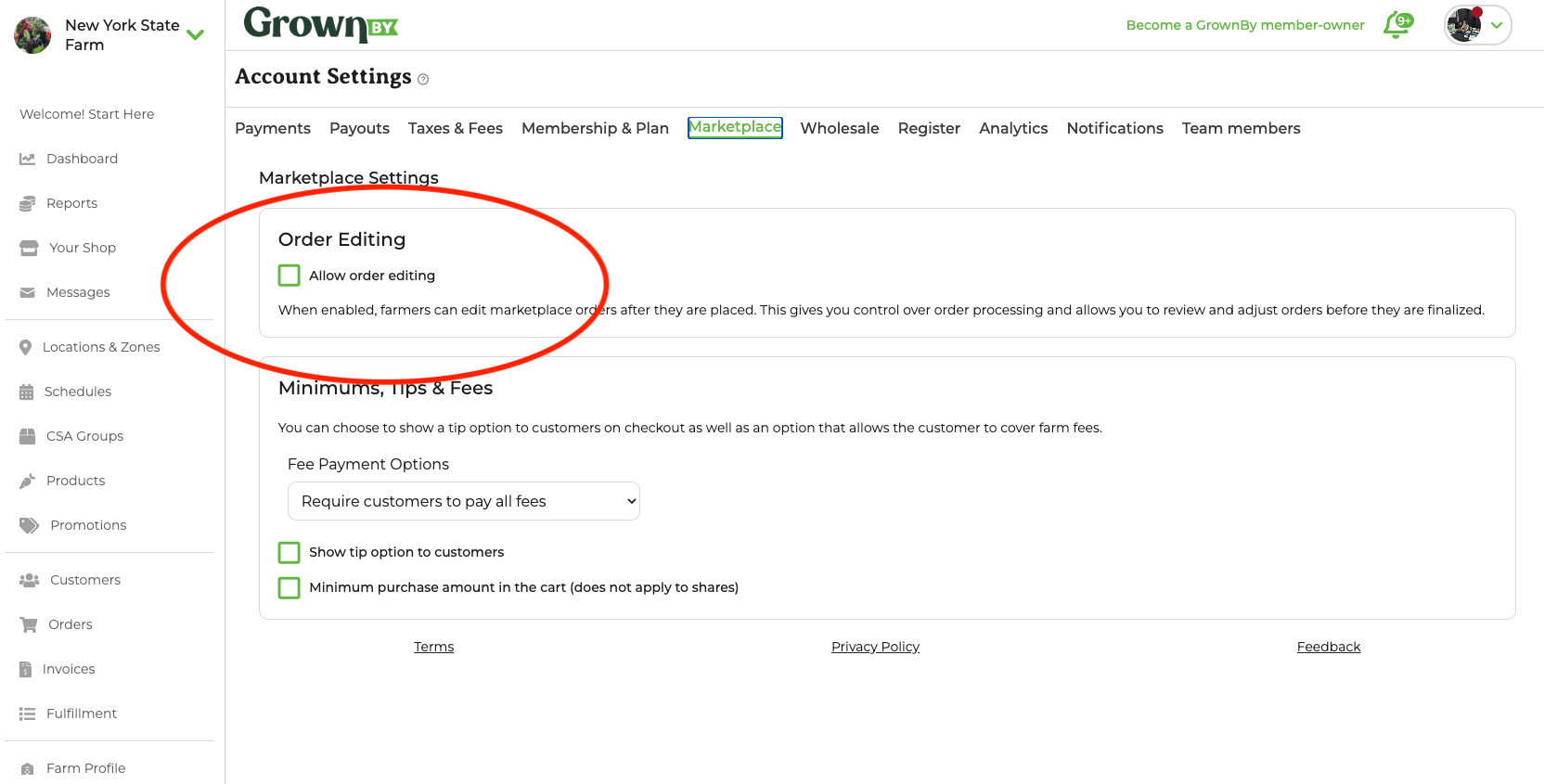
The Order Editing Flow
When enabled, Marketplace orders may be declined or edited by the farmer. Importantly, any order that is not declined or manually finalized, will automatically change to order status "Finalized" on it's distribution date.
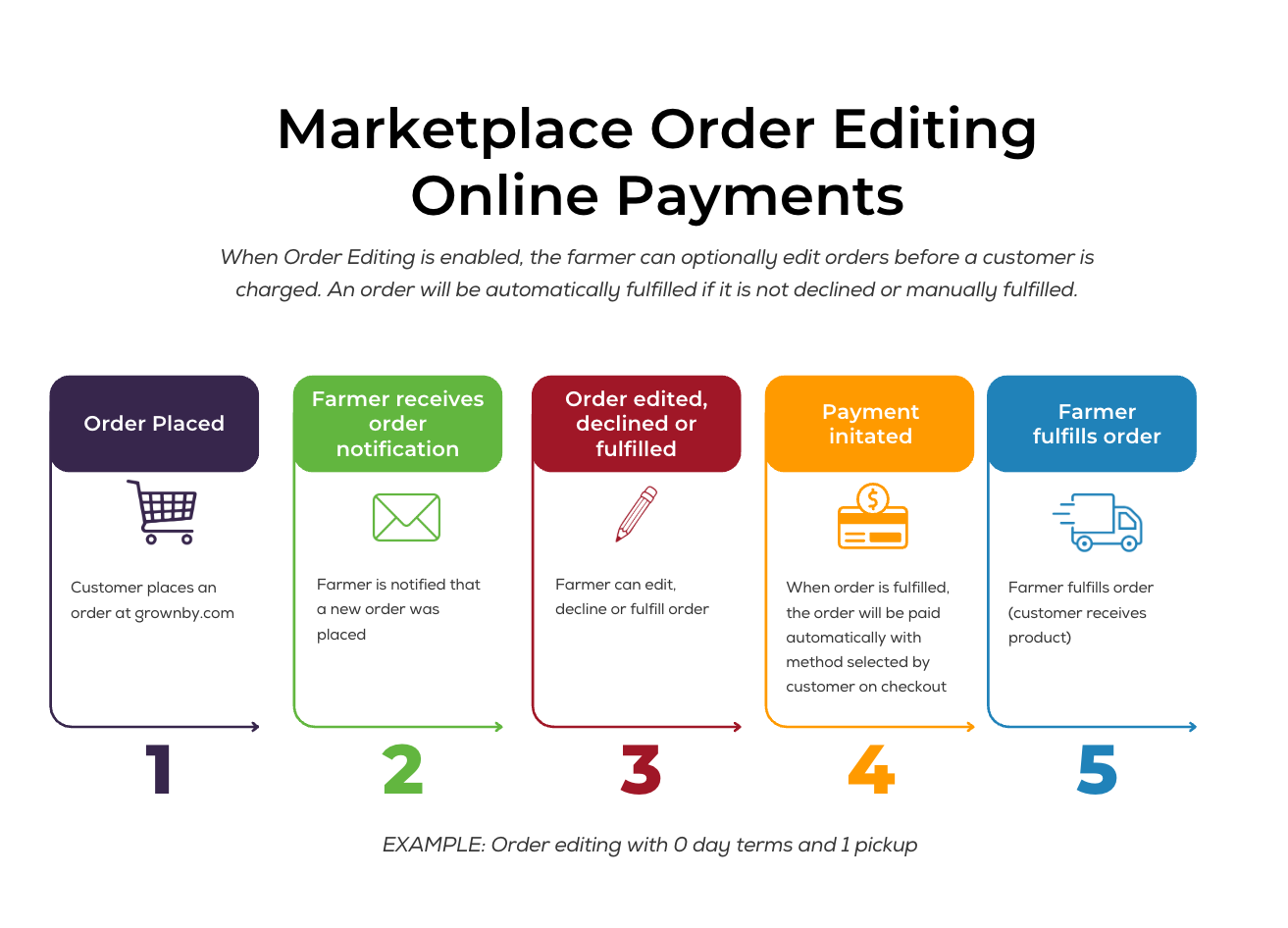
Marketplace Order Editing Steps
- Customer places order
- Farmer notified that an order is placed
- Farmer finds order on the Orders tab and clicks Finalize. From here, the farmer can optionally edit the order. If the farmer does nothing, the order will be automatically finalized and customer will be billed at the time of distribution.
Orders that can be edited and need to be finalized will have Finalize in blue under the Action column. If an order is not finalized more than 24 hours before the start of distribution, your customer will not receive a pick-up reminder email/notification. If they are using the app, however, they will receive the "pickup now" push notification.
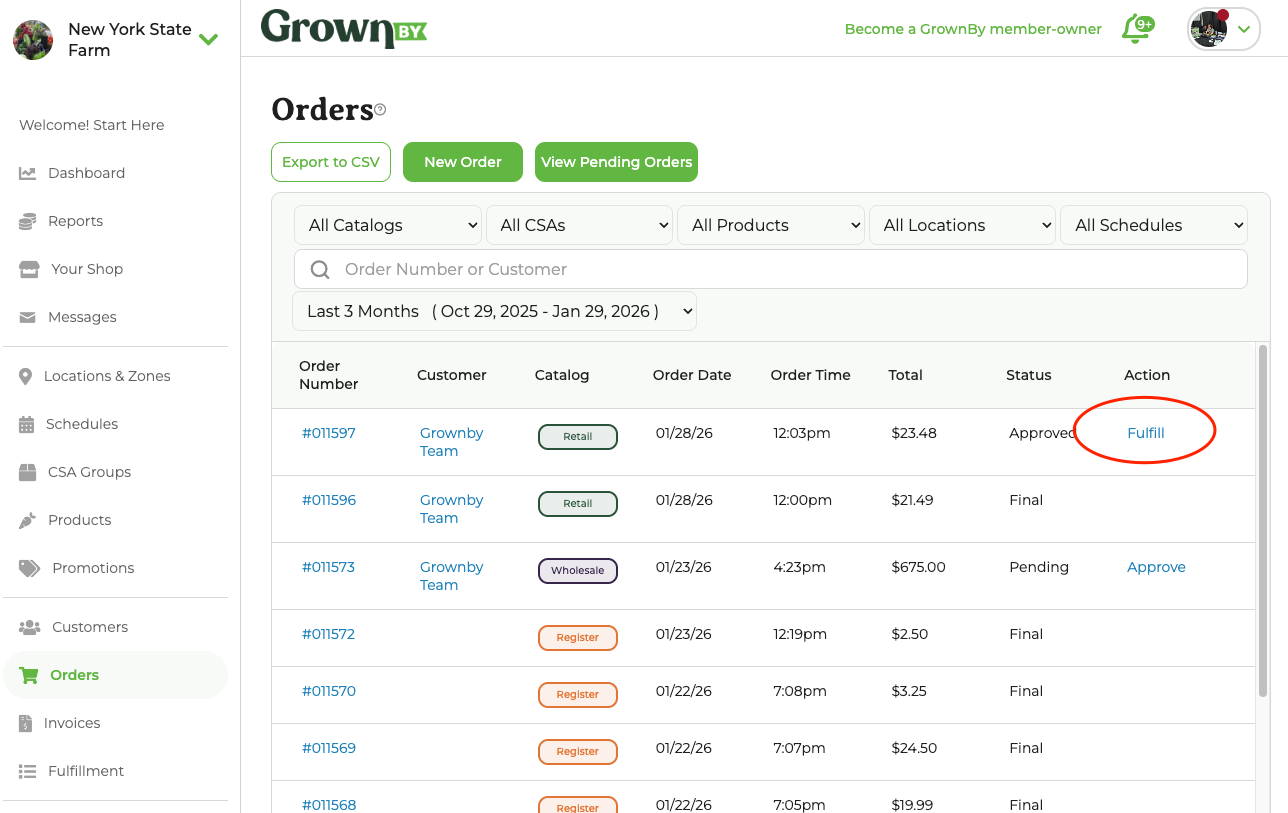
Pressing Finalize will open the order detail page. From here, the order can be finalized and charged, edited, or declined.
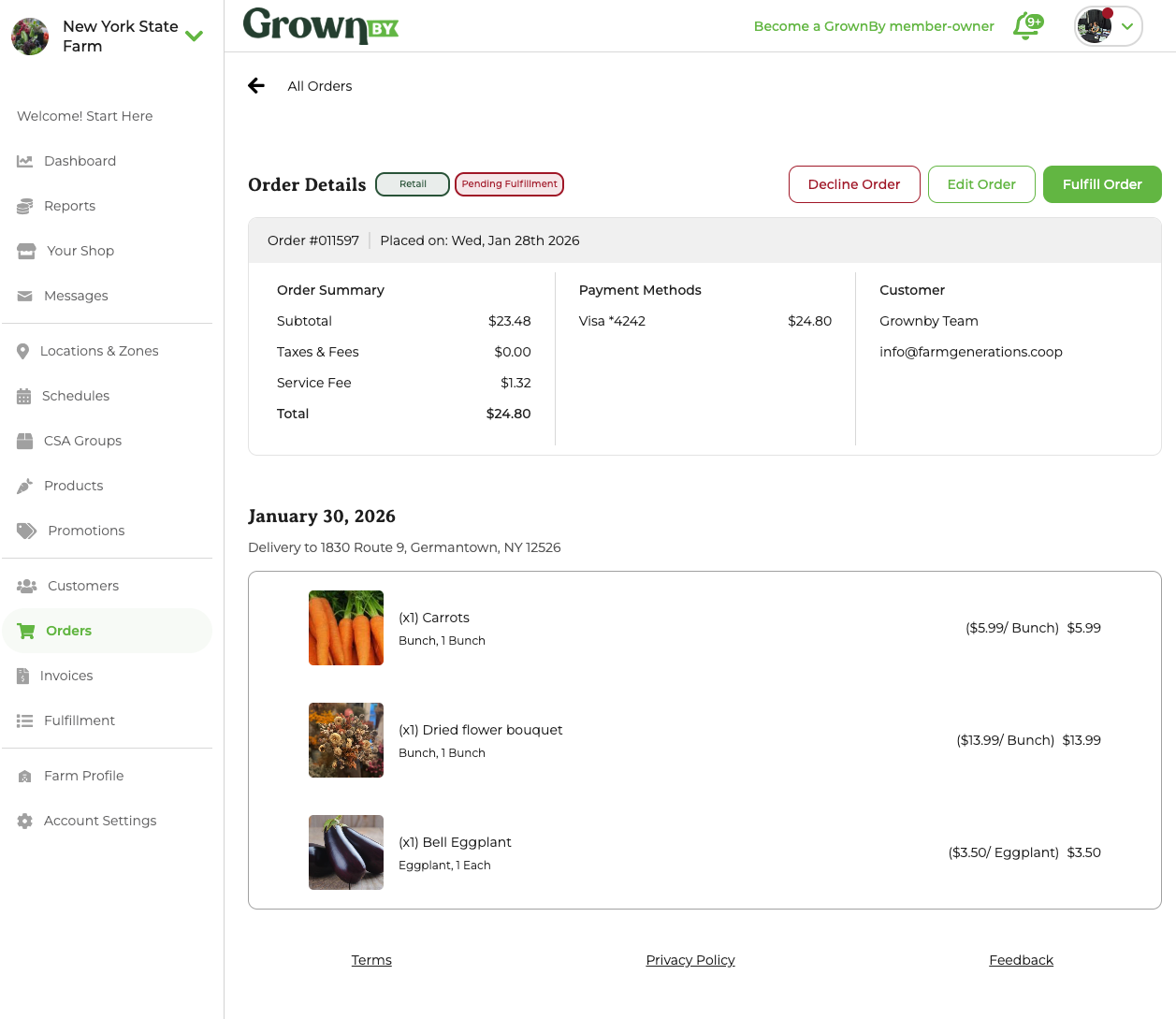
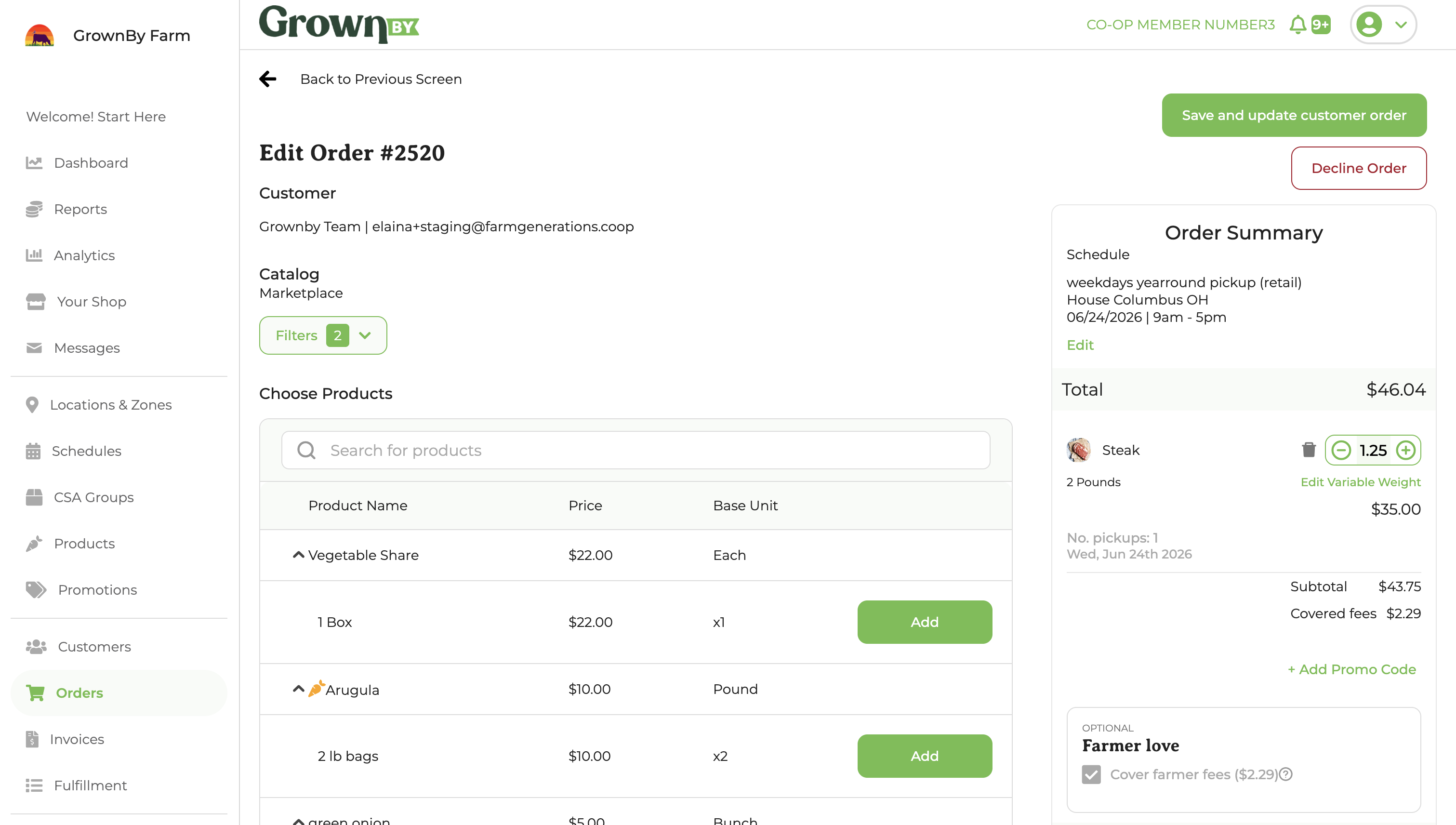
In the order editing screen, the farmer can decline the order, edit line items, edit delivery addresses, and add items. For orders on multi-location schedules, the location picker appears directly in the editor so you can switch to a different location on the same schedule without leaving the screen.
How to edit variable weights
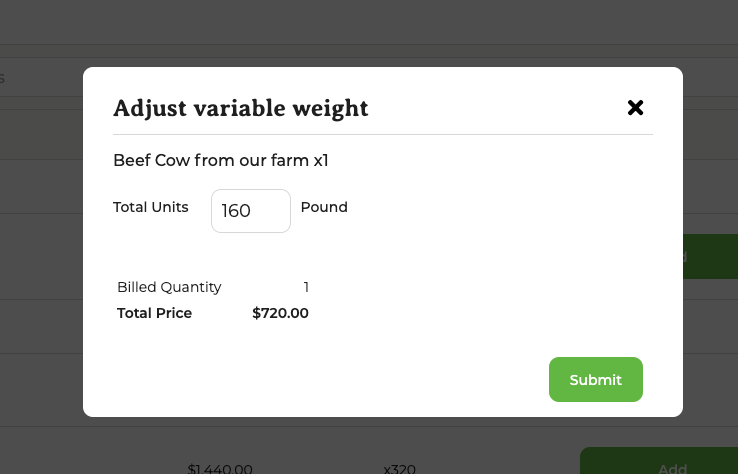
One of the most useful aspects of Order editing is variable weights. To edit a variable weight, the farmer should:
- Click Finalize in the action column of the order on the Orders tab
- Click Edit Order
- Find the product/s in question on the right hand side of the screen
- Click Edit Variable Weight
- Adjust the weight of the product being sold
Finalizing the Order
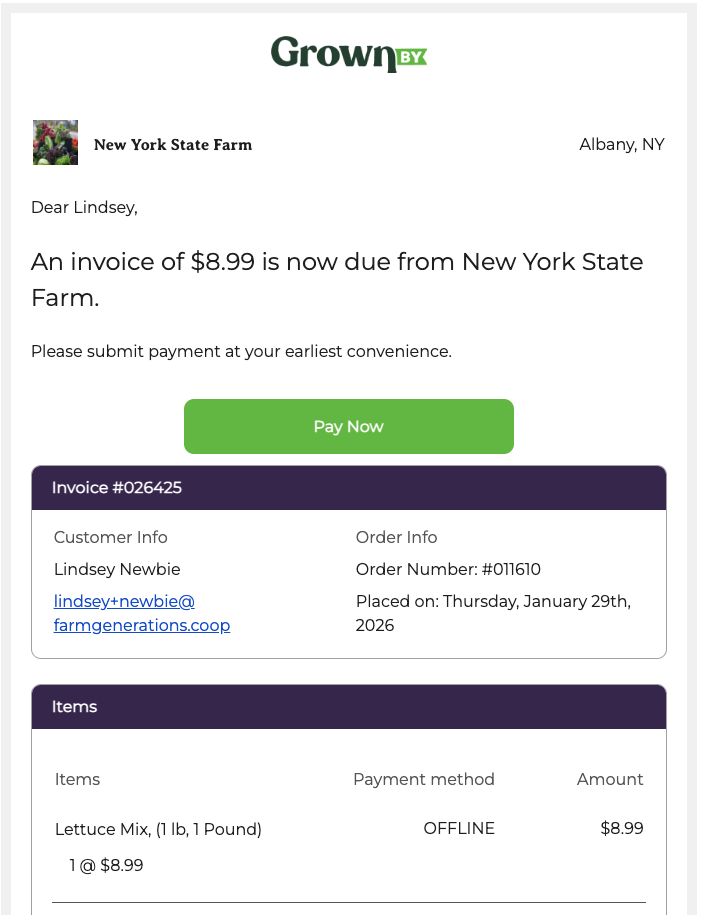
After clicking "Save and update customer order" the farmer is returned to the order detail screen. If the order is ready to be charged, click Finalize Order. At this point, the customer will be charged or they will receive notice that an invoice is now due.
If the customer selects offline payment (available on farms with a paid GrownBy plan), the customer will be sent an invoice when the order is finalized.
Reviewing pending orders one at a time
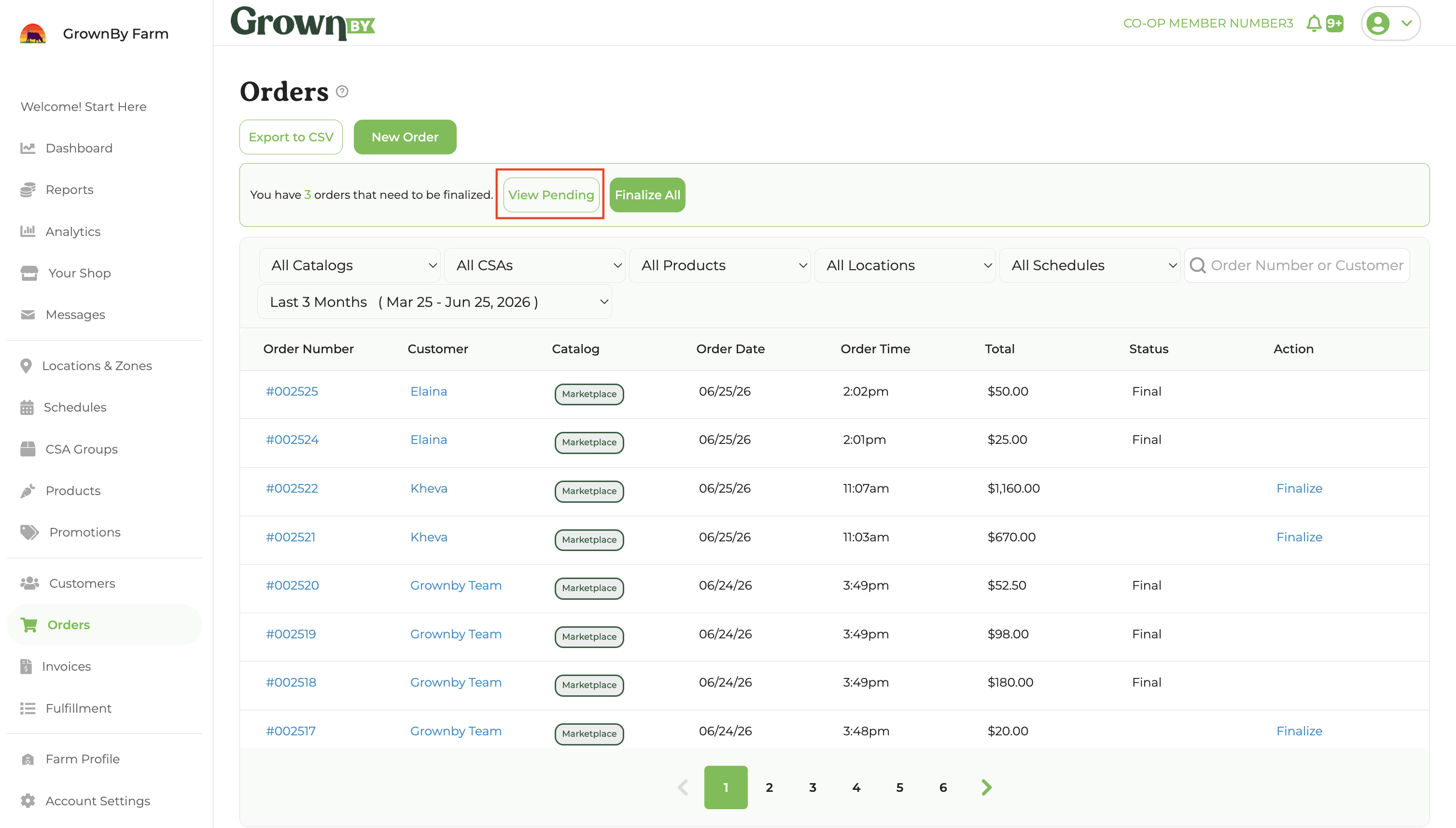
When you have multiple orders waiting to be finalized, you can step through them without returning to the orders list each time:
- The View Pending button at the top of the Orders screen shows the queue of pending/approved drafts.
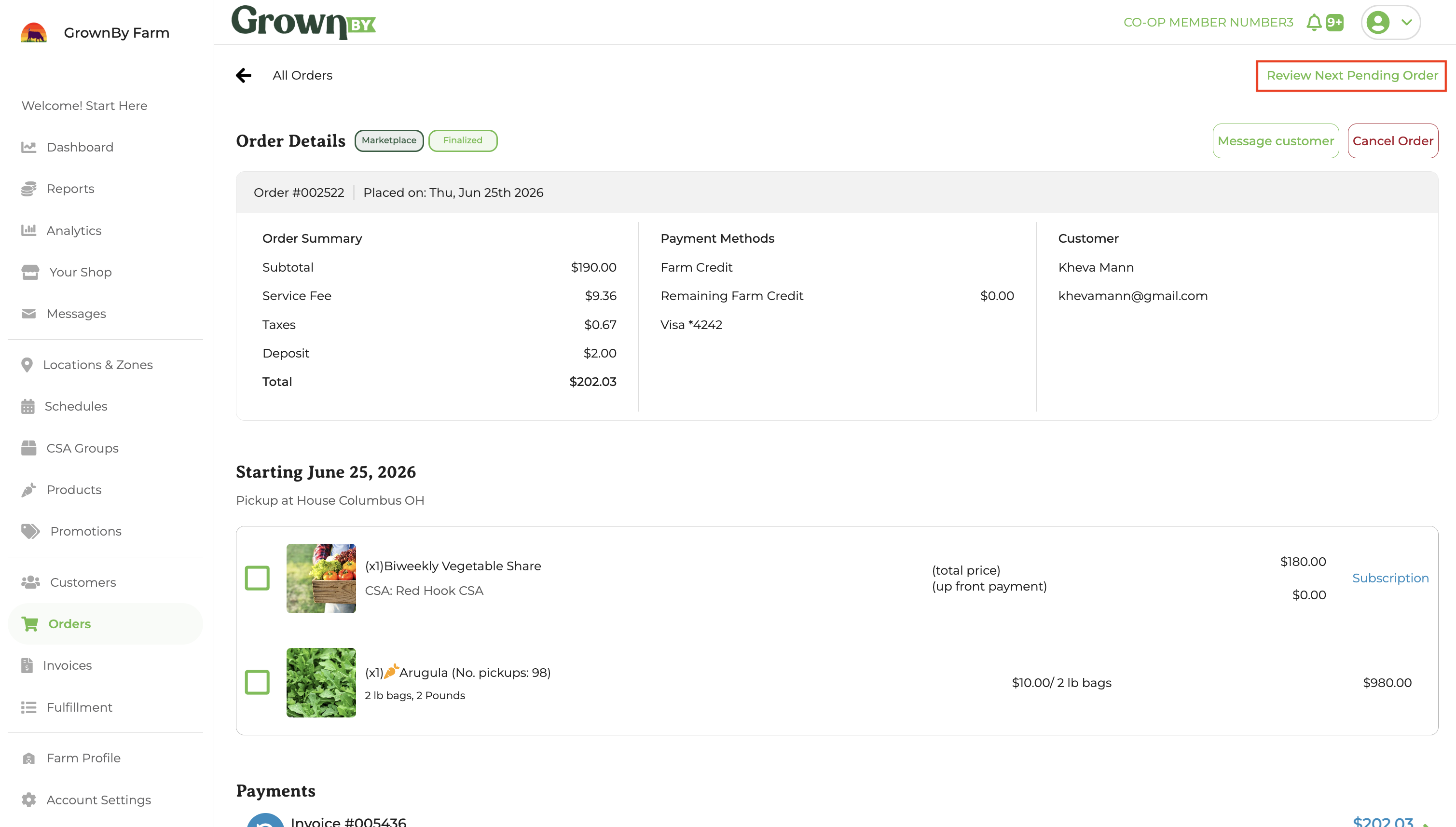
- After finalizing a draft, click Review Next Pending Order to jump straight to the oldest remaining pending draft.
- On mobile, the order editor uses a button at the bottom to switch between the products list and the order summary.
Finalizing Multiple Orders at Once
If you have a backlog of pending draft orders to finalize, you can finalize them in bulk instead of opening each one:
- A banner appears at the top of the Orders admin screen showing the count of pending or approved draft orders.
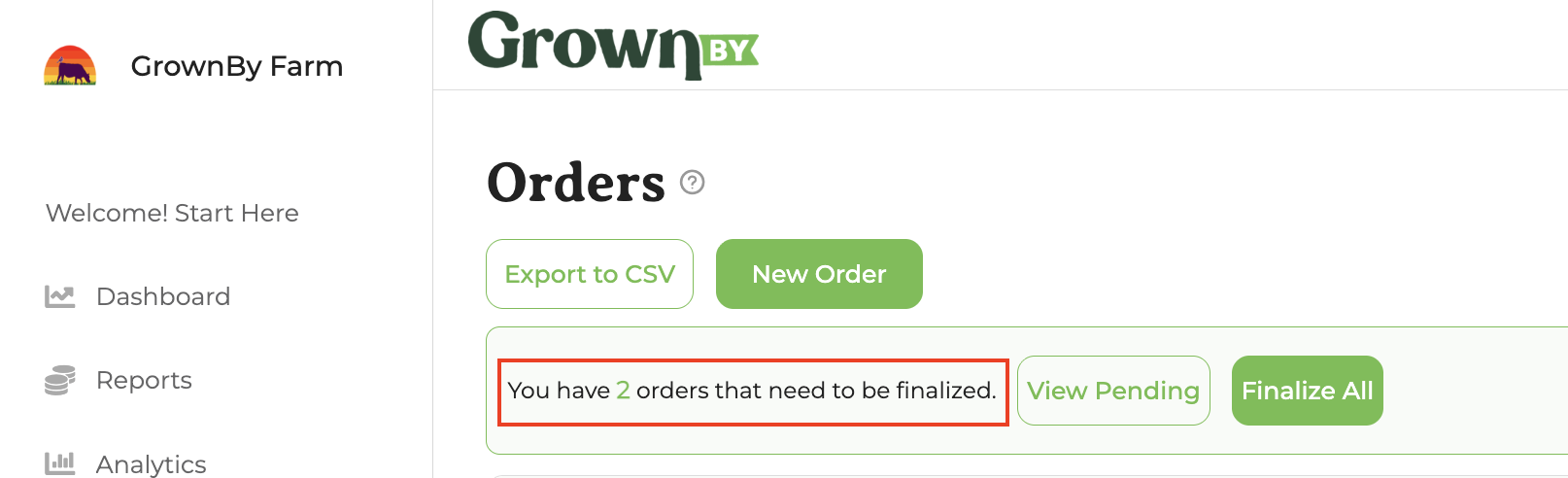
- Click Finalize All to finalize the entire batch in one click. A confirmation pop-up titled "Finalize all pending Orders?" asks you to confirm before charging.
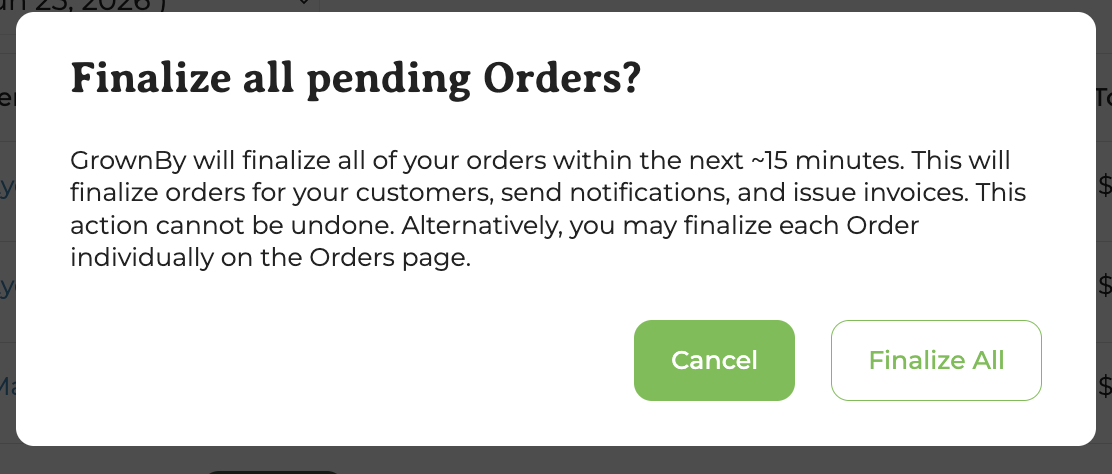
- The pending filter automatically clears after a Finalize All run, so you're not stuck looking at an empty filtered list.
- The banner count updates correctly when you finalize or decline individual drafts manually, in addition to bulk runs.
What if the farmer does not finalize the order?
In Marketplace, if order editing is enabled, the farmer has the option to edit, decline, or simply finalize the order. If the farmer does nothing, the order will be automatically finalized at the end of the customer's distribution. The downside to not taking action in this case is that payment will not be made until the order is received (or perhaps afterwards, if an offline payment).