
You can issue refunds for an order in GrownBy on your dashboard through invoices, orders, or customers. We suggest using the order details page when you also need to cancel the order or item. In addition to full refunds, you can also issue partial refunds (i.e. when one product in a multi product order needs cancelled or to adjust an imprecise price for an order). For more information about Partial Refunds and their uses, read this article.
Cancel and Refund from Orders Page
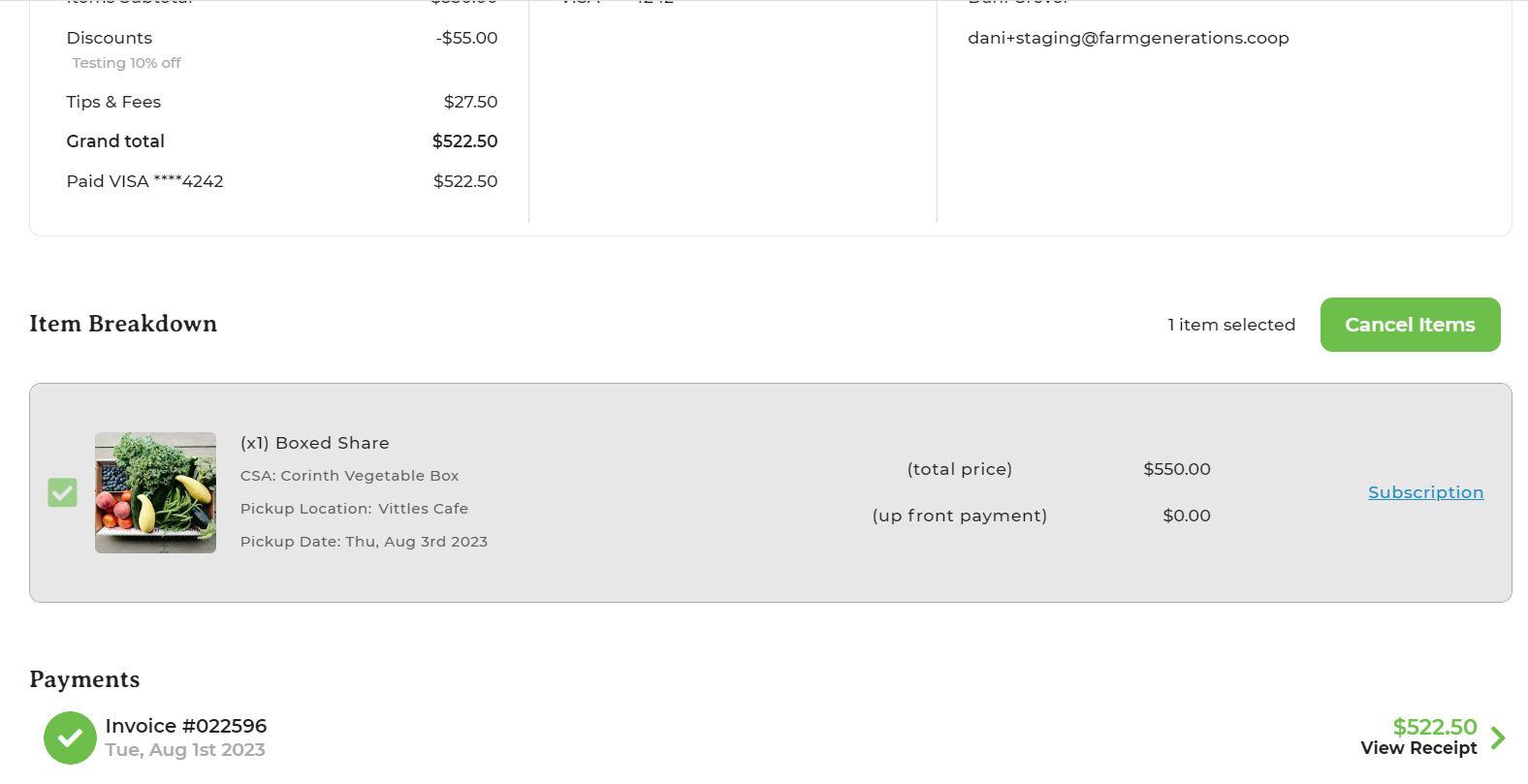
To cancel an order or item and give your customer a refund, go to the Order page and choose the order you want to refund. This opens the Order Details page. You can choose to cancel the entire order by clicking Cancel Order at the top right of the Order Details page. Or, you can select specific items to refund out of a multi-item order. Click the checkboxes to the left of the items that you would like to refund then click Cancel Items. The page looks like this:
When you click Cancel Items, a pop-up appears that looks like this:
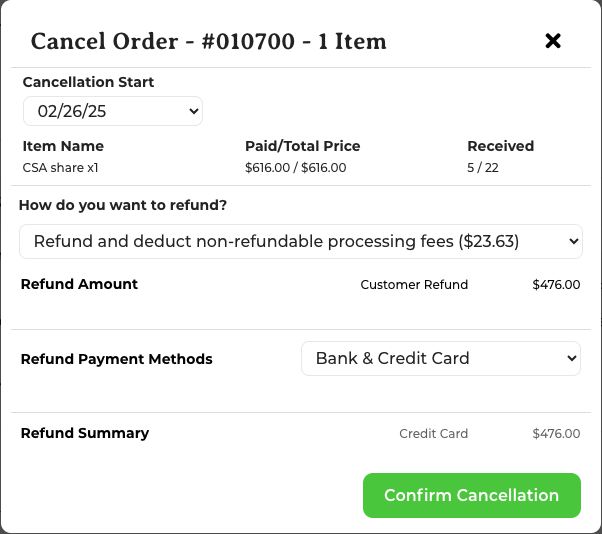
The first field, Cancellation Start, is a dropdown of available dates allowing you to indicate when the cancellation began (defaulting to today). The next section provides details on the amount paid and pickups received for the order.
Using the next field, you can choose Refund in full, Refund and deduct non-refundable processing fees, or No Refund. The total amount of the refund will show by "Refund Amount". If you want to issue a refund to the customer's credit card or bank, choose "Bank & Credit Card." Or, select farm credit (which the customer can use to purchase things from your GrownBy shop). You cannot refund partially to each via this screen, but can via the invoices or customer detail page.
When you're ready, click Confirm Cancellation.
Refund from Invoices Page
On the invoices page, first click Refund (amount).
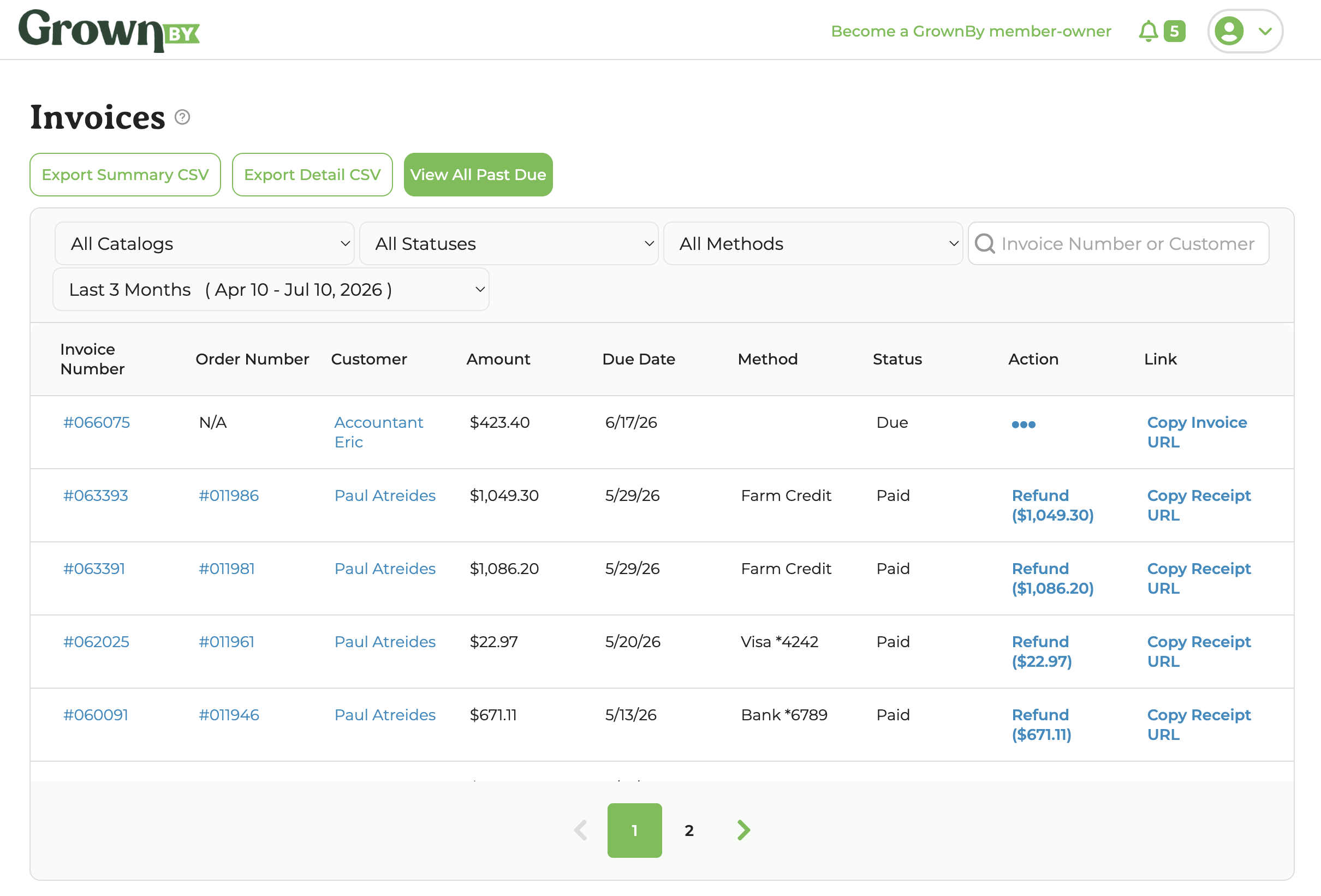
A pop-up will appear that looks like this:
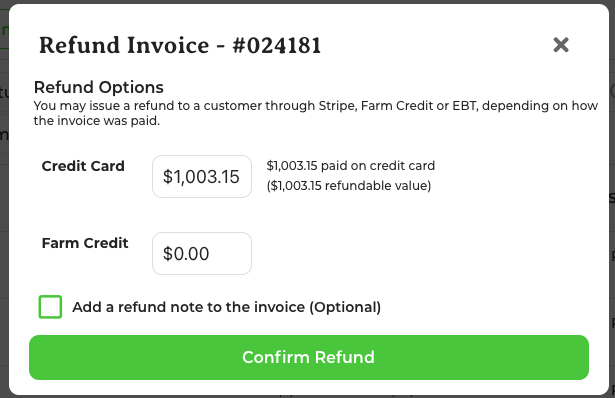
The Refund Invoice pop-up shows a separate input row for each payment source used on the invoice (which could include Credit Card, Bank (ACH), EBT, or Farm Credit) with the refundable amount for each. Enter the amount you want to refund in each applicable row. If some amount of this invoice has previously been refunded, you'll see that difference reflected in the refundable value.
You can add a note on the invoice to record information about the Refund. This note will appear in the email notification the customer receives and in your invoice exports. It does not appear on the invoice.
When you are ready, click Confirm Refund.
Refunding SNAP-eligible Products
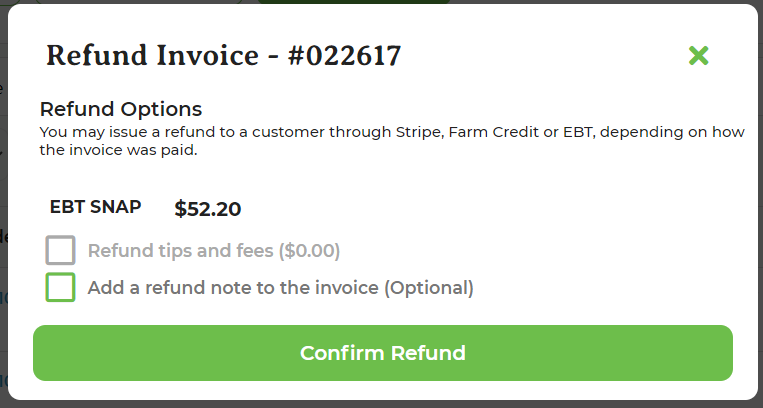
If the Order that you are refunding only has SNAP-eligible Products and was purchased with an EBT card, you will not have the option to Refund to Stripe or as Farm Credit. By regulation, SNAP invoices can only be Refunded directly to the SNAP card and account they were paid with. So, the options are fewer and the pop-up will look like this:
Subscriptions and Refunds
If the Order you are canceling is a Subscription, you will be able to see how much the customer has paid of the entire share price. So, if for instance the customer has only paid a deposit, the amount will be listed as "the deposit amount/the full amount". This is important because you should only refund the amount the customer has paid thus far, not the full invoice amount.
Checkout this article for a thorough description of vacation weeks.
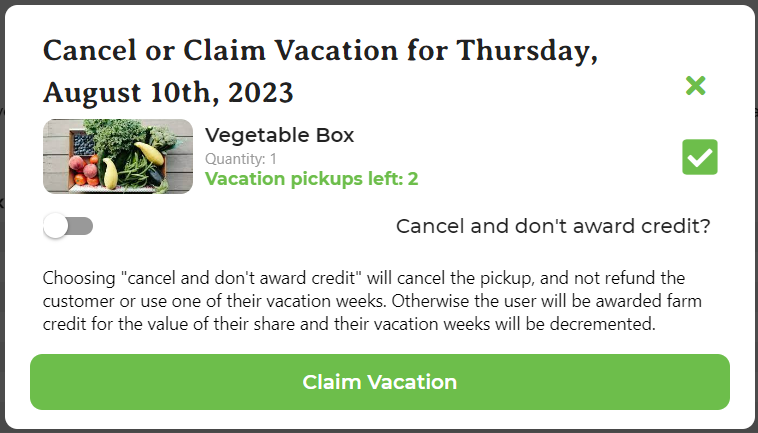
In GrownBy, you cannot refund just one week of a subscription. You can, however, allow vacation weeks and the customer can opt out of receiving their pickup or delivery. The farm admin determines the number of allowed vacation weeks for each subscription, if any. When a farm admin processes a vacation week for a customer, they have the option to award credit or not. There is not an option to refund the cost of the pickup or delivery back to the customer's credit card.
Refunds for Offline Payments
If you have an order that was paid offline, you can mark it as refunded, but GrownBy will not provide any funds to the customer. You can refund offline or issue farm credit on the customer detail page.