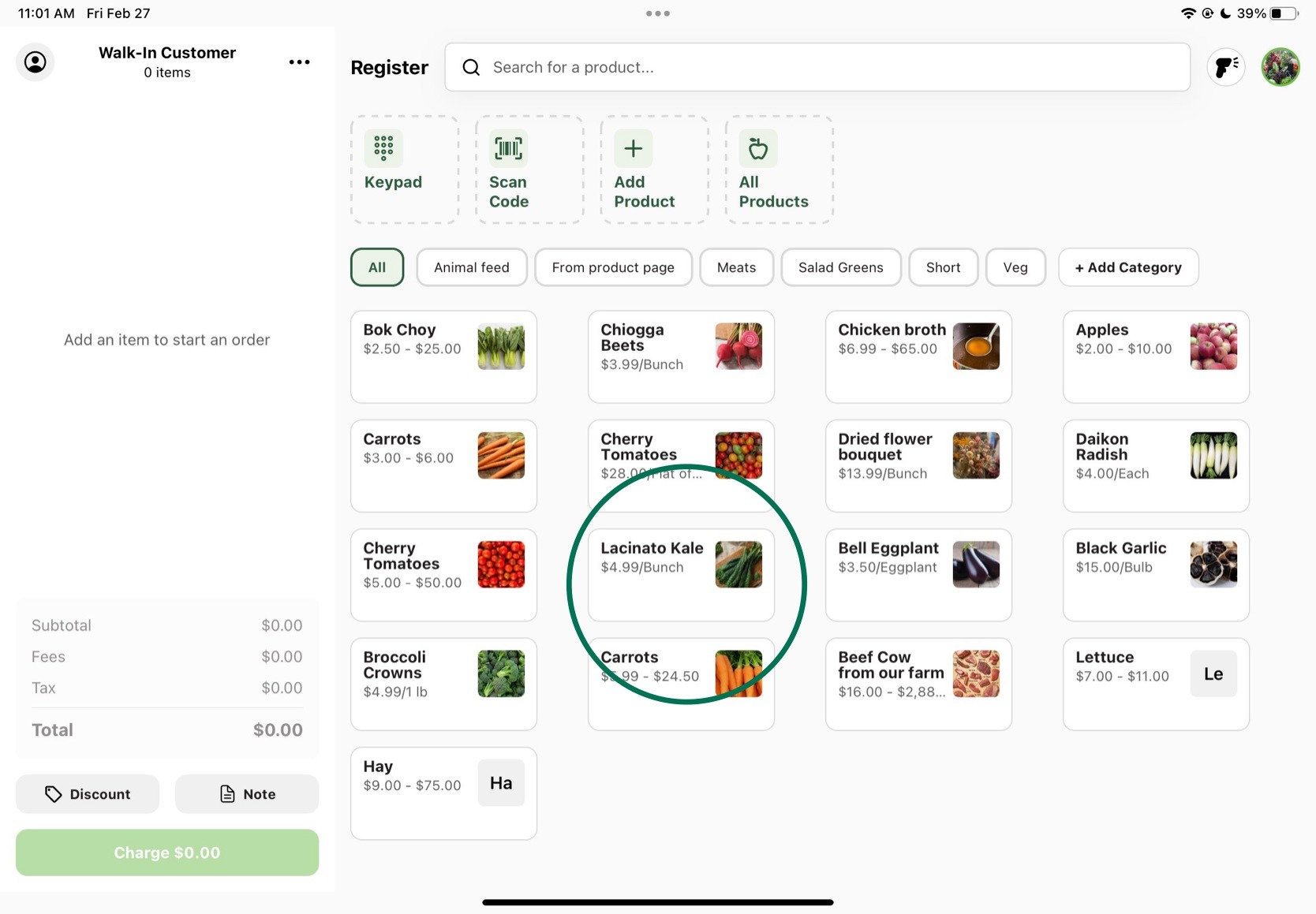
If you are starting with an existing GrownBy account and want to add products you have on your online marketplace or wholesale store, you have two options to add them to Register:
1. Add Products to Register in bulk from within your GrownBy farm Dashboard
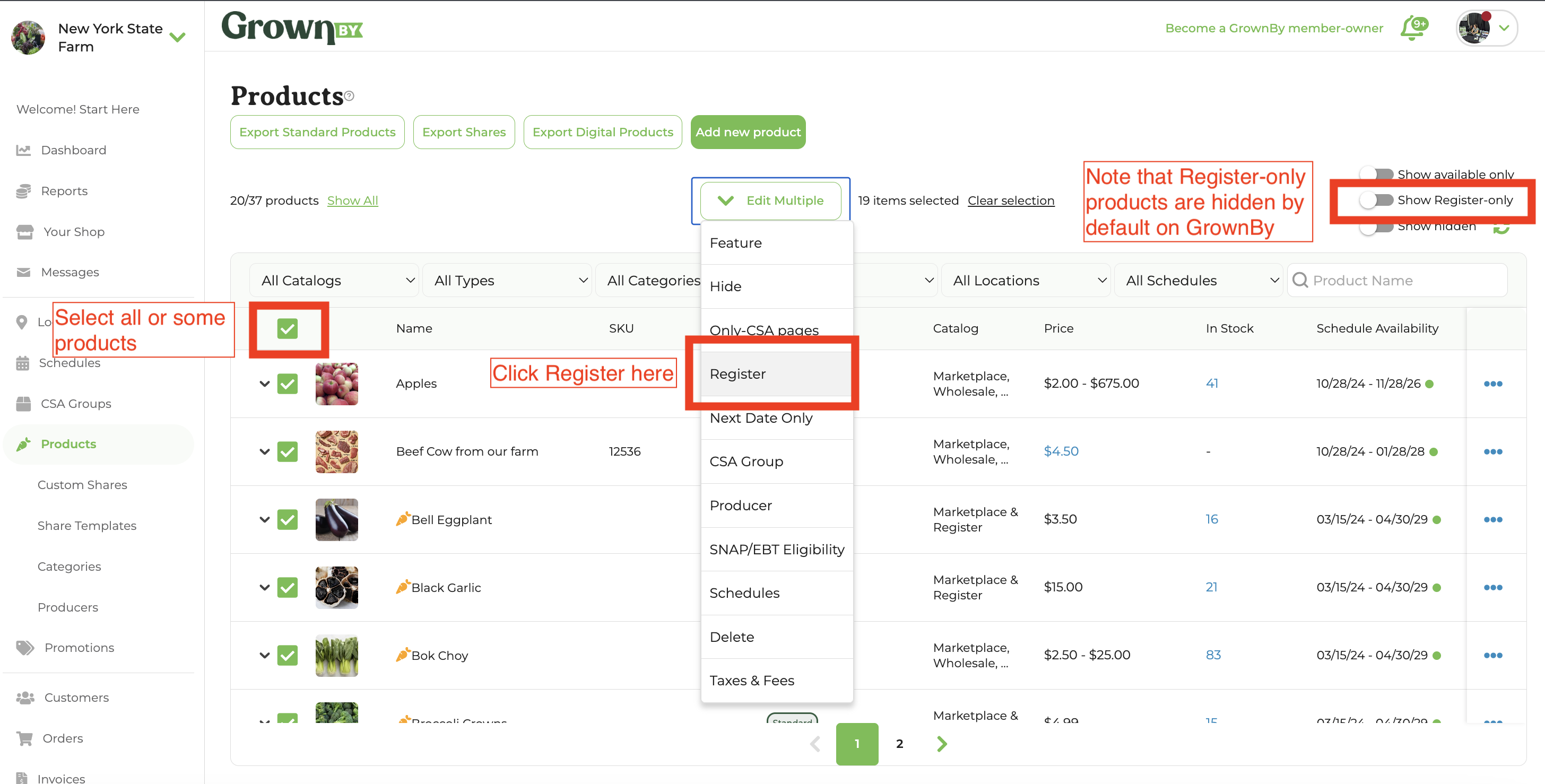
Each Register product requires an assigned buying option, similar to Marketplace and Wholesale catalogs. You can easily add a new buying option and sell your products on Register with bulk editing in GrownBy. Here are the steps, illustrated below:
- Select some or all products for Register
- Click Edit Multiple → Register
2. Add Products individually from the Register app
-
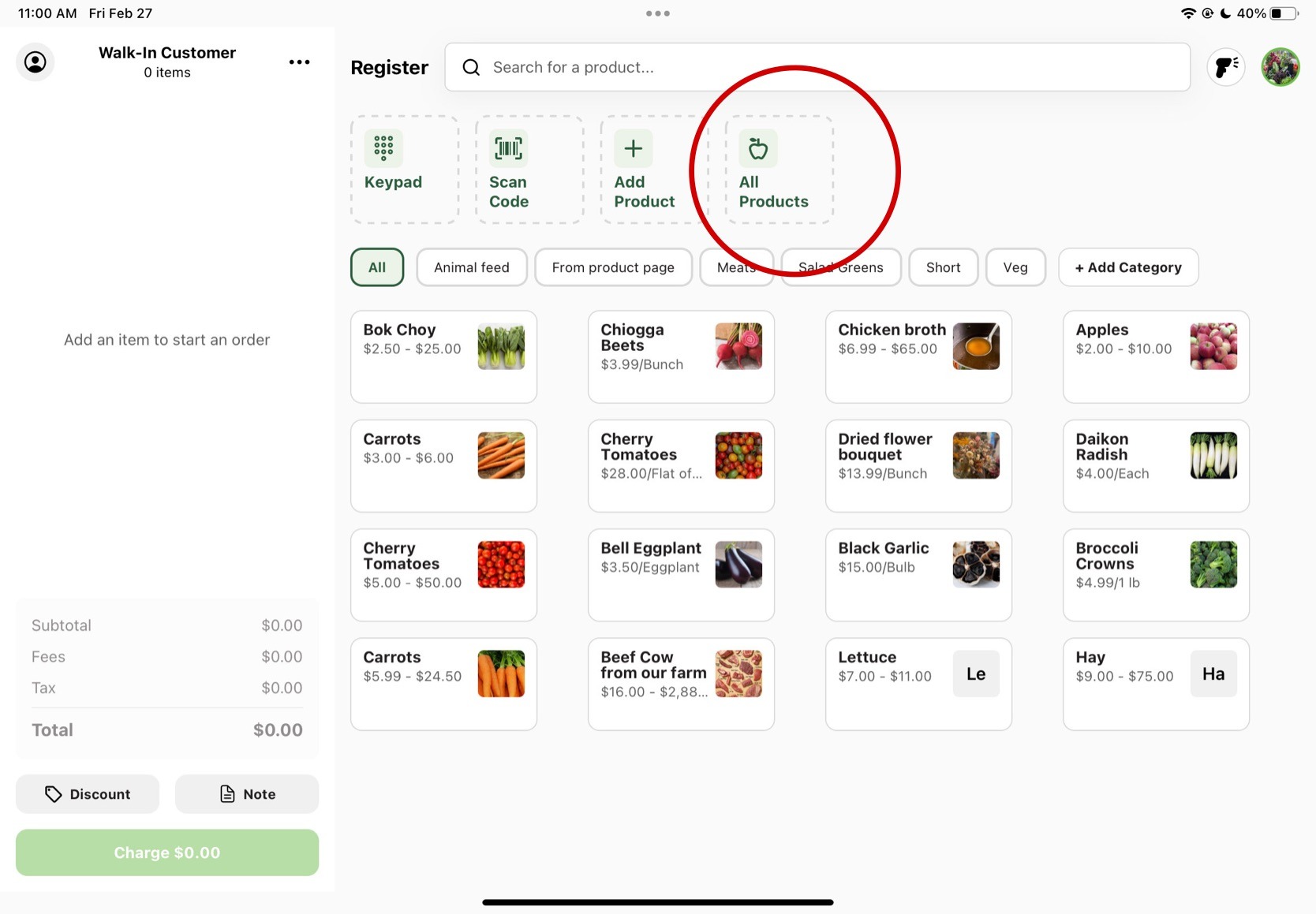
Press on the All Products button on the homepage.
-
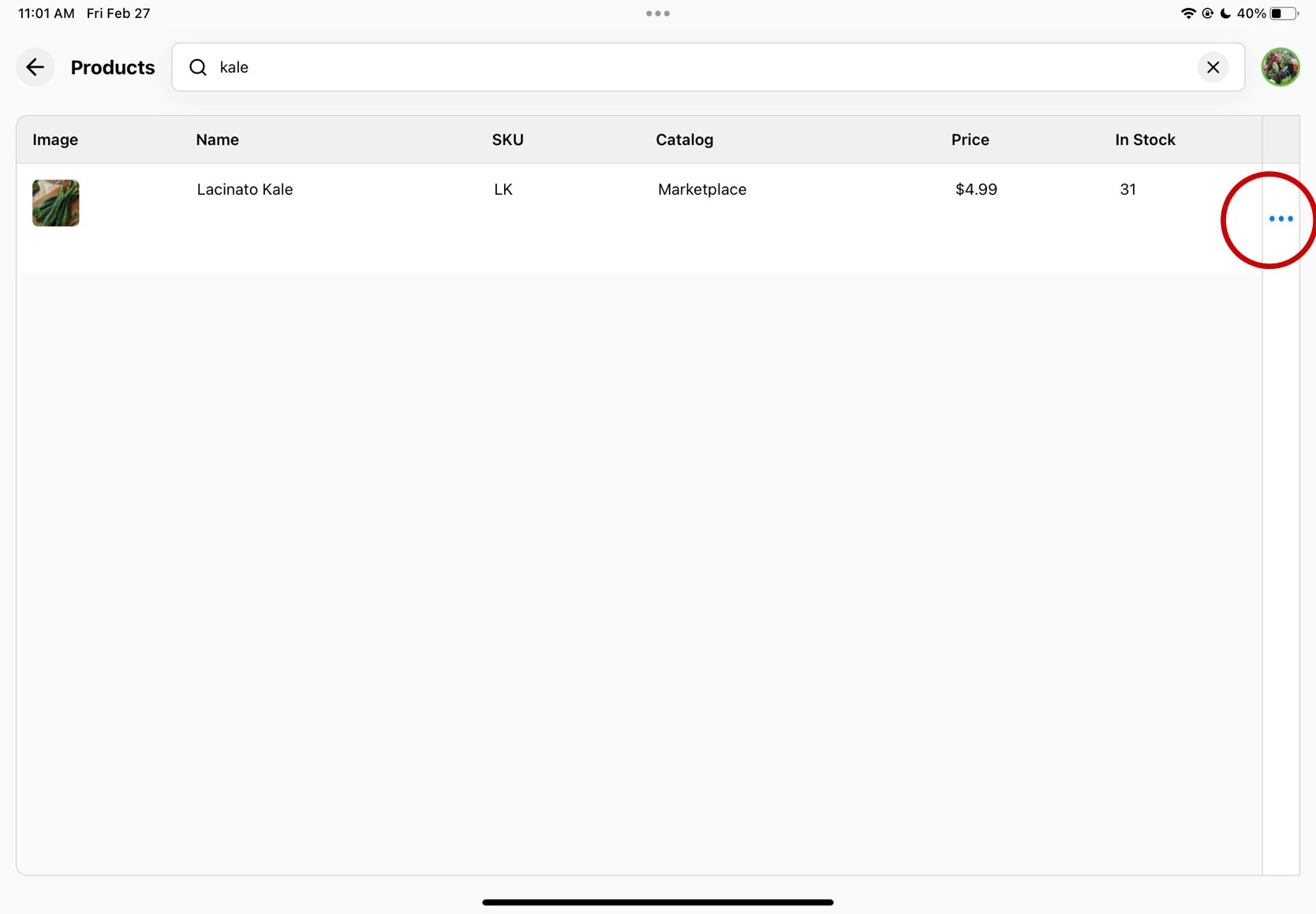
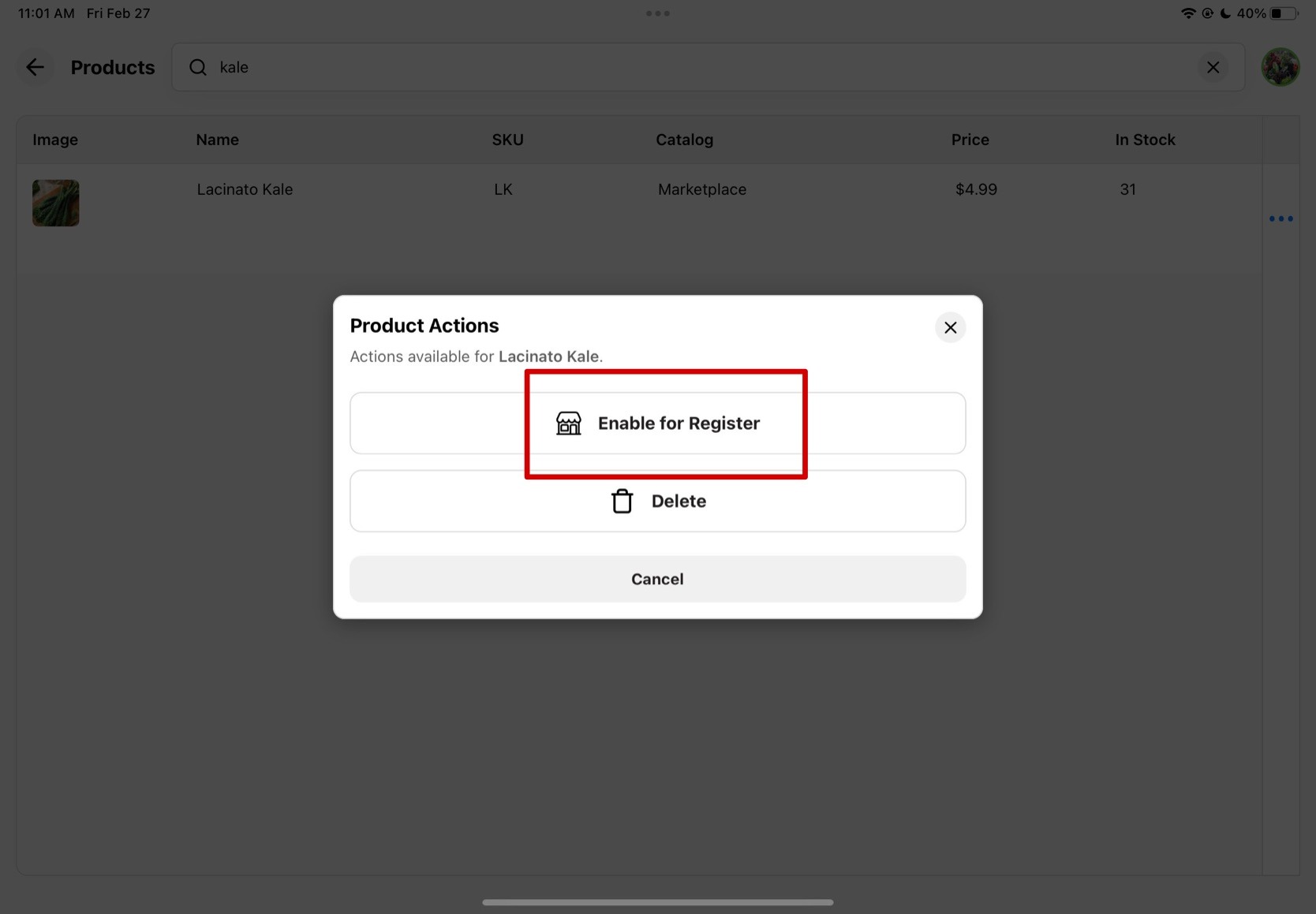
Search up the product you'd like to add to Register or find it on the products list. Click on the three dots all the way to the right of the product.
-
Click on the Enable for Register button.
-
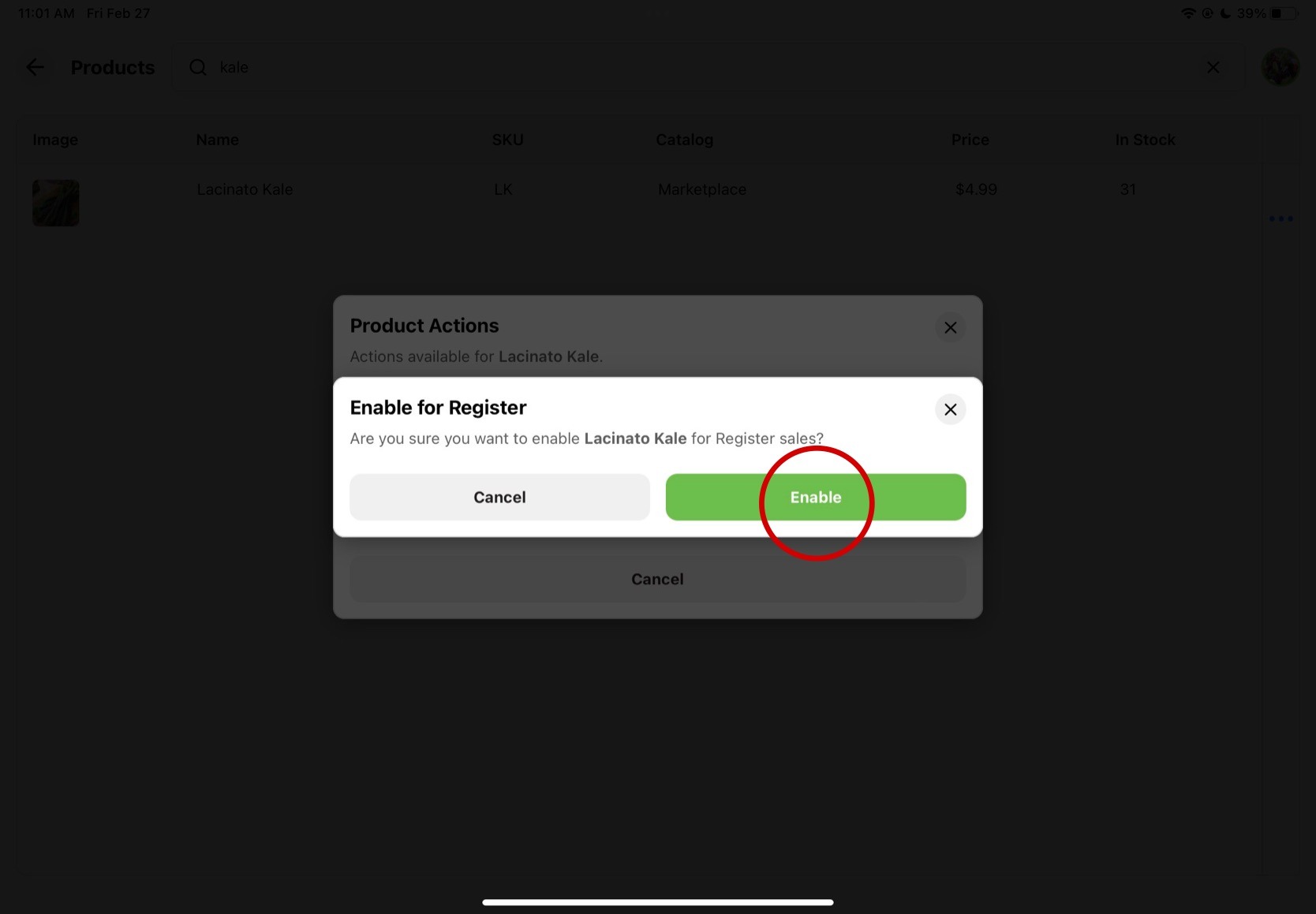
Confirm that you'd like to enable for Register.
-
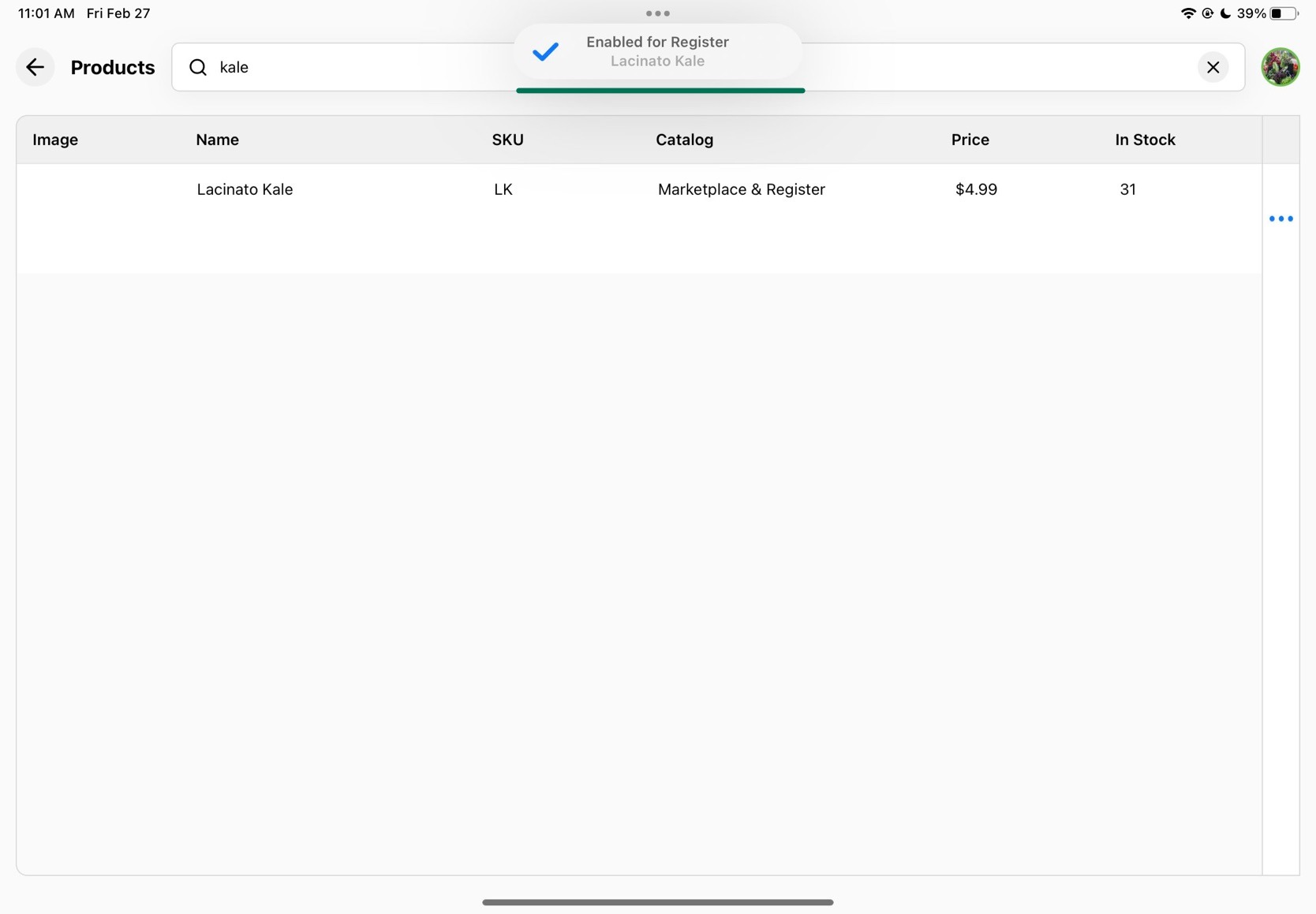
A small notification will pop up to confirm it was enabled as a Register product and your catalog column should update to list Register as well.
-
Going back to the homepage, you will now see your product ready for purchase.