
Many farms distribute biweekly, or every other week, either as a means of providing a "smaller" share size to customers, to accommodate customers' busy schedules, or simply to distribute less perishable products that don't need to be distributed every week.
In GrownBy, there are a couple of different ways to set up biweekly distributions. This article will walk you through the different options.
Understanding Templates
It's important to understand templates because they should be set up prior to setting up your shares.
Templates are GrownBy's way of grouping similar types of shares under one common name. Before diving into creating biweekly products, you should familiarize yourself with the concept of Templates. Templates need to be created before you create your products so start here.
Once you understand templates, have assessed whether they're appropriate for your situation, and have created one for your share, you can now decide how to organize your products. In the following example, I created an egg share template. The template looks like this:
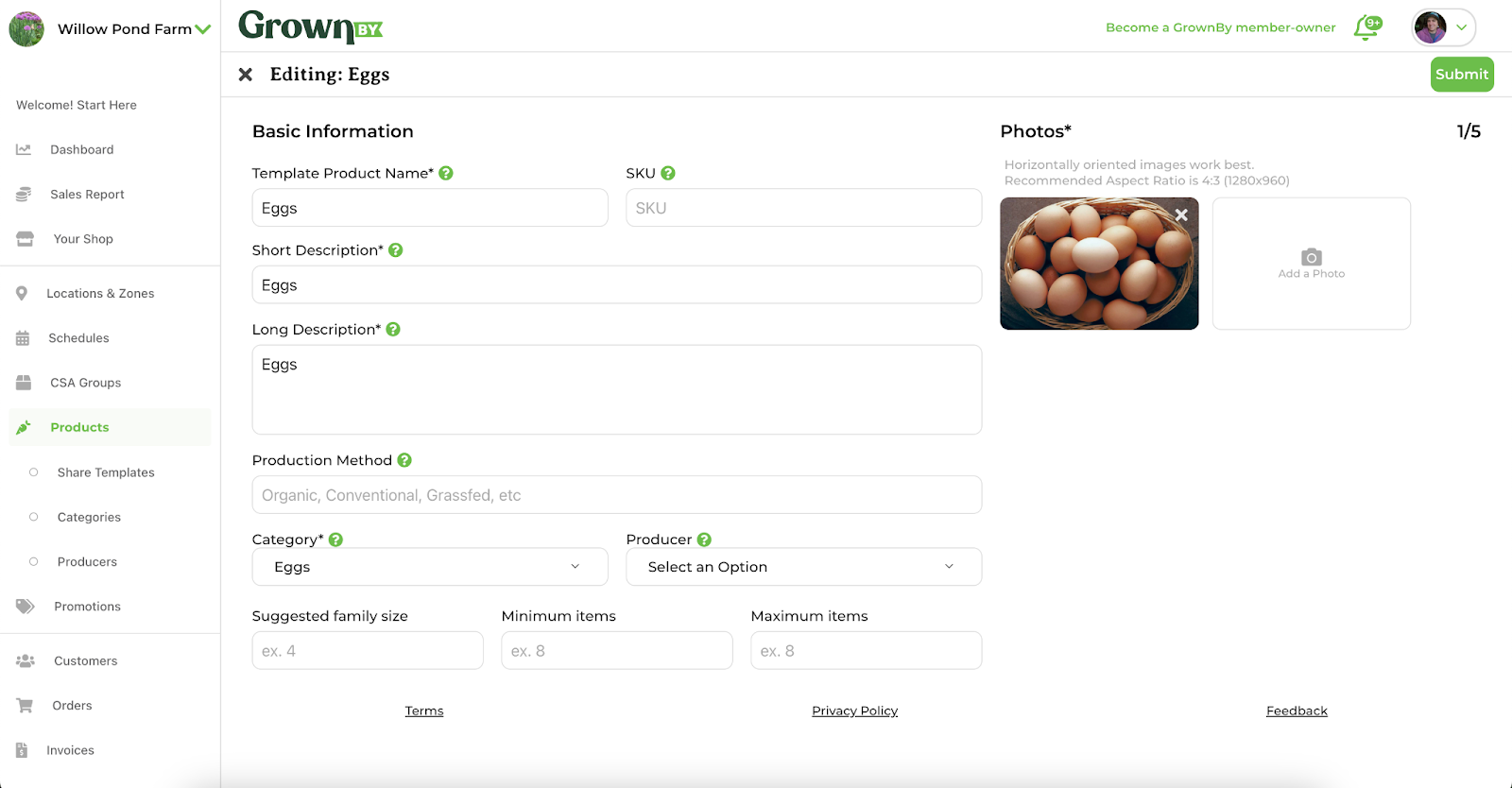
Using this template will allow me to have my Weekly Eggs, Biweekly A Eggs, and Biweekly B Eggs all appear in my distribution reports as simply "Eggs".
Next, proceed to creating your products. There are two options for how to set things up. In either case, if you also have a weekly share, you will want a separate product for that (under the same template). The number of schedules you have will depend on how you prefer to set them up (below).
Option 1 (Our recommendation): One bi-weekly product; two weekly schedules starting on two different start dates
Pros of this option:
- This option only displays as one product in your shop and then the customer can choose their preferred schedule.
- Only one product to keep track of.
- No need to use templates if you just have this one product. (Although you may still choose to in order to group weekly and biweekly shares together.)
Cons:
- If you have customers who are already accustomed to "Week B" or some other language around your share, Option 2 (below) may be easier for them to understand.
- You'll need to make two different schedules.
- If you have skip days during your season, you may find having one product limits your ability to skip a distribution while maintaining your biweekly schedule cadence.
How to:
- Make a schedule that is biweekly and starts on the first week of your share. Then, copy that schedule, change the name, and set the date to start the second week of your season. If your customers are used to language like A week or B week, you can add that to the names of the schedules you create.
- Create a new product. If you are using a template, under the image field, click the box that says, Use a Template and select the template you created above.
- Give your product a name that indicates that it is biweekly. It can simply be something like "Eggs - Biweekly".
- Associate this product with one of the weekly schedules, making sure that the start date is the first week of distribution for that group.
- Next, associate the schedule that starts the second week, making sure that the start date is the second week of distribution.
Option 2: Two bi-weekly products with different start dates; one schedule
Pros:
- You may wish to have a more customized schedule than a single product allows because of skip days in your distribution calendar. In this case, having two products can be helpful because you can set Skip, Exception, and Reschedule days for each product individually, allowing you to maintain your bi-weekly pattern but customize it. Read more here.
- Setting things up this way also helps to make the schedule very obvious, which helps people show up on the right week!
- This allows a customer to buy a bi-weekly add-on to a weekly primary share.
- You can use this method if you have an odd number of weeks of distribution in your season and you need to have two biweekly shares with an unequal number of distributions. For example, in a 21-week season, the group picking up on the first week will have 11 pickups and the group picking up on the second week will have 10.
Cons:
- Requires a little more set-up.
- Might appear a little bit clunkier in your shop (more products).
How to:
- Create a main (parent) template like described above.
- Create two biweekly schedules.
- Create a biweekly share product using the template as described above. Give it a name that will help customers know which weeks it will be (like A group).
- Associate this product with the schedule meant for it.
- Copy the biweekly share product, rename it for the B group, and associate it with the schedule meant for it. Make sure that each product has the correct number of distributions, or GrownBy may throw an error.
Balancing Biweekly Shares
You may desire to balance the number of customers between your two biweekly shares so that you are distributing the same amount each week. Please take a look at this article to learn more about balancing shares.