
In GrownBy, the Hiding and Closing actions have different, specific meanings and uses for your farm. Hiding removes a product or schedule from view on both the customer-facing shop and the Farmer Dashboard, and blocks ordering for both. Closing applies to schedules and to your shop as a whole, and keeps everything visible and accessible to farm admins while blocking customers from placing new orders.
You can access these features in your Farmer Dashboard.
Products
On the Products menu, each product has three dots under Actions on the far right. Click the three dots and then select hide or unhide:
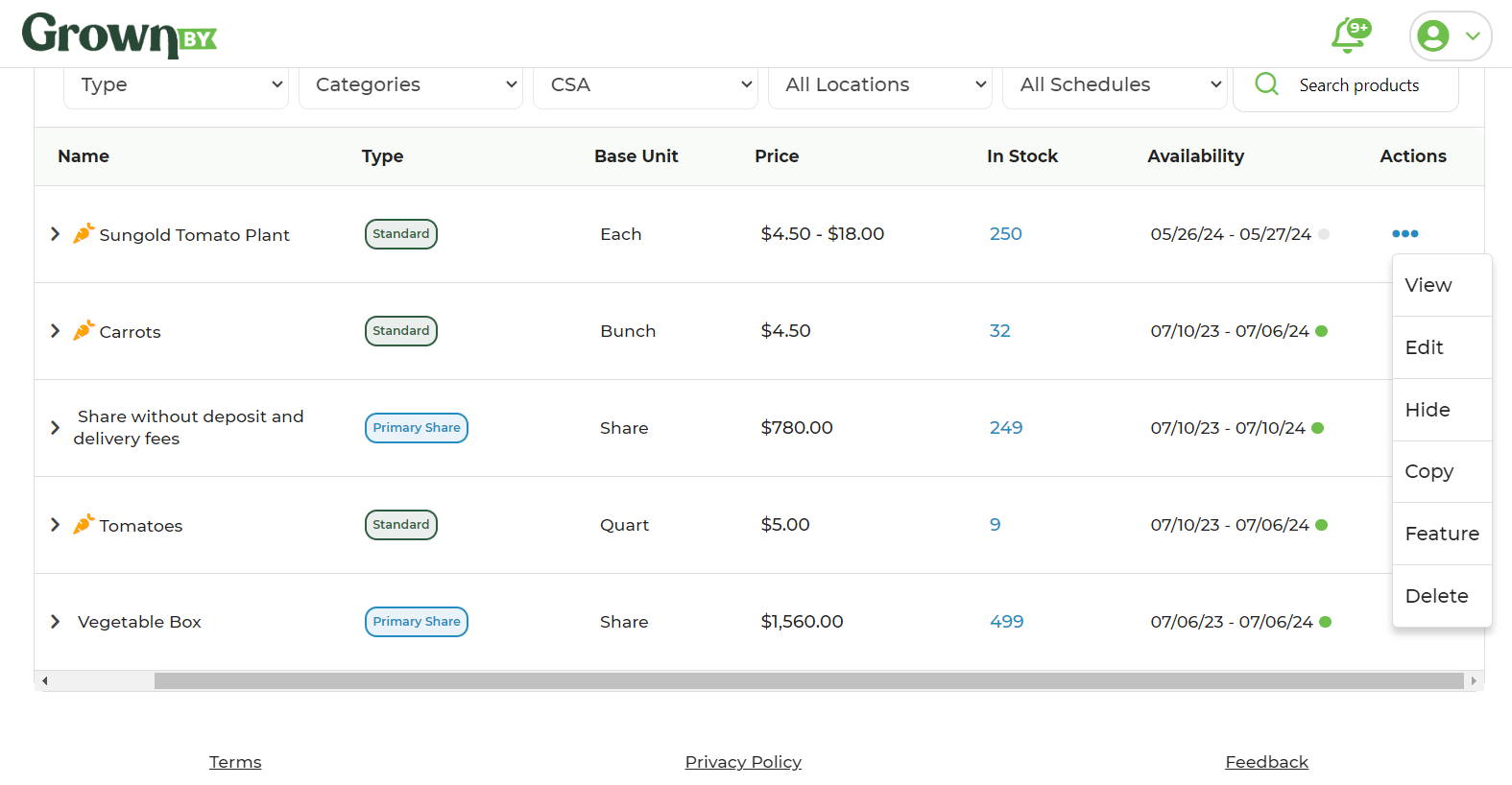
Hiding Products in GrownBy makes the Products totally unviewable to your customers. It also makes them unviewable to you (unless you click the toggle to make them viewable to you in your Products screen).
There are two reasons to hide Products. One is that it makes it easier for you to view your Products in the Farmer Dashboard. Two is that it makes your store tidier and clears out Products that are not currently available, either because of the window of their end date/start date or that are out of inventory. For example, you may choose to create all of your products in the off-season and hide them until they become available.
However, you might decide that you'd like to display products in your store that aren't currently available or out of stock to drum up excitement about what will be available in the future.
Schedules
Hiding Schedules
Hiding a schedule works identically to hiding a product. When a schedule is hidden, customers cannot order on it and the schedule is not visible in the Farmer Dashboard.
To hide a schedule, click the three dots next to it in the Schedules list and choose Hide:
The Schedules page also has a toggle at the top right so that you can choose whether you want to see your hidden schedules in this view.
Closing Schedules
A farm admin can also close a schedule. Closing a schedule prevents customers from buying on it, but does not hide the schedule on the Farmer Dashboard. You might want to close a schedule if, for instance, you only take orders for a defined period of time, or if you need to balance schedules between alternating schedule weeks.
When a schedule is closed, a farm admin can still create an order for a customer in the Order Creator.
To close a schedule, find it in the Schedules list and click on it to edit it, then scroll to the bottom and check the Close Schedule box. You can also close a schedule quickly by clicking the blue Open text under the Status column on the Schedules list.
Your Whole Shop
If you're taking a break for the season, going on vacation, or have sold out for the week, you can close your online shop in one step instead of closing every schedule.
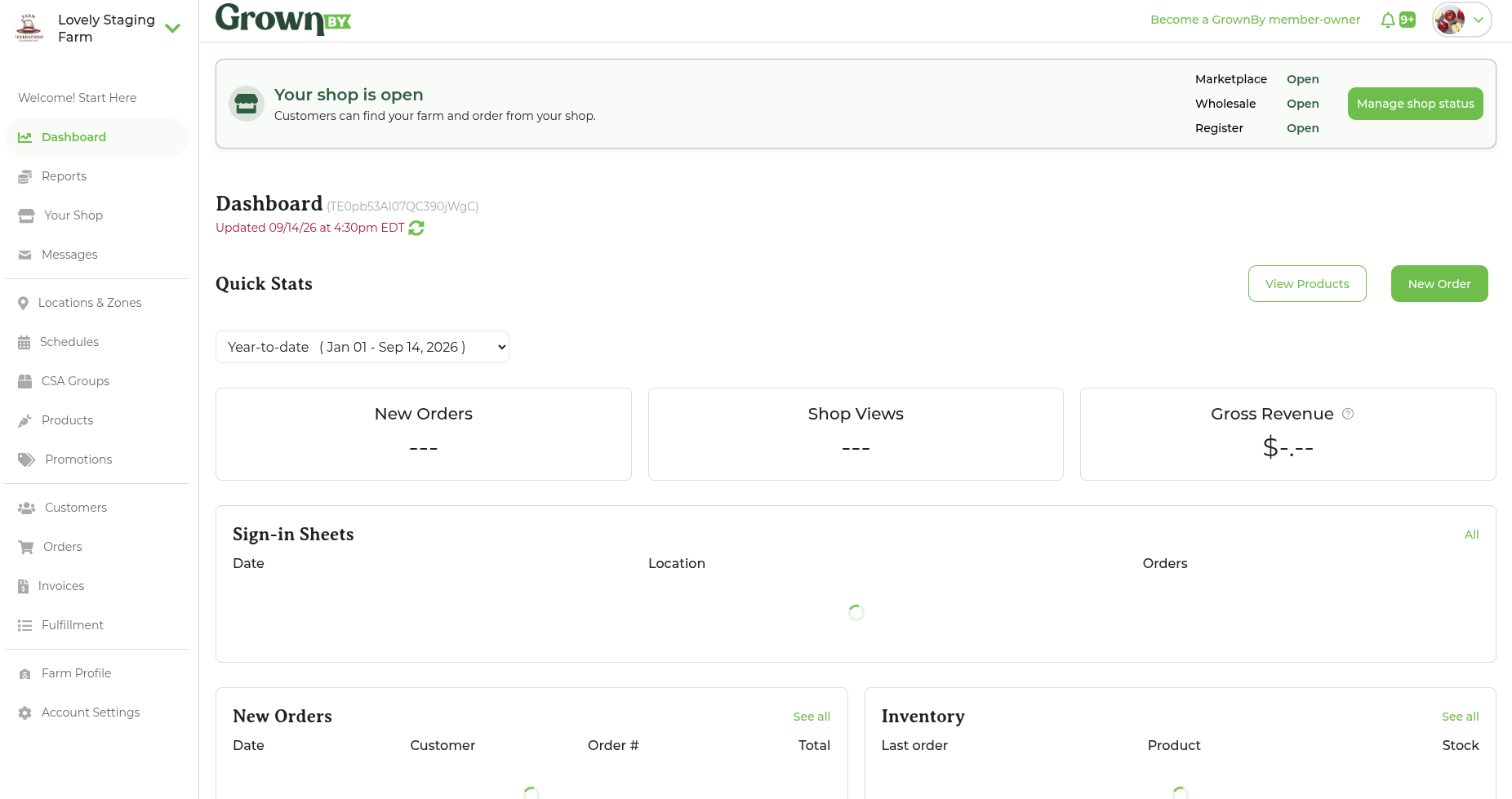
The Schedules screen and your Dashboard both show a banner with your current status: Your shop is open, Your shop is partially open, or Your shop is closed for sales, with a line for each catalog underneath. Click Manage shop status to open the Shop status pop-up.
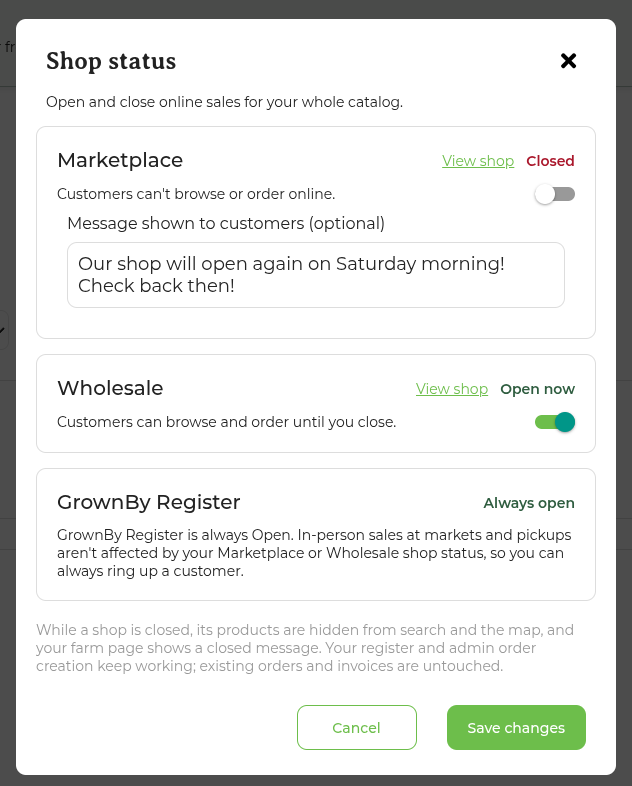
In the pop-up, you can set each catalog open or closed on its own:
- Marketplace is your retail shop.
- Wholesale appears if your plan includes it, so you can close retail for the season while wholesale keeps taking orders (or the other way around).
- Register is always open. Closing your online shop never affects in-person sales.
You can also write a Message shown to customers, which appears in place of your products while the catalog is closed. If you leave it blank, customers see a general closed message instead. Click Save changes when you're done. It can take up to 5 minutes for your shop to fully open or close.
What customers see when a catalog is closed
- Your products come off every shopping surface for that catalog: your shop, search and map results, the nearby products and shares on the home page, and any collective shop you belong to.
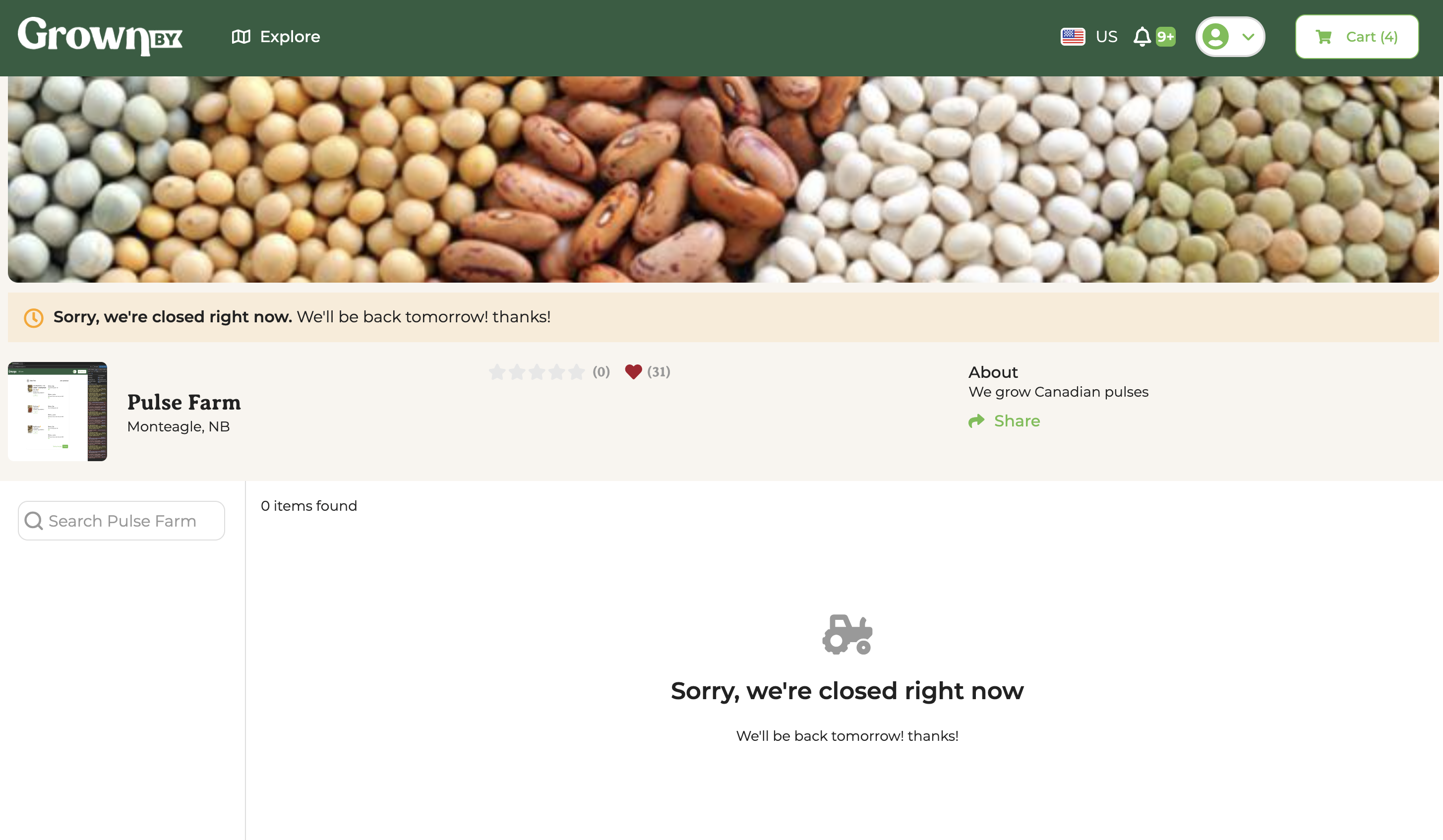
- Your farm is still findable. Your farm page, your map pin, and your pickup location pins all stay put. Your shop displays a banner indicating it is closed, and your products are replaced by your closed message. If you didn't write one, a general closed message is shown in both places.
- If a customer follows a saved link straight to one of your products, the page still loads, but the add to cart button reads Not available.
- Anything a customer had already put in their cart is removed at checkout, with a warning explaining why.
What closing your shop does not affect
- Register, which keeps taking in-person sales.
- Creating orders for customers in the Order Creator, which farm admins can still do.
- Existing orders and invoices, which are untouched. Only placing new orders is blocked.
Locations
In GrownBy, you cannot hide or close locations. Instead, we encourage you to use Products and Schedules as a means of changing availability in your shop.