
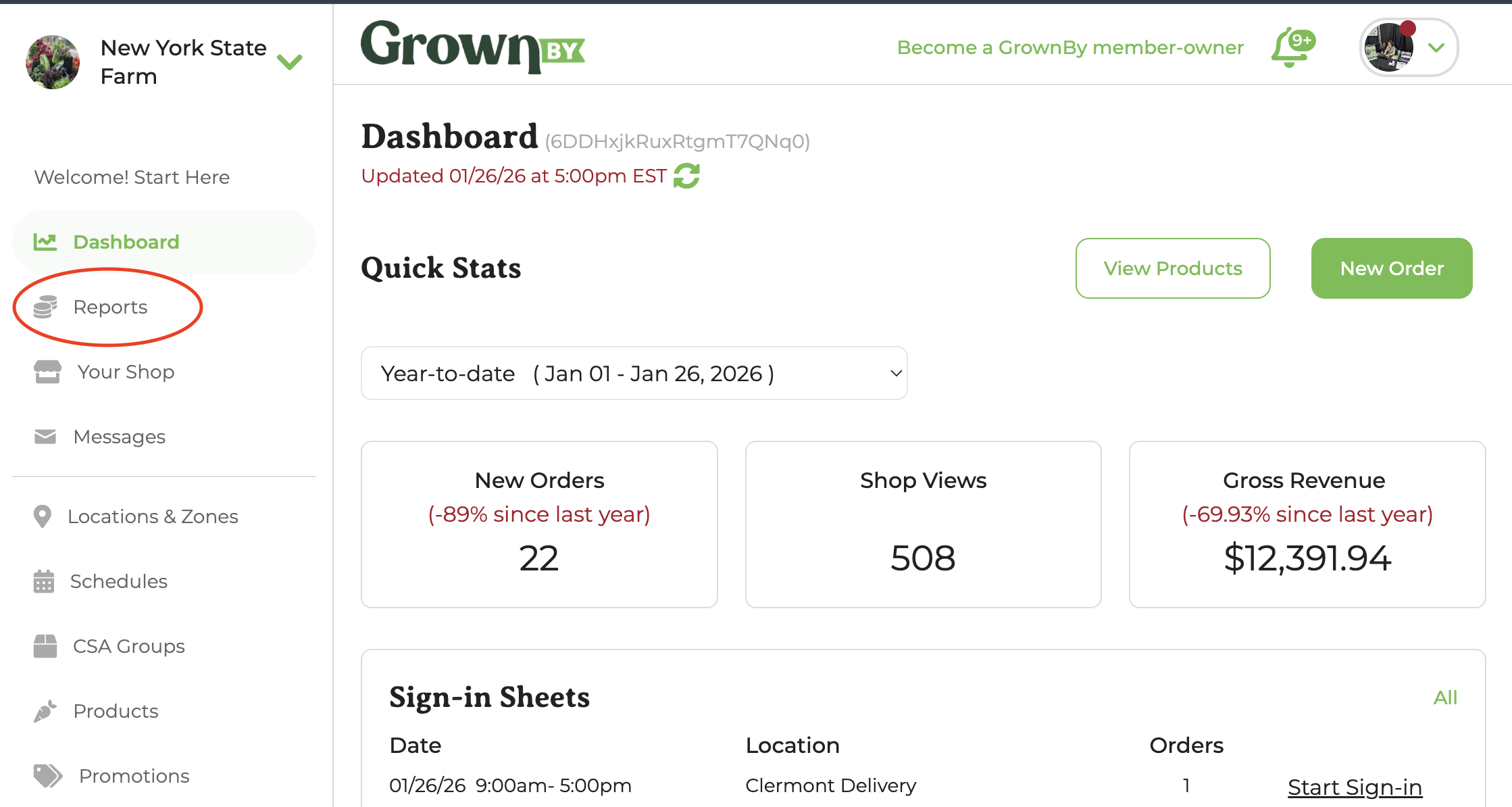
GrownBy provides many ways to look at your farm's financials and trends. Under the Reports tab, accessible from the Farmer Dashboard, you can view and download reports that will update you on sales, customer data, and payments.
Product Sales
What is included in Gross Sales?
Orders, Not Payments
In the sales report and exports, "gross sales" is calculated by tallying all of the non-cancelled items in your orders during a given date range. If the date range you choose is 06/01/23 to 09/30/23, then all Orders placed within this range will be included. Gross Sales provides you with a dollar amount associated with products that have moved through your shop, but not necessarily the amount of money you have earned from those products. Therefore, you should use this Sales Report to understand what products you have sold, not to understand the amount of money you have actually earned.
Discounts
Discounts are deducted from this sales number.
Farm Credit
Purchased Farm Credit is shown and counted in this total.
Farm credit awarded by the farmer but not purchased by the customer is not shown in this total, as it wasn't part of a "sale."
Any product purchased with Farm Credit is considered as part of gross sales.
Product Sales by Order Date
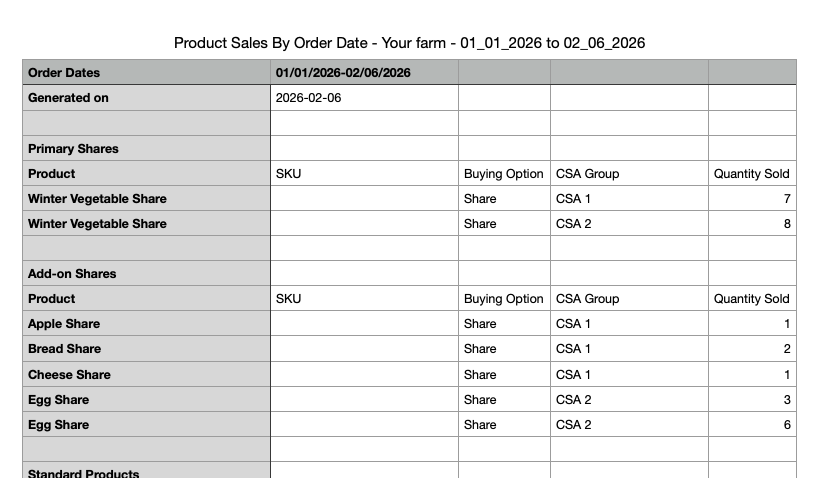
This export provides an overview of sales within an order date.
Fields in this report:
- Product
- SKU
- Buying Option
- Catalog or CSA Group
- Quantity Sold
Sections
- Primary Shares
- Add-on Shares
- Standard Products
- Keypad Products
- Digital Products
Product Sales by Order Date and Location
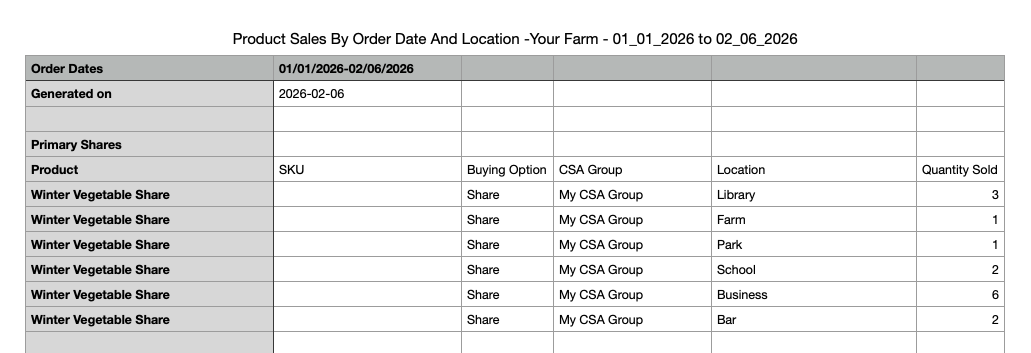
This export provides an overview of sales within an order date, including the location of where the items will be distributed.
Fields in this report:
- Product
- SKU
- Buying Option
- CSA Group or Catalog
- Location
- Quantity Sold
Product Sales by Units Sold and Order Date
This export provides an overview of Base Units sold by Order Date.
Fields in this report:
- Product
- Buying Option
- CSA Group or Catalog
- Location
- Units Sold
Sections
- Primary Shares
- Add-on Shares
- Standard Products
- Digital Products
Product Sales by Order Date and Category - Sorted and Unsorted
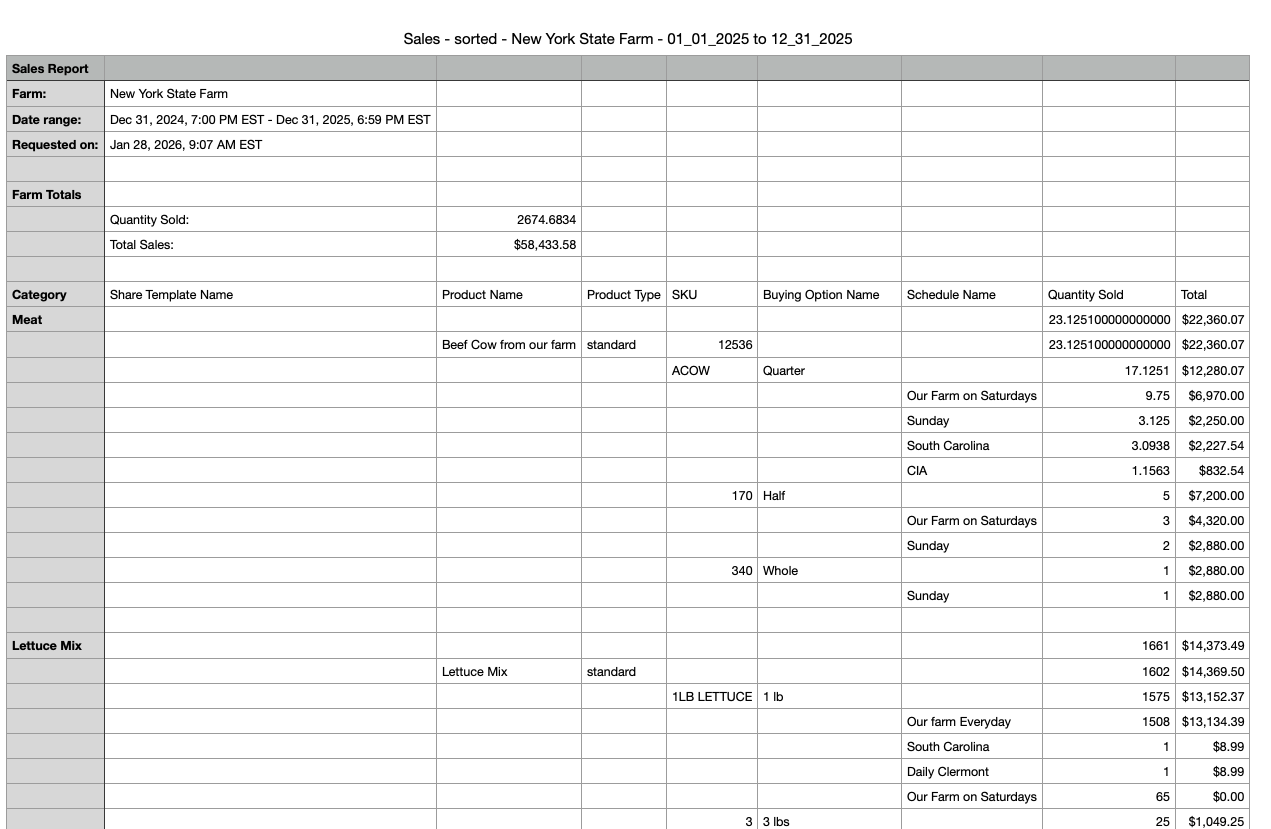
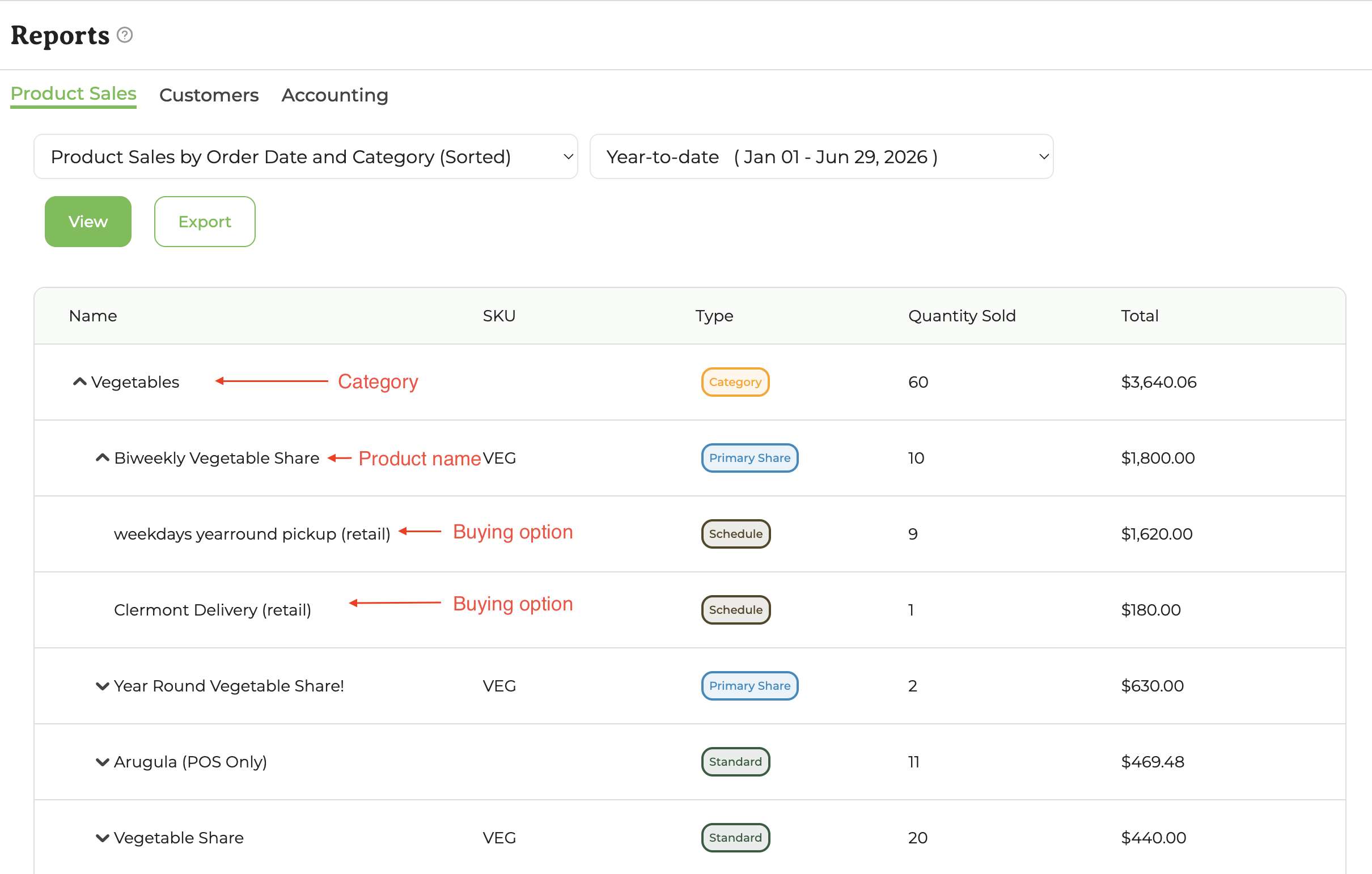
These two reports show the same information, but each has unique organization. The sorted version lists a product once, and then breaks down sales by buying option and schedule; the unsorted version includes a line per product and schedule.
Sorted
Unsorted

To see how specific buying options are selling as well as where those products have sold, expand the Category and the Product Name to see the buying options. The Total column reflects gross sales.
Customers
This export provides an overview of the activity of all of your customers, as of the time of export. You cannot select a date range for this report.
Fields in this report:
- First Name
- Last Name
- Catalog (Marketplace, Wholesale, or Register)
- Business Name (for Wholesale customers)
- Alternate Email
- Total Payments (all time)
- Total Refunds
- First Order date
- First Payment date
- Last Payment date
- Outstanding Balance
- Overdue Balance
- Current Farm Credit Balance
Accounting
This section includes reports based on payments, not orders. These reports reflect all revenue (credit, debit, ACH, EBT, farm credit and offline) for your farm during the time period selected. For this reason, these reports are useful for Accounting and Bookkeeping purposes.
Sales Summary by Payment date
This export provides an overview of farm revenue and sales within a given period of time, broken down into categories; payment types; and processors. There are several sections:
Sales Summary:
- Product Sales - total products paid for by credit, debit, ACH, EBT, Farm Credit and Offline within the selected time frame. This total is after discounts.
- Tips & Fee Coverage - any tips or fee coverage paid by customers during the selected time frame
- Taxes & Fee Collection - any product taxes or required fees collected during the selected time frame
- Delivery and Shipping - any delivery or shipping fees associated with a schedule and collected during the selected time frame
- Adjustments - any changes made to invoices during the selected time frame
- Manual invoices - any invoices created for a customer from their customer detail page during the selected time frame
- Total Co-op and Processing fees - the total amount of Co-op fees (2% of credit/debit/ACH + $1.50 per new ACH customer) and the credit card and ACH processing fees from Stripe and Fortis during the selected time frame.
- Total Refunds - any funds returned to the customer during the selected time frame (and thus reducing your net revenue)
- Farm Revenue (Net) - total of all of the above
Payment Processors
- Stripe
- Worldpay
- Fortis
- Forage
Offline
- Any offline payments made
Store Credit
- Items paid for by farm credit
Transaction Fee Summary
- Total Payment Processing Fees
- Total Co-op Fees
Payment Method Summary
Product Sales broken down by payment method:
- ACH
- Credit Card
- Cash or Check
- Farm Credit
- EBT
Catalog Collection
Product Sales broken down by Catalog:
- Marketplace
- Register
- Wholesale
Reporting Category
Product Sales broken down by Reporting Category. Reporting categories are set per product and are used to group sales in your reports. Each product can have one reporting category, such as "Vegetables," "Dairy," "Eggs," or "Meat." You can create and manage reporting categories from the product editing screen.
Product Type
Product Sales broken down by Product Type. Example Product Types include:
- Primary
- Standard
- Add-on
Location
Product Sales broken down by the distribution Location where items are picked up or delivered. Locations are the places you set up for customers to receive their orders. To learn more about creating and managing locations, see Creating Locations and Zones.
Register products and Digital products do not have a Location assigned.
Product Sales by Payment Date
This report is a breakdown of Product Sales, by product, on the Sales Summary Report (detailed above).
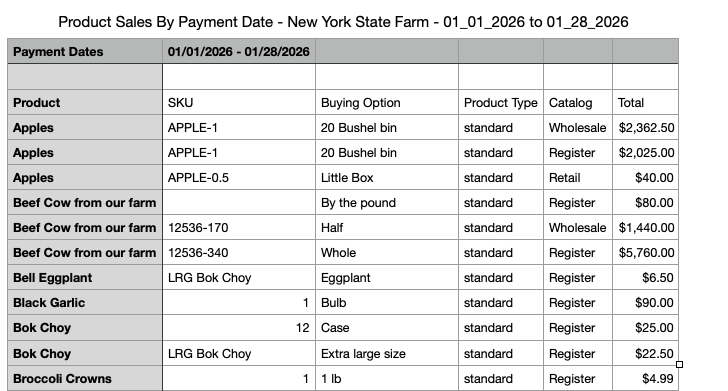
Fields in this report
- Product
- SKU
- Buying Option
- Product Type
- Catalog
- Total
Offline Sales by Payment Date
This report is a breakdown of all offline payments, including notes, for the selected time frame. This report details all Offline Payments from the Sales Summary.
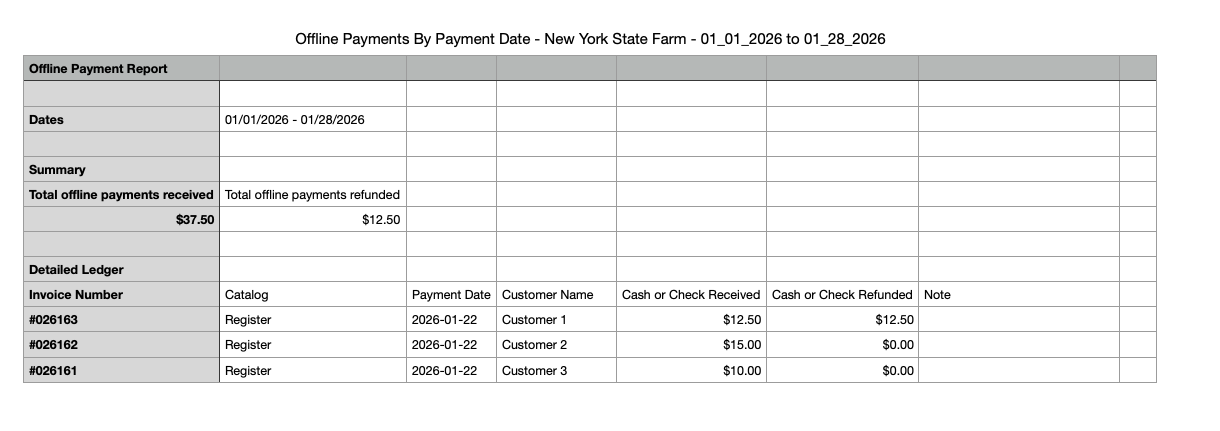
Fields in this report
- Invoice Number
- Catalog
- Payment Date
- Customer Name
- Cash or Check Received
- Cash or Check Refunded
- Note
Payout Export by Catalog by Payout Date
This is a quick list of all Stripe, Worldpay, Forage, and Fortis payouts by Payment date and by Catalog. Forage payouts may not include this invoice-level breakdown.
Payout Export by Category by Payout Date
This report provides the same payout information as the above report, but by Category instead of Catalog. Forage payouts may not include this invoice-level breakdown.
Payout breakdown
- ID
- Date
- Processor
- Catalog
- Tips and Fee Coverage
- Taxes and Fee Collection
- Delivery and Shipping Fees
- Adjustments
- Manual Invoices
- Total Co-op and Processing Fees
- Total Refunds
- Farm Revenue (Net)
Quickbooks Invoice Export
The following report may be utilized to import all of your invoices from GrownBy into Quickbooks, following the Quickbooks format. Invoices are dated within the time period selected and we only include paid invoices; any refunds are noted within Credit Memos (next report). Credit memos do not overwrite invoice data. Invoice status may change depending on the date of export.
Quickbooks Credit Memo
The following report may be utilized to import all of your invoice credit memos from GrownBy into Quickbooks, following the Quickbooks format.