
Packing wholesale orders is no different than packing GrownBy retail orders. Here we will walk you through the same steps, but from the perspective of a wholesale seller.
Harvest & Reports
The first step to distribution is reviewing what needs to be packed. The Fulfillment tab offers various views of this information. Here is a rundown:
1. Pick List
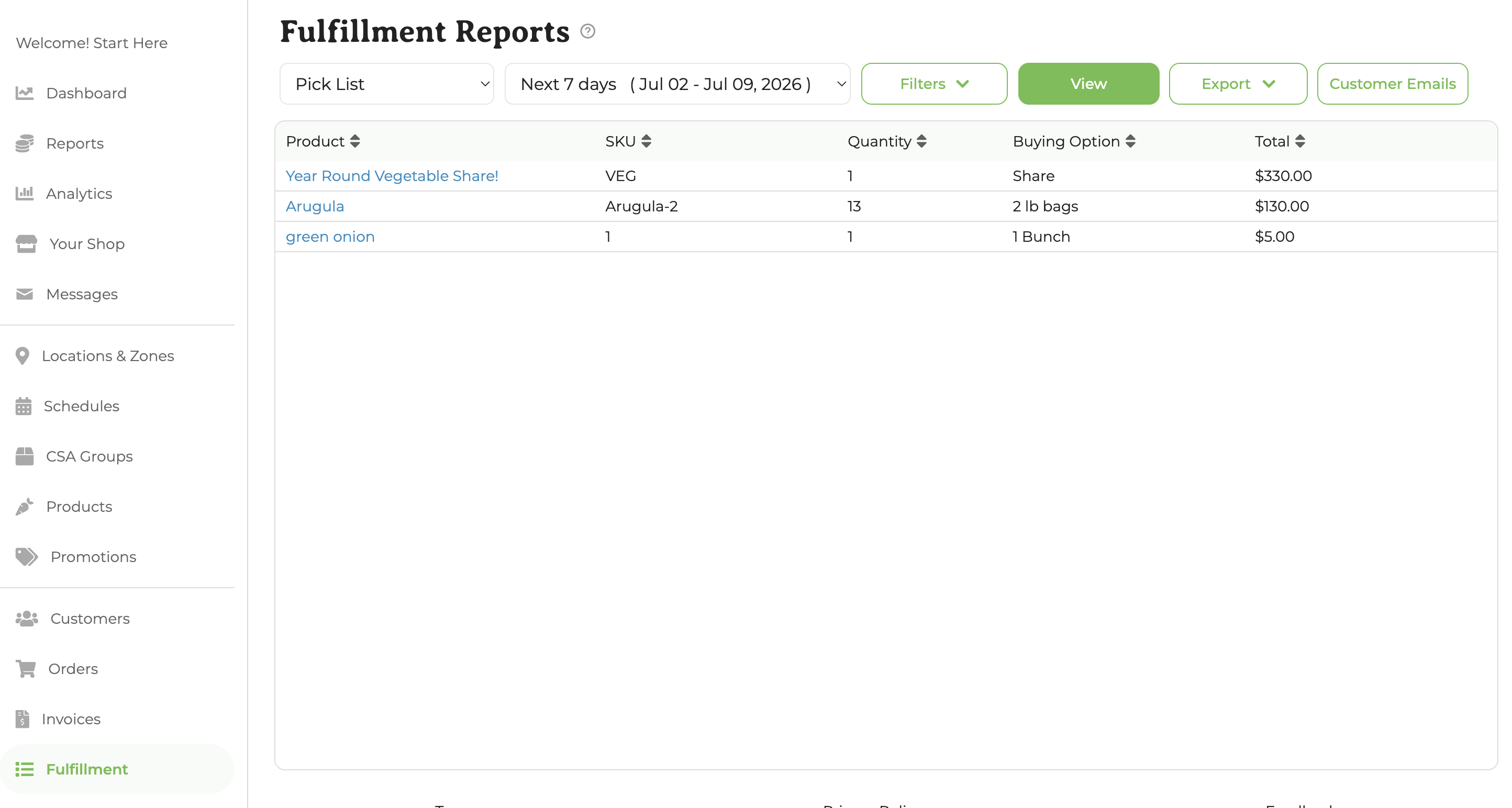
You may want to start with your Pick List, found under Fulfillment Reports. Be sure to navigate to the correct dates. This report will give you an aggregate view of all of the products needed for the selected days and locations. You may also open the Export dropdown to print via Export as PDF or download via Export as CSV with the following fields: SKU; Product Name; Product Type; Category; Producer; Buying Option; Qty; Units Ea; Base Unit; Total Base Units; Product Subtotal.
2. Location Summary
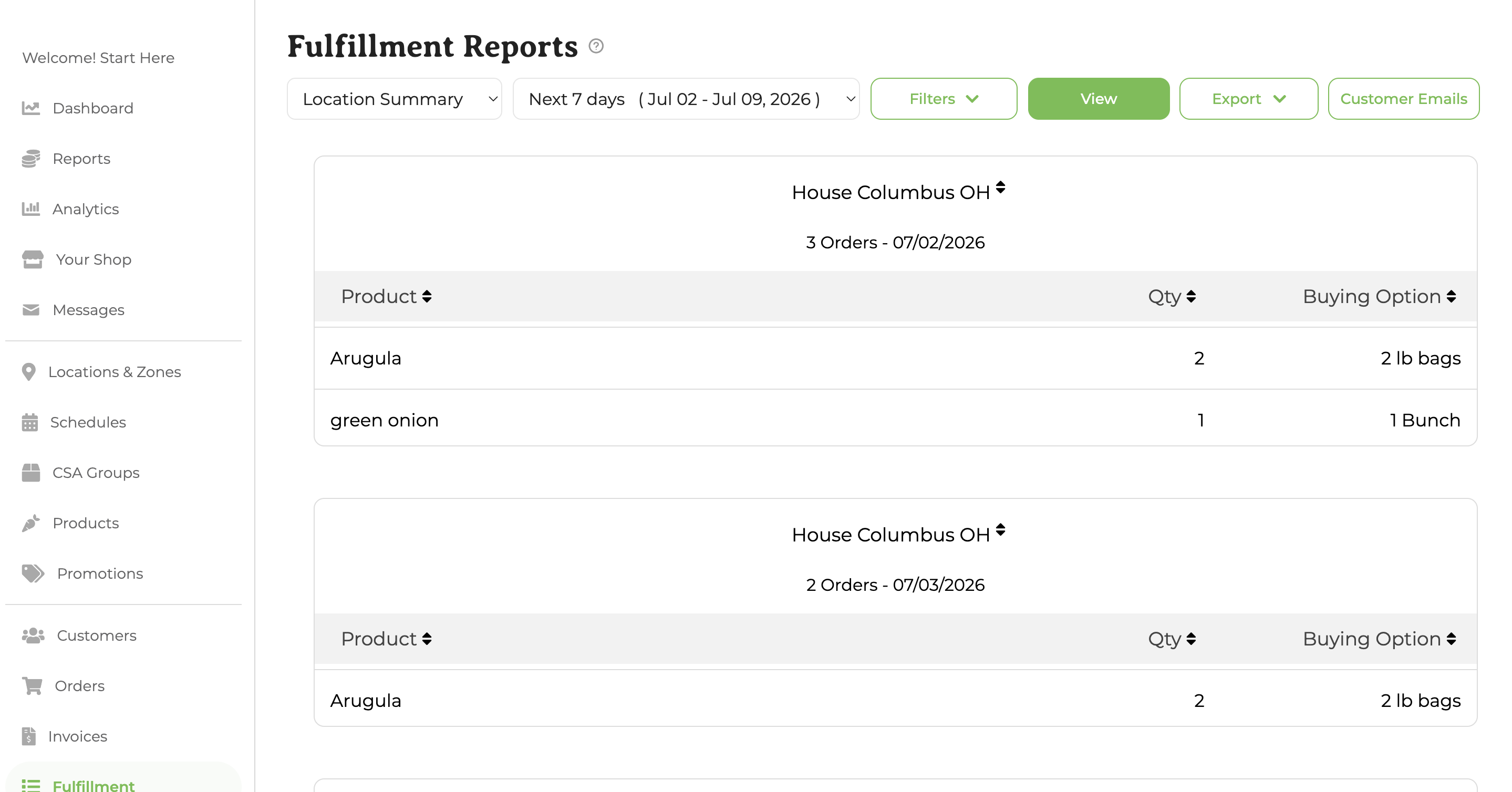
This report provides the same information as the Pick List but all of the data is sorted by location. You may also download this as a PDF for quick printing or export to .csv with the following fields: Distribution Date; Location; Product; SKU; Product Type; Category; Producer; Buying Option; Base Unit; Unit Ea; Qty.
3. Sign-in
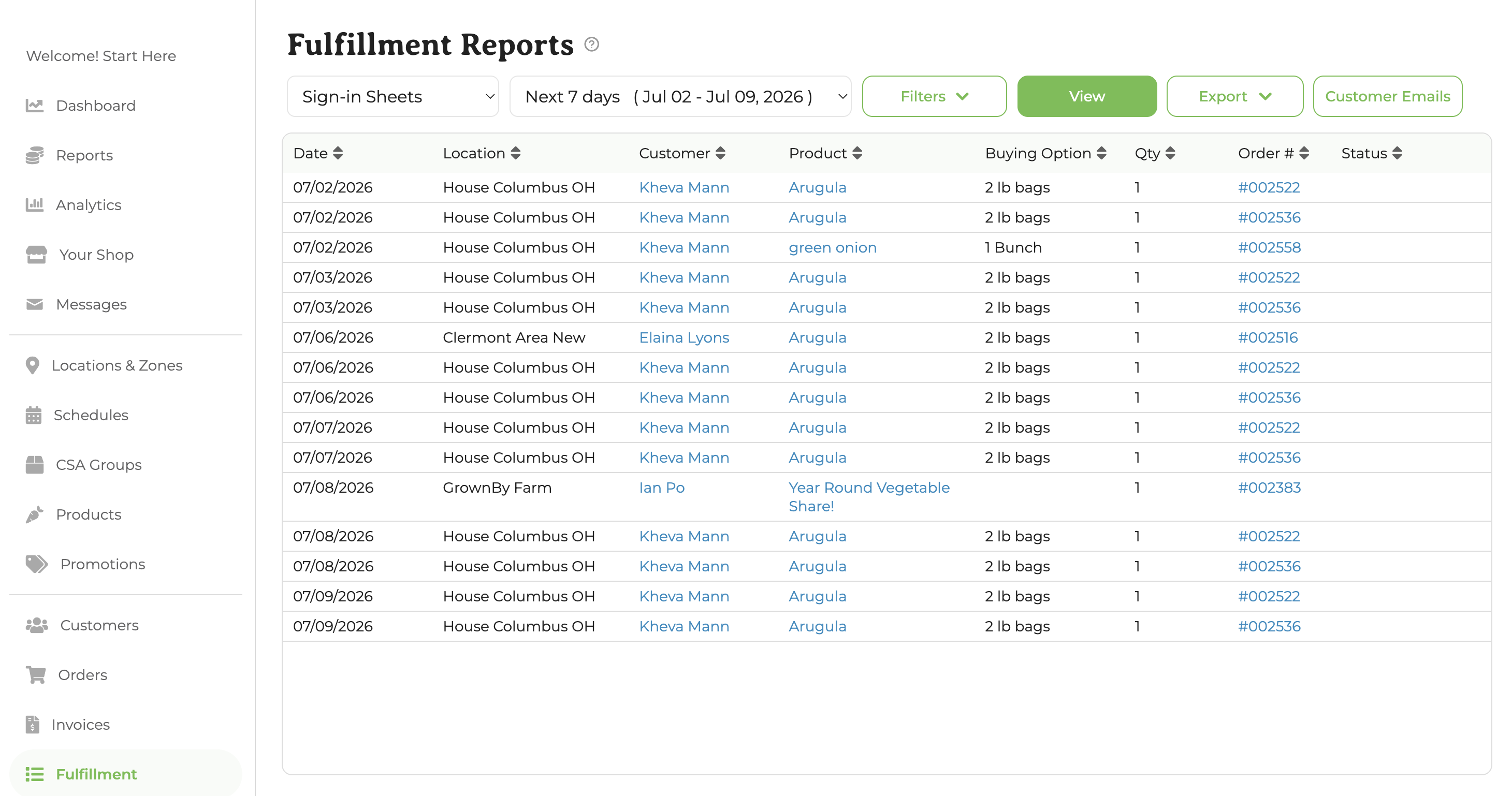
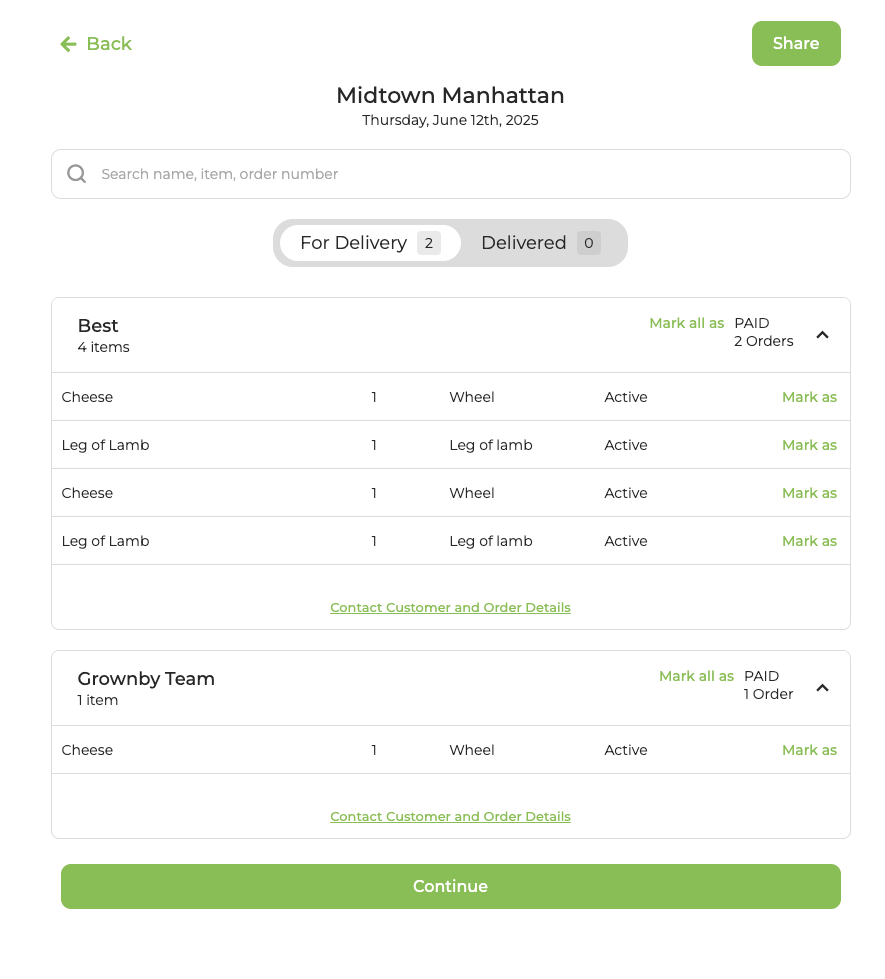
The Sign-in report is optimized for deliveries or customer pickups. By leading with the customer name and then summary of each customer's order, you can easily facilitate distributions. There are several features here:
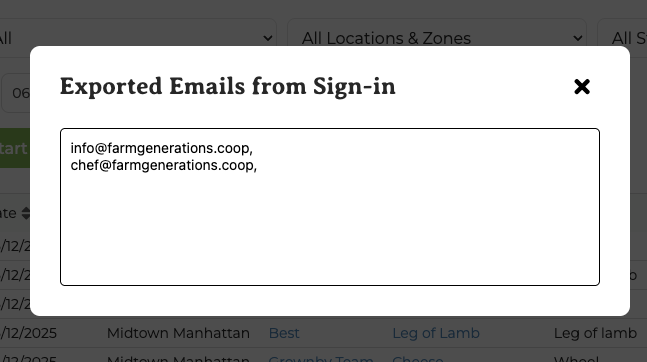
- Customer Emails: Creates list of all customer emails to quickly copy over to email marketing platform
- Export → Export as CSV: Exports all customers and order information
- Export → Export as PDF: Exports a formatted PDF with a list of customer names and orders to easily check names off of the list.
Customer Emails
Sign-in app
Box labels
For wholesale, we strongly recommend using labels for your cases of product for the following reasons: it is easier for the people receiving your product; it is helpful for packing the truck correctly; it can be extremely helpful to ensure everything that was ordered is packed; it looks more professional.
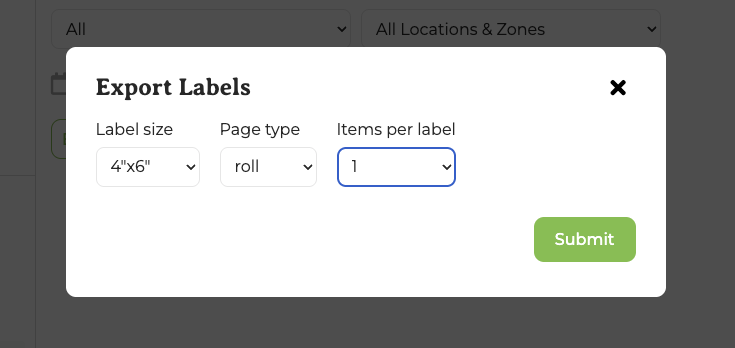
To export labels for wholesale, navigate to Fulfillment, select the Packing Sheets report, then open the Export dropdown and choose Export Labels. We generally recommend 1 label per item. If more than one product will go in a case, then use multiple labels or adjust the Items per label to suit. For instance, a whole case of lettuce would get 1 label with 1 item. On the other hand, a box of cuts of meat might have 1 label with 6 Items printed on the label.
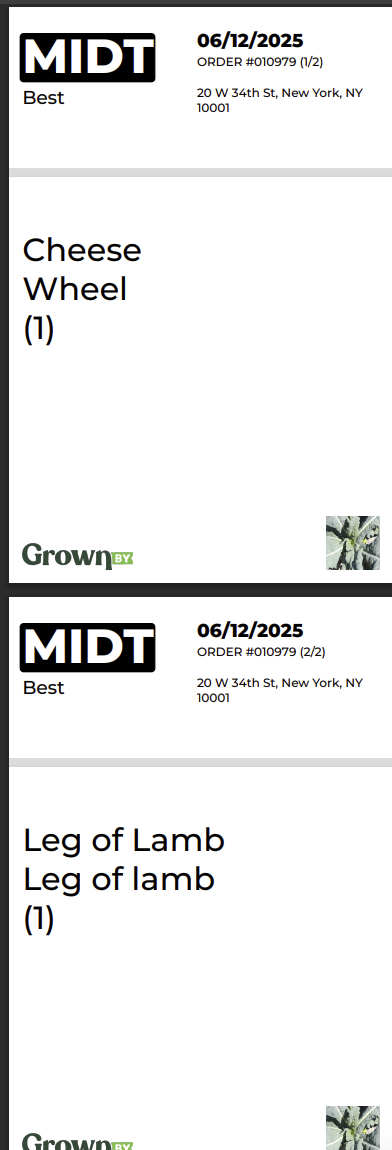
On the label you will find the date and location of delivery; location abbreviation; order number; customer name; and item(s)
Delivery or Pickup
As you are making deliveries or facilitating pickups, we recommend that you use the app-based Sign-in sheet. This will help you keep track of your delivery route and who has received their products. You may also create notes on the delivery app that will be emailed to the Farm Admin after completion.
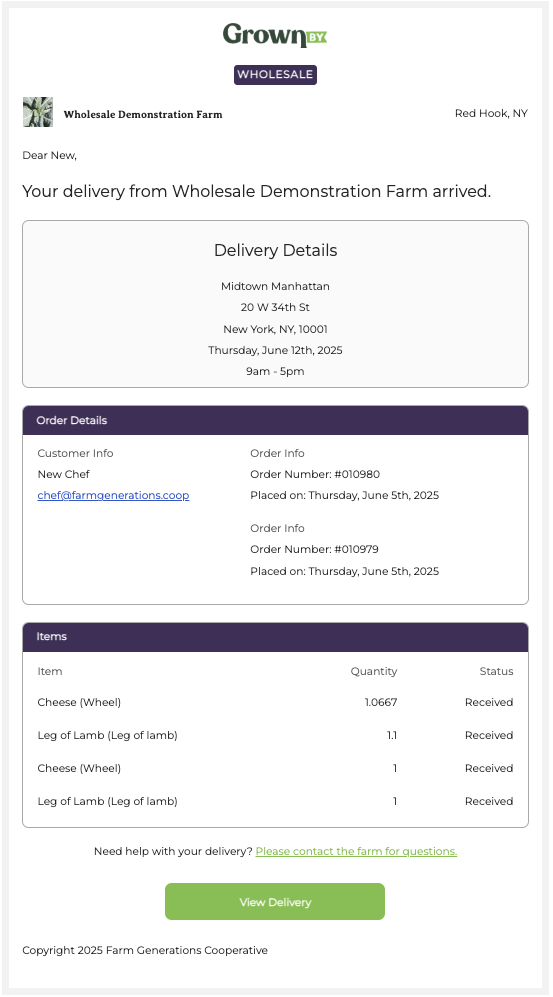
When a delivery is marked received, the customer will get an email notification and the received status will be reflected on the Sign-in sheet report:
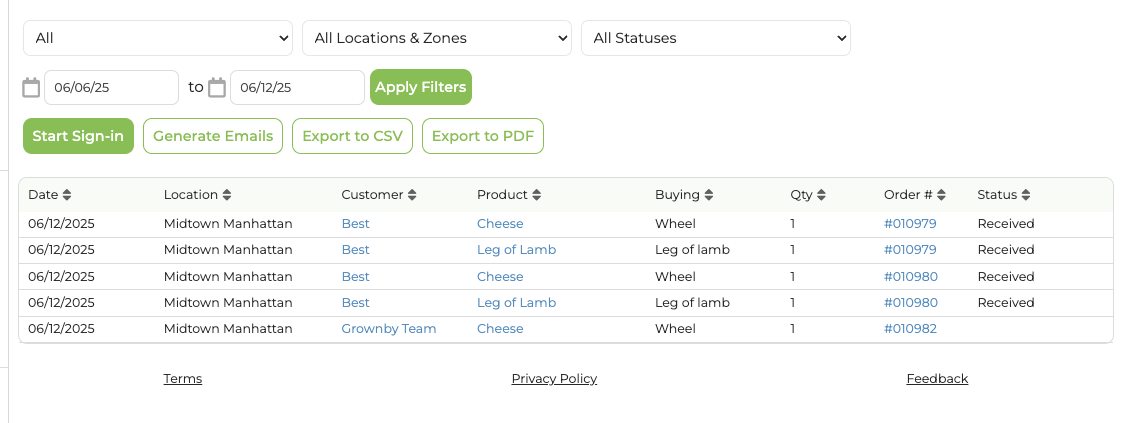
Alternatively, you can export the .csv or print the PDF and mark each name off of the list as orders are received.