
You can shop on any device with GrownBy. If you are using a tablet or phone, please download the app for the best experience. The first step is to download the GrownBy app on your Apple or Android device.
On a computer, navigate to grownby.com.
Finding a Farm
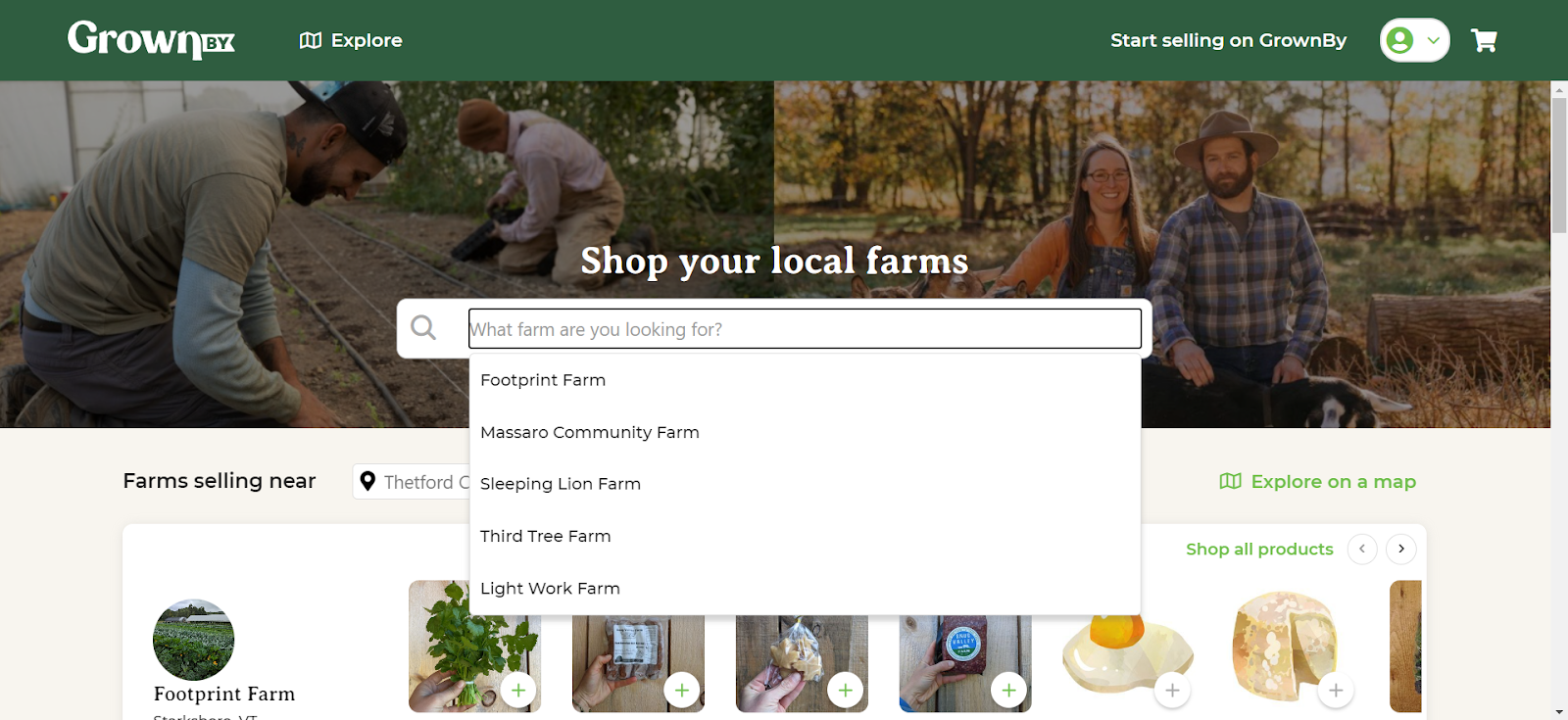
First, find a local farm using the search function with the magnifying glass and the text "What farm are you looking for?"
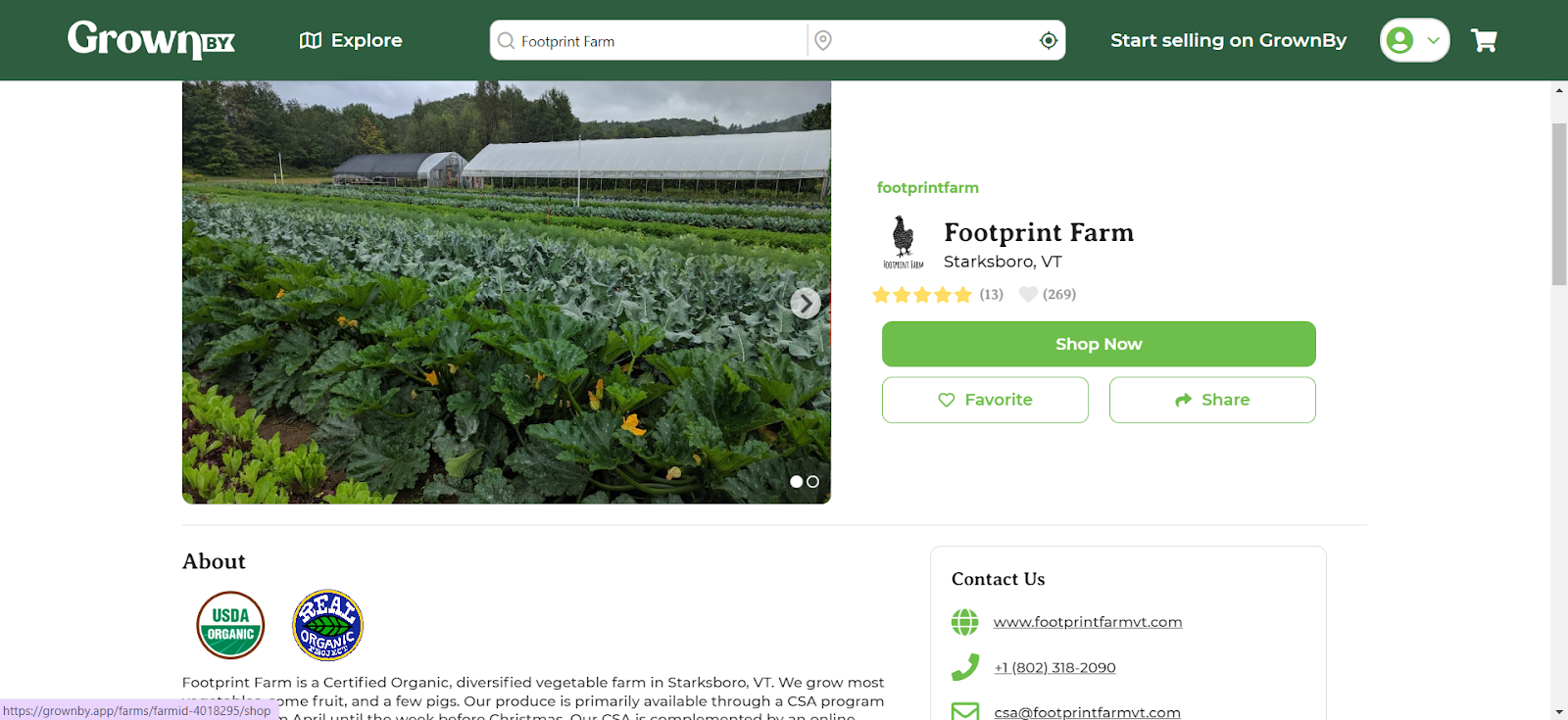
Clicking on a farm will bring you to the farm's profile page where you can read about them, view their contact information, etc. Please leave a review and favorite any farms and farmers that you know and love while you're here! Then, click Shop Now:
In the shop, select the items you'd like to purchase. You can use the + to add them directly to your cart or you can click on the image to see more details about the product. If these products are available for multiple locations or schedules, you will be prompted to select those in a pop-up screen. When you're ready, click Cart at the top right of your screen or in the right-hand sidebar cart:
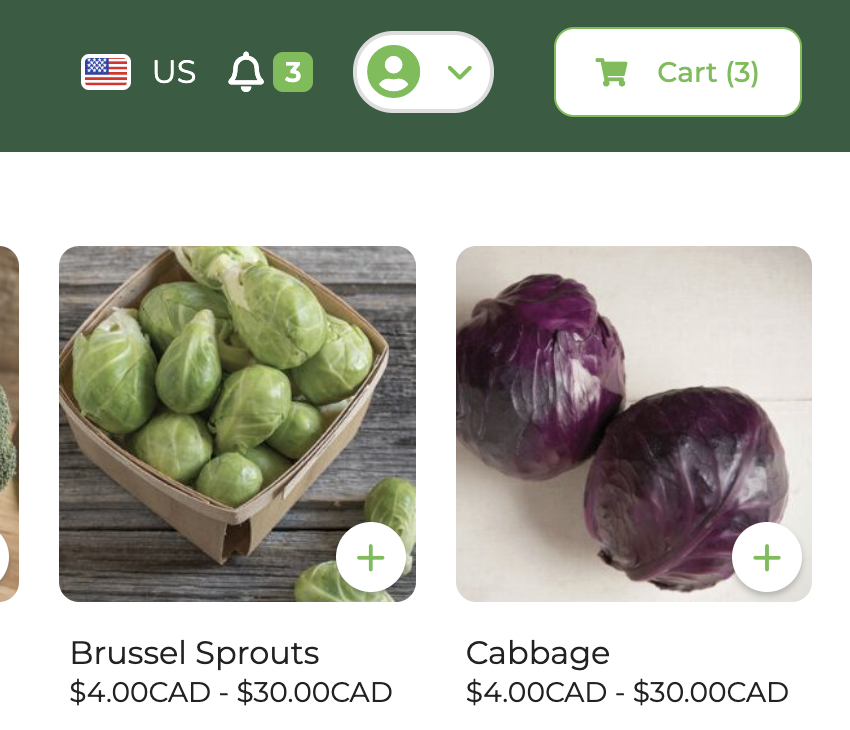
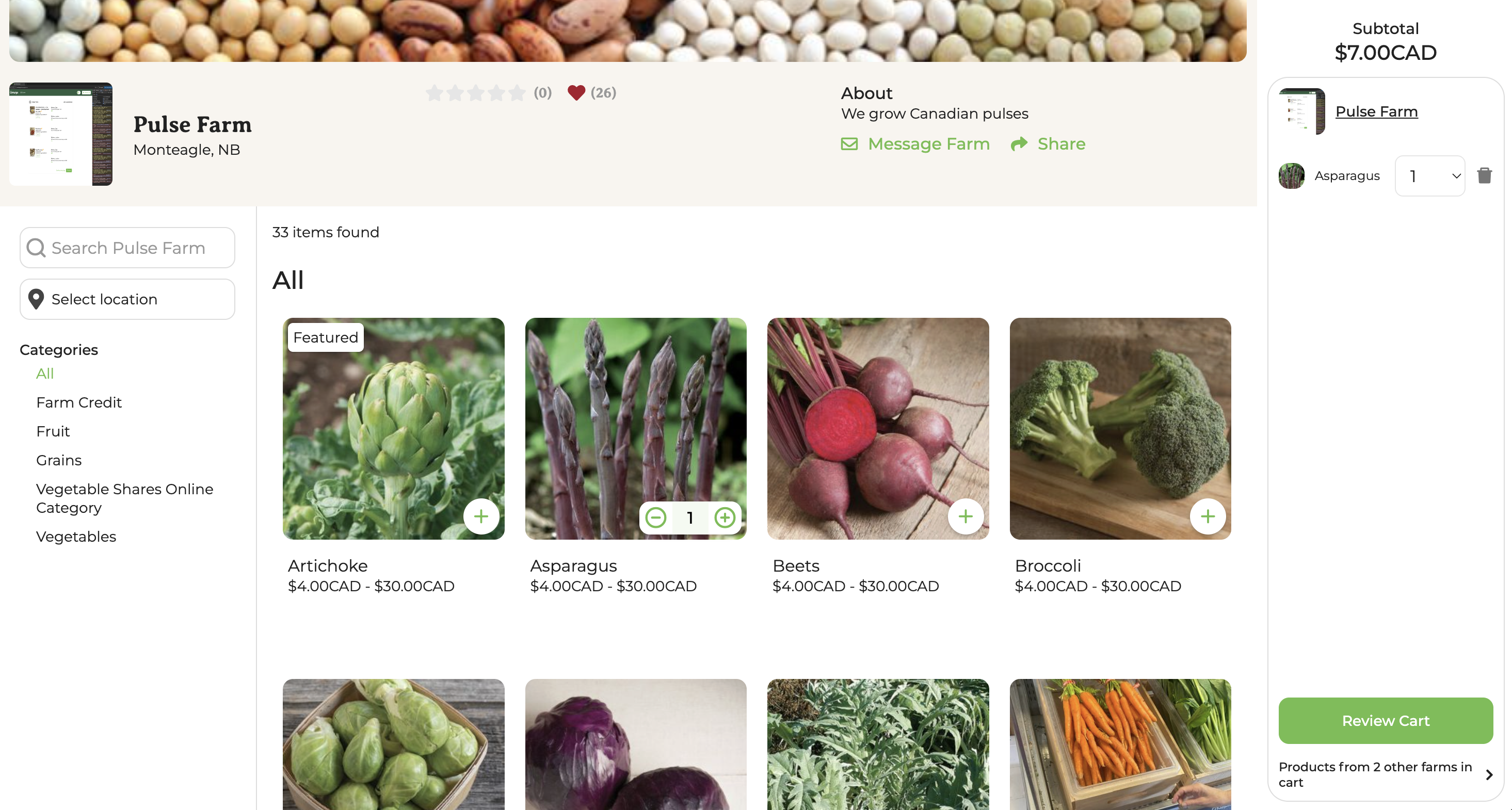
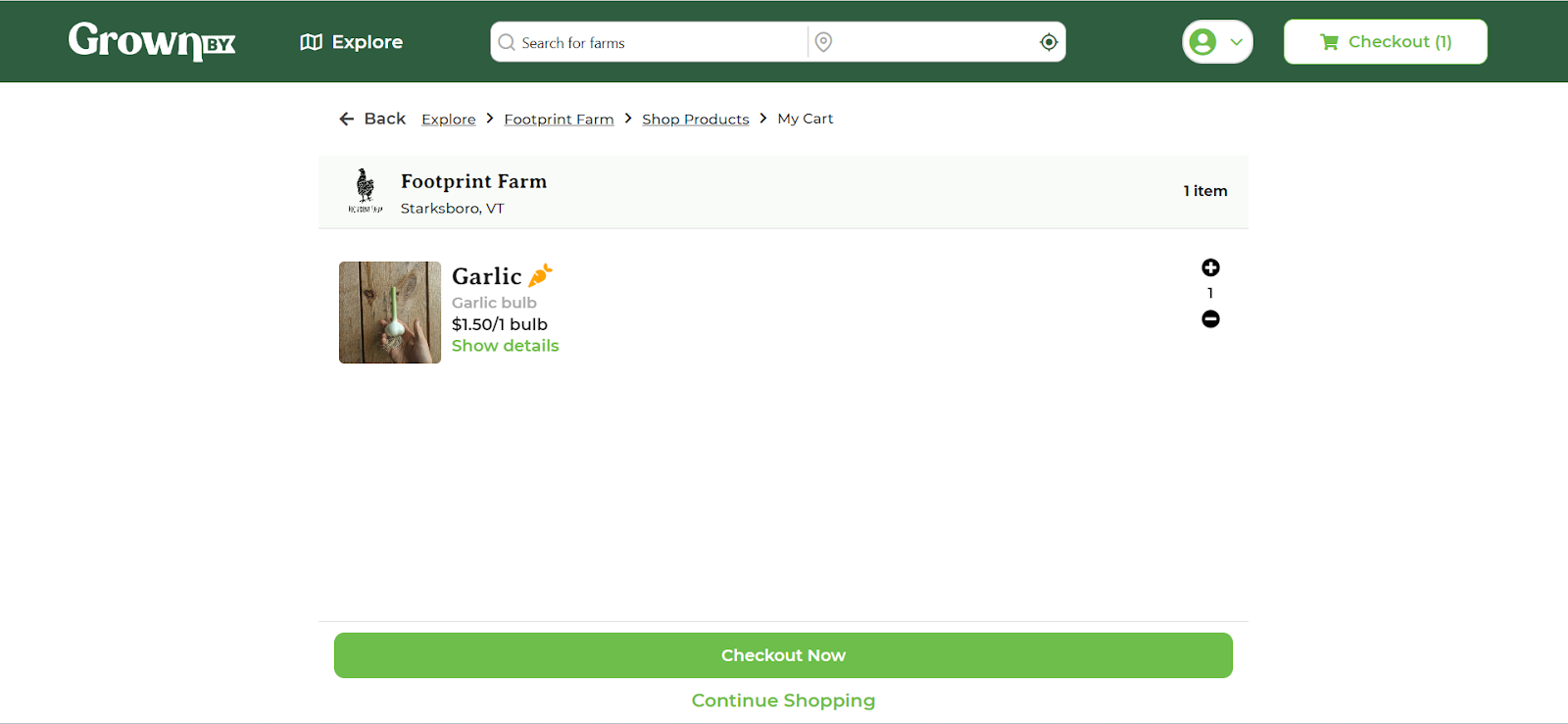
Review the items in your cart, then click Checkout to proceed to finalize your order on the checkout page:
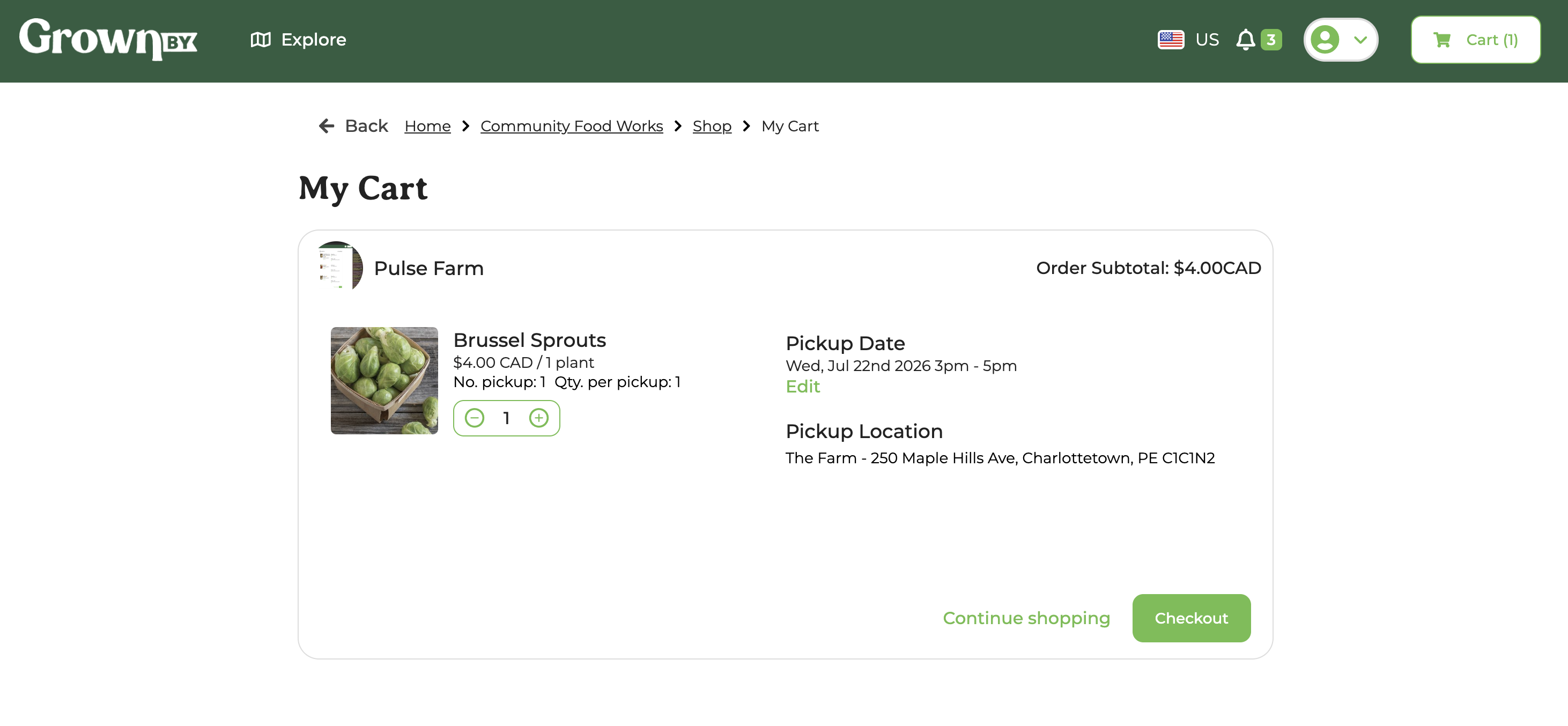
On the checkout page, review your order, adjust quantities, and click Place Order:
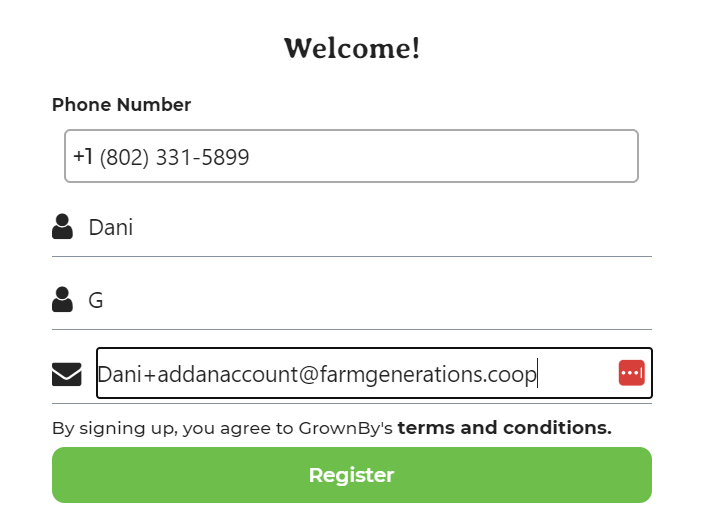
The next screens will take you through the process of account creation. For shoppers, we recommend that you log in using your phone number as it is a very convenient and secure way to access your account. You can use either phone or email as your login method but GrownBy does require an email address so that you can be sent the relevant e-commerce notifications and updates as needed.
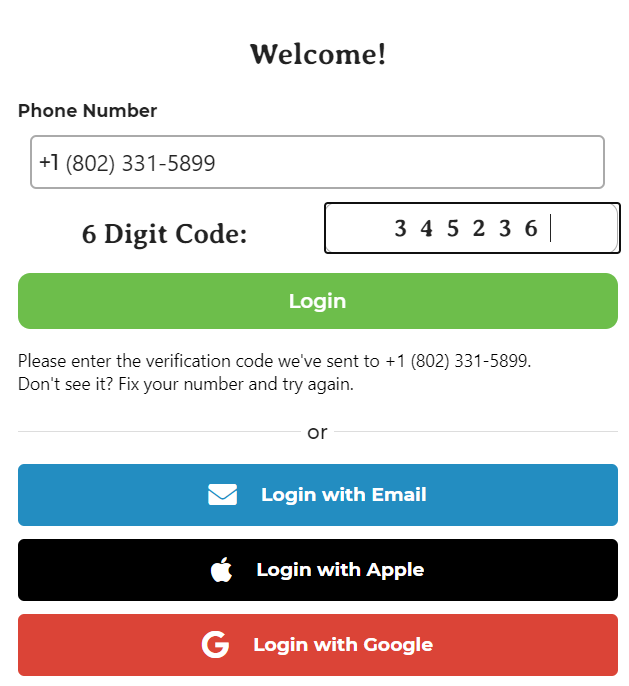
You will receive an SMS with a code to the phone number you entered. Enter the 6-digit verification code sent to your phone and you will be automatically logged in!
Congratulations! Your GrownBy account has been set up!
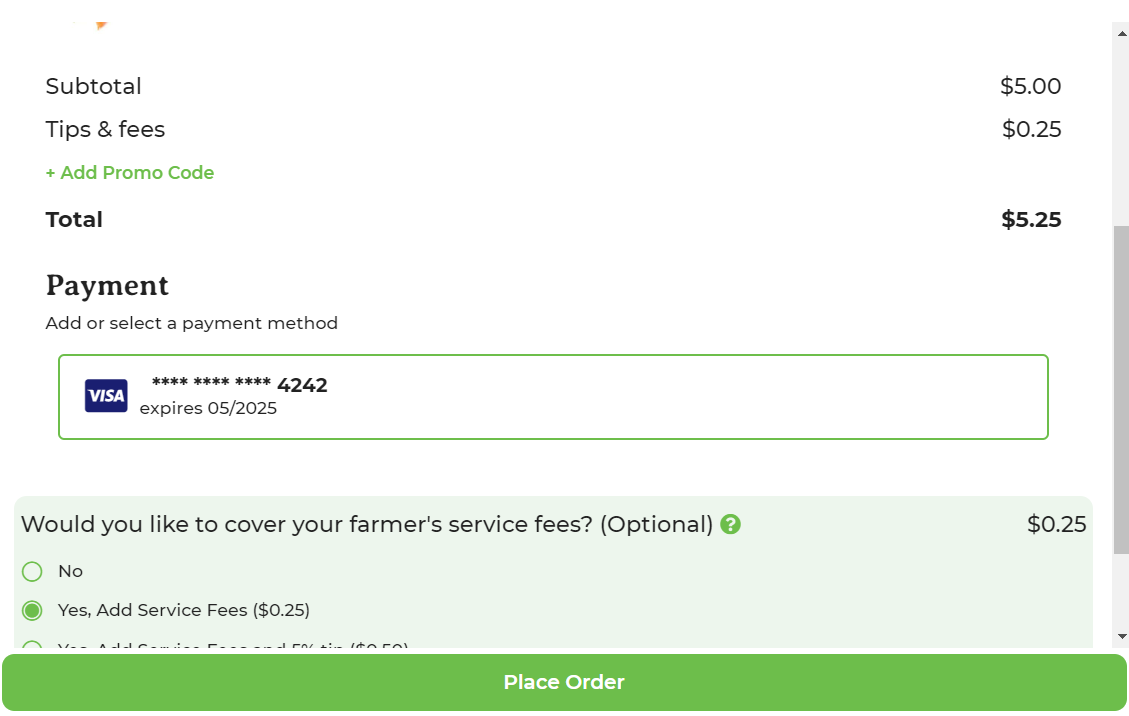
The next screens will take your credit card details. If you are hoping to use SNAP Online (if your farm is registered to accept it) or Offline payment, you'll need to click the Add Payment Method button (brand new accounts) or click on the default payment method (if you already have one or more saved) to select that option. Once you have selected a payment method, the Place Order button becomes green and you can click it:
Once you have ordered from a farm, that farm will always appear under Favorite Farms in your account.