
Star Micronics Scanner
GrownBy Register is integrated with select Star Micronics hardware, and specifically hardware that can connect via Bluetooth.
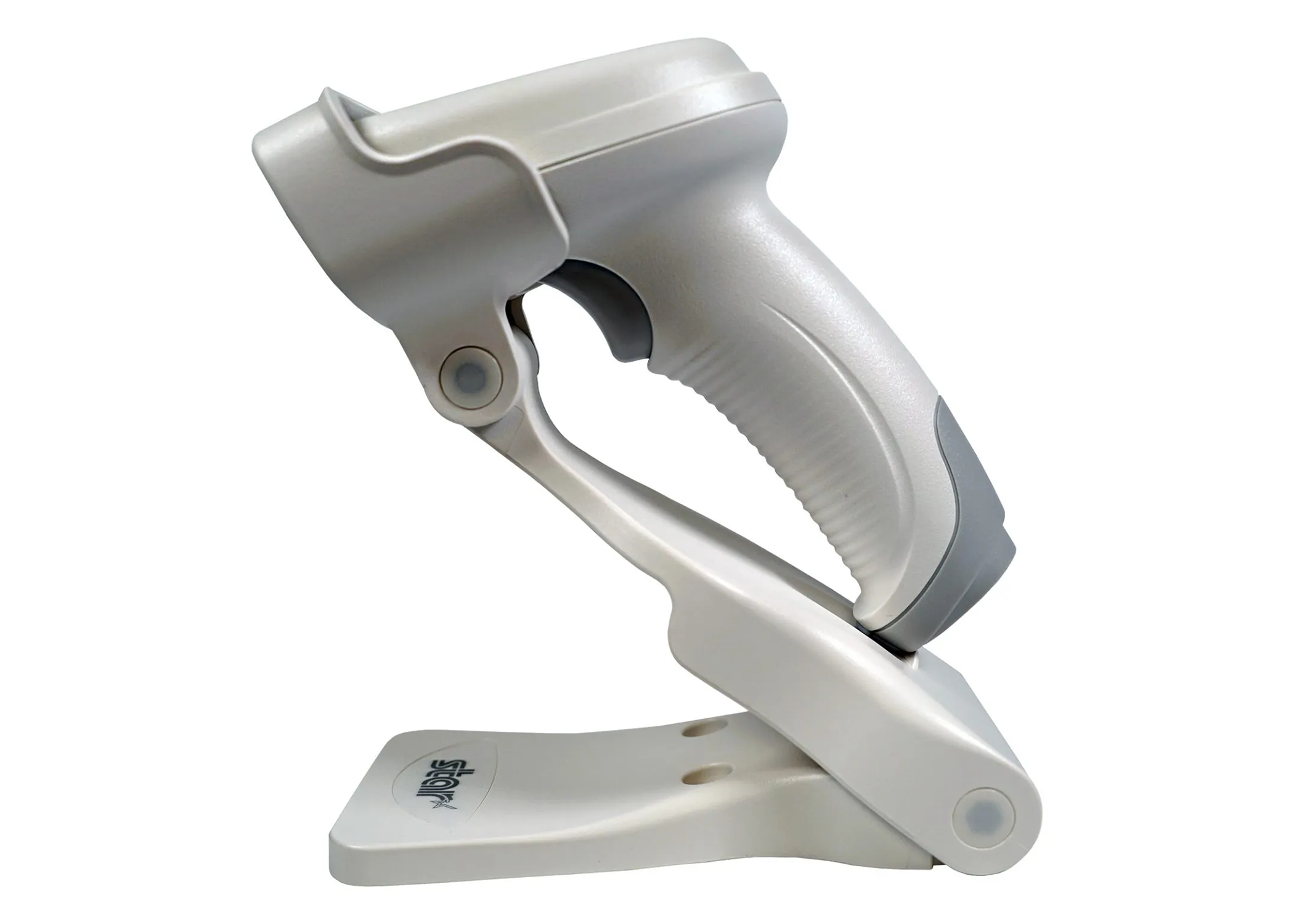
Here is the eligible model:
BSH-20B Bluetooth Barcode Scanner
Connecting Scanner to GrownBy Register
- Charge scanner by connecting included USB cord to printer (and plug in the printer)
- Put the mini USB device, included with your Scanner, into the port on the underside of the printer
- Scan Scanner Manual in the following order
-
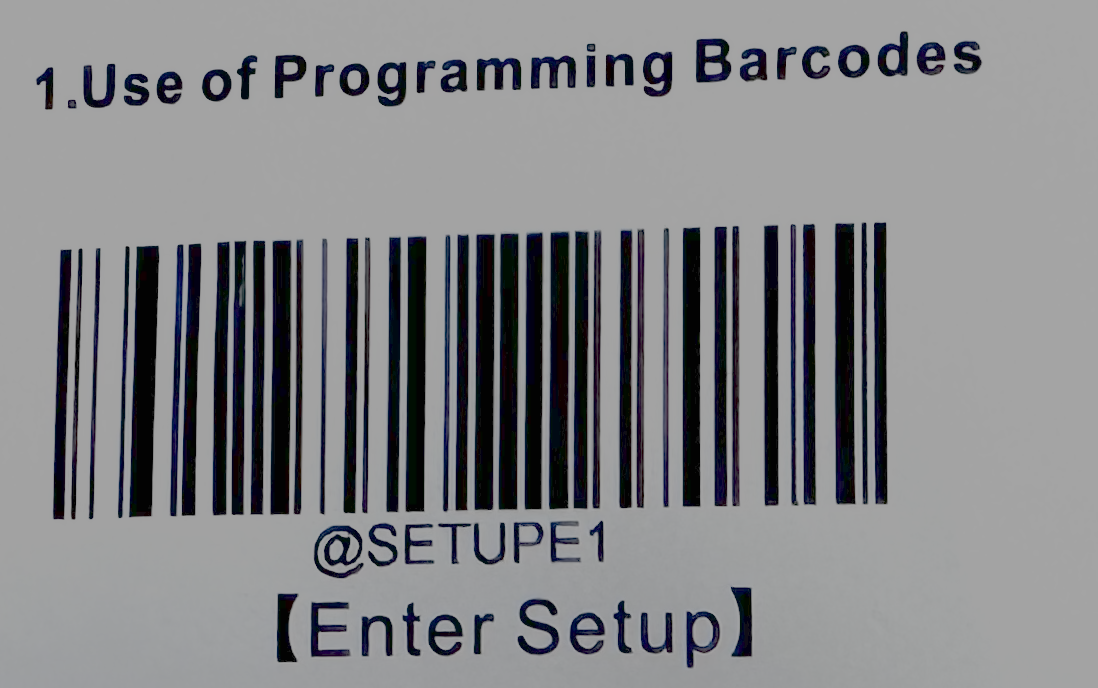
"Enter setup" (Scan code)
-
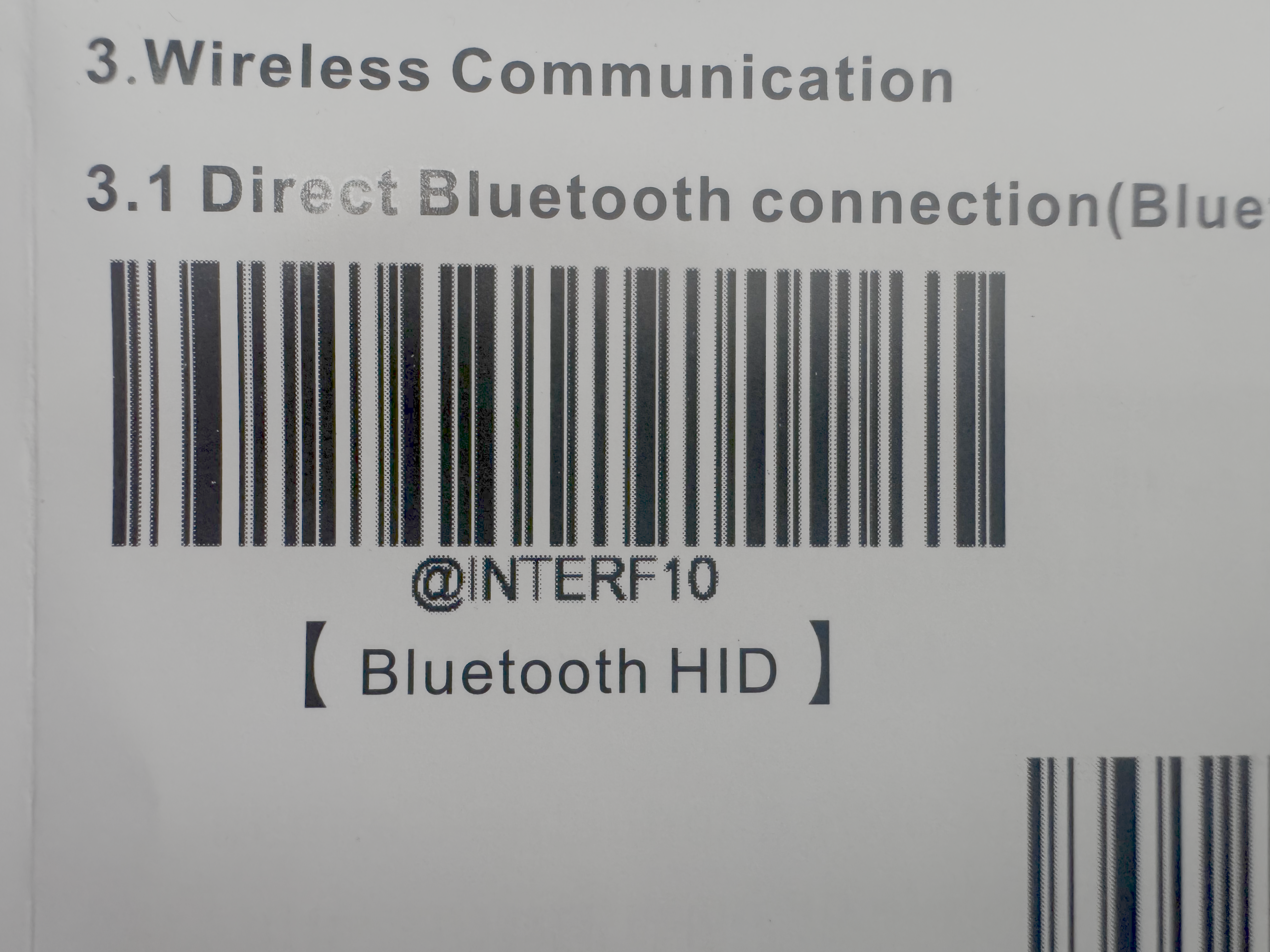
"3.2 @INTERF10 Bluetooth Dongle POS" (Scan code)
-
Scan QR code on Mini USB (while plugged into printer). Scanner should then buzz and turn solid blue.
-
Open GrownBy Register
-
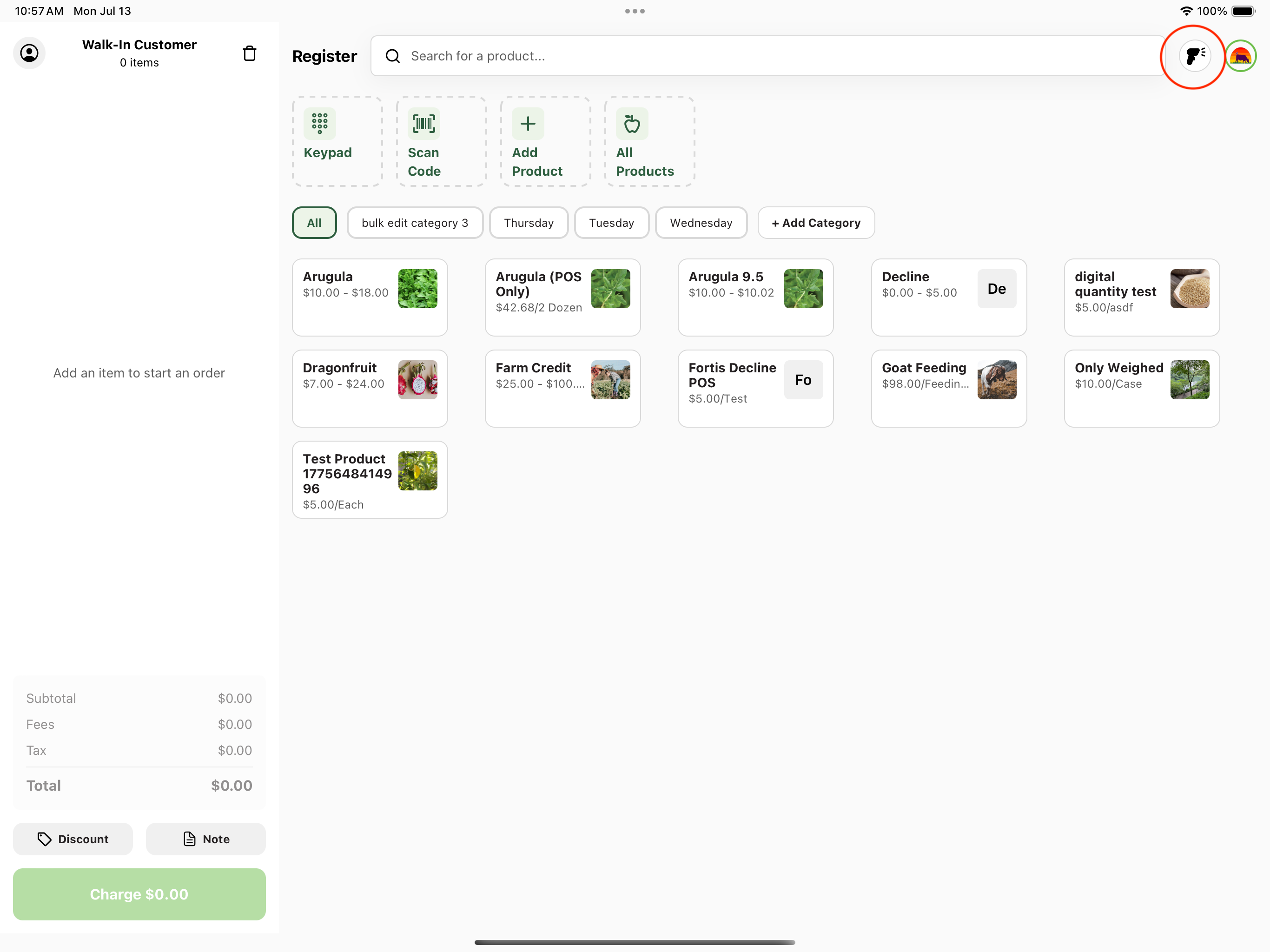
Tap the scanner icon on the Register screen. This opens a Scanner Connection pop-up that shows the current connection status (Connected, Disconnected, or Communication Error). Once it shows Connected, the scanner is ready to use. The same status is shown on the Barcode Scanner card under Settings → Peripherals.
-
Adding Product Codes to Products
Product codes are set per buying option, inside each product's Buying Options section. A product with multiple buying options (for example, different weights or sizes) needs a separate code for each one.
- Navigate to the product list by clicking All Products on the homepage, or clicking your farm logo and then Products in the navigation menu
- Tap the product you want to update
- Find the Buying Options section and locate the buying option you want to code
- Locate the Product Code field. You can type a code, scan it with the Bluetooth scanner, or tap the barcode icon to scan using your device's camera
- Once added, tap Save in the top right of the page.
Why you might use a Scanner at market or at a farm store
Speed
The most obvious reason to scan products on checkout is speed. Compared to manually entering products by name and typing several characters out, the scan is instantaneous. This is particularly important for farms and stores offering many products, and many similarly named products (types of jam, for instance).
Customers are often in a rush and are sensitive to a checkout experience that feels disorganized or slow. A scanner can help to speed and professionalize checkout providing a better customer experience.
Accuracy
If you're offering many type of products and varieties of the same product, it can be easy for you or your employees to enter the wrong product on checkout. Entering products incorrectly is problematic for 1) your inventory 2) the customer's sense of trust 3) accuracy of your sales records.
By adding product codes to your GrownBy Register database and implementing a scanner, you'll put your store on track for more accurate and fast checkout experiences.