
You might want to create an Order for you Customer if:
- They are not able to access the website or do not use the internet
- You are documenting an order that has already been picked up or was made in person and you want to track it in GrownBy
- It is more efficient to do it yourself
- You are fixing an order that is incorrect , i.e., canceling and recreating an order
- You need to make an order that's outside of the standard GrownBy ordering rules. This could be under the following conditions: placing an order on a closed schedule; placing an order after the cutoff time; not adhering to the minimum number of pickups; placing an order that's lower than the cart minimum. Farmers can place orders more flexibly than customers.
The Order Creator in GrownBy can help you in all of these situations. You can also mark an existing order as paid, and/or put in payment information and charge a customer's credit card. If you are offering a CSA/subscription, you can even create a payment schedule which will automatically charge the customer's card on a set schedule.
Getting Started
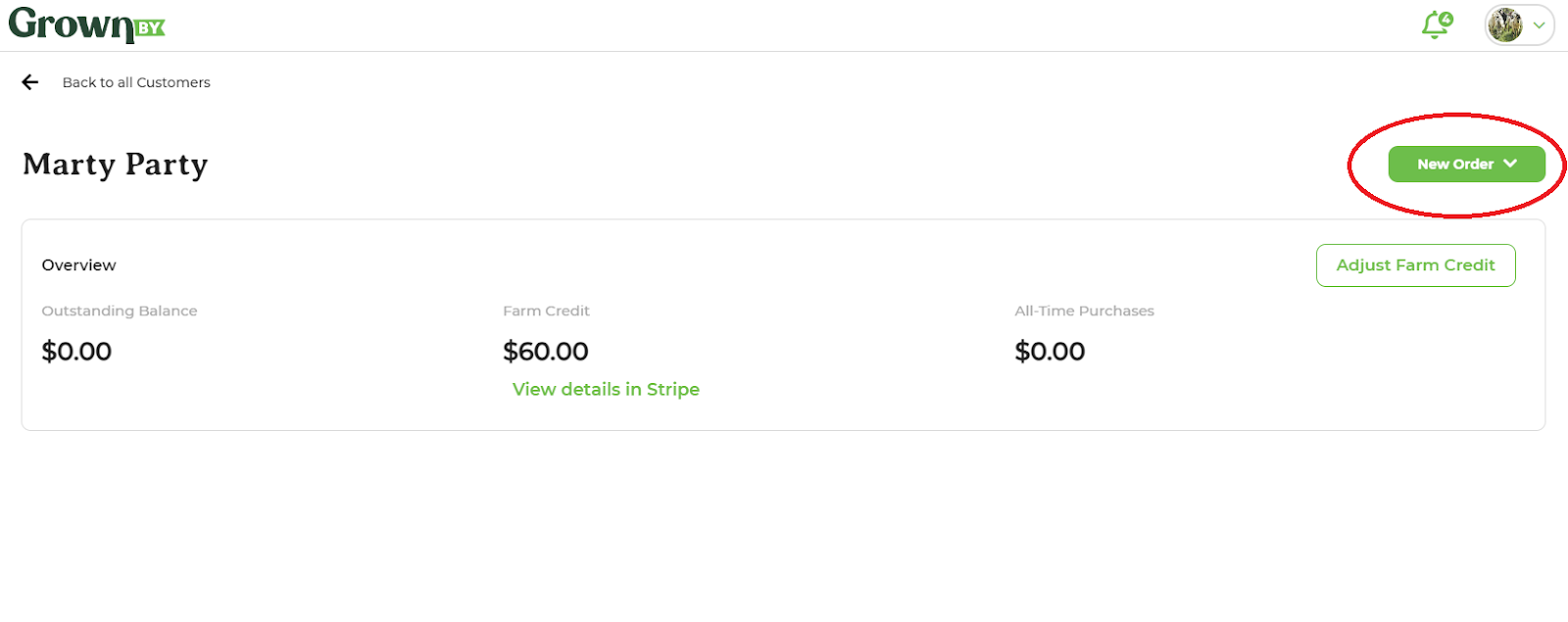
Customer detail Page:
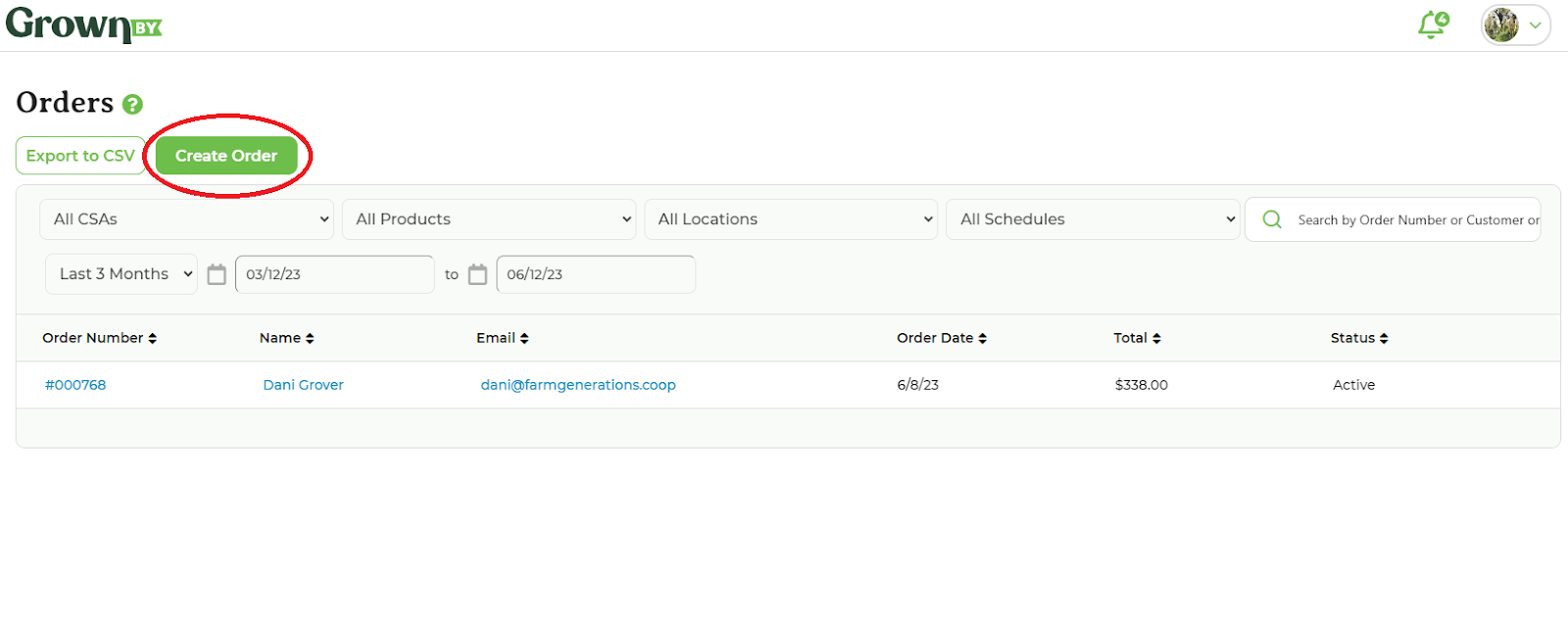
Orders page:
The Order Creator looks like this:
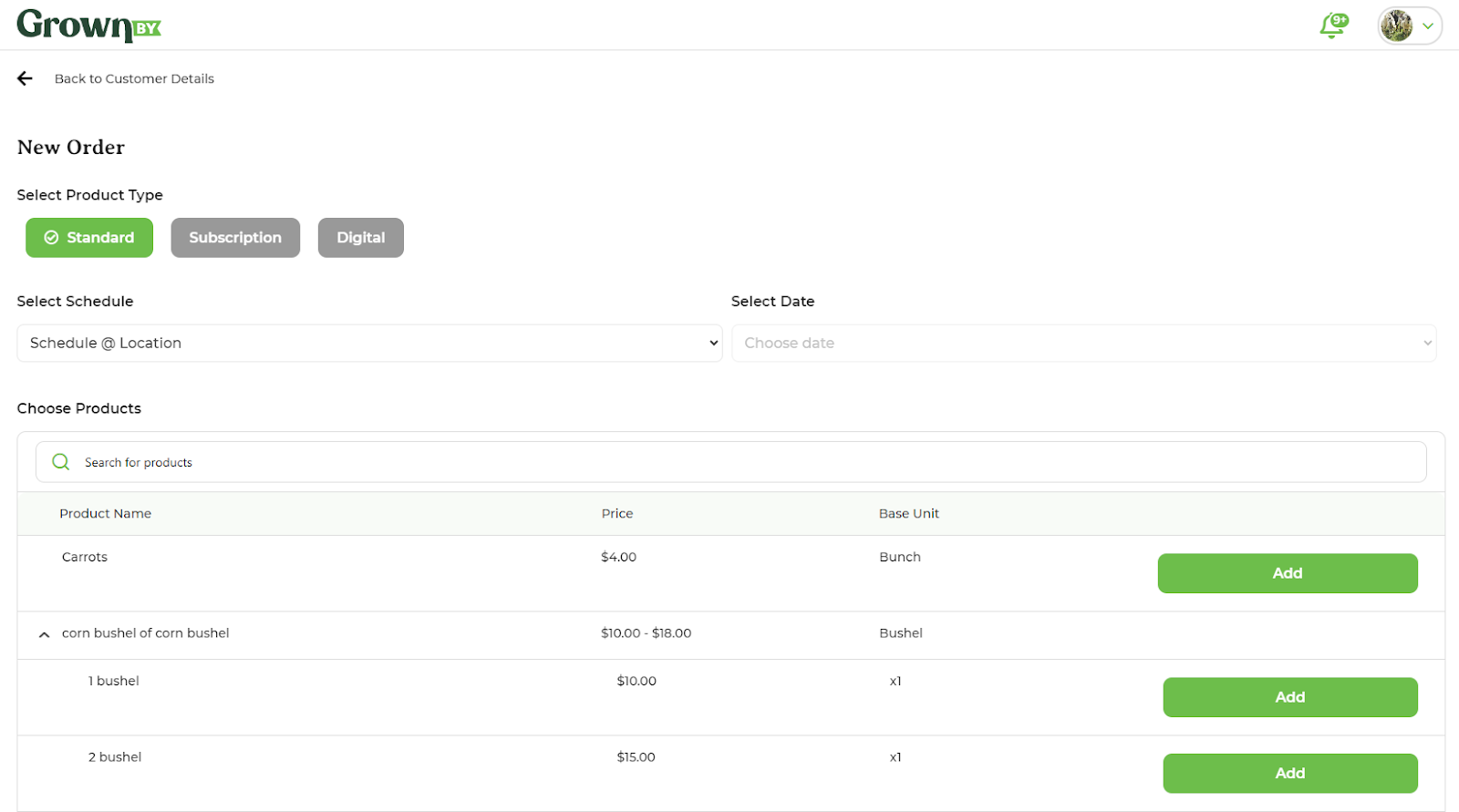
To begin to create an order, open the Filters dropdown to sort the product list by schedule, date, or product type (Standard, Subscription, or Digital).
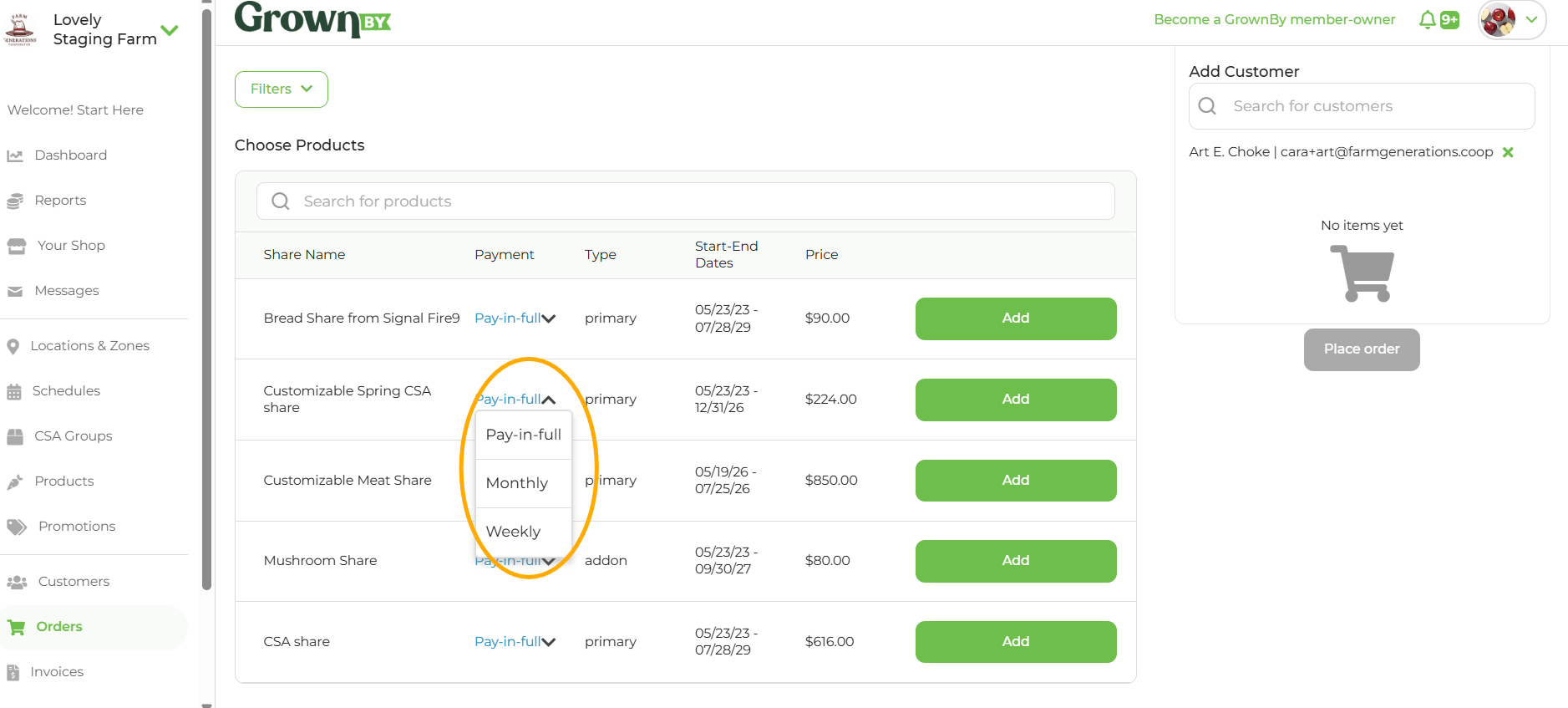
If the Product you are adding is a Subscription, you must select "Schedule @ Location" and a CSA Group before you can add the Product to the Order. Under Payment, you will also see "Pay-in-full," "Monthly," "Weekly," or "Per-pickup" if you have those payment installment schedules for your share. Be sure to choose the installment schedule that is right for this order.
When you select a product, if it has multiple distribution options you'll select the one you want on a pop-up called How will you get your order?. Choose your distribution option:
- Pickup — Select the pickup location and click Next: Choose Schedule.
- Delivery or Shipping — Enter the customer's address (the zip code should match the delivery or shipping zone you've set up for that product), then click Next: Choose Schedule.
For all three options, choose the date(s) for the order and then click Add to cart.
Once you have added your first product, the Order Summary sidebar will populate with the order information on the right side of your screen. You can continue to build the order and when you are done adding Products, move on to the bottom of the sidebar to select payment options.
Orders placed through the Order Creator ignore any order cutoff windows, closed schedules, minimum pick up requirements and cart minimum requirements.
Payment
Once your order is ready, the next step is to choose your billing/payment option from three options. First, you can simply send an invoice to your customer. The customer will receive an email notification which contains a Pay Now button.
Second, you can mark the order as already paid and send your customer a receipt. This option is only available when every item in the cart is Pay-in-Full and the order is not a wholesale order.
Third, you can choose a payment method. If there is a credit card on file in the system, it will automatically populate. Or if you wish to enter a new credit card or choose another payment method, click on the Payment box under Choose Payment Method. A pop-up will appear. Select or add a card. When you're adding a new card, there is a check box that says "Update all future invoices to this payment." By selecting this box, you can assign that card as the payment method for future invoices that have not yet been processed. You can also choose "Offline" here or an EBT card if there is one linked to the account. Farm Credit will be displayed in the Payment box if there is Farm Credit on the customer's account.
If this is an order that has delivery fees, the customer needs to have a credit card associated with the order because delivery fees are charged on the day of delivery.
When you're done, just click Place order!