Important Notes
- GrownBy products can be assigned to Marketplace or Wholesale catalogs
- Wholesale supports Standard products only
- Products can be assigned unique prices for Marketplace and Wholesale
- Only invited buyers can purchase from the Wholesale catalog
- To create a wholesale product, you must 1) subscribe to GrownBy Wholesale 2) have a wholesale schedule
1. Create a Wholesale Schedule
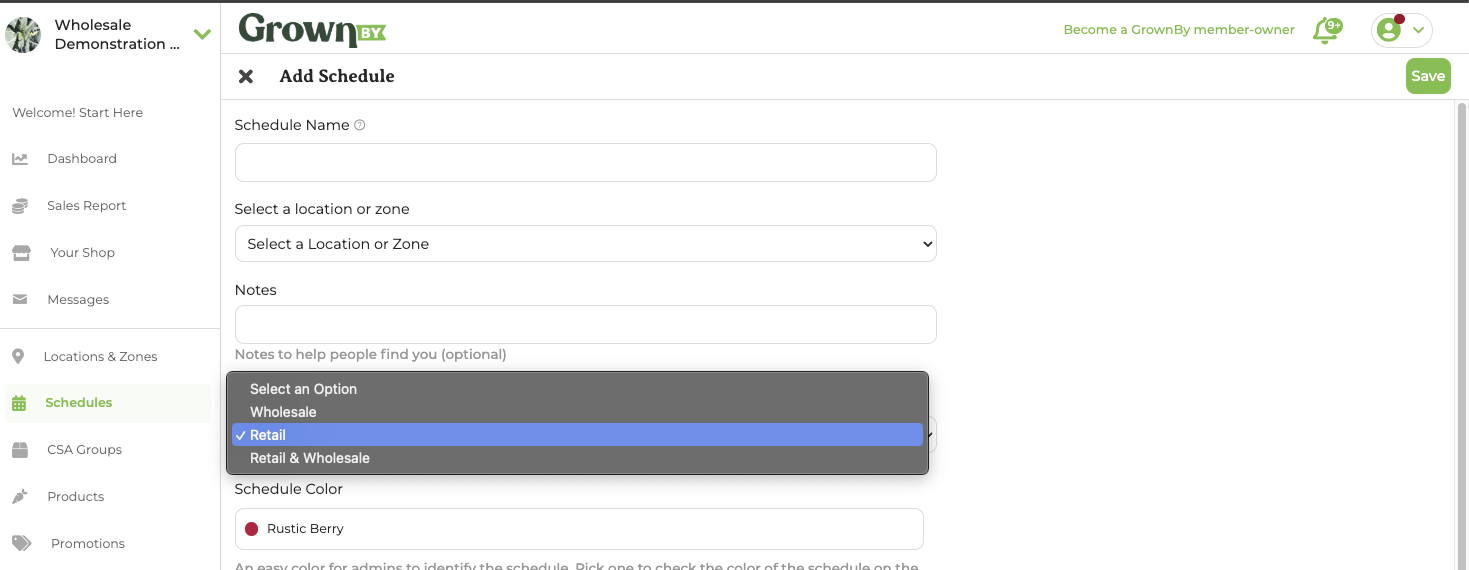
Wholesale products require Wholesale schedules. This schedule does not need to be unique from your Marketplace schedules, but your schedules must be designated for Wholesale sales in addition to Marketplace sales if this is the case.
Simply create a new schedule or edit an existing schedule on this field:
2. Create or Edit Product
-
Select Add Product from Products tab.
- Create a Standard Product (product with logistics on checkout) or Digital product (product without logistics on checkout). Shares are not supported by GrownBy Wholesale. For the purposes of these instructions, we will create a Standard Product.
-
Fill out Standard Product fields.
-
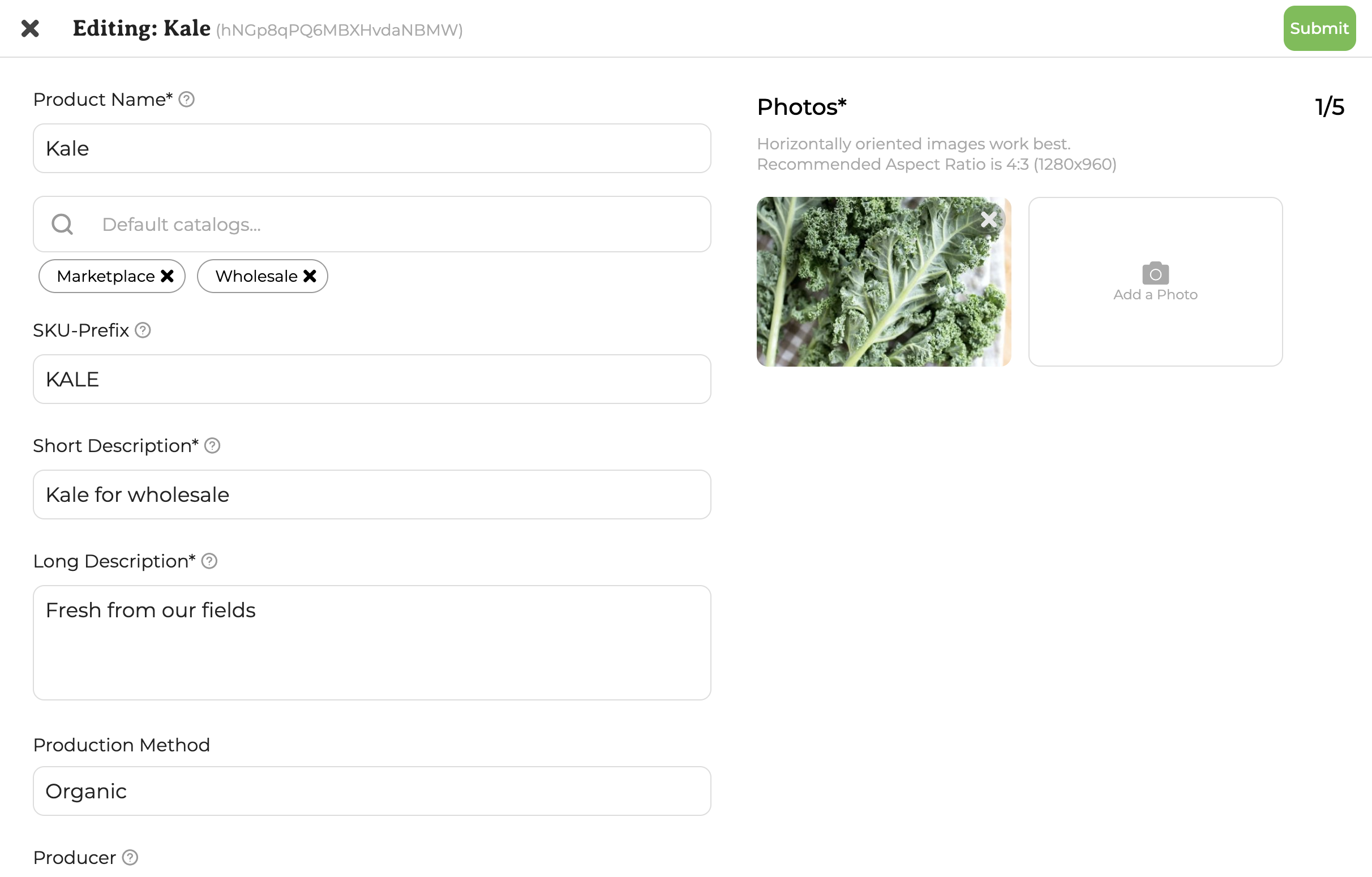
Select Catalog.
- You can select multiple catalogs in the selector below the Product Name field that reads "Default catalogs...". The catalogs that show as available to select depend on your GrownBy plan and the type of product you are editing. Click on Wholesale (and, if applicable, Marketplace). Adding Wholesale only sets the product up for Wholesale sales; adding both sells the product on both Marketplace and Wholesale.
-
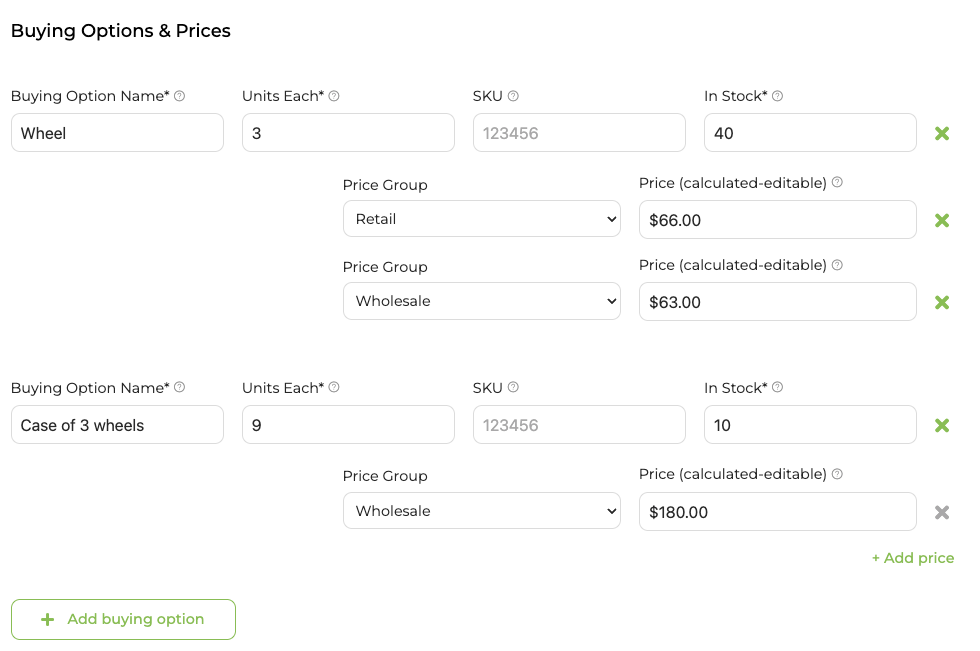
Create Buying Options and assign Wholesale and Marketplace prices, if necessary.
- If you create a product on the Wholesale catalog only, then you will simply create Buying Options with prices. If, however, you assign your product to Marketplace and Wholesale you will be required to assign at least one Marketplace and one Wholesale price to your product (or both). In the image below, you'll see that the "Wheel" is assigned both Marketplace and Wholesale prices and the "Case of 3 wheels" is assigned only a Wholesale price. In this case, the Wheels will be available for purchase for retail and wholesale customers; the case will only be available for wholesale customers.
-
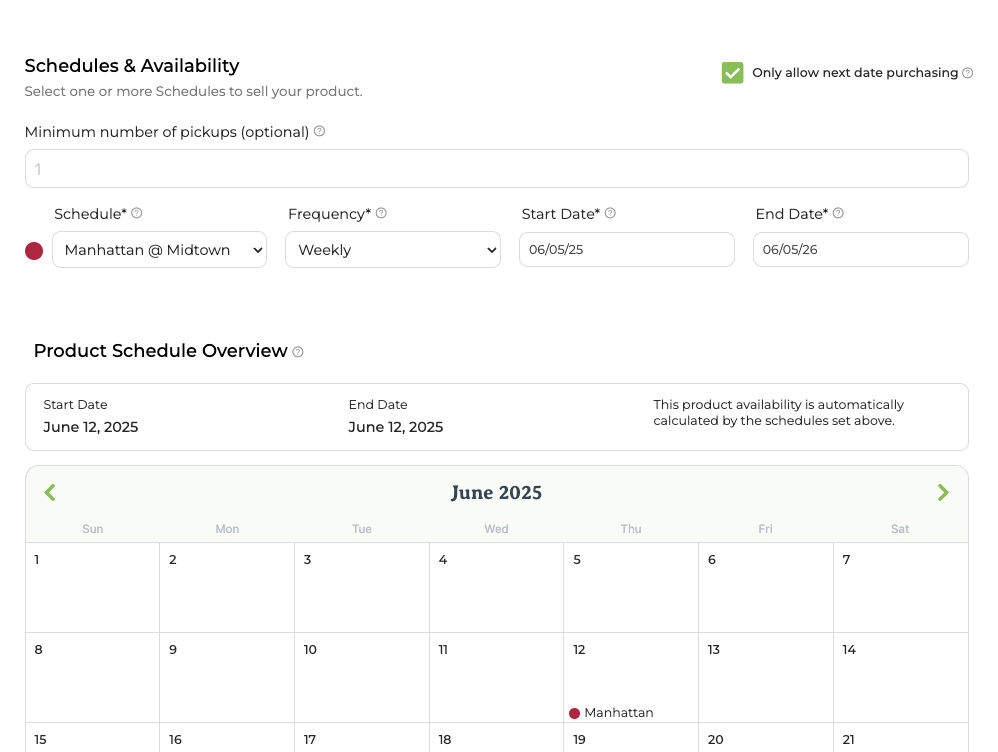
Assign a Wholesale Schedule to the product.
- Lastly, depending on your catalog selections, you'll need to assign a corresponding Wholesale and/or Marketplace Schedule to your product. You must match your catalog selections and your schedule assignments.