
On GrownBy, you can create a "Private CSA Group" any time you want to offer certain products to specific customers and not to the general public. The Private CSA Group is only accessible via a specific link. This might be for the purposes of member-specific products or pricing, setting up your shop privately before you post it publicly, buying clubs, etc. Once you make a CSA Group private, your customers will only be able to see that group and the products in it if they click on the link you share.
Creating a Private CSA Group
To start, create a Private CSA Group.
First, navigate to CSA Groups in your dashboard. Then, click Add CSA Groups. Fill in the requested information and click Save. The page looks like this:
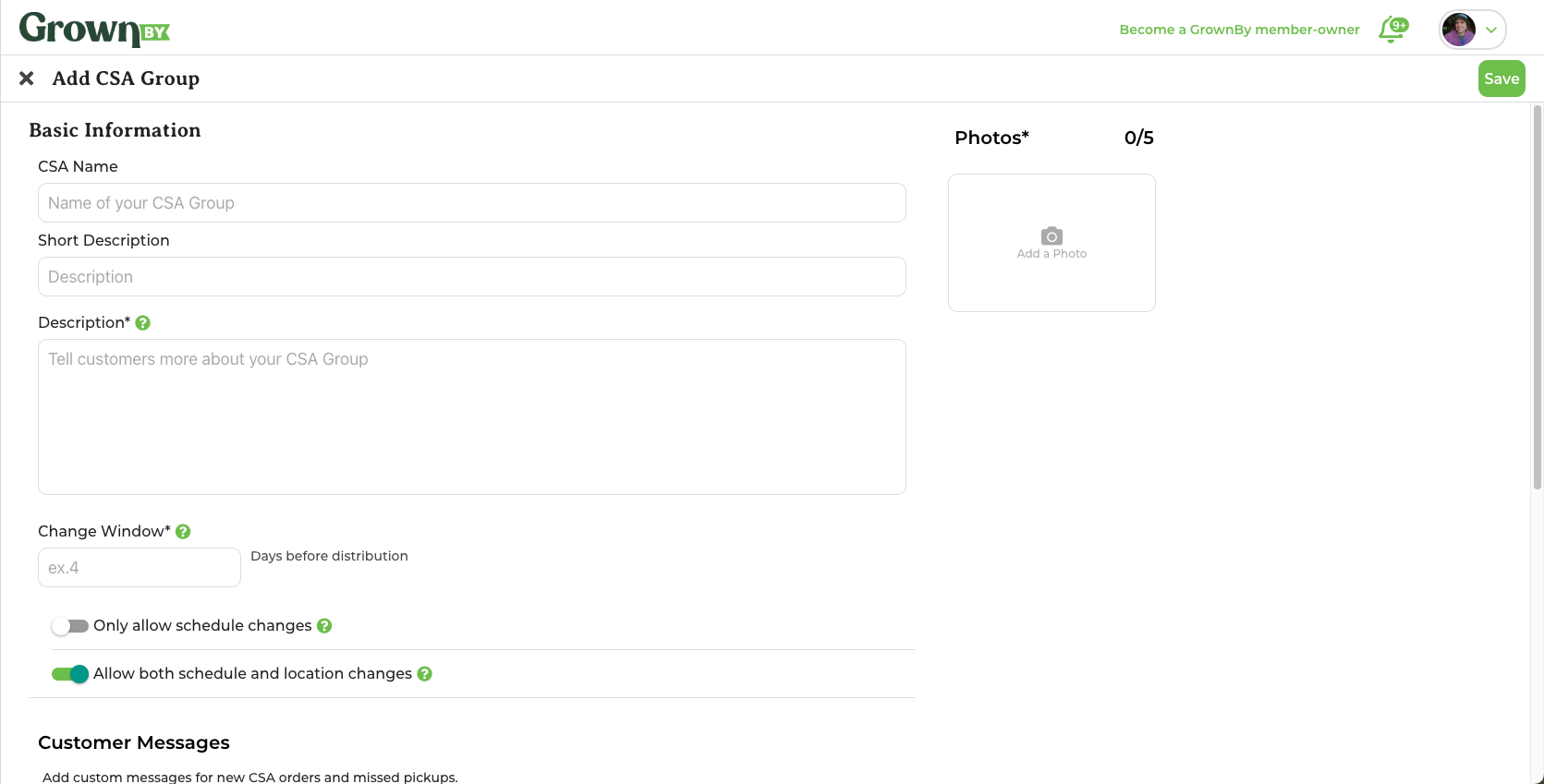
Once you have saved your CSA Group, you can make it Private. On the CSA Groups page, click the three dots under Actions and click Make Private.
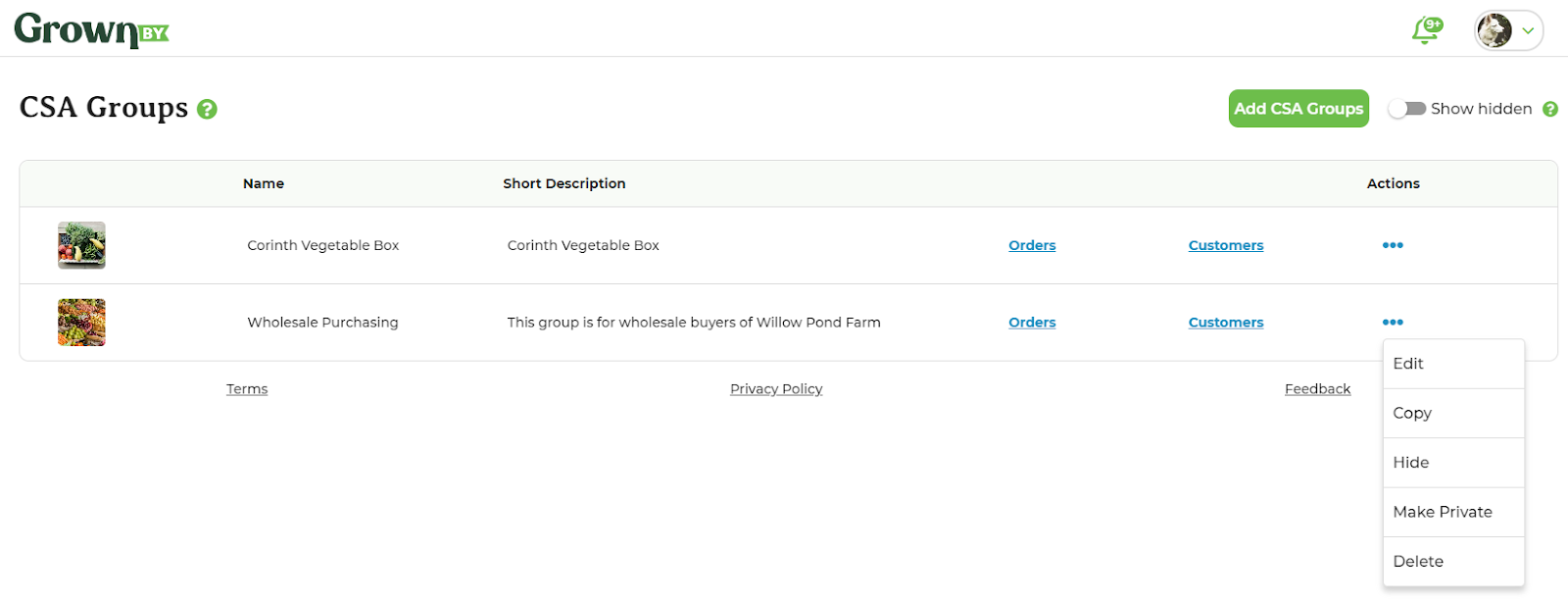
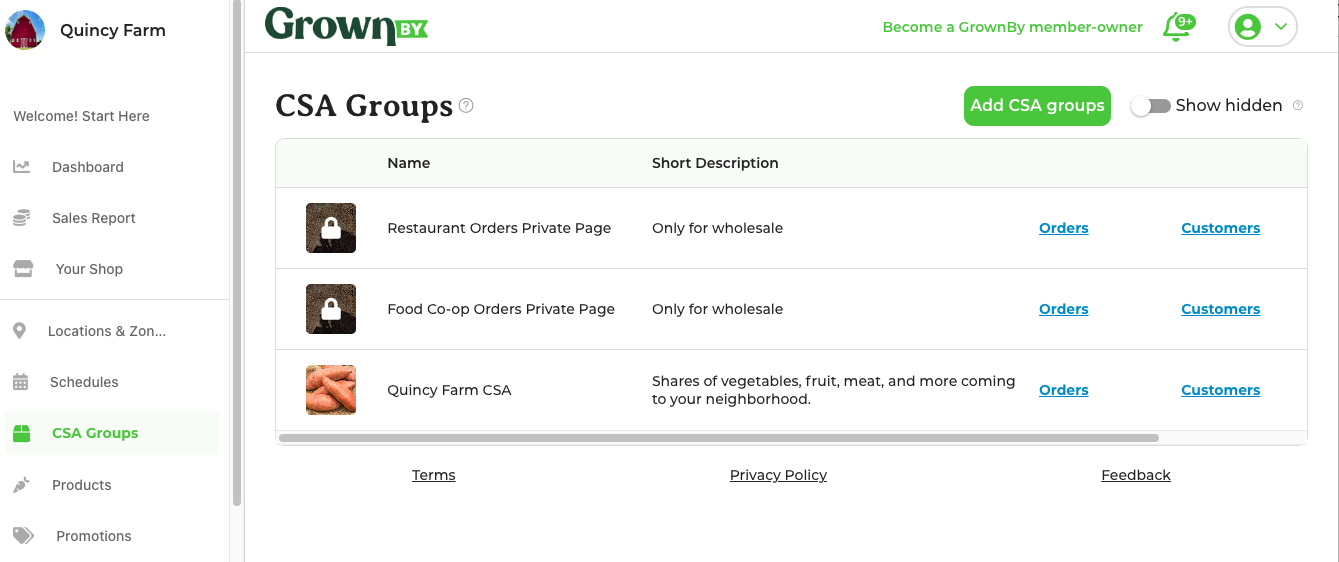
When it is private, a lock will show over the CSA Group photo.
Adding Products
Next, go to Products and click Add new product. If you are offering similar products in both your main shop and in a Private CSA Group but with different pricing or options, you will need to create unique products for each. The CSA Group applies to the entire product and all buying options. So, if you already have Carrots that you sell retail, you'll add a new Carrots product and can differentiate between the two in their names or SKUs. You can name the product "Carrots, Private Shop," for example. If you are offering the same product at the same price to any shopper, you can assign the existing product to your Private CSA Group without creating a duplicate and it will be visible in your shop and Private CSA Group. Enter all of the information into the form, much the same as adding a regular product.
Below either the Category field or the SNAP/EBT field (if you are a farm that has SNAP turned on), you will see the CSA Group selection. From the drop down, select the Private CSA Group that you created above (one set up for a private wholesale page, in this example). Then, if you want to hide your product from your shop, click the toggle that says Only buy on CSA pages. It looks like this:
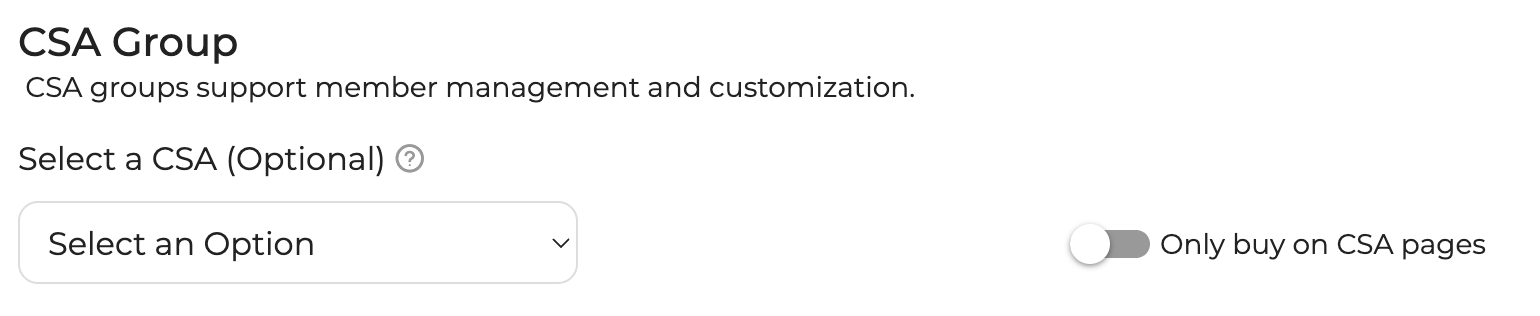
If the product is assigned to a Private CSA Group and the option to only buy on the CSA page is selected, the product will not appear in your public GrownBy shop. It can only be found using the link to access the Private CSA Group.
When you are ready, click Submit. Repeat this process for each of the Products you want in your private shop.
Letting your customers know about the private shop
We recommend emailing or texting your customers the link to your private shop and recommending to your customers that they bookmark or save the link somewhere so that they can return to it anytime. Once your customers click on the link, they will be able to place their order and create their account in the process, if they do not already have one.
To find the link, go to the Actions column on your CSA Group page and click the "...":
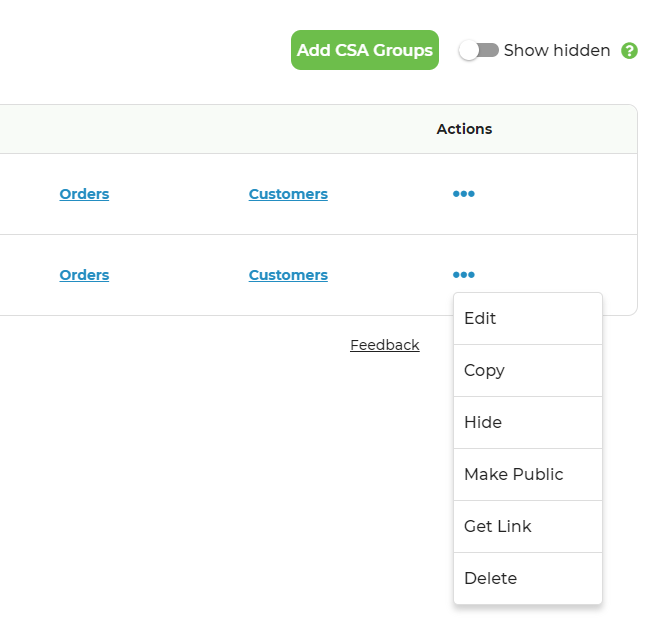
Click Get Link and the link will be added to your clipboard. A message will appear at the top right of your screen that says, "Link successfully copied to clipboard!" You can then paste it wherever you need, such as in an email to buyers.