
GrownBy Analytics
GrownBy allows farmers to connect their shops to third party analytics services such as Google (GA4) and Meta Analytics. These services allow you to track helpful ecommerce information such as their most popular products and revenue over time, as well as conversion tracking for advertisements run through Google Ads or Meta on platforms such as Facebook and Instagram. By linking your Google Measurement ID or Meta Pixel to GrownBy, you can gain valuable insight into advertisement campaigns and the growth of your shop.
To link these services, navigate to your Farmer Dashboard > Account Settings (sidebar option) > Analytics (tab). Notably, because these are third-party analytics services that collect some personal information from consumers, consumers are given the option to opt-out of tracking when they start using the platform. Because of this, it is important to keep in mind that the information gathered through Google and Meta will not necessarily capture all traffic to your farm shop page.
To use Google Analytics 4 with GrownBy, there are a few prerequisites you must have:
- A GA4 account
- A GA4 property to link to GrownBy
- A web data stream in your property
- Knowledge of navigating GA4 reports dashboards
For more information on basic GA4 analytics setup, see the official Google documentation.
Linking your GA4 Measurement ID
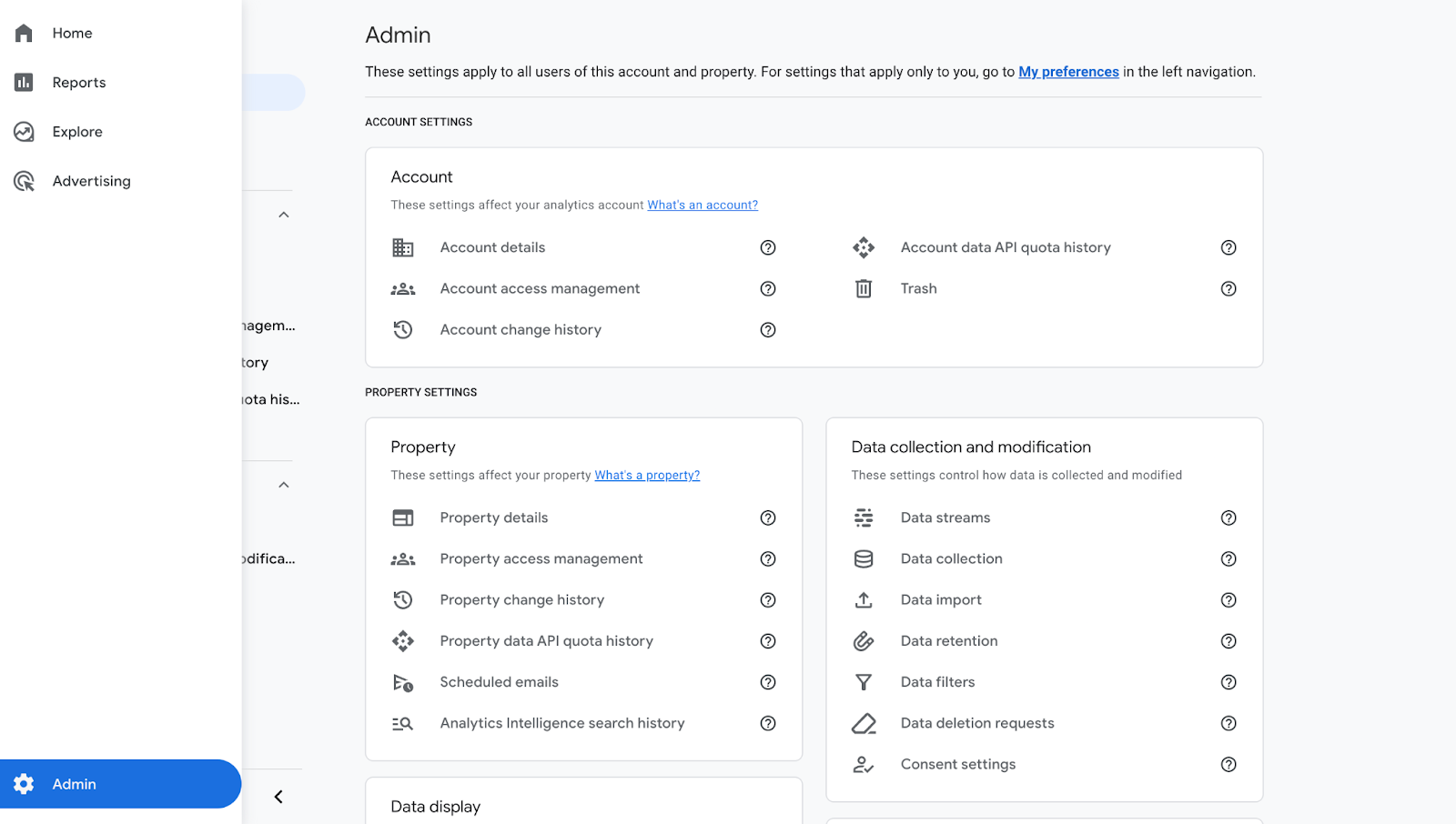
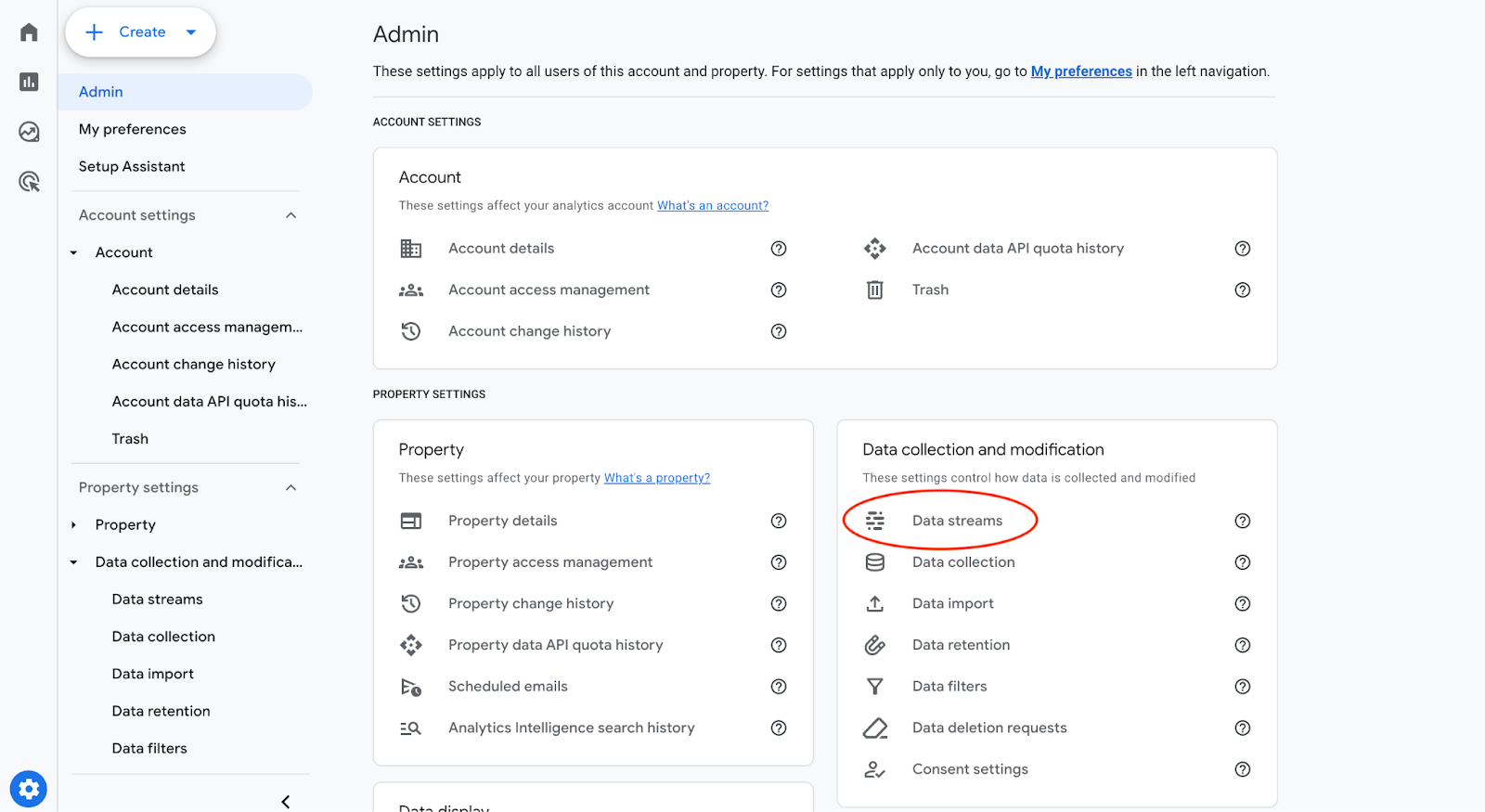
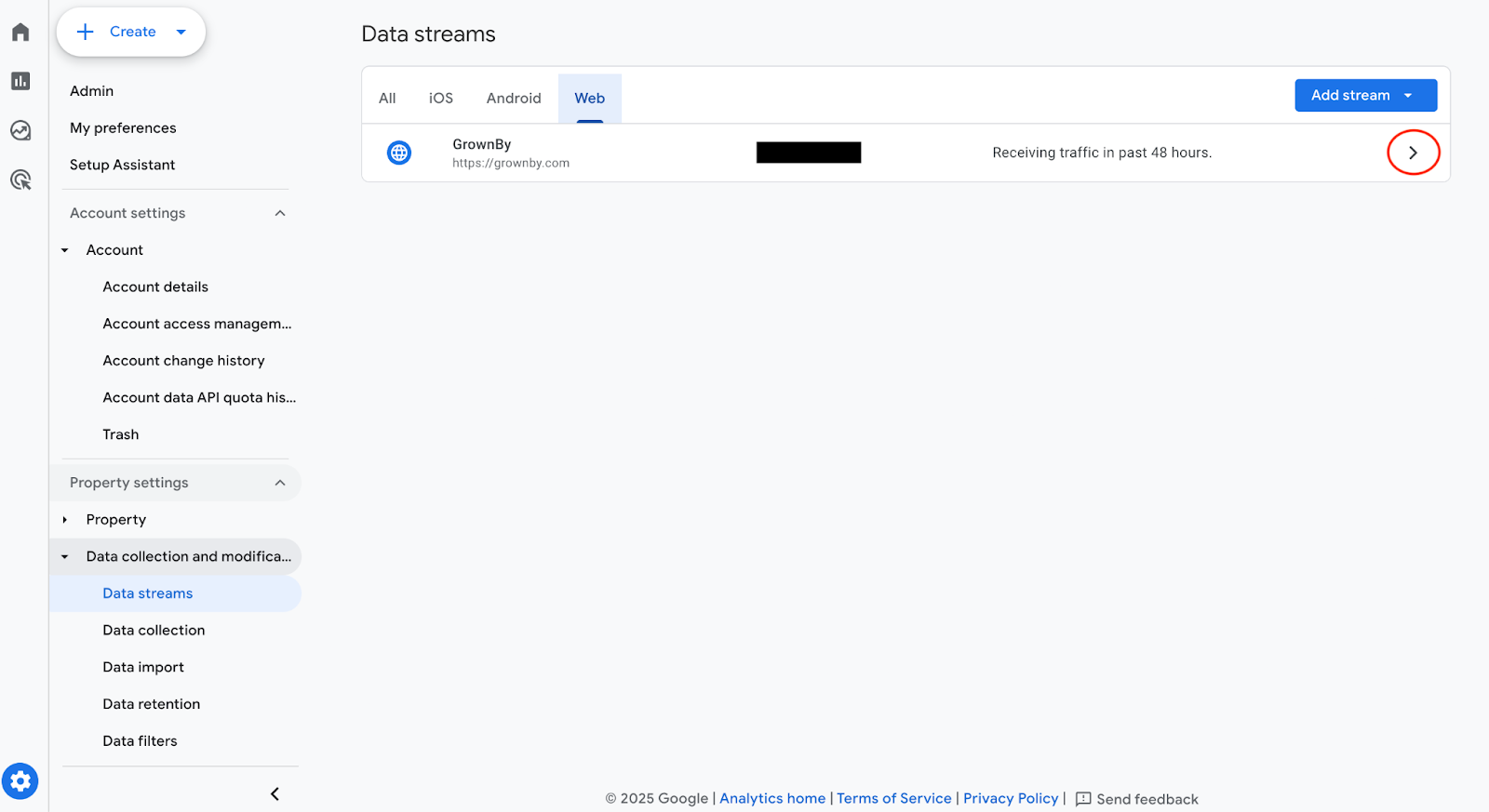
On the Analytics tab of your Account Settings page, you'll see a Google Analytics card. Click Add to open the Connect pop-up window, where you can enter your GA4 measurement ID. This is a "tag" of the form G-XXXXXXXXXX that is injected onto your shop page so it can start sending the information from GrownBy to your GA4 property. To find your measurement ID, follow these steps:
-
Go to Admin
-
Go to Data streams
-
Go to your web data stream
-
Copy your measurement ID
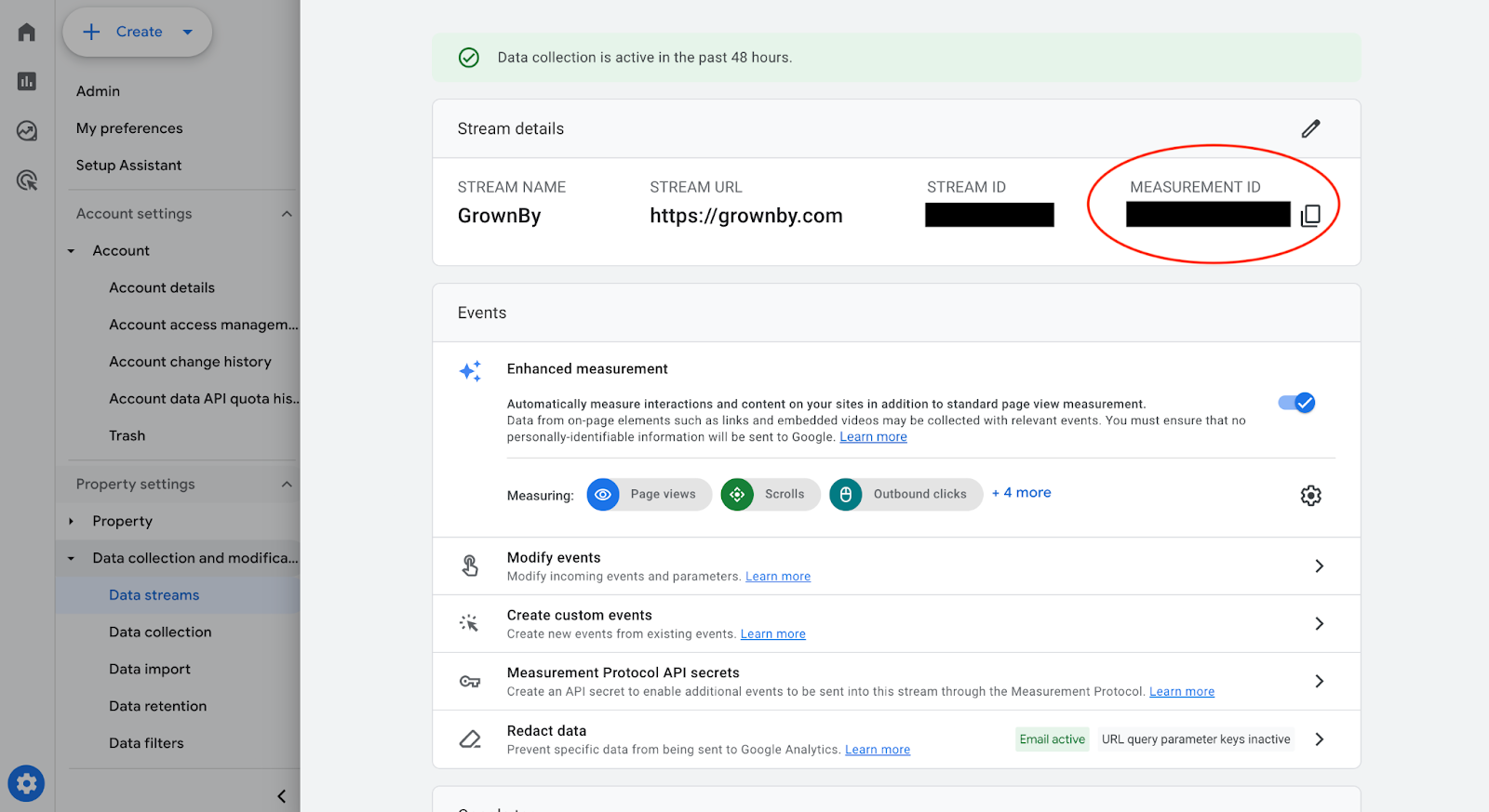
Copy and paste the whole measurement ID into GrownBy's prompt on the Analytics settings page.
Google Analytics Data
GrownBy sends many ecommerce events that automatically populate your dashboard, such as purchase, share, add to cart, and view item, as well as some custom events that need to be added manually to your dashboards for them to appear in your property. The custom events we send are as follows:
| Title | Properties |
|---|---|
| view_csa Occurs when a customer views a CSA shop | farm_id - your farm's unique id csa_id - the unique id of the csa viewed csa_name - the name of the csa viewed |
| view_farm_profile Occurs when a customer views your farm profile | farm_id - your farm's unique id is_favorite - whether the customer has your farm in their favorites |
| view_farm_shop Occurs when a customer views your main shop | farm_id - your farm's unique id location_id - the id of the location the customer viewed (if any) category_id - the id of the category the customer filtered by (if any) search_term - what the customer searched for on your shop (if any) ebt_only - true if a user filtered by items that are marked EBT only |
Note that for GA4, we only send data from our web traffic to your property. Your data will not include any revenue/analytics data from mobile users.
Meta
To use Meta Pixel with GrownBy, there are a few prerequisites you must have:
- A Meta Business Suite account
- Access to your business's Ads Manager
Linking your Meta Pixel
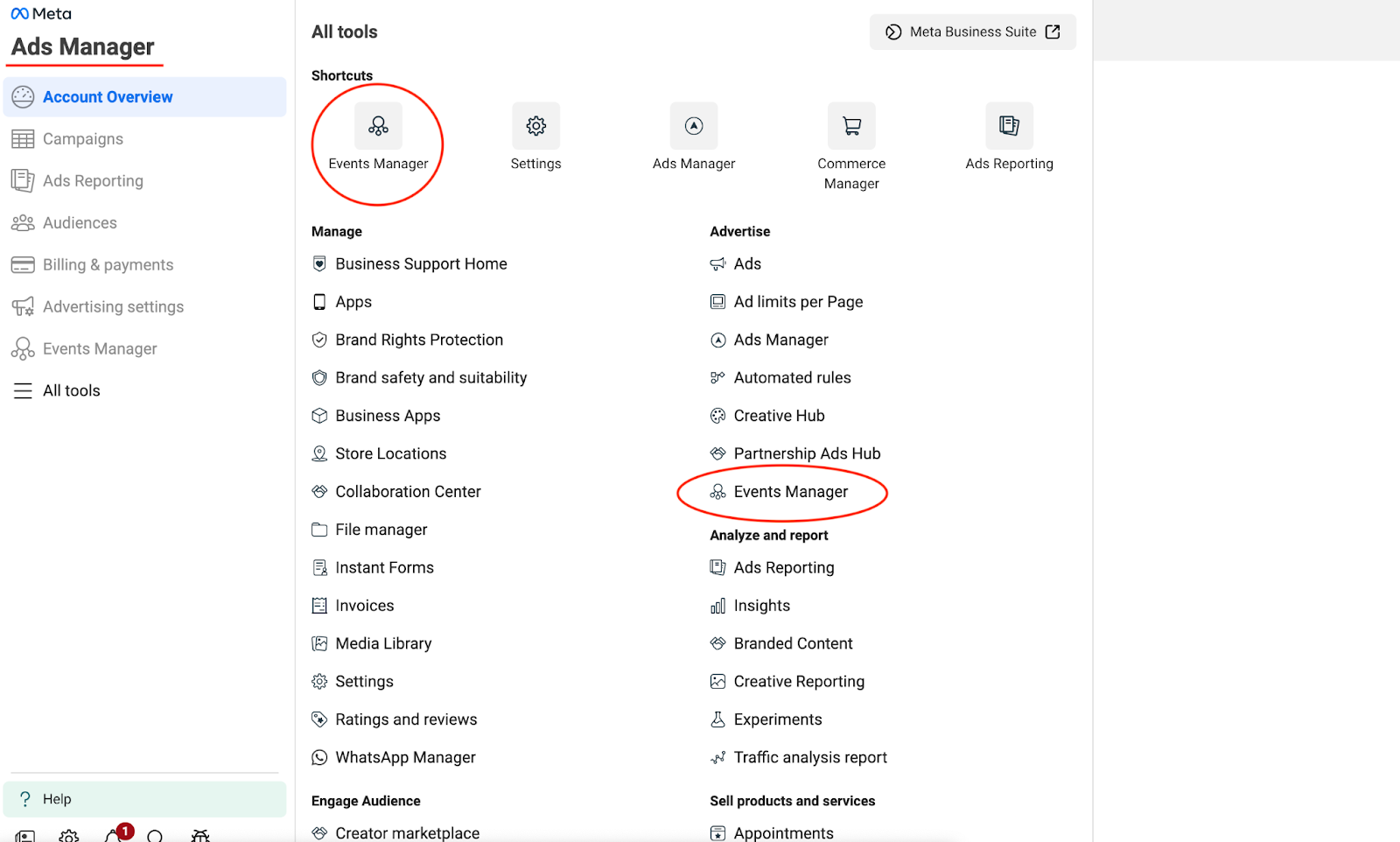
On the Analytics tab of your Account Settings page, you'll see a Meta Pixel card. Click Add to open the Connect pop-up window, where you can enter your Meta Pixel ID. This is an ID that identifies your Meta Business so we can connect our data to it. To find your Pixel, follow these steps:
-
In Ads Manager, navigate to the Events Manager
-
In your Events Manager, navigate to Data Sources and the string of numbers by ID or under Dataset ID is your Meta Pixel
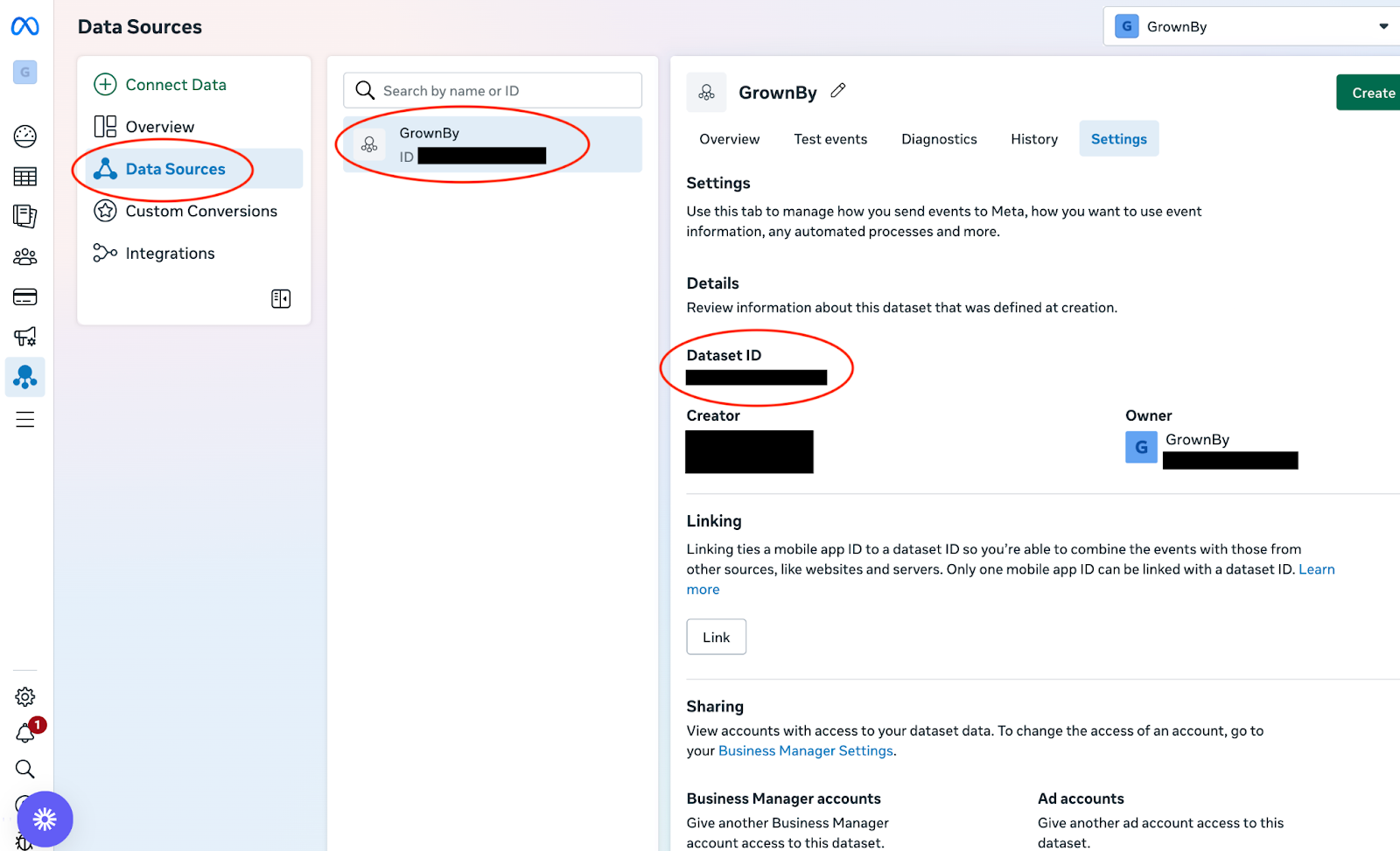
Copy and paste the Pixel numbers into GrownBy's prompt on the Analytics settings page (do not include the "ID" prefix).
Meta Analytics Data
GrownBy sends several recommended Meta events in addition to the automatic events picked up by the Pixel (such as a PageView event):
- Purchase — fires on a completed order.
- AddToCart — fires when a shopper adds an item from your farm to their cart.
Any of these events can be used for ad conversion tracking in your Ads Manager.
GrownBy sends Meta data from the browser only. Tracking mobile data is not supported at this time.