
You can change a customer’s delivery address for one or all deliveries associated with an order. Your customer can also edit their own delivery address (see this article).
You may choose to update an address for just one delivery, if, for example, your customer is out of town and sending their share to a friend. You will update all deliveries if the customer has moved or if they incorrectly typed their address when ordering.
Steps for updating customer Delivery address
- Go to the Customer detail page
- Select Pickups & Deliveries
- Click on Show Future
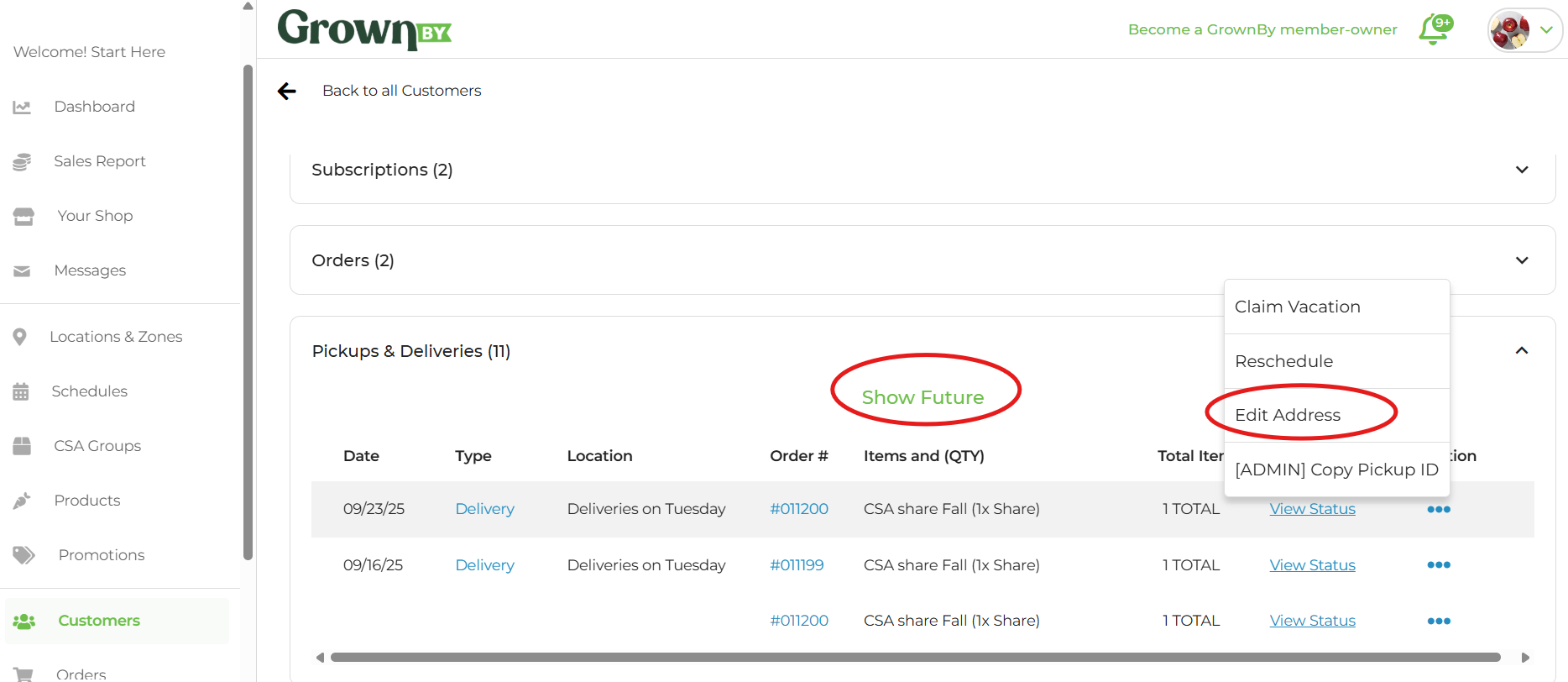
- Click on the Actions options, shown as three dots
- Enter the corrected address
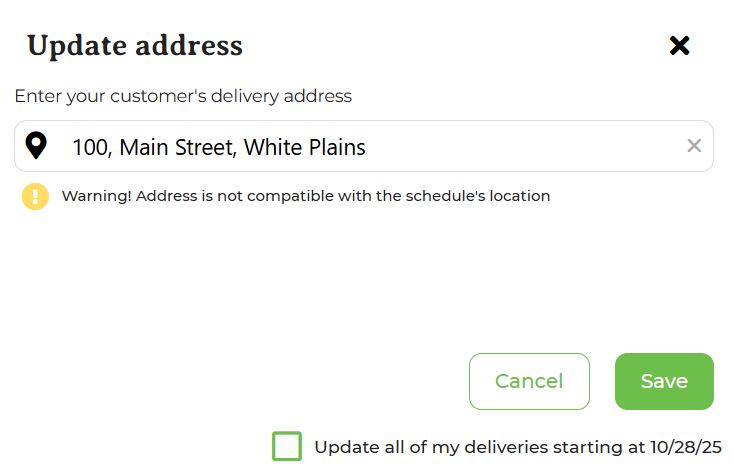
- Select Update all of my deliveries starting at XX/XX/20XX, if applicable.
Exceptions
If the farm admin is selecting an address that is outside of a delivery zone—zones are set by zipcodes in the Locations page—the admin sees a warning message but can choose to save the address change anyway as a cross-zone override. Customers can only edit to an address that is within a delivery zone.