
GrownBy has a Taxes & Fees feature which allows you to add the appropriate tax or fee to your products. Taxes are calculated as a percentage and fees are flat. Either can be named to communicate their locality or purpose and can be filtered only to apply to particular zip codes or states, as needed. You can find the Taxes & Fees feature and Add New Taxes & Fees in your Dashboard under Account Settings:
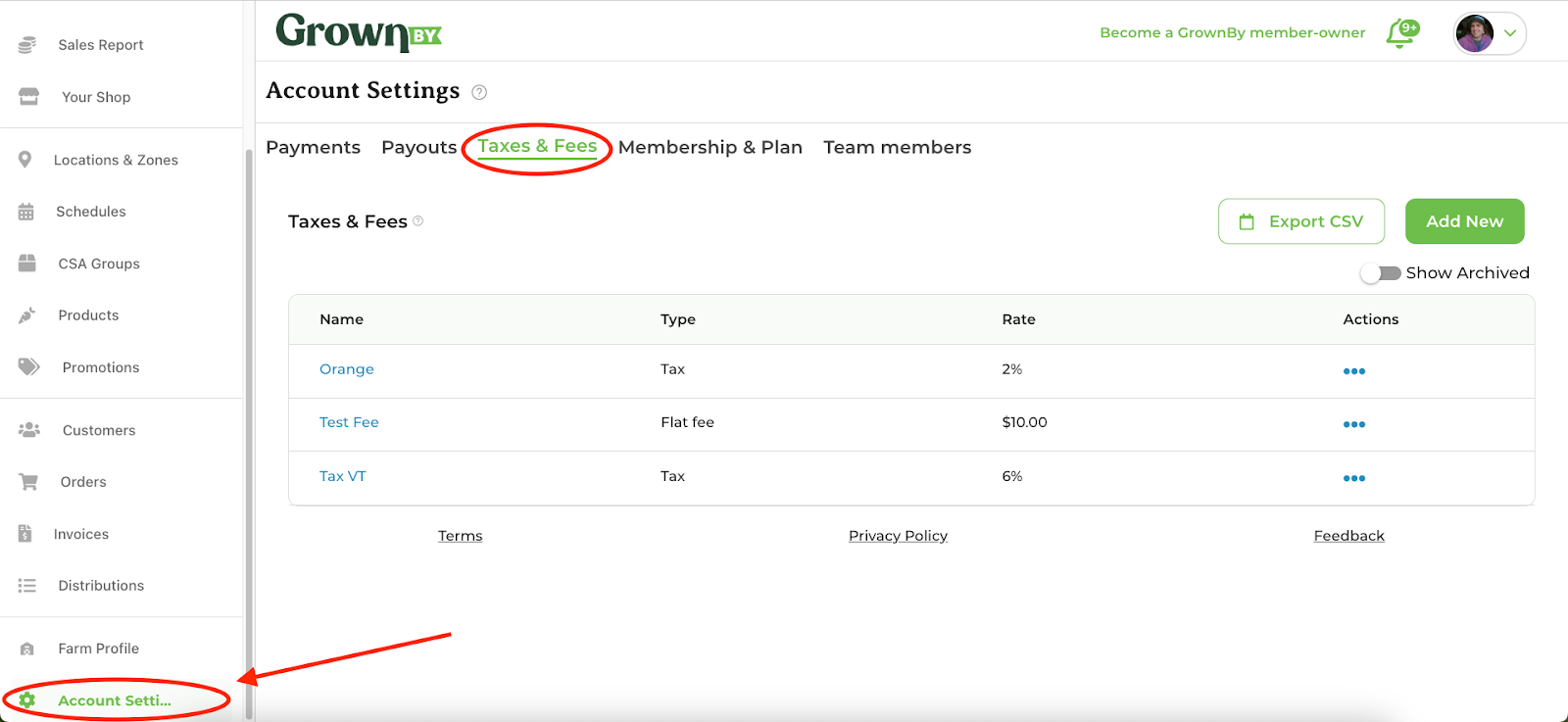
How to Create a Tax or Fee
In the Taxes & Fees section of Account Settings, click on Add New and enter the Name, Type (Tax or Fee), and Rate into the form that appears:
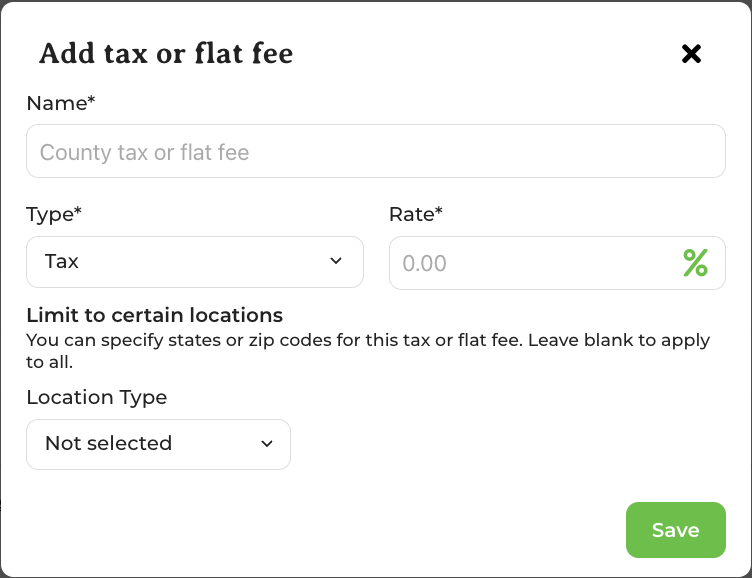
If you would like to filter the Tax or Fee to specific locations (optional), select the Location Type from the drop down (in the US, options are State or Zip Code; in Canada, Province or FSA Code) and enter the relevant abbreviations.
When you are done, click Save!
Fees are displayed as Flat fee in your Taxes & Fees table and in exported reports.
Adding Taxes & Fees to Products
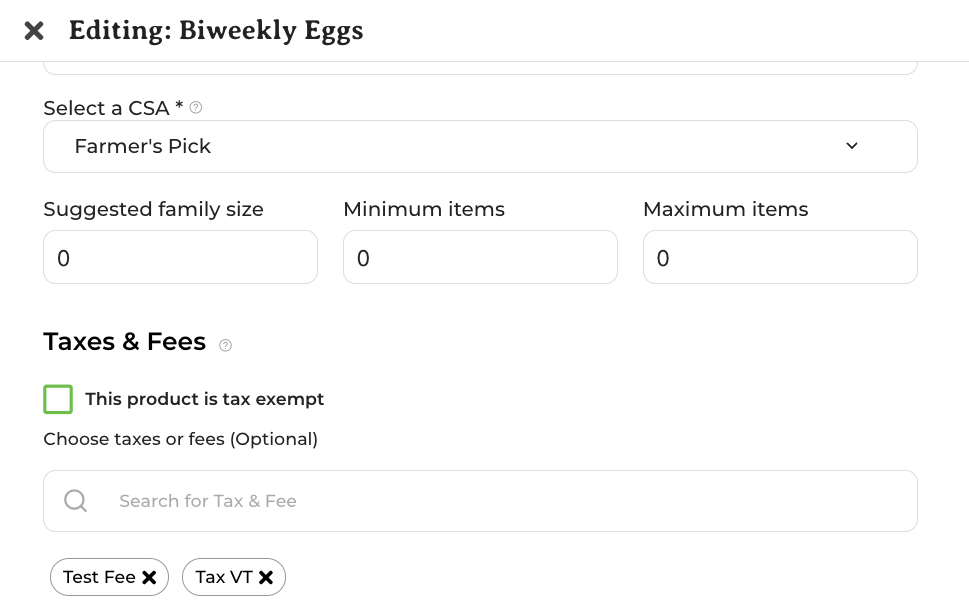
Once you have created a Tax or Fee, proceed to a Product that you would like to add that Tax or Fee to. In the Product Editing screen, you will see a Taxes & Fees section. Deselect the "This product is tax exempt" box (checked by default) and then search for your Taxes and Fees using the names you created. Click to add them:
How Taxes & Fees appear to your Customers
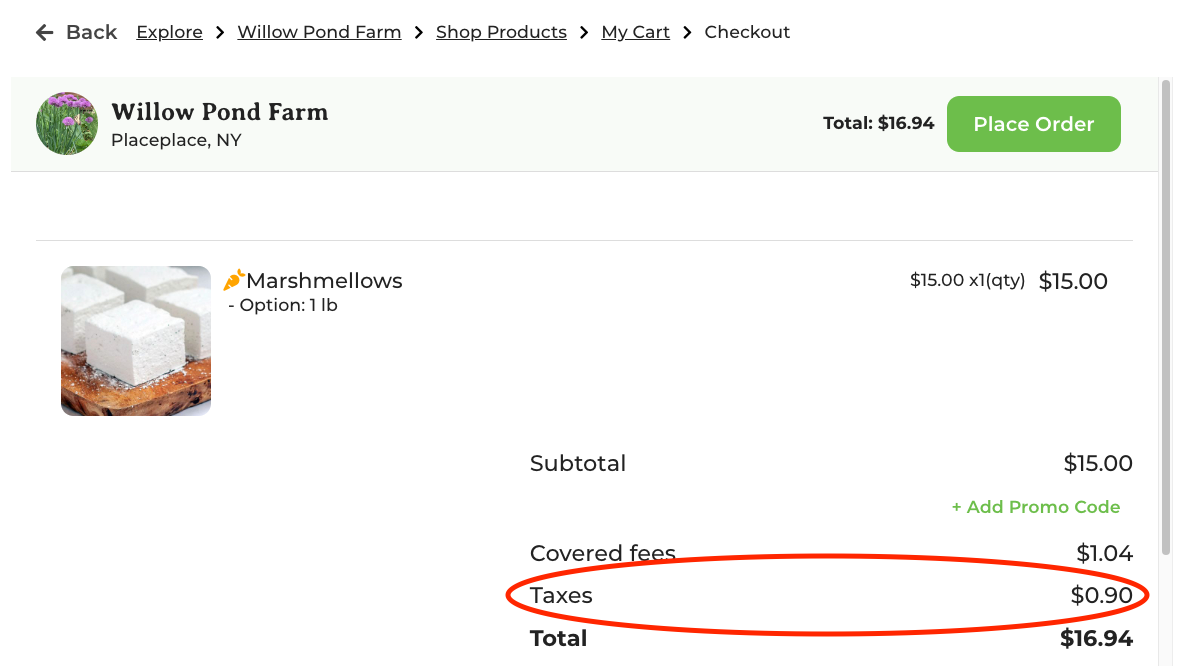
Taxes & Fees appear as separate line items during checkout:
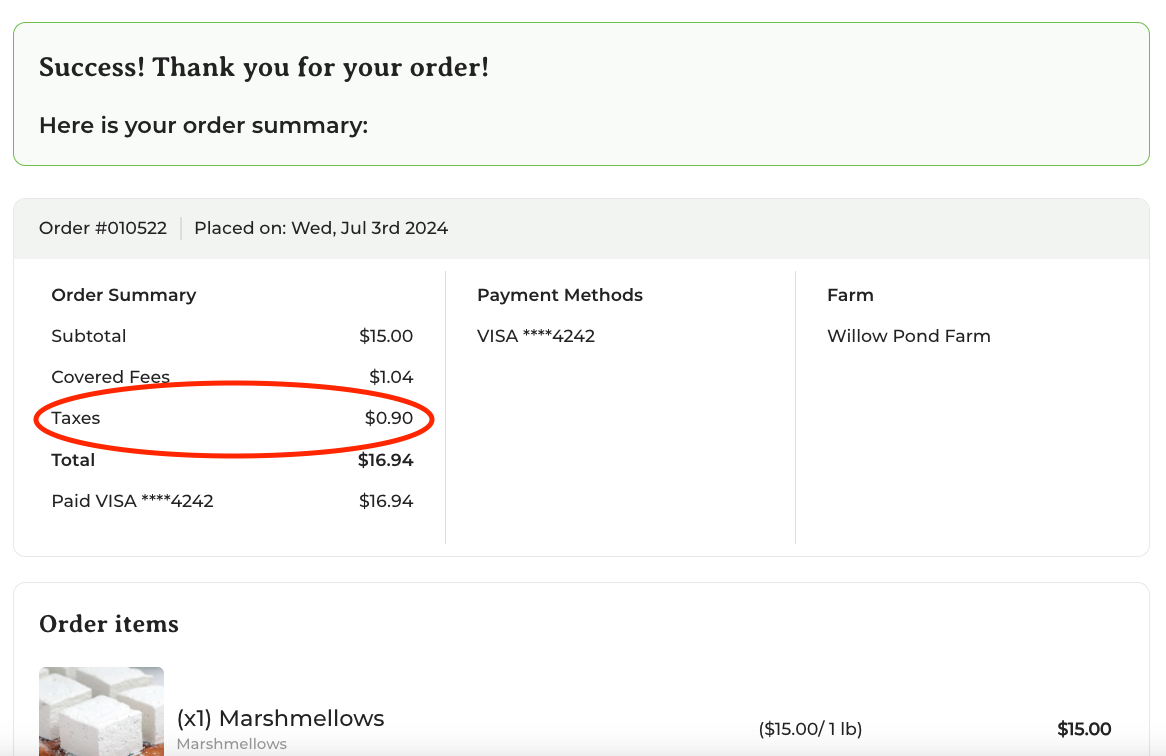
They appear on the Order Summary:
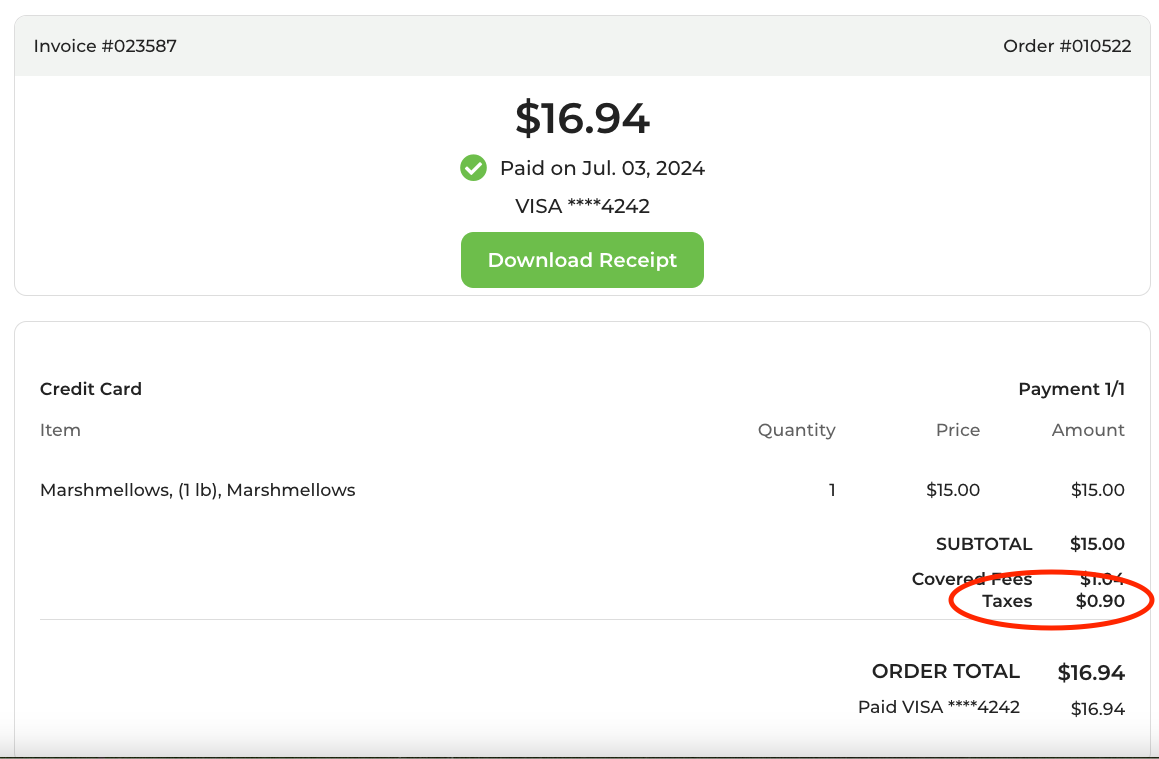
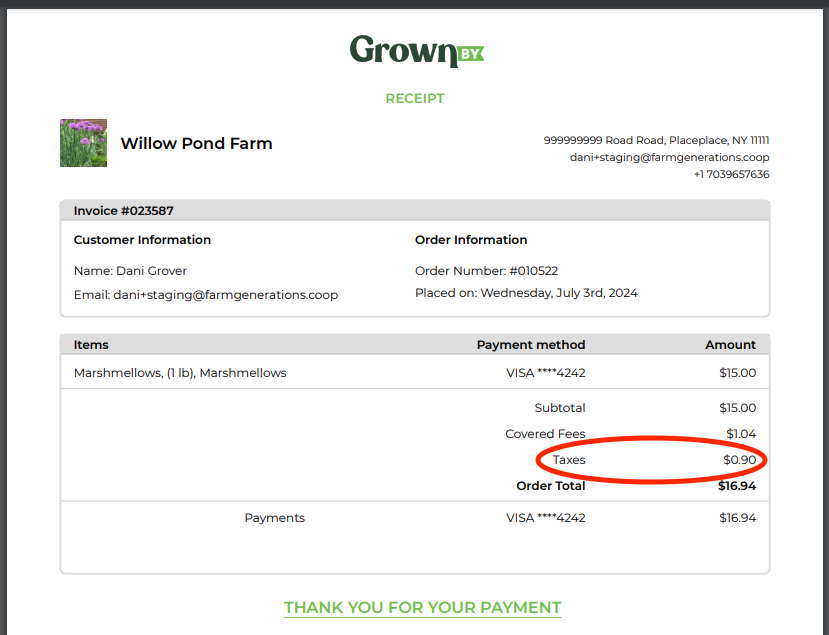
They appear on the invoice and on the downloaded receipt (once paid), as well:
Exporting Tax Data from GrownBy
If you want to quickly see all of the Taxes & Fees you have collected via GrownBy, you can easily download a .csv of your Taxes or Fees via the Account Settings screen of your Dashboard:
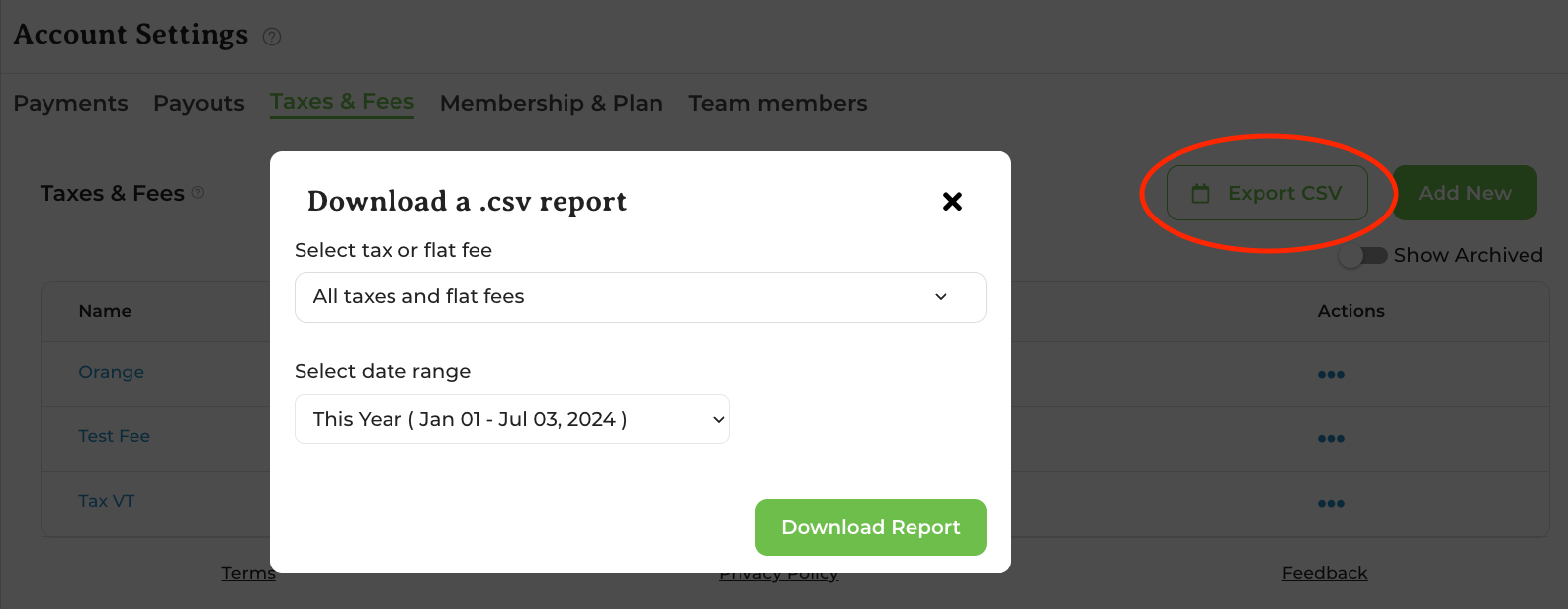
Click Export CSV and then choose All taxes and flat fees, Taxes, or Flat fees. Choose the date range you'd like to view and click Download Report. This export includes the name of the Tax or Fee, a column showing all of the farm's sales during the date range selected, the Applicable Sales that are covered by this tax or fee, the amount collected by the tax or fee, the amount refunded by the tax or fee, and the net collected.
To view Taxes & Fees for Orders placed from your farm, go to Invoices, filter the view to the invoices you would like to see, and click Export Summary CSV. The CSV report contains a columns for Taxes and Flat Fees:

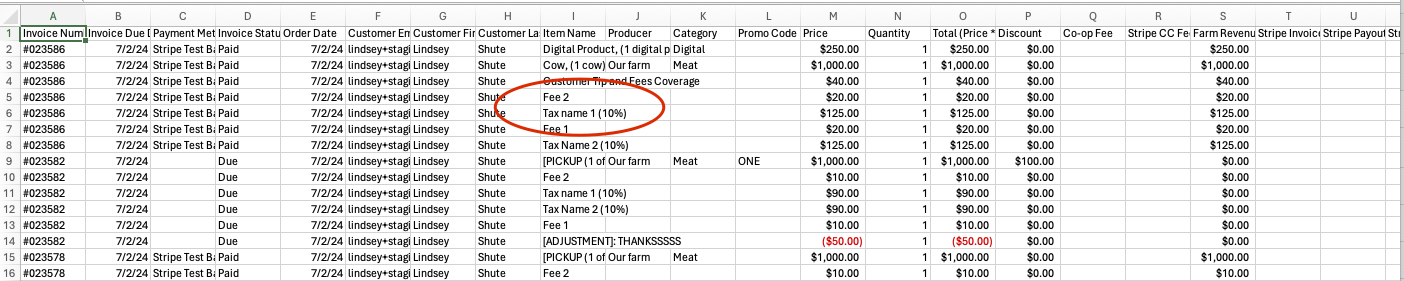
In the Invoice Summary CSV, each invoice has it's own line and Taxes and Flat Fees each have a column. However, in the Invoice Detail CSV, each "item" has it's own line. Taxes, Fees, Adjustments to invoices, etc. are treated as "items" and have their own lines in the export:
If you need help manipulating the data in your CSVs or answering a specific question from it, please feel free to reach out to us!
The Sales Tax Context
Depending on the state, county, or even municipality your farm business is located in, you might be subject to different tax regulations. Sales tax can also be affected by where you are making the sale so shipping and sometimes even driving to the next town over to deliver your products can have an impact on how you are taxed. Some states allow you to add tax directly to your product prices, and some don't.
As an app that serves all 50 states, GrownBy doesn't have the expertise to help you determine the tax code in your area; you'll need to consult a tax professional for that. We are here, though, to help you navigate adding Taxes & Fees to your Farm's Products and we can certainly help you analyze your sales data to help you understand the Taxes that you are responsible for paying at the end of the year.
Please feel free to reach out to us with further questions about Taxes & Fees at [email protected] or schedule an appointment with us here!