
Selling meat online can be logistically complicated, but GrownBy's features can help! This article will walk you through how to set up your meat products on GrownBy, how to use order editing, and how to edit and finalize your customers' orders.
Turning on Marketplace Order Editing
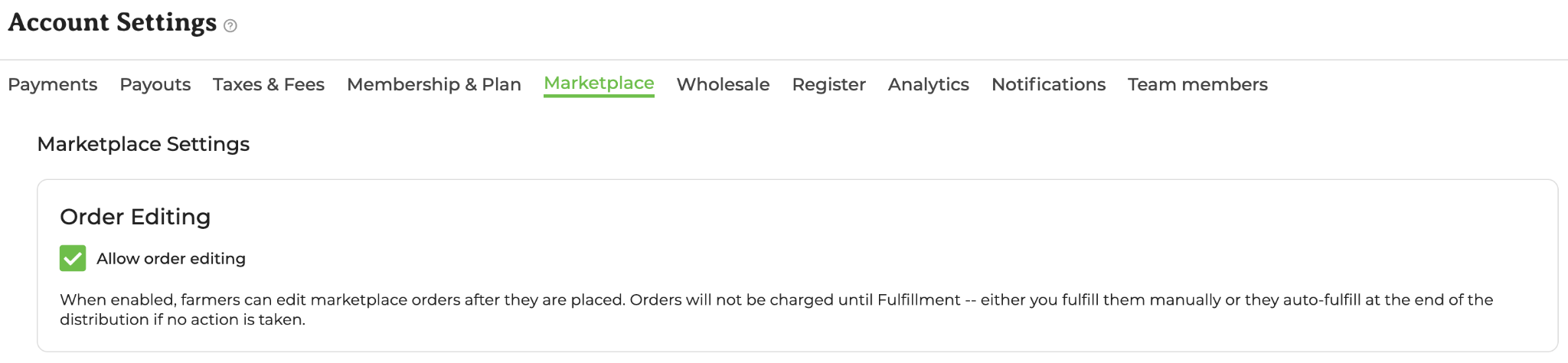
Find this setting under Account Settings → Marketplace → Order Editing. Click the checkbox to turn on order editing:
Setting up Meat Products
In GrownBy, anything that is sold a la carte is considered a "Standard Product" (see all about standard products).
To create a standard product, go to Products → Add New Product → Standard or Digital Product.
Here are some important considerations for setting up meat products in GrownBy:
-
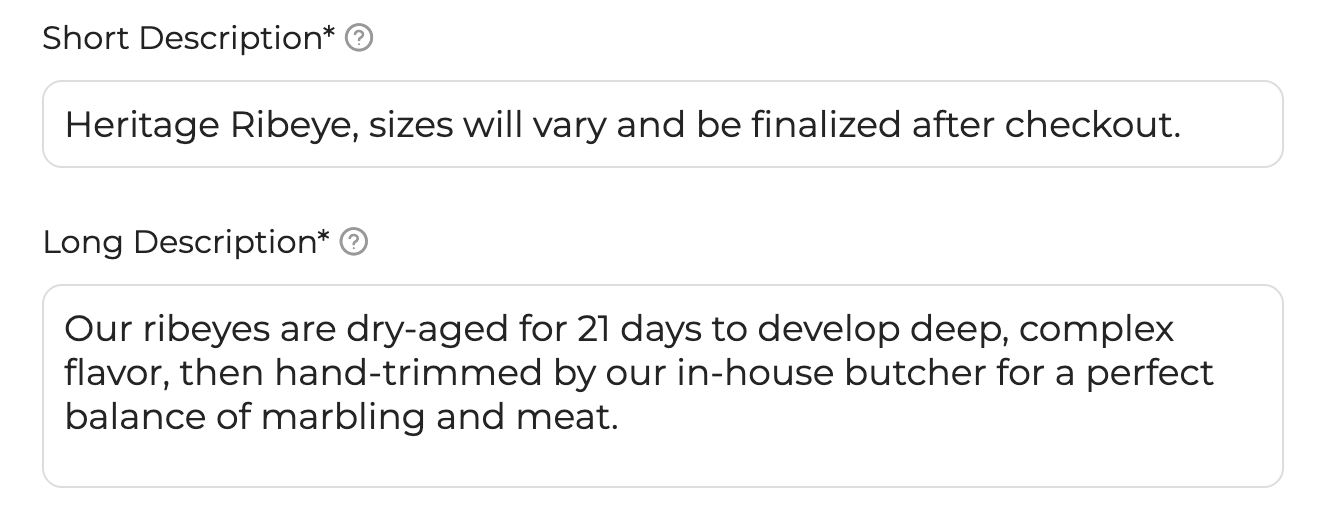
Product Descriptions — We recommend adding some information about variable sizes and order editing in your Short or Long Description for your Products. For example:
-
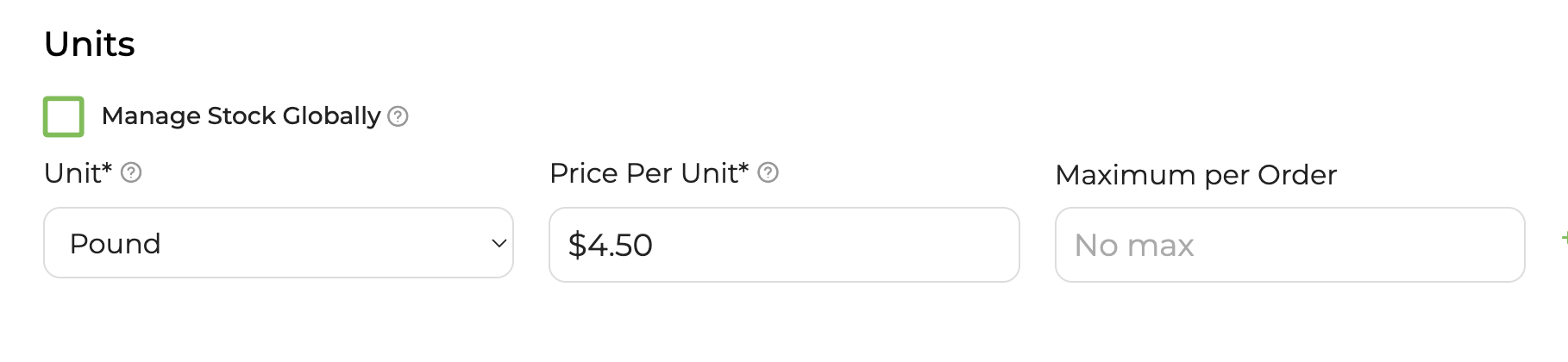
Units and Inventory — In most cases, for example cuts of meat or wheels of cheese, you will want to uncheck Manage Stock Globally. There may be some scenarios, for instance with ground meat or bulk apples, where global inventory may be appropriate. This is important to charging different prices for different cuts, if all cuts are nested under the same product — and it is also practical as many cuts may be frozen and you only have a certain number of each. Units are unit of weight for measuring your product.
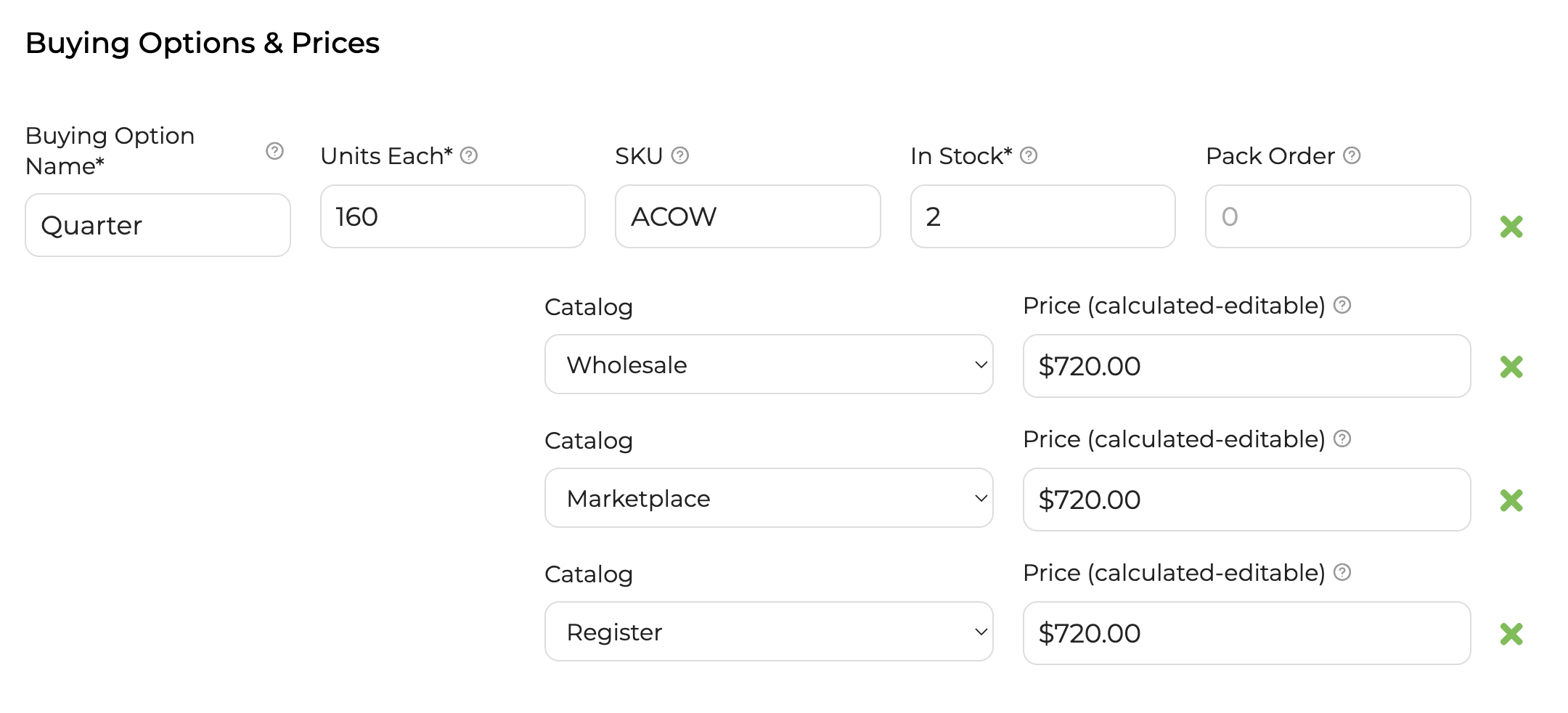
- Buying Options — Next, enter each buying option. You may just have one if all of your cuts for a given product are around the same size. In the example below, the farmer is selling a quarter animal. That animal is estimated to weigh 160 lbs and they have 2 in stock. Also in this example, the price for the quarter is the same across all catalogs.
How will the products appear in my shop?
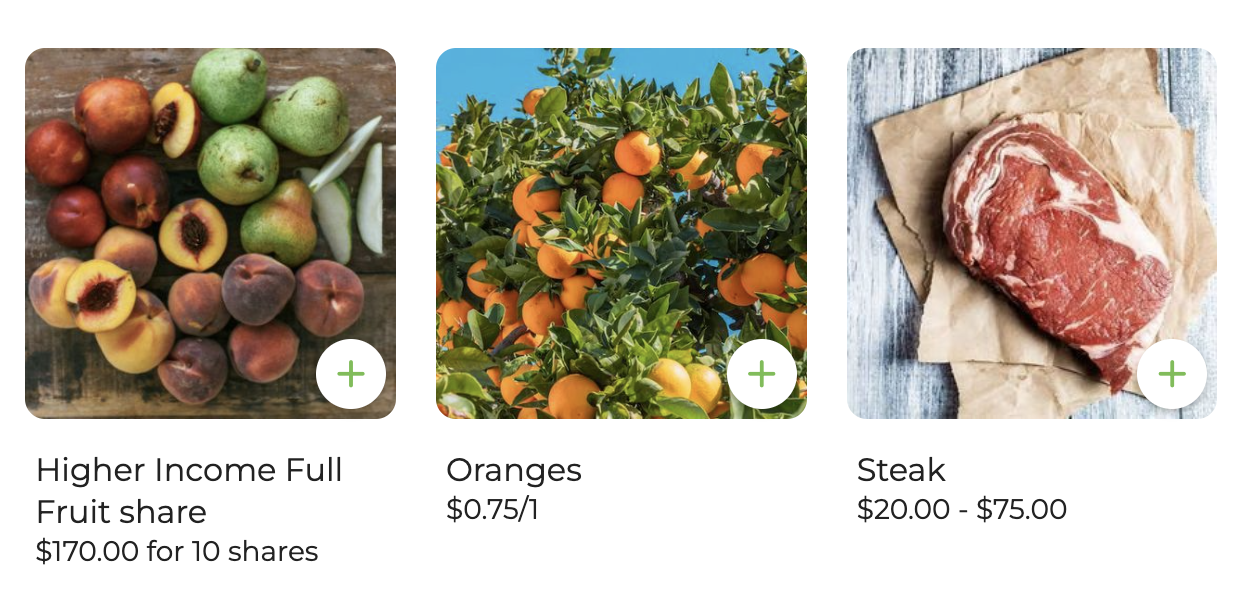
Here's an example of how these steaks and a few other items look in the shop:
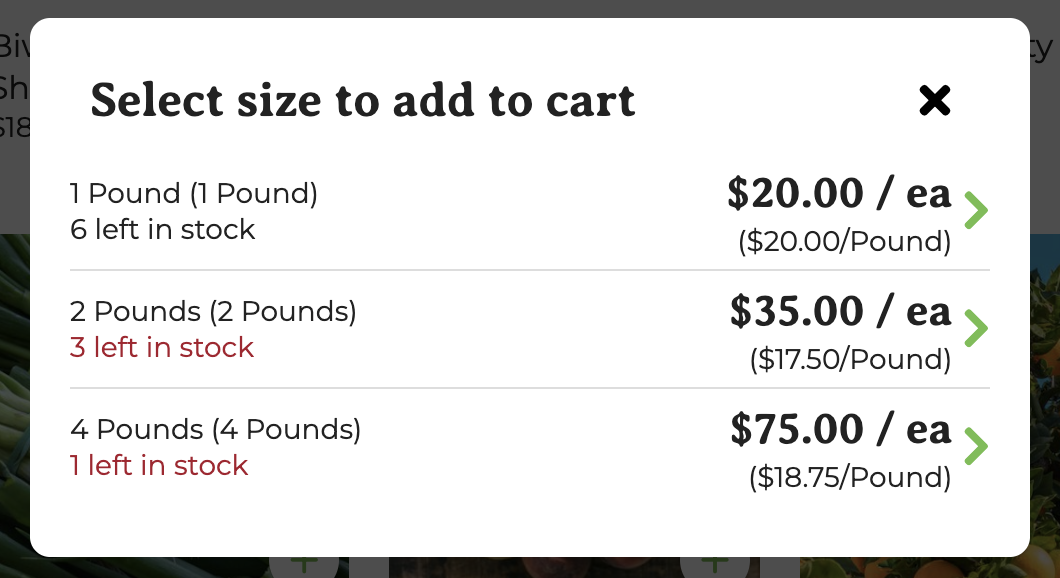
When a customer selects a product with more than one buying option, they'll be able to select the size they'd like:
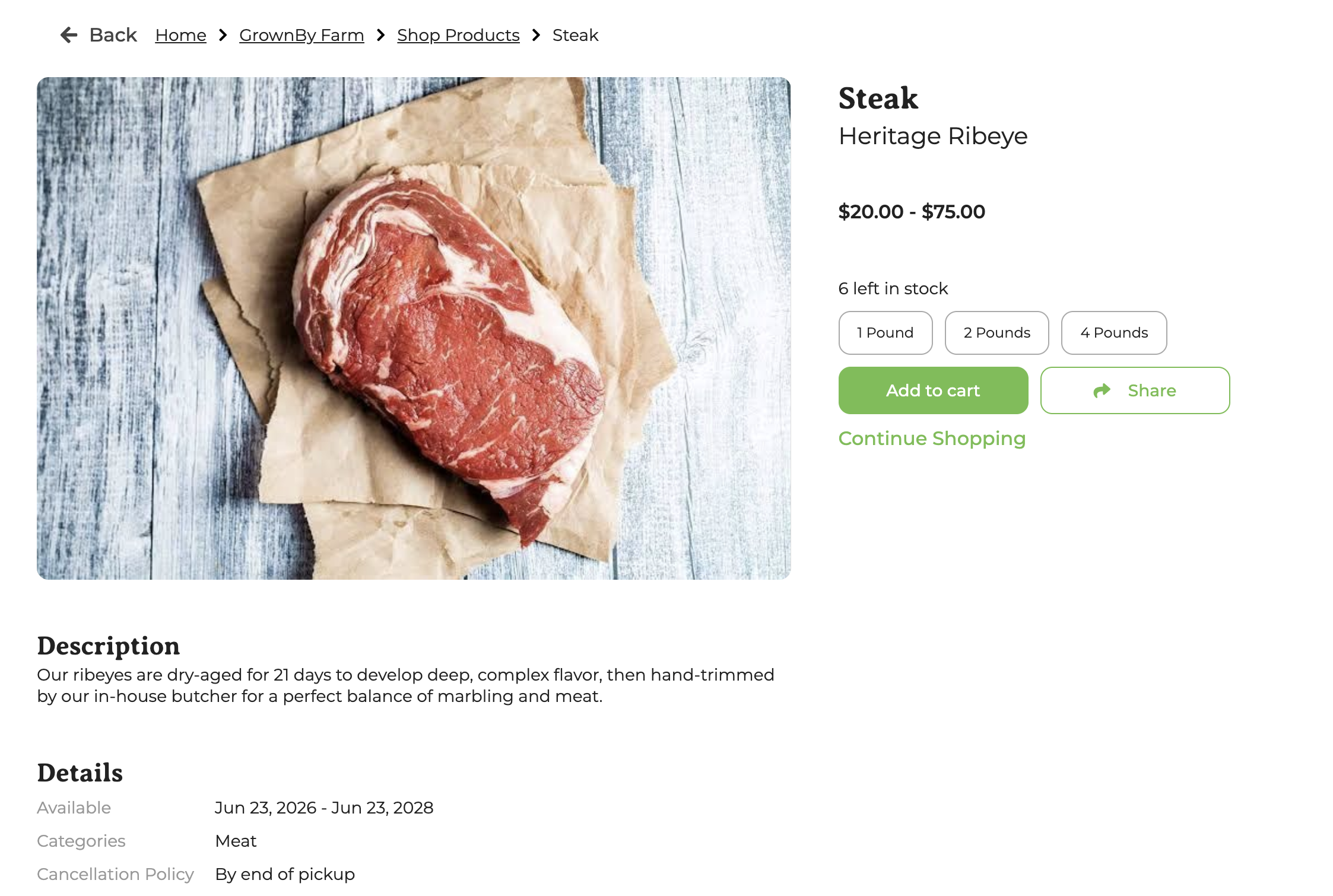
Please note, the customer will see the short and long descriptions only if they click into the Product's page, like this:
Marketplace Order Editing Feature
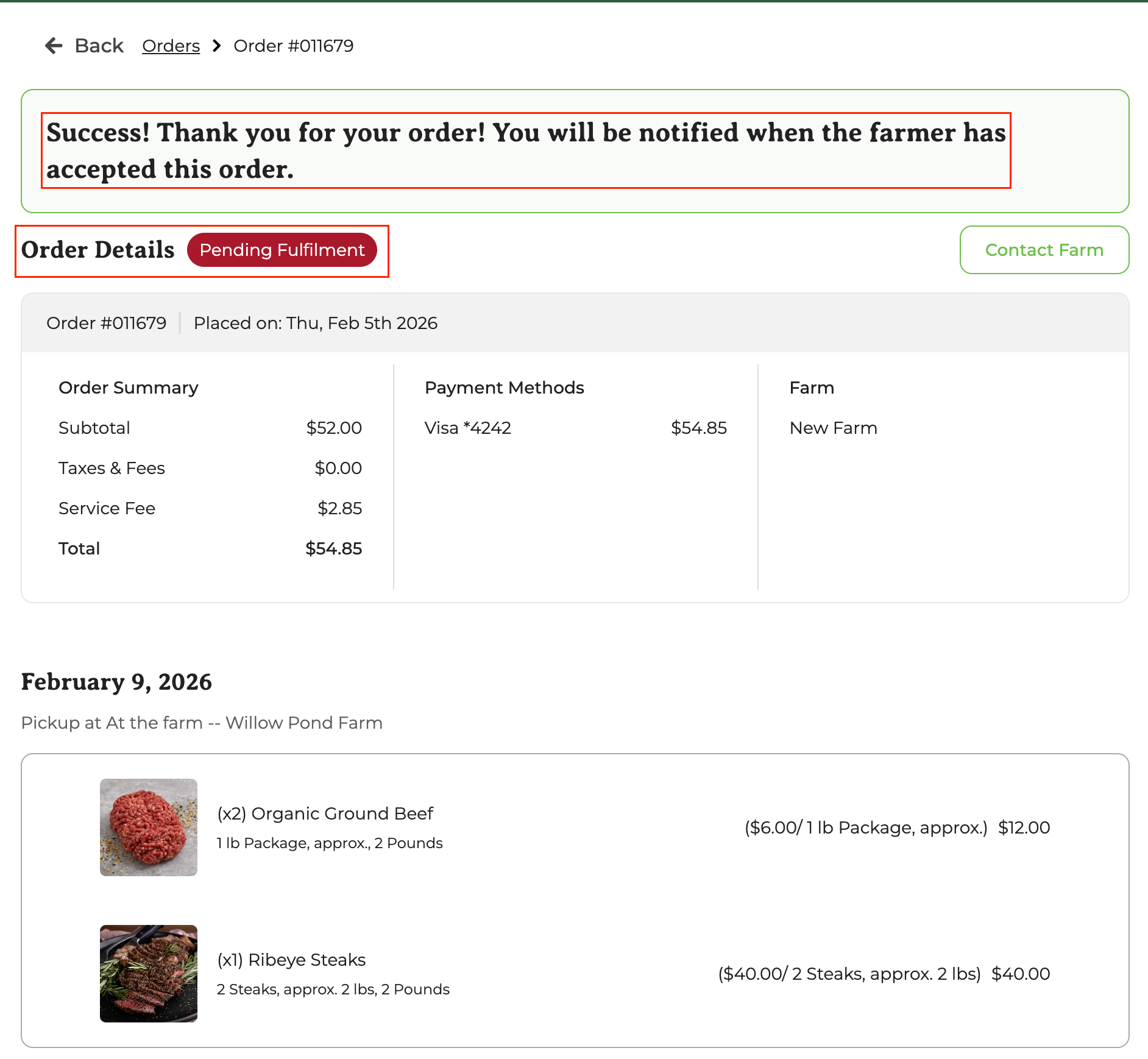
When you have order editing enabled, once a customer places an order, they will receive an email notification and see this screen, letting them know that their order will be reviewed and finalized by the farm. At this stage, the customer's invoice has not been created and their payment method has not been charged:
Editing and finalizing an order
After an order has been placed, you (the farmer) will receive a notification letting you know to review the order. Click on the link in the email or log in to GrownBy to proceed with reviewing, editing, and finalizing your pending orders.
Go to your GrownBy Dashboard → Orders. Here, you can see all orders listed. Orders that say "Finalize" in the Status column are those that you haven't dealt with yet:
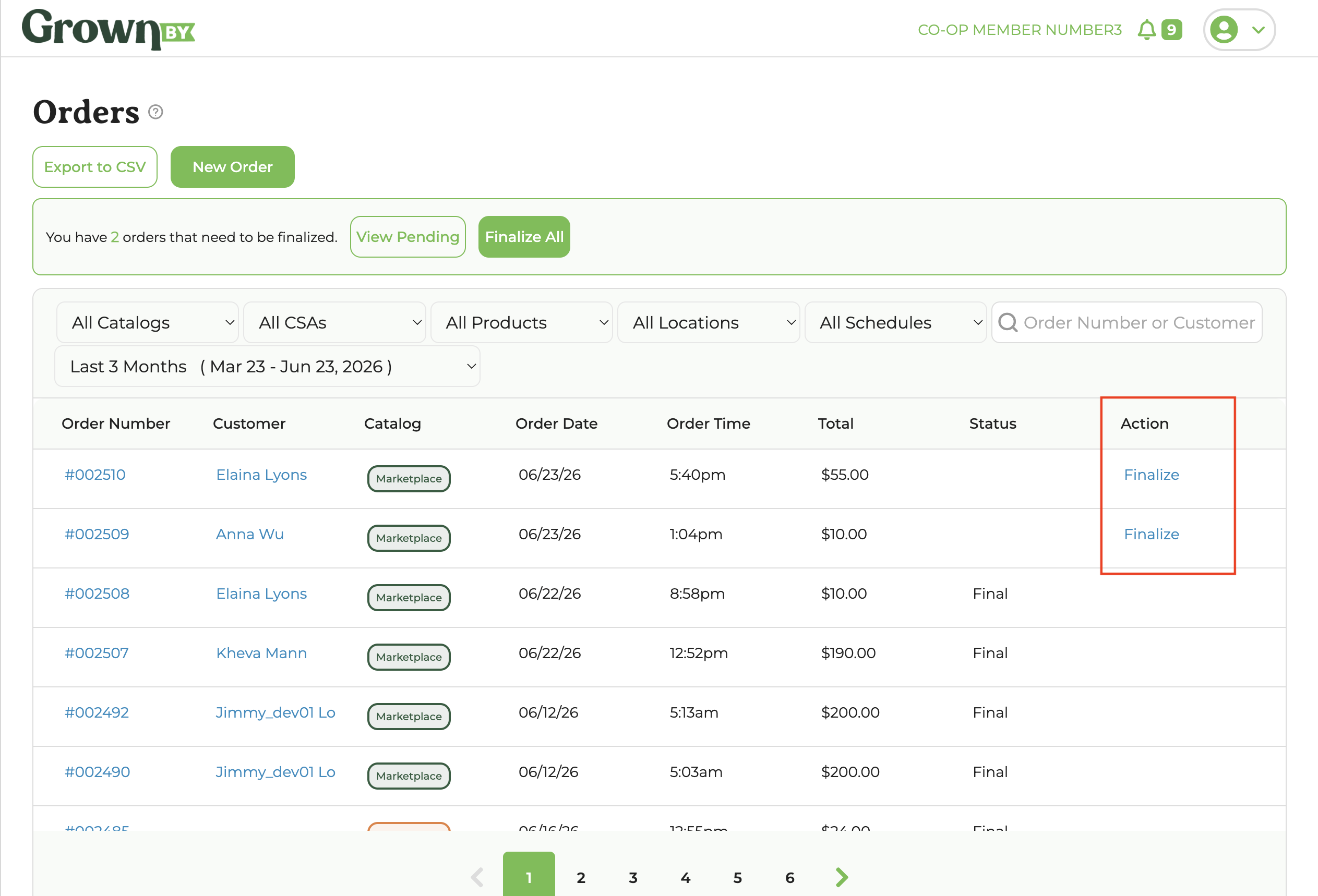
Click on the Order Number of the Action to view the Order Detail Screen. From here, you can Decline Order, Edit Order, or Finalize Order:
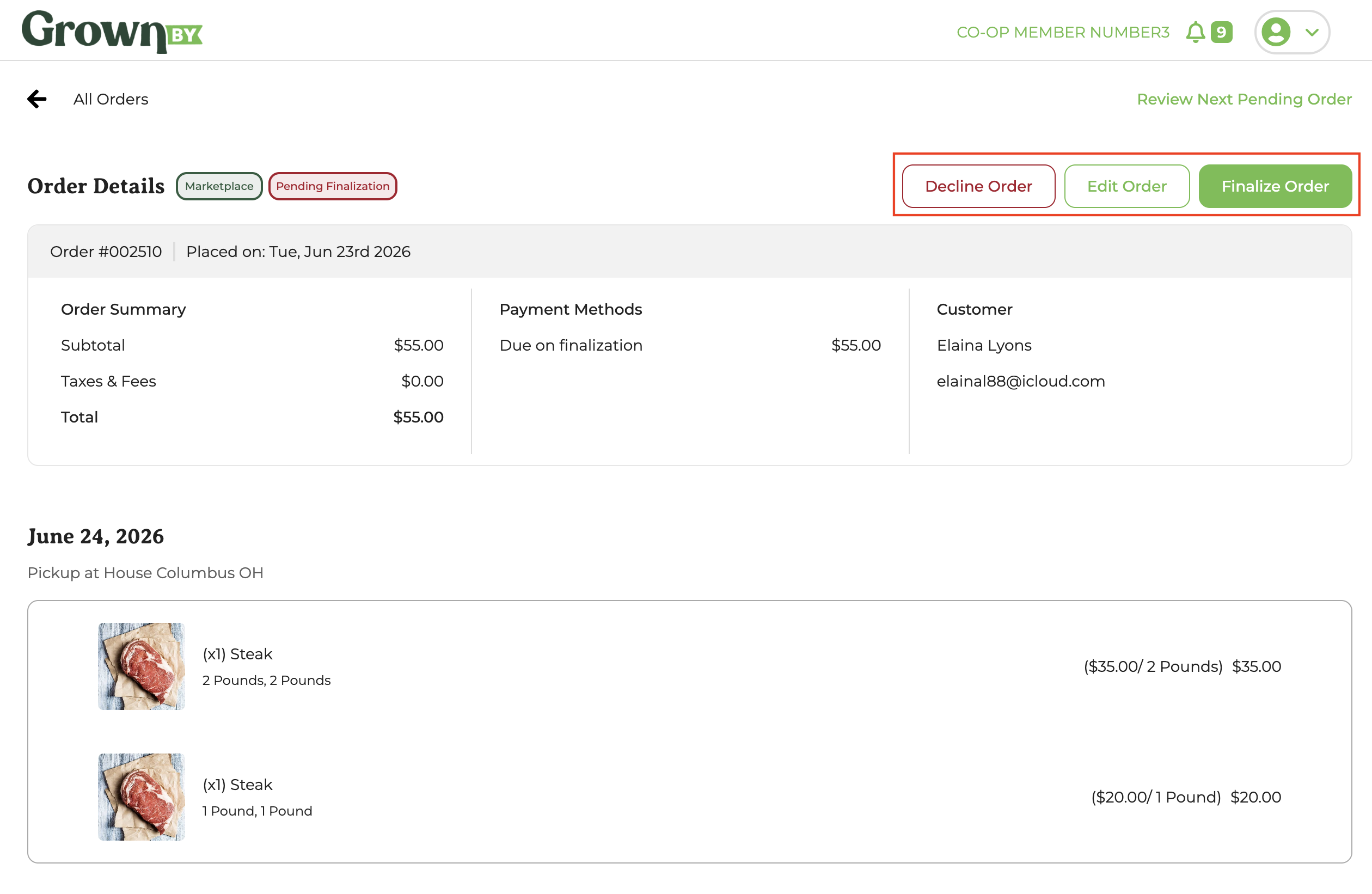
Click Edit Order to arrive at this screen:
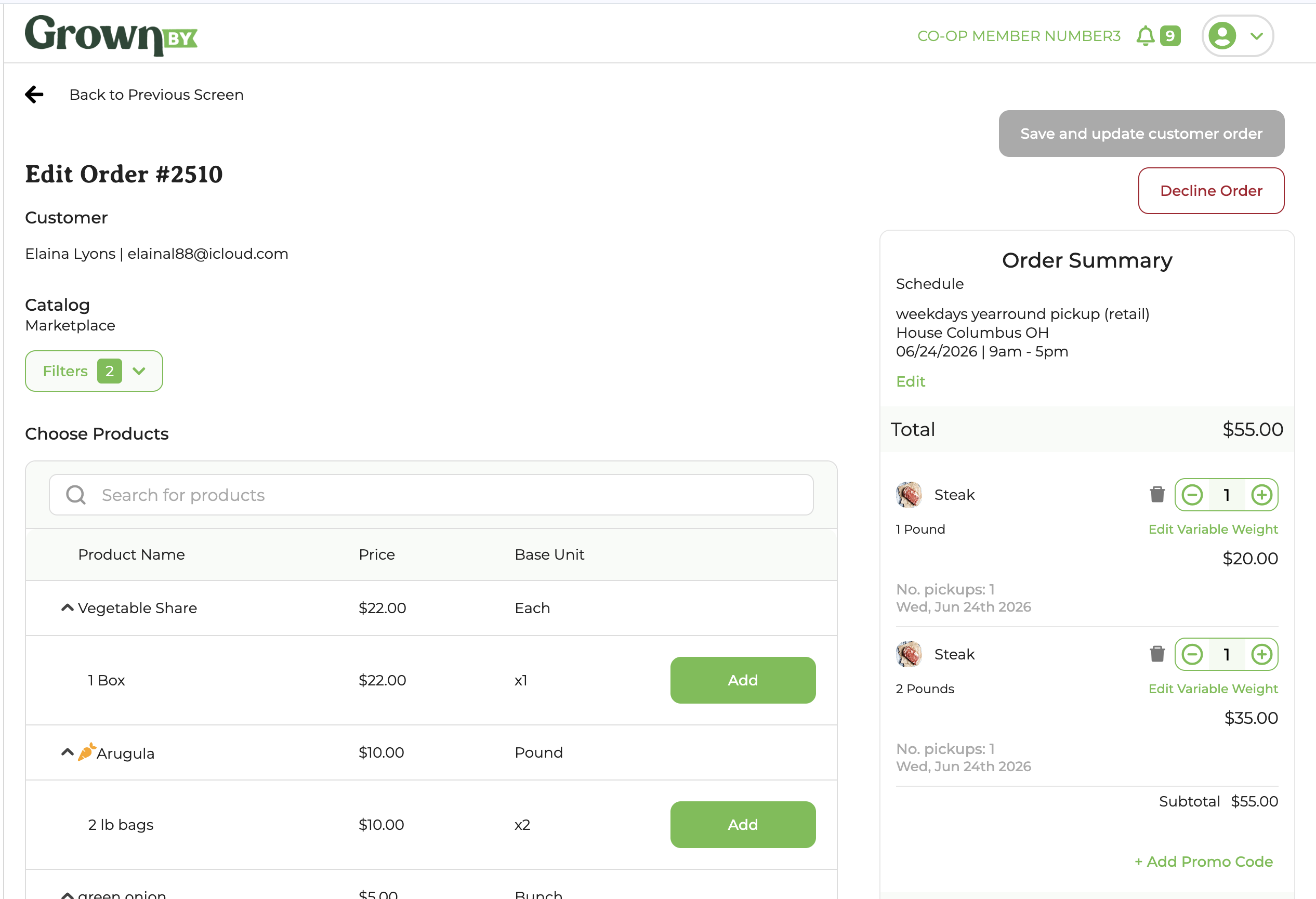
Editing Meat Orders on GrownBy
If you have items with variable weight, you may click Edit Variable Weight. In the pop-up, enter the adjusted amount in the Total Units field. Note that quantity adjustments are limited to within 1 unit of the original ordered quantity.
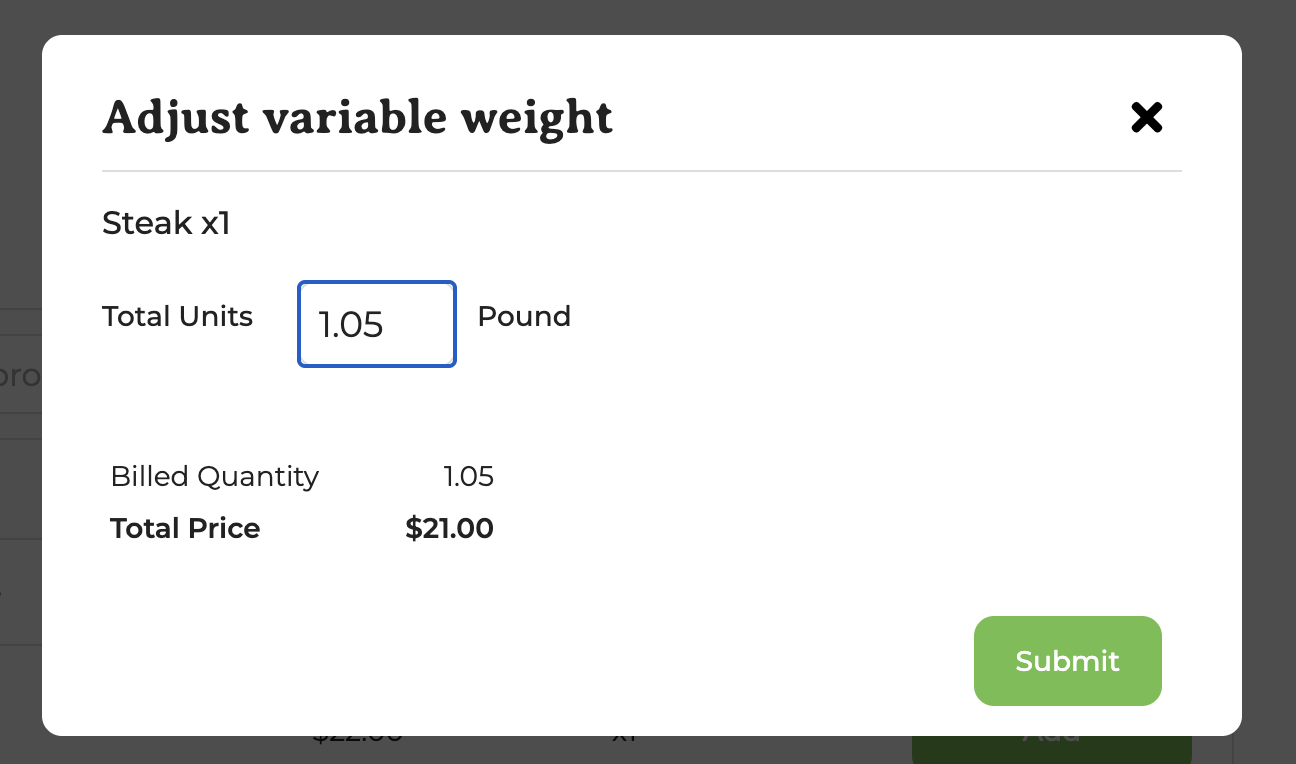
Adjusting the variable weight will adjust the order. Click Submit once you're done making adjustments!
Once you've made all necessary edits to your products, click Save and update customer order. Next, you'll see the order details and be able to add an optional message to your customer:
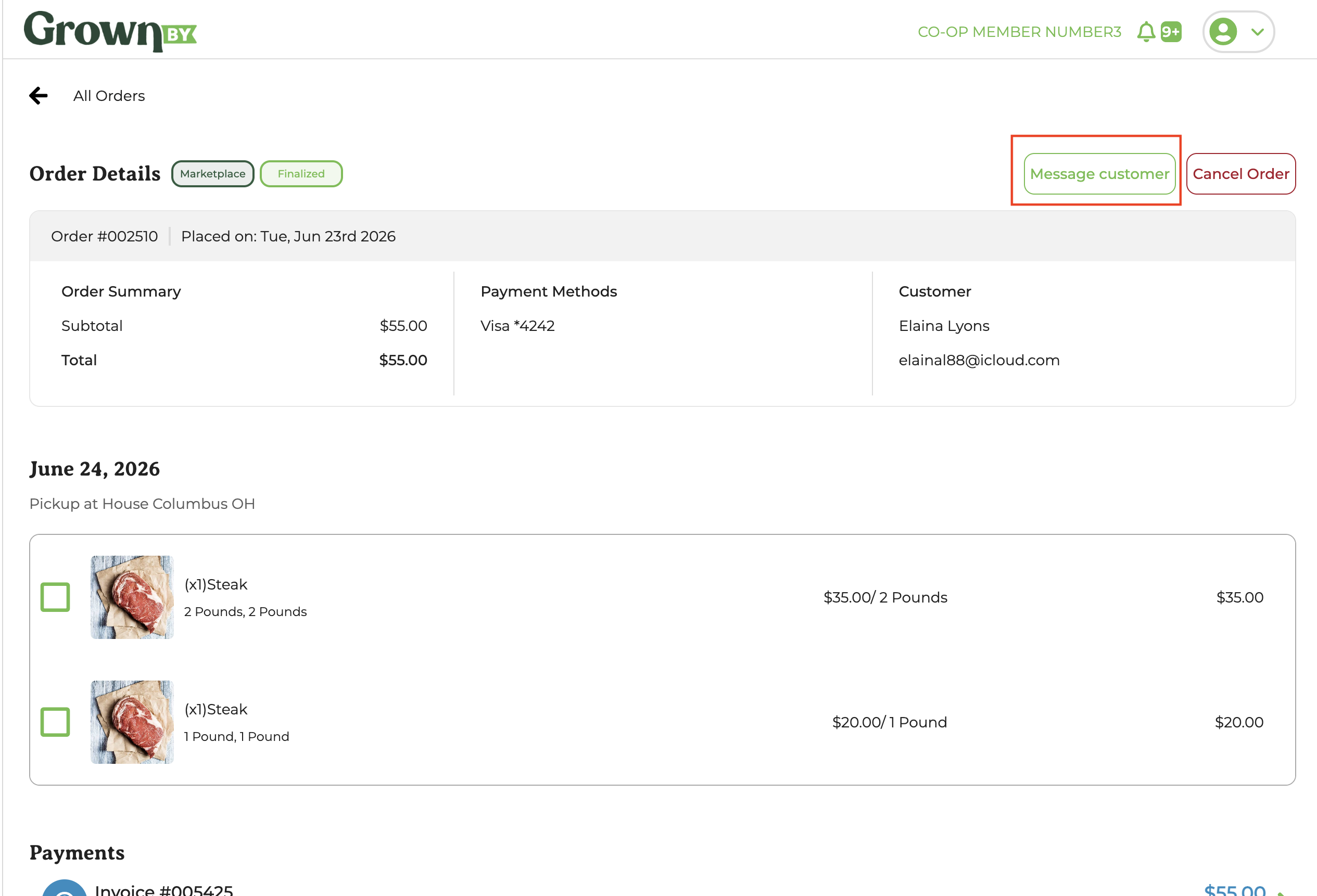
Click on message customer to send the customer a message:
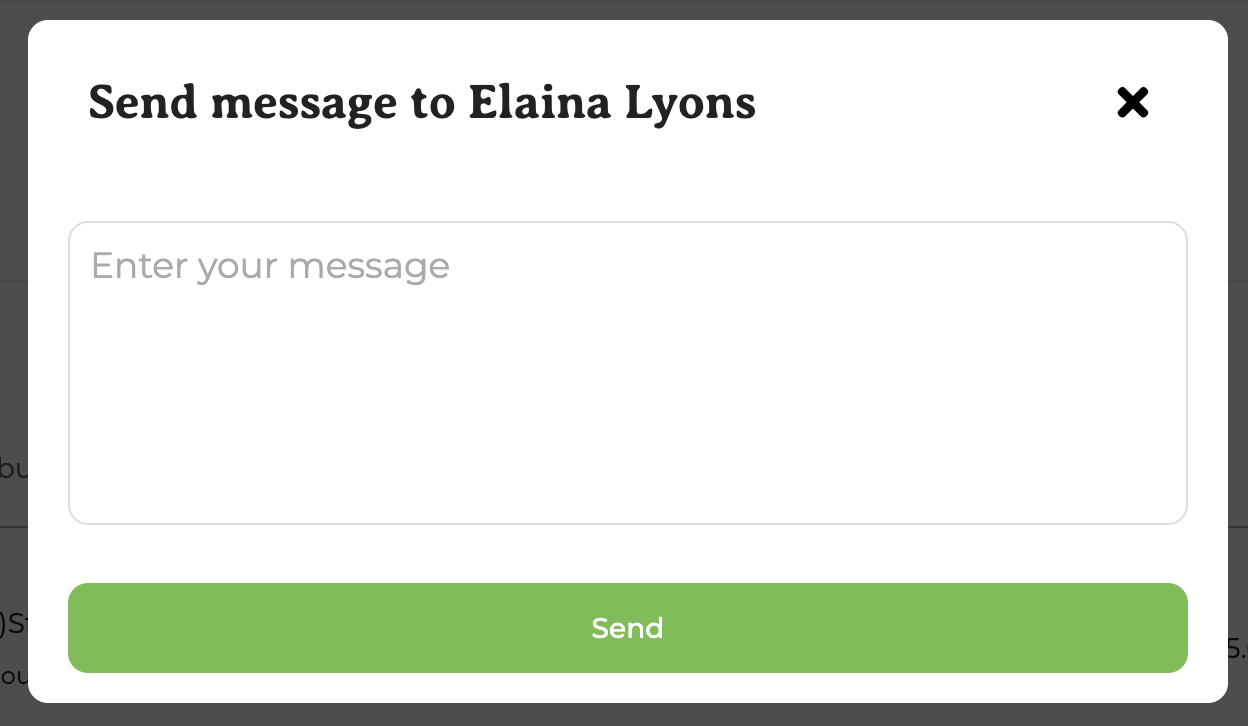
On the next screen, you can choose whether to leave the order as is (remember that it will auto-finalize 15 minutes prior to the distribution's end and the invoice will be generated/charged) or you can finalize manually (the invoice will be generated/charged immediately).